
VidCoder 12.23 can make repeat video compression on Windows considerably less tedious, but the reported reduction from a 6.46GB 1080p file to 2.29GB is evidence of a chosen encoding profile—not a compression breakthrough unique to VidCoder. The app uses HandBrake as its encoding engine, which means the practical advantage is its workflow: save the decisions once, then apply them to later files through reusable presets and Pickers.
That distinction is the most important part of MakeUseOf’s report. The publication’s test saved 4.17GB, reducing the source file by about 64.6%, after roughly two and a half hours of encoding. It also observed slight softening in fine detail during fast movement. Those are plausible results for a software H.264 encode, but the report does not disclose the source video’s original codec, bitrate, frame rate, audio tracks, encoder settings, processor, or whether hardware acceleration was enabled. Without those details, readers cannot treat “6GB to 2GB” as a reproducible VidCoder benchmark—or assume their phone footage will shrink by the same amount.
What is independently clear from VidCoder’s own documentation and HandBrake’s feature set is that VidCoder is a different front end to much of the same encoding machinery, not an alternative that evades the usual quality, time, and compatibility trade-offs.
VidCoder is an open-source Windows DVD, Blu-ray, and video transcoder maintained by RandomEngy. Its current stable release is version 12.23, published July 19, 2026, and the developer says it supports 64-bit Windows 10 and Windows 11. It packages the HandBrake engine internally, so installing HandBrake separately is unnecessary.
The headline feature for repeat jobs is not the H.264 encoder. HandBrake already has H.264, H.265, AV1, queues, presets, previewing, filters, and hardware-encoding options. VidCoder adds a more explicit separation between the encode preset—video codec, quality target, audio configuration, container, and related technical choices—and the Picker.
A Picker can apply recurring operational rules: which audio and subtitle tracks to select, where finished files go, how they are named, and which title is chosen from a scanned source. VidCoder also supports folder watching, which can automatically add matching video files to its queue. For a Windows user cleaning up years of phone recordings or ingesting regular camera exports, this is the part that removes repeated setup work.
That is a meaningful improvement over reopening a transcoder and reconsidering every tab for every file. It is also why VidCoder may suit users who already understand enough to make a sensible profile but do not want to repeatedly manage those decisions. The compression algorithm still has to make the same trade-offs, and VidCoder’s own documentation directs users to test an encoded preview clip rather than trust a preset blindly.
The original 6.46GB source could have been a high-bitrate H.264 file, H.265/HEVC footage, a variable-frame-rate smartphone recording, or an edit exported at a much higher bitrate than the video needed. Audio tracks can also matter more than expected, particularly if the source holds lossless or multichannel audio. An hour-long 1080p file contains too little information by itself to judge whether a 2.29GB output is aggressive, conservative, or largely the result of removing excess source bitrate.
The MakeUseOf account is a real-world outcome, but it is a single-file anecdote rather than a codec comparison. The stated softness during motion is the expected cost of discarding information. A smaller result is not proof that an encoder “found” unused space; in lossy transcoding, it usually means the encoder has accepted less detail, especially in the hard-to-compress parts of a recording.
VidCoder recommends Constant Quality when a precise output size is not required. In that mode, the encoder changes the bitrate scene by scene to meet a chosen visual-quality target. Static shots and simple backgrounds consume less data; rapid motion, texture, foliage, water, grain, and low-light noise need more. That usually produces more rational results than assigning every second of every video the same average bitrate.
It also means file size is inherently unpredictable. Two one-hour 1080p phone videos can produce radically different results at the same Constant Quality setting. A handheld night concert, for example, can remain much larger than a well-lit static interview because sensor noise and movement are expensive to encode cleanly.
That compatibility comes with a cost. H.265/HEVC and AV1 can produce smaller files at comparable visual quality in many cases, particularly at lower bitrates and higher resolutions. But they can be significantly slower in software, and playback support is less universal—especially for AV1 on older hardware and for HEVC where platform support, extensions, or device capabilities vary.
Hardware encoding changes the time equation but can change the quality and file-size equation as well. VidCoder supports AMD VCE, Nvidia NVENC, and Intel Quick Sync Video, while the underlying HandBrake documentation warns that hardware encoders are optimized for speed rather than maximum compression efficiency. On a capable Nvidia, AMD, or Intel system, a job that takes hours with x264 or x265 software encoding may finish far faster with a hardware encoder. At equivalent quality targets, however, hardware output can be larger or show more artifacts than a slower software encode.
For most archival or storage-reduction work, the sensible first move is still a software H.264 Constant Quality preset with a short preview clip. Users who need the smallest practical output should compare H.264 against H.265 or AV1 on representative clips, not commit an entire library based on a one-file result. Users who need files quickly should consider a hardware preset, while accepting that the speed gain may not produce the most efficient final file.
That is the correct place to look for damage. Watch fast pans, faces, dark scenes, foliage, text overlays, and any area with fine patterns. Compression artifacts can hide in a still frame yet become obvious during playback as smearing, blockiness, banding, or detail that seems to dissolve in motion.
A preview also catches accidental resizing and cropping before the user wastes several hours encoding a whole file. VidCoder and HandBrake expose enough settings to make it possible to change frame rate, apply filters, or alter dimensions without intending to. A saved preset is useful precisely because it limits those surprises after it has been tested.
There is one operational trap with presets: a profile built for a 30fps phone clip may not be appropriate for a 60fps action-camera recording, interlaced home-video capture, HDR footage, or a source with multiple language tracks. Reuse should mean “start from a known-good configuration,” not “apply one configuration without checking the input.”
But the publication also correctly notes that metadata preservation depends on the input, selected fields, codec, and container. MP4 and MKV do not carry every kind of metadata in the same way, and applications do not always interpret equivalent dates consistently. A compressed replacement should be checked in the destination application—not simply in File Explorer—before the source is removed.
VidCoder’s default behavior of writing a separate output file is the safer one. It leaves the original intact while the user validates duration, audio tracks, subtitles, resolution, playback behavior, timestamps, and visible quality. That may use extra disk space temporarily, but it prevents a reversible storage project from becoming an irreversible quality-loss event.
The report’s central takeaway holds up with a correction: VidCoder does not make video compression automatic or consequence-free. It makes the routine parts repeatable—preset selection, track rules, output naming, destination folders, queueing, and previews—while leaving the decisions that determine quality and size visible when they actually need attention.
For a large video library, that is the difference between using a transcoder once and establishing a workflow that can process the next hundred files without rediscovering every setting.
What is independently clear from VidCoder’s own documentation and HandBrake’s feature set is that VidCoder is a different front end to much of the same encoding machinery, not an alternative that evades the usual quality, time, and compatibility trade-offs.
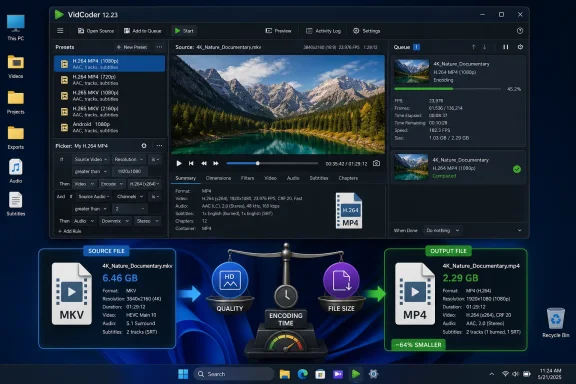 VidCoder’s real advantage is remembering the surrounding decisions
VidCoder is an open-source Windows DVD, Blu-ray, and video transcoder maintained by RandomEngy. Its current stable release is version 12.23, published July 19, 2026, and the developer says it supports 64-bit Windows 10 and Windows 11. It packages the HandBrake engine internally, so installing HandBrake separately is unnecessary.The headline feature for repeat jobs is not the H.264 encoder. HandBrake already has H.264, H.265, AV1, queues, presets, previewing, filters, and hardware-encoding options. VidCoder adds a more explicit separation between the encode preset—video codec, quality target, audio configuration, container, and related technical choices—and the Picker.
A Picker can apply recurring operational rules: which audio and subtitle tracks to select, where finished files go, how they are named, and which title is chosen from a scanned source. VidCoder also supports folder watching, which can automatically add matching video files to its queue. For a Windows user cleaning up years of phone recordings or ingesting regular camera exports, this is the part that removes repeated setup work.
That is a meaningful improvement over reopening a transcoder and reconsidering every tab for every file. It is also why VidCoder may suit users who already understand enough to make a sensible profile but do not want to repeatedly manage those decisions. The compression algorithm still has to make the same trade-offs, and VidCoder’s own documentation directs users to test an encoded preview clip rather than trust a preset blindly.
The 6.46GB-to-2.29GB result leaves out the settings that determine it
MakeUseOf says it chose H.264 in an MP4 container and adjusted VidCoder’s Constant Quality control before saving a custom preset. That gives a broad outline, but several variables are omitted that materially affect both the output size and the two-and-a-half-hour encode time.The original 6.46GB source could have been a high-bitrate H.264 file, H.265/HEVC footage, a variable-frame-rate smartphone recording, or an edit exported at a much higher bitrate than the video needed. Audio tracks can also matter more than expected, particularly if the source holds lossless or multichannel audio. An hour-long 1080p file contains too little information by itself to judge whether a 2.29GB output is aggressive, conservative, or largely the result of removing excess source bitrate.
The MakeUseOf account is a real-world outcome, but it is a single-file anecdote rather than a codec comparison. The stated softness during motion is the expected cost of discarding information. A smaller result is not proof that an encoder “found” unused space; in lossy transcoding, it usually means the encoder has accepted less detail, especially in the hard-to-compress parts of a recording.
VidCoder recommends Constant Quality when a precise output size is not required. In that mode, the encoder changes the bitrate scene by scene to meet a chosen visual-quality target. Static shots and simple backgrounds consume less data; rapid motion, texture, foliage, water, grain, and low-light noise need more. That usually produces more rational results than assigning every second of every video the same average bitrate.
It also means file size is inherently unpredictable. Two one-hour 1080p phone videos can produce radically different results at the same Constant Quality setting. A handheld night concert, for example, can remain much larger than a well-lit static interview because sensor noise and movement are expensive to encode cleanly.
H.264 is the compatibility choice, not the smallest-file choice
The reported test used H.264, which remains the safe default for material intended to play broadly across Windows PCs, older smart TVs, browsers, media players, and mobile devices. HandBrake’s documentation describes its software H.264 encoder as a strong balance of quality, speed, file size, and compatibility.That compatibility comes with a cost. H.265/HEVC and AV1 can produce smaller files at comparable visual quality in many cases, particularly at lower bitrates and higher resolutions. But they can be significantly slower in software, and playback support is less universal—especially for AV1 on older hardware and for HEVC where platform support, extensions, or device capabilities vary.
Hardware encoding changes the time equation but can change the quality and file-size equation as well. VidCoder supports AMD VCE, Nvidia NVENC, and Intel Quick Sync Video, while the underlying HandBrake documentation warns that hardware encoders are optimized for speed rather than maximum compression efficiency. On a capable Nvidia, AMD, or Intel system, a job that takes hours with x264 or x265 software encoding may finish far faster with a hardware encoder. At equivalent quality targets, however, hardware output can be larger or show more artifacts than a slower software encode.
For most archival or storage-reduction work, the sensible first move is still a software H.264 Constant Quality preset with a short preview clip. Users who need the smallest practical output should compare H.264 against H.265 or AV1 on representative clips, not commit an entire library based on a one-file result. Users who need files quickly should consider a hardware preset, while accepting that the speed gain may not produce the most efficient final file.
The preview clip is more valuable than the full encode
VidCoder includes source previewing and a separate encoded-preview function. The latter is the feature that matters: it produces a short sample using the actual codec, quality setting, crop, resize, audio, and filter decisions selected for the final job.That is the correct place to look for damage. Watch fast pans, faces, dark scenes, foliage, text overlays, and any area with fine patterns. Compression artifacts can hide in a still frame yet become obvious during playback as smearing, blockiness, banding, or detail that seems to dissolve in motion.
A preview also catches accidental resizing and cropping before the user wastes several hours encoding a whole file. VidCoder and HandBrake expose enough settings to make it possible to change frame rate, apply filters, or alter dimensions without intending to. A saved preset is useful precisely because it limits those surprises after it has been tested.
There is one operational trap with presets: a profile built for a 30fps phone clip may not be appropriate for a 60fps action-camera recording, interlaced home-video capture, HDR footage, or a source with multiple language tracks. Reuse should mean “start from a known-good configuration,” not “apply one configuration without checking the input.”
File dates and metadata need verification before originals are deleted
MakeUseOf reports that it enabled both Windows file-timestamp preservation and media metadata pass-through, and that its output retained the source modified date and original creation tag. That can be useful for users whose Photos, Media Player, Plex, or other cataloging software sorts material by recording date rather than folder name.But the publication also correctly notes that metadata preservation depends on the input, selected fields, codec, and container. MP4 and MKV do not carry every kind of metadata in the same way, and applications do not always interpret equivalent dates consistently. A compressed replacement should be checked in the destination application—not simply in File Explorer—before the source is removed.
VidCoder’s default behavior of writing a separate output file is the safer one. It leaves the original intact while the user validates duration, audio tracks, subtitles, resolution, playback behavior, timestamps, and visible quality. That may use extra disk space temporarily, but it prevents a reversible storage project from becoming an irreversible quality-loss event.
The best use case is a repeatable Windows workflow
VidCoder 12.23 is worth a look for Windows users who want the HandBrake engine without repeatedly rebuilding its surrounding job setup. Its installer places the app under the current user’s local application-data location and updates in the background by default; the portable edition runs as a single executable without installation. The ZIP distribution is the option for users who want exact placement and no automatic updates, but it requires the .NET 10 Desktop Runtime.The report’s central takeaway holds up with a correction: VidCoder does not make video compression automatic or consequence-free. It makes the routine parts repeatable—preset selection, track rules, output naming, destination folders, queueing, and previews—while leaving the decisions that determine quality and size visible when they actually need attention.
For a large video library, that is the difference between using a transcoder once and establishing a workflow that can process the next hundred files without rediscovering every setting.
References
- Primary source: MakeUseOf
Published: 2026-08-02T19:00:12+00:00
Loading…
www.makeuseof.com - Related coverage: free-codecs.com
Loading…
www.free-codecs.com - Related coverage: free-codecs.com
Loading…
www.free-codecs.com - Related coverage: handbrake.fr
Loading…
handbrake.fr - Related coverage: handbrake.fr
Loading…
handbrake.fr