
 Background / Overview
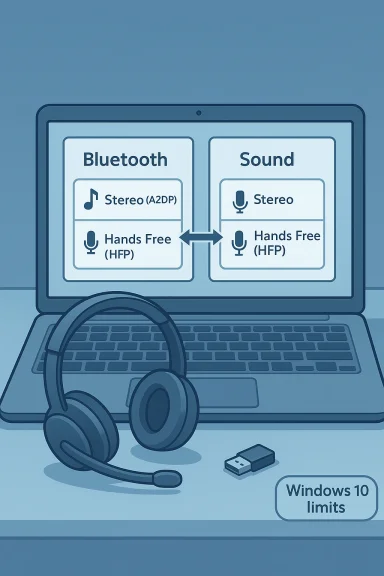
Bluetooth audio on Windows 10 is governed by two legacy profiles that directly shape user experience: A2DP (Advanced Audio Distribution Profile) for high‑quality stereo playback, and HFP/HSP (Hands‑Free / Headset Profile) for two‑way voice and microphone support. When a Windows 10 PC activates a headset microphone, it commonly switches the active endpoint from A2DP to HFP/HSP, producing the familiar “muffled” or mono sound during calls. This is not a headphone defect so much as how Windows 10’s audio stack and Bluetooth profiles have historically behaved.
A second reality: newer Bluetooth advances — LE Audio (LC3), “super‑wideband stereo,” and better simultaneous stereo+mic operation — are primarily available through Windows 11 and require end‑to‑end hardware and driver support. On Windows 10, these improvements are generally unavailable unless a vendor supplies specific drivers and firmware that bridge the gap. Treat any claims about LE Audio benefits on Windows 10 with caution.
Why this matters to buyers
- If you value music fidelity above all, A2DP stereo is the priority — and you should plan to avoid using the headset mic for critical calls.
- If you need reliable conference‑call audio every day, a headset designed for unified communications (UC) or one that includes a USB adapter typically gives the best experience on Windows 10.
- For mixed use — music and occasional calls — choose a model with a wired fallback, a strong onboard mic array, or expect to pair the headset with a separate USB microphone for meetings.
The technical trade‑off explained (short)
- A2DP = high‑quality stereo, no reliable mic.
- HFP/HSP = two‑way audio + mic, but low sample rate and often mono/muffled audio.
- Windows 10 creates separate sound endpoints for these profiles; switching to mic mode commonly forces the lower‑quality HFP endpoint.
Best picks for Windows 10 users (practical — stereo + hands‑free)
These recommendations favor devices that give the most usable real‑world experience on Windows 10, with notes on how to avoid the stereo vs mic compromise.
1) Bose QuietComfort 45 (QC45) — Best all‑rounder for media users who want comfort
- Strengths: comfortable fit, strong noise cancellation, long battery life, straightforward pairing.
- Why Windows users like it: reliable A2DP playback and a solid mic for casual calls; pairing and vendor support are predictable.
- Caveat: for mission‑critical conferencing, plan a USB mic or consider a UC bundle.
2) Bose Noise Cancelling Headphones 700 (Bose 700) — Best for call‑heavy users who still want music
- Strengths: advanced multi‑microphone array and clearer voice pickup in noisy rooms.
- Why Windows users like it: among consumer headsets, the 700 often gives the best voice pickup for Teams/Zoom on a PC — and Bose offers UC/USB adapter SKUs for business use.
- Caveat: Windows 10’s profile limitations still apply — a USB adapter or wired fallback is the guaranteed fix for the highest call quality.
3) Bose QuietComfort 35 II (QC35 II) — Proven and comfortable, still relevant on Windows 10
- Strengths: comfortable, reliable Bluetooth behavior, often found at discount prices.
- Caveat: older hardware and firmware mean staying current on vendor updates; wired fallback is important for critical calls.
4) Sony WH‑1000XM series (WH‑1000XM3 / WH‑1000XM4 / WH‑1000XM5) — Strong playback, mobile app support
- Strengths: some of the best ANC and tuning for music; Sony’s mobile app and firmware ecosystem keeps devices current.
- Why Windows users pick them: excellent stereo playback; pairing and troubleshooting flows are well documented.
- Caveat: Sony’s advanced features live on mobile apps; Windows users must use a phone for firmware and EQ changes. Expect the same A2DP vs HFP behavior during calls.
5) Apple AirPods family (AirPods, AirPods Pro, AirPods Max) — If you already live in Apple ecosystem
- Strengths: simple pairing, good overall sound (model dependent).
- Caveat: Apple does not provide a Windows app with feature parity; microphone and codec negotiation depend on your PC’s Bluetooth adapter/drivers. Expect the HFP fallback during calls. Do not buy AirPods expecting full macOS/iOS‑style features on Windows.
Practical note: “Top sellers” lists often reflect popularity or brand momentum rather than the best Windows compatibility. Prioritize models that either include a USB/UC option or have a reliable wired fallback.
How to get the best Windows 10 result — pairing and setup checklist
Follow this routine to maximise stereo playback and maintain usable hands‑free capability when you need it.
- Charge headset to 30%+ and reboot the PC.
- Put the headset into pairing mode (vendor‑specific — usually holding the power/Bluetooth button 5–7s).
- Windows 10: Settings → Devices → Bluetooth & other devices → Add Bluetooth or other device → Bluetooth → click your headset.
- If asked for a PIN, try 0000.
After pairing:
- Open Control Panel → Sound (mmsys.cpl).
- Look for two endpoints: a Stereo (A2DP) endpoint and a Hands‑Free endpoint.
- For music/video, set the Stereo endpoint as the Default Device.
- For calls, set the Hands‑Free endpoint as the communications device only when you need the mic.
Quick diagnostic checklist if something goes wrong:
- Confirm headset is in pairing mode and within 1–2 meters.
- Toggle Bluetooth Off/On in Windows.
- Reboot both devices if pairing times out.
- Re‑pair (remove device → reset headset pairing list → pair again).
Workarounds and advanced fixes (practical, non‑destructive)
- Disable Hands‑Free Telephony temporarily: this forces A2DP stereo for playback but disables the headset mic systemwide. Do this in Control Panel → Devices and Printers → right‑click the headset → Properties → Services → uncheck Hands‑Free Telephony. Use a USB or laptop mic for calls instead. This is the most common pragmatic workaround for music lovers.
- Use a dedicated USB microphone for conferencing: avoids the HFP compromise entirely and preserves stereo music quality.
- Use a vendor USB dongle / UC bundle: models sold as “UC” with a USB Link or adapters often provide better, more consistent call quality on Windows 10.
- Update PC Bluetooth drivers from your laptop/OEM vendor page — not just Windows Update. Modern Intel/Qualcomm/Realtek drivers may expose better codec handling. If your internal radio is old, consider a modern USB Bluetooth dongle that supports aptX/AAC/LE Audio (when/if you move to Windows 11).
Troubleshooting common problems (step‑by‑step)
Symptom: Music muffs or degrades when you join a call
- Confirm Windows switched to the Hands‑Free endpoint. Open Sound control panel and check the current default playback device.
- If you need high quality music and don’t need the headset mic, disable Hands‑Free Telephony in Devices and Printers; use laptop mic if required.
- If you need the mic but want better audio, plug in a USB mic or use a UC adapter for the headset.
Symptom: Device pairs but there’s no sound
- Open Sound settings and explicitly set the Stereo endpoint as output.
- Reboot the app (some apps cache device lists).
- Re‑pair the headset if Windows shows only Hands‑Free.
Symptom: Headset behaves perfectly on phone but poorly on PC
- Likely PC Bluetooth stack/driver problem. Update drivers from OEM or chipset vendor.
- Try a modern USB Bluetooth dongle in a direct motherboard port and re‑pair.
Symptom: Frequent dropouts or stuttering
- Disable “Allow the computer to turn off this device to save power” in Device Manager for the Bluetooth adapter.
- Avoid USB hubs for a Bluetooth dongle; plug into a direct port. Restart Bluetooth services if needed.
Critical analysis: strengths, risks and vendor gaps
Strengths
- Modern consumer headsets from the major brands (Bose, Sony, Apple) deliver excellent playback and ergonomics; their hardware and software ecosystems work well for most mobile users. Bose models are especially strong for comfort and consistent noise cancellation.
- Vendor apps and firmware updates often fix compatibility issues and occasionally improve mic performance; keeping firmware current is a practical win.
Risks and limitations
- The dominant risk for Windows 10 users is the A2DP vs HFP trade‑off: you will lose stereo fidelity when the headset mic is active unless you use vendor USB adapters, a separate microphone, or move to LE Audio on Windows 11 (and only if both headset and PC support it). Vendors frequently understate this constraint in short “top sellers” lists.
- Claims that Bluetooth 5.x equals LE Audio compatibility are misleading. LE Audio (LC3) requires support from headset firmware, the PC’s Bluetooth radio, and the OS stack — it is not guaranteed on Windows 10. Treat such statements as conditional.
- Enterprise or managed devices can block driver or Store updates that fix issues; changing drivers on corporate machines without IT approval can create security or support problems. Coordinate with IT for managed laptops.
What vendors too often omit
- Clear, platform‑specific caveats about Windows 10’s limitations. Many marketing pages show features as if they apply equally to all platforms; in practice, mobile apps unlock features that won’t appear on Windows. Sony and Apple, for instance, expect phone apps to handle firmware/feature configuration — not the PC.
Buying checklist — how to pick the best Windows 10 Bluetooth headset
- Prioritize one of these if you need dependable call quality:
- Headsets sold with a USB/UC adapter (Bose UC bundles, Jabra Evolve series, etc.).
- Or plan to buy a small USB microphone to pair with a music‑first headset.
- If music is primary: pick a model with wired 3.5 mm or USB‑C wired fallback for critical sessions.
- Check your PC’s Bluetooth chipset and drivers:
- If your PC uses an older Broadcom/Realtek/Intel radio, research whether the OEM supplies updated drivers that add better codec support.
- If not, consider a modern USB dongle that supports the codecs you care about.
- Return policy: choose a vendor or retailer with an easy returns window — Bluetooth behavior can vary by PC.
Quick copy‑ready recommendations
- Need best stereo and occasional calls: Bose QC45 plus a cheap USB mic for calls.
- Need frequent conferencing and reliable Windows performance: Bose 700 (UC bundle) or a certified UC headset with USB adapter.
- Want top noise cancellation and excellent playback: Sony WH‑1000XM series — use phone app for firmware/EQ, and use a wired/USB mic for critical calls.
- Already in Apple ecosystem: AirPods Pro/Max work, but expect limited feature parity on Windows and the HFP/A2DP trade‑off.
Final verdict and practical roadmap
Windows 10’s Bluetooth audio model forces choices. If you want the best stereo music and only occasional calls, buy for music and use a separate mic for meetings. If you need reliable everyday conferencing on a Windows 10 laptop, pick a headset with a UC/USB option or a wired/USB microphone path.
Practical first steps when you get a new headset:
- Update headset firmware via vendor app (use phone if the vendor requires it).
- Update your PC’s Bluetooth drivers from the OEM or chipset vendor.
- Pair cleanly, set Stereo endpoint for media, and choose the Hands‑Free endpoint only for communications.
If you follow these steps and accept the platform constraints, you can have a solid Windows 10 experience: excellent stereo playback when you need it, and practical hands‑free calling when you need to speak — with a small, predictable trade‑off that is resolvable by a USB mic or vendor adapter.
Remember: claims about LE Audio, new codec behavior, or magically simultaneous stereo+mic on Windows 10 should be treated as conditional until confirmed for your exact PC model and headset firmware. Test before you commit — and prefer devices with a wired or USB fallback for mission‑critical work.
