
Windows Latest flagged the updated Microsoft support documentation, and the underlying Microsoft Support and Microsoft Learn pages substantiate the default-policy change. They also reveal the practical constraints that matter more than a simple toggle: the feature is local-only, restores the whole Windows system drive rather than selected files, normally retains snapshots for no more than 72 hours, and can discard snapshots early when storage becomes tight.
For administrators, the important news is not simply that another recovery option is arriving. It is that an automated, broad rollback mechanism may become active across eligible managed fleets with Windows 11 26H2 unless policy overrides it. That deserves a storage, backup, BitLocker, and VSS compatibility review before the feature update reaches production.
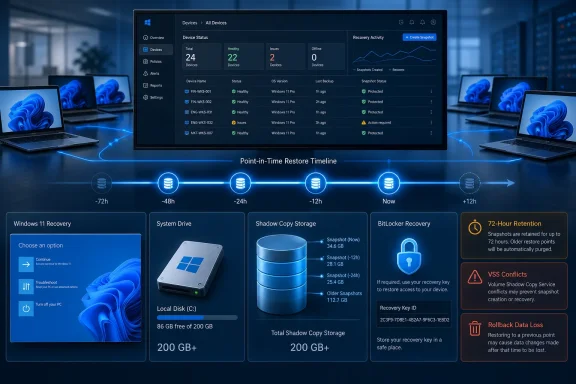 26H2 changes the default for managed devices
Microsoft’s documentation separates Windows PCs into two groups. Point-in-time restore is already enabled by default on Windows Home and on Windows Pro devices that are neither domain-joined nor enrolled in enterprise endpoint management. It remains off by default today for Windows Enterprise and Education editions, as well as Windows Pro devices joined to a domain or managed by an organization.
Starting with Windows 11 26H2, Microsoft says the managed-device group will also default to enabled, assuming it meets the storage requirement. That is a meaningful operational shift: IT departments that have not intentionally deployed the feature may start inheriting it during the next annual Windows feature update.
The qualifier is the system volume. Microsoft says automatic enablement applies only where the Windows OS volume is 200 GB or larger. That is not necessarily the same thing as the computer’s total storage capacity. A PC with a 1 TB secondary data drive but a 128 GB Windows partition does not meet the automatic-enable threshold. Administrators and users can still turn it on manually below 200 GB, but Microsoft is declining to make that choice by default.
Windows Latest’s report is therefore directionally correct, but its broad framing leaves out the distinction that determines who actually sees a policy change in 26H2. For many home users, there will be no new default to notice because it is already enabled on qualifying unmanaged installations.
This is a full local rollback, not a safer System Restore
Point-in-time restore is built on the Volume Shadow Copy Service, or VSS, the Windows snapshot infrastructure long used by System Restore and backup software. Microsoft describes its new recovery feature as a capture of the entire system state: Windows itself, installed apps, settings, local files, passwords, certificates, keys, and other data on the Windows drive.
That is the reason it can be more useful than classic System Restore after a faulty driver, botched update, or configuration failure. Classic System Restore mainly targets system files and settings; it does not promise to bring personal documents back to an earlier version. Point-in-time restore can return the local contents of the system drive to the state of the selected snapshot.
It is also why users should not treat it as a conventional backup. A restore is destructive to later local changes. A document edited after the selected restore point, an application installed that afternoon, newly saved passwords, and configuration changes made since the snapshot are rolled back together. Microsoft explicitly warns that the feature restores everything on the Windows drive to the earlier state.
Cloud-synced OneDrive files are not restored by the process. That sounds reassuring, but it creates a wrinkle users need to understand: cloud data and the local system can land in different chronological states after a rollback. Microsoft’s technical documentation acknowledges that local and cloud versions of OneDrive files can conflict. A point-in-time restore can be an effective break-glass repair tool, but it is poorly suited to recovering one accidentally edited spreadsheet without affecting the rest of a PC.
Windows Central, which reported on the public rollout in June, independently described the same distinction between the full-system recovery feature and legacy System Restore. The practical conclusion is simple: use point-in-time restore to recover a broken PC, not as a replacement for file-versioning, OneDrive retention, or a proper backup plan.
The 72-hour window is intentionally short
Microsoft creates snapshots on an approximately 24-hour schedule by default and keeps them for up to 72 hours. In ideal conditions, that yields only a few days of recovery history. It is designed for fast remediation of a recent failure, not for returning a machine to last month’s known-good state after a long-running issue.
The real retention period can be shorter. Microsoft’s technical guidance says snapshots are removed when they exceed the configured VSS limit, when free disk space reaches 20 GB or less, when Windows reports low-storage conditions, or when VSS cannot preserve the snapshot data. The oldest points go first, but a serious VSS allocation failure can remove all of them.
This makes the Windows 11 26H2 default change more consequential for small-business and education environments that rely on compact SSDs. A device can meet the 200 GB eligibility threshold yet have little genuinely free space after applications, user profiles, developer tools, offline files, virtual machines, or local datasets accumulate. The feature may be enabled and visible in Settings while its history is too shallow to help when an incident occurs.
Microsoft’s consumer documentation sets the default maximum snapshot usage at 2% of the disk. Its management documentation permits organizations to control the maximum through the Recovery configuration service provider, within a range of 2 GB to 50 GB. That ceiling is not pre-reserved; unused capacity remains available to Windows. But VSS can consume free space up to its configured limit, and the storage pool is shared.
VSS conflicts deserve attention before broad deployment
Point-in-time restore does not receive a private storage silo. Microsoft’s documentation states that its VSS allocation is shared with other tools using Volume Shadow Copy, including classic System Restore and third-party rollback or backup products. The maximum usage limit configured for point-in-time restore applies to VSS restore points collectively.
That detail is the strongest reason for managed environments to test before accepting the new 26H2 default. A machine already using VSS-based backup tooling may encounter faster snapshot eviction or competing storage demands. Conversely, enabling the feature can alter the amount of VSS capacity available to an established System Restore workflow.
Microsoft advises against combining point-in-time restore with other VSS backup tools that compete for the same space. That is sensible guidance, but it also means the feature cannot be evaluated solely as a welcome new safety net. On machines with established imaging, endpoint backup, or rollback products, it is another participant in the same local snapshot infrastructure.
The same concern applies to developers and power users. Local VMs, source trees, container images, and build artifacts can make free-space conditions volatile. The new recovery tool may be valuable after an update damages Windows, but its retention behavior should be tested on the workloads that actually consume the endpoint.
What users and administrators should check now
The Settings path is Settings > System > Recovery > Point-in-time restore > View or edit. Microsoft says only local administrators can view or change these settings, so a standard user on a managed PC may see the feature without being able to configure it.
For an eligible unmanaged PC, verify that the feature is on, inspect the existing restore points, and check the disk-usage limit. Do not assume turning the toggle on immediately creates a usable snapshot; Microsoft says the next capture depends on boot timing and the most recent restore point, though a new one is scheduled promptly if no recent point exists.
For managed fleets, the key checks are more specific:
- Confirm whether the device’s Windows volume—not merely total installed storage—is at least 200 GB.
- Review current VSS consumers, including System Restore settings and any backup or rollback software that creates shadow copies.
- Decide whether the default 24-hour capture frequency and 72-hour retention fit the organization’s incident-response needs.
- Ensure help-desk and recovery runbooks include BitLocker recovery-key retrieval, because WinRE may require the key before a restore can start.
- Treat point-in-time restore as a short-term remediation layer alongside, rather than instead of, tested backups and endpoint rebuild procedures.
Restoration itself occurs in the Windows Recovery Environment through Troubleshoot > Point-in-time restore, including when Windows no longer boots normally. Microsoft warns users not to power off the device during the process and notes that a rollback can remove recent security updates. Any recovered PC should therefore be checked for pending updates before it is returned to normal use.
Windows Latest reports that 26H2 could begin reaching general availability in late September or early October 2026, but Microsoft’s documentation confirms the default-policy target without assigning a public rollout date in the material reviewed here. The immediate action is not to wait for that timetable: identify devices where VSS capacity is already contested, decide whether the policy belongs in the organization’s Windows baseline, and make sure a “restore” does not become a surprise data-loss event.