
The selection, published by Windows Central on July 30, is less a “must-install” list than a practical map of where Windows 11’s built-in experiences still leave room for specialists. File management, window layout, clipboard handling, taskbar widgets, whiteboarding, and writing assistance are all areas where Microsoft offers a baseline rather than a universally preferred solution.
 Six replacements, but not six equivalent upgrades
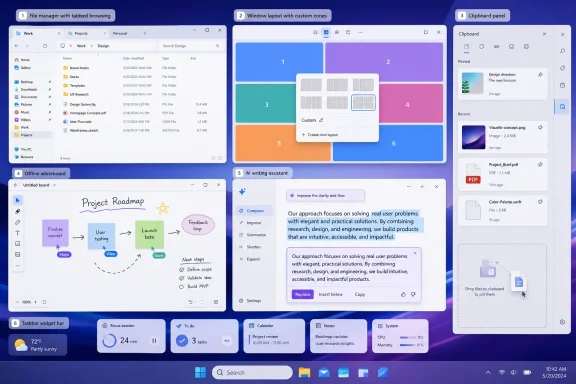
Endicott positions Gemini as a replacement for Microsoft Editor, arguing that Google’s AI tool is better suited to restructuring prose, improving flow, and shifting tone than a conventional spelling-and-grammar checker. That may suit writers working with non-sensitive material, but it is not a drop-in local utility: users and organizations should consider account requirements, cloud processing, and data-handling policy before pasting work documents into any generative AI service.
Markerpad is the more straightforward replacement pitch. The lightweight native whiteboard app is listed at $2.50 and is intended to fill the gap for users who find Microsoft Whiteboard slow or unnecessarily web-centric. Microsoft’s consumer Whiteboard changes have made that category less certain, so a small offline-first alternative has obvious appeal for personal note-taking and quick visual planning.
Edge Drop targets a smaller but familiar Windows friction point. Rather than summoning Windows Clipboard History with Win + V, the utility keeps a drag-and-drop-capable clipboard panel at the screen edge. It can complement the built-in clipboard history rather than replace it, particularly for users moving snippets, images, and files between apps throughout the day.
Files and PowerToys address the desktop’s daily chores
Files, priced at $14.99 in the Microsoft Store, remains the clearest example of a third-party app pushing ahead of its in-box counterpart. The file manager has built its reputation on modern tabs, customization, and faster experimentation with navigation and layouts than Windows 11 File Explorer typically allows.
That does not automatically make it the right enterprise choice. File Explorer is part of the supported Windows experience, while third-party file managers add another update channel and another application to test against shell extensions, mapped drives, cloud sync providers, and security controls. But for enthusiasts and power users, Files is a polished alternative worth evaluating on its own merits.
PowerToys is the exception to the “replace Microsoft” framing because it is itself a Microsoft project. Still, its utility collection often exposes the difference between Windows’ basic implementation and the version power users actually want. FancyZones offers more deliberate window-layout control than Snap Layouts, while PowerToys Run can serve as a fast launcher and search interface for people who do not want to treat the Start menu as their command center.
A Better Widgets Idea Than the Widgets Panel
WidBar is the most visibly Windows 11-specific recommendation. The app places widgets directly in unused taskbar space, avoiding the separate Widgets board that Microsoft has continually reworked but has never made central to many desktop workflows.
According to Windows Central, WidBar remains in beta, so its promise should be weighed against the usual early-release trade-offs: UI changes, bugs, and uncertain long-term maintenance. Still, placing glanceable information where users already look—the taskbar—makes more sense than asking them to open a dedicated panel.
The broader takeaway is not that every Windows 11 installation needs six replacements. It is that the most productive Windows setup may combine the supported defaults with targeted alternatives: PowerToys for window management, Files for advanced browsing, and only the cloud-connected or beta tools that fit an individual workflow and security policy.
