
What makes this selection valuable is not that every tool belongs on every PC. It is that each addresses a sharply defined problem without pretending to be an all-in-one “PC optimizer.” That narrower focus is a strength, but it also means Windows users should be selective: utilities that run constantly, modify Explorer integrations, or remove files need to earn trust through transparent behavior, sensible defaults, and a clear maintenance story.
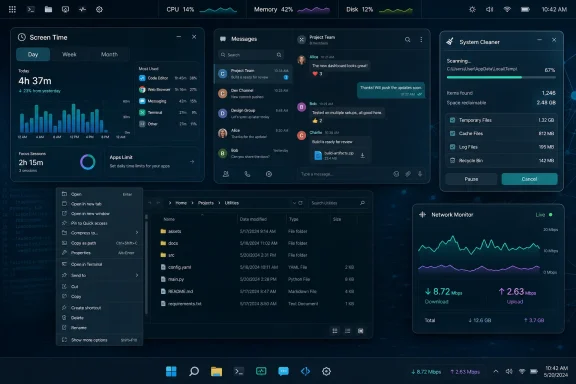 Overview: The Windows utility gap is still real
Windows 11 has improved substantially as a daily operating system, yet it remains conservative about optional workflow features. It does not provide a first-party, local-first per-application time dashboard comparable to mobile screen-time tools; it offers limited at-a-glance system telemetry; and its modern shell still leaves plenty of third-party entries in the right-click menu.
That restraint can be understandable. Microsoft has to serve hundreds of millions of devices and avoid turning the desktop into a crowded dashboard. But it creates an opportunity for open-source Windows apps that let enthusiasts make targeted changes rather than installing one sprawling suite with dozens of unrelated toggles.
The six apps highlighted here fall into three practical categories:
- Personal workflow visibility: Scolect and Franz
- Desktop and taskbar customization: YASB and TrafficMonitor
- Windows maintenance and shell decluttering: FluentCleaner and Windows 11 Context Menu Manager
The key distinction is important. These are not six mandatory Windows 11 downloads. They are six examples of how the open-source ecosystem can fill gaps in a modular way—provided users understand the privacy, stability, and maintenance trade-offs that come with each one.
Scolect: A local-first answer to desktop screen time
Scolect may be the most immediately useful app in the group for anyone trying to understand how a Windows workday actually unfolds. Windows exposes plenty of system statistics, but it does not offer a straightforward built-in dashboard that records how long users spend in individual desktop applications and turns that information into a daily or weekly overview.
Scolect is designed to fill that role. Its dashboard tracks total usage, most-used apps, productivity categories, reports, alerts, limits, and focus-mode features. The project says it begins background tracking automatically and presents total usage, application rankings, productivity scoring, and visual breakdowns in its overview. Scolect
What Scolect actually tracks
The app’s stated model is relatively restrained compared with the worst assumptions people may make about activity trackers. Scolect says it tracks the application currently in the foreground and the time spent there, while not recording keystrokes, screenshots, file names, URLs, window titles, or the contents displayed inside an application. Scolect documentation
That distinction makes the tool far more suitable for personal self-measurement than a surveillance-style monitoring product. It can answer questions such as:
- How much of the day went to a browser, IDE, Office app, chat client, or game?
- Did “quick” communication checks quietly consume an hour?
- Is a particular work application consuming less time than expected?
- Are designated focus periods actually reducing context switching?
Scolect also supports assigning applications to productivity categories, giving users a way to distinguish genuine work activity from distracting but superficially busy activity. That is useful, but it should not be mistaken for an objective productivity score. Time in a coding editor may represent deep work, debugging dead ends, or simply an open window. Time in a browser may mean distraction—or essential research.
Local data is a meaningful advantage
For a utility that builds a behavioral record of how someone uses a PC, local storage is not a minor technical footnote. Scolect says its data is stored locally in an encrypted Hive database, requires no account, and does not transmit usage information to its servers. Scolect
That local-first design sharply reduces the privacy concern that follows many subscription-based productivity trackers. Users should still recognize that local data can be sensitive on a shared PC, especially if it identifies applications associated with work, health, finance, or personal communication. Device encryption, a protected Windows account, and periodic review of the app’s stored history remain sensible precautions.
Scolect also says tracking stops when the application is closed, so anyone expecting continuous records needs to leave it running in the background. Scolect documentation That is a reasonable implementation choice, but it is worth remembering when interpreting gaps in a report.
Why it deserves attention
Scolect’s best quality is its modest ambition. It does not claim to automate discipline or solve burnout. It gives Windows users a compact evidence trail for their own habits, without placing that record behind a mandatory cloud account or subscription.
For people who want awareness rather than workplace monitoring, it is one of the more compelling under-the-radar Windows productivity apps.
Franz: One window for communication, with an important open-source caveat
Franz addresses a different form of desktop fragmentation: the modern workday built around separate messaging and mail services. WhatsApp, Slack, Telegram, Discord, Gmail, Outlook, Teams, and other services can each demand their own desktop app, browser tab, notification system, memory footprint, and place on the taskbar.
The original appeal of Franz is simple: it provides a single workspace for a collection of web-based messaging services. The public Franz 5 repository describes the project as a messaging app for services including WhatsApp, Slack, Telegram, HipChat, and Hangouts, and it is published under the Apache-2.0 license. Franz on GitHub
Consolidation is the feature
A communication aggregator does not magically unify all services into a common protocol. Instead, its practical benefit is spatial and operational: fewer standalone windows, fewer browser tabs, and a predictable place to find a set of communication accounts.
That can improve a Windows desktop workflow in several ways:
- A user can keep personal and professional communication in one application window.
- Notifications can be centralized instead of multiplied across several clients.
- Separate workspaces can reduce Alt+Tab clutter.
- Web-service access can feel more app-like without a pile of independent installed apps.
Franz’s current product site says its free tier is limited to three services and one workspace, while paid plans lift those limits. The listed annual Pro plan is $60, described as a $5-per-month equivalent, while Pro Cloud is listed at $96 annually. Franz pricing
The “open-source” label needs precision
This is the one app in the six that deserves especially careful categorization. The GitHub repository clearly identifies Franz 5 as Apache-2.0 open source. Franz on GitHub However, the current Franz product and pricing pages discuss Franz 6, paid plans, AI features, account-related functionality, and commercial options. Franz pricing
That does not negate Franz’s place in an open-source discussion; its open-source history and publicly available Franz 5 codebase remain meaningful. But users should avoid assuming that every capability, business model decision, or component of the current Franz experience is governed by the same open-source arrangement as the older repository.
It is a useful reminder that “open source” is not always a complete answer. Windows users should ask more specific questions:
- Which version is open source?
- Which license applies to the version being installed?
- Are cloud, AI, analytics, or account features optional?
- Does the app connect directly to services or route data through another provider?
- What happens if a paid plan ends?
Franz says that when a paid subscription stops, the product falls back to its free limits while users retain their account and local data. Franz pricing That is clearer than many subscription products, but the three-service cap may make the free edition too restrictive for the very users who most need an aggregation app.
The Windows-specific value
Franz is best for the user who already has too many communication services open and is willing to trade some platform purity for desktop consolidation. It is less compelling for someone who only uses one or two messaging services, or for users who prefer each service’s native desktop application and its full feature set.
The bigger lesson is that communication aggregation remains a valid Windows productivity category. The desktop can still feel more focused when message services occupy one deliberate workspace rather than sprawling across the taskbar.
YASB: The configurable status bar Windows never shipped
For desktop customization enthusiasts, YASB—Yet Another Status Bar—is arguably the standout application in this list. It brings a configurable status bar to Windows, built around a rich widget system, YAML configuration files, CSS styling, and integrations that go well beyond the standard taskbar’s limited informational surface. YASB documentation
YASB is not trying to replace every part of the Windows shell. Instead, it gives users a dedicated strip for information that might otherwise be hidden inside the notification area, Task Manager, separate monitoring apps, or a tiling window manager.
A serious widget ecosystem
YASB’s documentation lists widgets for active window titles, CPU, memory, GPU, disk, battery, weather, media, microphone state, volume, Wi-Fi, notifications, system tray icons, to-do items, clocks, power controls, and more. YASB documentation
That breadth makes it suitable for several very different kinds of Windows setups:
- A minimalist bar showing only time, battery, volume, and active window title
- A hardware-monitoring strip with CPU, GPU, RAM, disk, and network indicators
- A media-focused desktop with playback controls and visualizers
- A productivity layout with Pomodoro timers, to-do items, calendar-like widgets, and notification counters
- A tiling-window-manager setup with workspace and layout indicators
The project has explicit integrations for GlazeWM and Komorebi, two tools used by Windows power users who prefer tiling window management. The first-run wizard can configure those integrations or let users select no window manager and run YASB as a traditional Windows status bar. YASB installation guide
Customization without the historical setup pain
Desktop bars have traditionally carried a reputation for requiring manual scripts, obscure dependencies, font wrangling, and hours of trial and error. YASB still rewards people willing to customize configuration and CSS, but its current setup process appears significantly friendlier.
The documentation says the initial wizard can help install needed fonts, select window-manager integration, choose widgets, decide whether the bar is floating or full-width, and place it at the top or bottom of the display. It then generates config.yaml and styles.css files. YASB installation guide
YASB supports Windows 10 and Windows 11, though Windows 10 users may need to install the Segoe Fluent Icons font manually for the default theme. YASB installation guide The project can also be installed through an MSI package, Winget, or Scoop, according to its GitHub repository. YASB on GitHub
The risk: information overload
YASB is excellent because it can show nearly anything. That is also the trap.
A desktop bar overloaded with hardware statistics, weather, workspace controls, media text, clocks, AI usage, notification counts, and network graphs can become another attention sink. The most effective configuration is usually not the most elaborate one. It is the one that exposes only the information a user acts upon.
For many Windows 11 users, the ideal YASB layout might be no more than:
- Active window title
- Clock and date
- Volume or microphone status
- Battery state on a laptop
- CPU or network telemetry when troubleshooting
Used with restraint, YASB offers something Windows itself still does not: a genuinely personal status surface that can adapt to the way an individual works.
FluentCleaner: A modern cleaner with transparency—and the usual cleaner warnings
Windows cleanup tools have a long and controversial history. The category often attracts fear-based marketing, exaggerated claims about registry damage, aggressive upsells, and “one-click speed boost” promises that rarely survive scrutiny. FluentCleaner is interesting precisely because it presents itself as a smaller, transparent alternative with a native-looking interface rather than a suite of alarming pop-ups.
The project describes itself as a WinUI 3 desktop cleaner with terminal control and multi-database support. Its GitHub repository says the app uses a shared cleaning engine that parses winapp2.ini, while the modern edition is built with.NET 10 and Windows App SDK support for x64 and ARM64 Windows systems. FluentCleaner on GitHub
What FluentCleaner can do
The app is intended to scan for selected cleaning targets and let users review what was found before removal. Recent release notes describe a detailed view that can expose the files and registry entries associated with a result, plus Explorer integration for file paths. FluentCleaner releases
That review-first approach matters. The safest cleaner is not one that “finds the most junk.” It is one that helps the user understand what is about to be removed.
FluentCleaner’s project materials highlight several practical advantages:
- A WinUI 3 interface intended to look at home on modern Windows
- A shared engine compatible with cleaning-rule databases
- Separate modern and Classic editions
- A portable-style distribution model in which the executable can be run without a conventional installer
- Optional command-line automation for users who understand the consequences of scheduled cleaning FluentCleaner releases
Why review matters more than automation
Temporary files, browser caches, crash dumps, old logs, and installer leftovers are reasonable cleanup targets. But cleaning applications can cross from maintenance into disruption when they remove browser session data, saved web state, application caches needed for offline work, or entries whose meaning is not obvious to the user.
The most dangerous phrase in PC maintenance remains “clean everything.” A registry scan may find entries that are obsolete, but removing them rarely produces meaningful performance gains on a modern SSD-based Windows PC. More importantly, registry modifications can create application-specific problems that are difficult to trace afterward.
FluentCleaner itself is not making a case for miraculous registry repairs; its repository explicitly rejects “fake registry magic” and emphasizes a focused cleaning approach. FluentCleaner on GitHub That positioning is encouraging. Still, a responsible Windows cleaning workflow should be conservative:
- Review every selected category before running a cleanup.
- Close browsers and applications only when the tool indicates their files are in use.
- Avoid deleting saved sessions, credentials, or caches unless the purpose is understood.
- Treat registry cleanup as optional, not routine maintenance.
- Keep a backup strategy and a Windows restore option before making broad system changes.
Download-source security is non-negotiable
FluentCleaner’s developer warns that the project is not affiliated with fluentcleaner.org and says the official source is the project’s GitHub repository and its releases. FluentCleaner on GitHub
That warning is perhaps the most important practical detail for prospective users. Windows utilities are especially vulnerable to copycat download sites, bundled installers, and misleading SEO pages. An open-source project does not automatically make every download claiming its name trustworthy. The safest route is always the developer’s official repository or a verified package source explicitly linked by the project.
Windows 11 Context Menu Manager: A targeted fix for Explorer clutter
Windows 11’s condensed context menu has been divisive from the beginning. The modern menu looks cleaner than the legacy version, but the options users actually need may be split between the first menu and the older interface behind Show more options. At the same time, third-party apps can add entries that turn a simple right-click into a cluttered maintenance task.
Windows 11 Context Menu Manager takes a deliberately narrow approach. Its GitHub repository describes it as a simple tool for disabling unwanted entries in the new Windows 11 Explorer context menu, and the project is licensed under the MIT License. Windows 11 Context Menu Manager on GitHub
Its limitation is also its strength
The utility is not a comprehensive shell-extension authoring platform. It does one job: identify registered context-menu entries and let a user disable the ones they no longer want appearing in the modern Explorer right-click menu.
That can be valuable for entries associated with cloud storage clients, PDF tools, image editors, media apps, and other software that has earned a permanent place in Explorer despite only being needed occasionally.
A lean context menu produces real benefits:
- Frequently used commands are easier to spot.
- Accidental clicks become less likely.
- Explorer feels less burdened by software that is no longer central to the workflow.
- Users can reduce visual clutter without manually editing the Registry.
Shell changes still require care
Context-menu managers are generally safer than manually deleting Registry keys, but they still alter behavior at the Windows shell layer. That calls for a little discipline. Disable one or two entries at a time, confirm that the desired workflow still works, and record what changed if the PC is used for specialized software.
The project’s narrow scope is reassuring, but its GitHub page also shows a modest codebase and a limited number of commits compared with larger Windows utility projects. Windows 11 Context Menu Manager on GitHub That does not make it unsuitable; it simply means users should avoid treating it as an unattended system-management component. It is best used for a quick, intentional cleanup and then left alone.
For users tired of hunting through the Registry just to suppress one unnecessary Explorer command, that simplicity is exactly the point.
TrafficMonitor: Real-time network speed where Windows users can see it
TrafficMonitor solves a classic Windows taskbar problem: users often want to see current upload and download activity continuously, not merely run a browser-based speed test or open Task Manager after noticing a slowdown.
The project supports a floating monitoring window as well as a taskbar display. Its documentation says users can enable the embedded taskbar window from the floating window’s right-click menu and customize the displayed items; by default it shows network speed, with CPU and RAM usage available as additional options. TrafficMonitor documentation
Useful telemetry, not just a novelty meter
A live network-speed indicator is surprisingly practical on a Windows PC. It can reveal whether a large download is still active, whether a cloud backup is consuming upstream bandwidth, whether a game launcher is patching in the background, or whether an application is unexpectedly moving data.
TrafficMonitor can display:
- Current upload and download speed
- CPU usage
- RAM usage
- A floating desktop window
- A taskbar-embedded display
- Custom skins, fonts, colors, units, and layout choices TrafficMonitor documentation
That makes it more versatile than a simple bandwidth widget. The app can become a compact diagnostic strip for users who do not want to keep Task Manager open all day.
Windows 11 compatibility may need testing
The project’s taskbar integration is particularly appealing, but it should be approached with realistic expectations. Modern Windows taskbar behavior has changed across releases, and third-party apps that embed or visually integrate with shell surfaces can be sensitive to display scaling, multi-monitor layouts, taskbar alignment, and future Windows updates.
TrafficMonitor’s own documentation makes clear that taskbar display is not enabled by default; users must explicitly select Show Taskbar Window after opening the floating window’s context menu. TrafficMonitor documentation
That is not a flaw. It is a reminder that the tool is designed for customization, not as a plug-and-play extension of every Windows configuration.
For the average user, TrafficMonitor is most valuable during troubleshooting or for a taskbar setup where persistent network awareness matters. For everyone else, it may be unnecessary visual noise. As with YASB, the best configuration is the one that turns data into a useful signal rather than a permanent distraction.
The broader lesson: Smaller utilities can make Windows feel more personal
The appeal of these six apps is not simply that they are free, visually polished, or open source. It is that they restore a degree of choice to Windows desktop computing.
Scolect adds local-first insight into application time. Franz reduces communication sprawl, while requiring users to distinguish its open-source heritage from the realities of its current commercial product. YASB provides a deeply customizable status layer for people who want Windows to surface information more intelligently. FluentCleaner offers a modern, transparent maintenance tool, but only if used conservatively. Windows 11 Context Menu Manager gives Explorer a much-needed decluttering option. TrafficMonitor puts real-time network activity in view instead of behind another window.
The most sensible approach is not to install all six. It is to identify the recurring Windows friction that costs the most attention and add one focused tool that solves it.
That is where the open-source Windows ecosystem remains at its best: not in promising a faster PC through vague optimization, but in giving users precise control over the desktop they already have.
