
Microsoft’s own uninstall guidance for Windows 10 and Windows 11 describes the normal path—Settings, Start, or Control Panel—but it does not promise that every file an application generated after installation will be removed. That is partly intentional. An uninstaller cannot safely assume that a folder in %AppData% contains disposable cache rather than a user’s project files, game saves, mail archive, license data, or settings they expect to retain after reinstalling.
For Windows users trying to reclaim space or remove a troublesome program cleanly, the useful lesson is narrower: look for residual data when you have a specific reason to do so, but do not treat leftover registry entries or NTFS metadata as a routine PC-performance emergency.
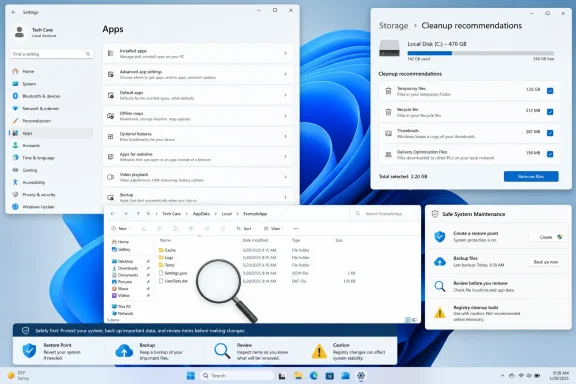 What Windows uninstallers actually remove
Windows is not a single uninstaller. The Installed apps list in Settings and the older Programs and Features control-panel view normally launch an uninstall command supplied by the software publisher. For MSI-based software, that command may invoke Windows Installer; for other desktop applications, it may launch a vendor-built uninstaller; for Store apps, Windows uses a different deployment model again.
That division of responsibility explains why outcomes differ so much. A well-built application’s uninstaller can remove its binaries, services, scheduled tasks, shortcuts, shared registrations, and optional user data. A poorly built one may remove only the application directory and its entry from the installed-programs list.
Microsoft also documents a Program Install and Uninstall troubleshooter for cases where Windows desktop software cannot be installed, updated, or completely removed because uninstall data or related registry keys are damaged. That is the supported repair path for a broken uninstall registration—not a reason to start deleting registry branches by hand.
The most common leftovers are usually found in familiar places:
%LocalAppData%often holds per-user caches, logs, downloaded updates, and application state.%AppData%commonly holds roaming profiles, settings, templates, and data intended to survive an uninstall and later reinstall.%ProgramData%can contain machine-wide configuration, shared databases, service data, and licensing information.C:\Program FilesandC:\Program Files (x86)may retain a program folder when the vendor’s own uninstaller failed or was interrupted.
A leftover folder is not automatically junk. Adobe, Autodesk, game launchers, password managers, developer tools, and security products frequently maintain data outside the main installation directory precisely because it may need to survive an upgrade, repair, or reinstall.
The registry claim needs more restraint
How-To Geek says deleted registry keys leave gaps that pile up until the registry becomes “messy and bogged down,” potentially consuming memory and causing Windows Update failures. Microsoft’s documentation does confirm that registry hives are files and that applications should use the registry for relatively small configuration data. It does not establish that ordinary remnants from software uninstallations create a meaningful registry-performance problem on modern Windows systems.
This is the distinction that matters in practice. An orphaned registry entry can be untidy, and a corrupted installer registration can absolutely block an update or uninstall. But “untidy” does not mean “a measurable slowdown,” and it does not justify running a broad registry-cleaning tool across a production PC.
Microsoft’s support policy is unusually direct on that point: it does not guarantee the reliability or performance of third-party registry cleaning utilities that use unsupported methods to alter the Registry. For administrators, the operational implication is simple: repair a documented problem tied to a named application, installer product code, service, driver, or policy. Do not use registry cleanup as preventive maintenance.
The same caution applies to claims about Component Based Servicing and the COMPONENTS hive. Those are core Windows servicing structures. A poorly designed cleaner running elevated could cause damage, but there is no evidence that Revo Uninstaller or IObit Uninstaller routinely touches those areas during ordinary application cleanup. The danger is precisely why any residual-item list must be reviewed before deletion rather than accepted as an infallible inventory.
NTFS MFT growth is real, but it is not an app-uninstall cleanup target
The article’s explanation of NTFS’s Master File Table is substantially closer to the mark. Microsoft documents that NTFS marks Master File Table entries free when files are deleted, allowing them to be reused later. The MFT allocation itself does not normally shrink just because files have disappeared.
Microsoft also explains that NTFS reserves a zone to help the MFT grow contiguously. If the drive becomes heavily used and one of the available regions fills, fragmentation can occur. That is a file-system behavior, though, not evidence that uninstalling applications has made a PC slow because it “crams” new file records across the disk.
For a typical Windows 11 PC with adequate free space, unused MFT entries are not something to chase. They are reusable capacity in the file-system index. Deleting an application’s cache files may free real storage; it does not shrink the MFT in the way a user might expect, nor should users attempt low-level MFT manipulation to recover a relatively small amount of metadata space.
Microsoft’s Sysinternals tools can report NTFS details for specialists investigating an unusually large MFT on a file-heavy volume. That belongs in storage diagnosis, especially on servers or workstations that have processed huge numbers of small files—not in a general-purpose “remove leftovers” routine.
Third-party uninstallers are best used for stubborn, known software
How-To Geek recommends Revo Uninstaller and IObit Uninstaller. Both products advertise a two-stage approach: run the application’s normal uninstaller first, then scan for related leftovers. IObit’s documentation says its Install Monitor can record file and registry changes during monitored installations, and that its Easy Uninstall tool can target an open window, shortcut, or tray icon. Its documentation also offers an option to create a restore point before uninstalling and to display or automatically remove residual files.
Those features can be useful when an application’s publisher has abandoned its product, the original uninstaller has vanished, or a program leaves behind a service, driver, browser extension, or directory that is clearly tied to the removed product. They are especially relevant for consumer utilities and bundled applications that do not provide their own cleanup tools.
They are not a substitute for the software vendor’s removal procedure. Endpoint-security suites, VPN clients, hardware driver packages, anti-cheat components, database engines, cloud-sync clients, and enterprise management agents often install filters, services, certificates, drivers, or protected components. For those products, use the publisher’s documented removal utility first. Removing their files and registry keys by pattern matching can leave the system in a less recoverable state than leaving the software installed.
A safer workflow is:
- Use the application’s own uninstaller through Settings or its vendor-provided removal tool.
- Restart if the uninstaller requests it, especially for software with services, drivers, or shell extensions.
- Confirm the program’s process, service, scheduled task, browser extension, and startup entry are gone where applicable.
- Inspect the application’s named directories under
%LocalAppData%,%AppData%, and%ProgramData%, preserving data you may want for a reinstall or migration. - Use a third-party uninstaller only for a clearly identified residue, and review every proposed registry key and file before removal.
- Create a restore point or a tested backup before allowing an elevated cleanup utility to make changes.
The critical point is that a scanner’s confidence level is not proof of ownership. A folder with a vendor name is usually easy to evaluate. A registry key under a shared component, a generic Temp directory, or a DLL with a common filename is not.
Start with Windows storage tools, not a cleaner
Users who want disk space should first determine whether they have an uninstall residue problem at all. Microsoft’s Storage Sense can remove temporary files, recycle-bin contents, and locally cached OneDrive content according to configured policies. Windows also provides Cleanup recommendations in Storage settings, and the older cleanmgr Disk Cleanup tool remains available for several categories of temporary and system files.
These tools will not promise to erase every application profile, because Windows cannot know whether that data is disposable. But they target categories Windows understands and manages, which makes them the lower-risk choice for routine maintenance.
For managed Windows fleets, Storage Sense is the more practical answer than placing a third-party uninstaller on every endpoint. Microsoft documents policy controls for its cadence and for cleanup of temporary files, Downloads, Recycle Bin content, and cloud-backed content. That provides predictable governance and avoids granting a broad cleanup utility administrative access across an organization.
The real cleanup opportunity after uninstalling an application is usually its identifiable user data, not a handful of registry values or reusable NTFS records. If a specific program has consumed several gigabytes in %LocalAppData% or %ProgramData%, remove that data only after confirming it belongs to the app and is no longer needed. For everyone else, leaving a few settings files behind is safer than turning routine software removal into a registry-repair project.
