
Microsoft has confirmed that the classic Windows AutoPlay prompt and additional File and Folder Properties dialogs are next in line for a WinUI 3 redesign, bringing two of the most visibly dated pieces of the Windows shell into the company’s ongoing Windows 11 modernization effort. The changes are headed first to Windows Insider Preview Experimental builds, not to broadly deployed Windows 11 installations.
The confirmation came in Microsoft’s July 31 Windows quality progress update, authored by Pavan Davuluri, executive vice president of Windows + Devices. As initially highlighted by TheWinCentral, the statement is more than another vague promise to “refresh” an old dialog: Microsoft explicitly names AutoPlay and “more File/Folder Properties dialogs” as forthcoming WinUI 3 work, alongside the already-previewed modern Run experience.
For users, the immediate payoff is visual consistency. For administrators, developers, and support teams, the more important question will be whether Microsoft can modernize these surfaces without breaking the sprawling compatibility behavior that has accumulated around them for decades.
AutoPlay is one of those Windows features that most people only notice when a USB drive, SD card, phone, camera, or optical disc is connected. Its job is simple at a glance: detect removable media or a device event and offer a suitable action, such as opening File Explorer, importing photos, or launching a registered application.
Underneath, however, it remains tied to Windows shell registrations, file associations, device events, application manifests, and user-selected defaults. Microsoft’s developer documentation still describes separate AutoPlay Content and AutoPlay Device declarations, with apps registering handlers for named events and specific file types. That history helps explain why this dialog has retained an older Win32 appearance long after Settings, File Explorer, and the taskbar adopted Windows 11’s Fluent styling.
The redesign therefore should not be read as Microsoft changing the core purpose of AutoPlay. The company has not announced new policy controls, a revised security model, or a change to which applications can register as handlers. It is a shell UI modernization, intended to put the experience on a newer Windows-native framework while preserving the underlying integration points that apps and devices rely on.
That distinction matters. AutoPlay has security baggage in the public imagination because of the old Autorun era, but modern Windows already treats the ability to automatically execute code from removable media far more cautiously than earlier releases did. The prompt remains a choice surface. A more polished dialog does not mean Windows will become less restrictive about what a newly connected device can do.
A basic file’s Properties dialog can show metadata, security permissions, previous versions, digital signatures, compatibility settings, and “Open with” behavior. A folder’s dialog may include sharing, security, location, customization, and size information. Drive properties introduce storage, quota, hardware, ReadyBoost, BitLocker-related, or tool-specific views. Third-party applications have also historically extended parts of the Windows shell with their own property-sheet pages.
Microsoft’s wording is carefully limited: “more File/Folder Properties dialogs” are coming. That does not mean every Properties window across Windows 11 will switch at once, nor does it mean the venerable tabbed property-sheet model is disappearing overnight. It suggests a staged migration, likely beginning with selected common cases where Microsoft controls the full interaction path.
That caution is sensible. A modern Properties experience must preserve keyboard navigation, accessibility, shell extension behavior, elevation prompts, policy-driven restrictions, localization, and context-specific tabs. A dialog that looks better but no longer exposes a security tab correctly—or fails to load a line-of-business shell extension—would be a regression, not progress.
Microsoft’s own Settings documentation illustrates just how much legacy Windows configuration still flows through File Explorer and shell-oriented settings. Folder Options alone retains controls for file extensions, hidden files, protected operating system files, drive letters, thumbnails, sharing behavior, libraries, navigation-pane behavior, and more. These are not cosmetic leftovers; they are operational switches that power users and IT staff use every day.
In the July update, Davuluri said Microsoft has strengthened the fundamentals of WinUI 3 and expanded its use into Widgets and the new Run experience. The company also tied the framework work to improved memory efficiency and lower latency, arguing that the engineering effort creates a platform foundation for a faster, more coherent Windows 11 and a healthier application ecosystem.
That is an important claim, because Windows users have often experienced UI modernization as a trade-off: cleaner visuals paired with slower startup, excessive animation, inconsistent input behavior, or memory-hungry web-backed components. Microsoft is attempting to make the opposite case—that the modern framework itself has been tuned so it can become a performance and reliability win rather than another layer of overhead.
The company says its broader work includes a more efficient memory allocator, WinUI 3 tuning designed to reduce memory consumption, and efficiency improvements to Chromium and WebView2 components where they appear in the operating system. It also says Start, File Explorer, Search, and Snipping Tool are becoming faster and more responsive through scheduler and responsiveness work.
There is a practical caveat here: Microsoft has not published before-and-after metrics specifically for the AutoPlay or Properties dialog changes. Until Experimental builds arrive, there is no basis to promise faster appearance times, lower resource use, or better behavior on low-memory PCs for these two surfaces. The direction is clear; the measurable benefit remains to be demonstrated.
Microsoft says Experimental users can also receive feature-level controls through a Feature flags page in Windows Insider settings. That is a meaningful change from the confusing controlled-feature-rollout model that has often left Insiders reading about an announced feature but unable to test it on their own PCs.
For this particular project, it gives Microsoft room to test implementation details with users who understand the risks of pre-release Windows software. Properties dialogs touch more than aesthetics, while AutoPlay interacts with external devices and applications. A limited Experimental flight allows Microsoft to gather crash data, reliability telemetry, accessibility feedback, and compatibility reports before a broader channel receives the redesign.
Windows enthusiasts should therefore avoid treating the announcement as a reason to install Experimental builds on a primary production machine. These are precisely the types of shell changes that can reveal edge cases only after encountering specialty hardware, old device utilities, enterprise endpoint controls, or shell extensions installed by other applications.
For IT departments, there is no immediate deployment action. AutoPlay behavior can be governed through existing Windows settings and policies, while Properties dialog functionality remains part of the established Windows shell. The near-term task is awareness: organizations with custom Explorer integrations, removable-media workflows, or tightly controlled endpoint images should watch the Insider implementation closely once it appears.
The AutoPlay and Properties announcement is one of the clearest examples yet of the craft portion of that promise. Windows 11 can present a highly polished Settings page or File Explorer window, then abruptly open a dialog that looks inherited from an earlier Microsoft design era. Those seams do not necessarily prevent work from getting done, but they make Windows feel assembled from separate generations of software.
A modernized Run dialog, AutoPlay prompt, and Properties experience will not resolve bigger complaints about update reliability, hardware support, advertising, or unwanted AI features. Microsoft should not pretend otherwise. But these are exactly the surfaces that reinforce—or undermine—the feeling that the operating system is maintained as one product.
The challenge now is execution. Microsoft says many of its quality improvements will begin rolling out more broadly across Windows 11 PCs this fall, but it has not committed to a general availability date for the redesigned AutoPlay and Properties dialogs. The first meaningful milestone will be their arrival in an Experimental build, where the real test will be whether the new visuals retain every bit of the old shell’s capability.
For users, the immediate payoff is visual consistency. For administrators, developers, and support teams, the more important question will be whether Microsoft can modernize these surfaces without breaking the sprawling compatibility behavior that has accumulated around them for decades.
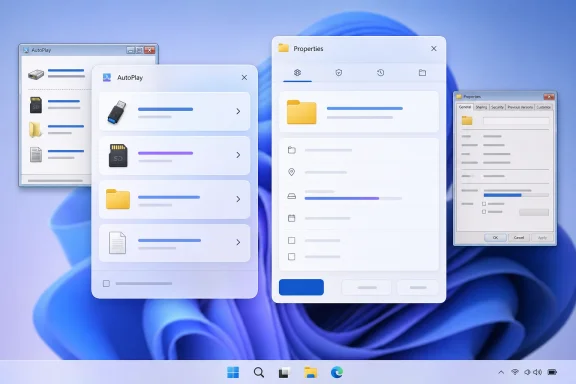 AutoPlay Has Kept Its Old Face Because Its Job Is Not Simple
AutoPlay is one of those Windows features that most people only notice when a USB drive, SD card, phone, camera, or optical disc is connected. Its job is simple at a glance: detect removable media or a device event and offer a suitable action, such as opening File Explorer, importing photos, or launching a registered application.Underneath, however, it remains tied to Windows shell registrations, file associations, device events, application manifests, and user-selected defaults. Microsoft’s developer documentation still describes separate AutoPlay Content and AutoPlay Device declarations, with apps registering handlers for named events and specific file types. That history helps explain why this dialog has retained an older Win32 appearance long after Settings, File Explorer, and the taskbar adopted Windows 11’s Fluent styling.
The redesign therefore should not be read as Microsoft changing the core purpose of AutoPlay. The company has not announced new policy controls, a revised security model, or a change to which applications can register as handlers. It is a shell UI modernization, intended to put the experience on a newer Windows-native framework while preserving the underlying integration points that apps and devices rely on.
That distinction matters. AutoPlay has security baggage in the public imagination because of the old Autorun era, but modern Windows already treats the ability to automatically execute code from removable media far more cautiously than earlier releases did. The prompt remains a choice surface. A more polished dialog does not mean Windows will become less restrictive about what a newly connected device can do.
Properties Dialogs Are a Bigger Compatibility Test
The File and Folder Properties dialogs may be visually mundane, but they are among the most heavily used legacy interfaces in Windows. Right-click a file, a folder, a drive, a shortcut, or a network location and select Properties, and the result can expose different tabs, controls, extensions, and administrative functions depending on the object in question.A basic file’s Properties dialog can show metadata, security permissions, previous versions, digital signatures, compatibility settings, and “Open with” behavior. A folder’s dialog may include sharing, security, location, customization, and size information. Drive properties introduce storage, quota, hardware, ReadyBoost, BitLocker-related, or tool-specific views. Third-party applications have also historically extended parts of the Windows shell with their own property-sheet pages.
Microsoft’s wording is carefully limited: “more File/Folder Properties dialogs” are coming. That does not mean every Properties window across Windows 11 will switch at once, nor does it mean the venerable tabbed property-sheet model is disappearing overnight. It suggests a staged migration, likely beginning with selected common cases where Microsoft controls the full interaction path.
That caution is sensible. A modern Properties experience must preserve keyboard navigation, accessibility, shell extension behavior, elevation prompts, policy-driven restrictions, localization, and context-specific tabs. A dialog that looks better but no longer exposes a security tab correctly—or fails to load a line-of-business shell extension—would be a regression, not progress.
Microsoft’s own Settings documentation illustrates just how much legacy Windows configuration still flows through File Explorer and shell-oriented settings. Folder Options alone retains controls for file extensions, hidden files, protected operating system files, drive letters, thumbnails, sharing behavior, libraries, navigation-pane behavior, and more. These are not cosmetic leftovers; they are operational switches that power users and IT staff use every day.
WinUI 3 Is Being Positioned as Infrastructure, Not Decoration
Microsoft is framing the AutoPlay and Properties work as part of a larger investment in WinUI 3, the modern native interface framework used to build Windows applications and increasingly, Microsoft says, parts of the Windows shell itself.In the July update, Davuluri said Microsoft has strengthened the fundamentals of WinUI 3 and expanded its use into Widgets and the new Run experience. The company also tied the framework work to improved memory efficiency and lower latency, arguing that the engineering effort creates a platform foundation for a faster, more coherent Windows 11 and a healthier application ecosystem.
That is an important claim, because Windows users have often experienced UI modernization as a trade-off: cleaner visuals paired with slower startup, excessive animation, inconsistent input behavior, or memory-hungry web-backed components. Microsoft is attempting to make the opposite case—that the modern framework itself has been tuned so it can become a performance and reliability win rather than another layer of overhead.
The company says its broader work includes a more efficient memory allocator, WinUI 3 tuning designed to reduce memory consumption, and efficiency improvements to Chromium and WebView2 components where they appear in the operating system. It also says Start, File Explorer, Search, and Snipping Tool are becoming faster and more responsive through scheduler and responsiveness work.
There is a practical caveat here: Microsoft has not published before-and-after metrics specifically for the AutoPlay or Properties dialog changes. Until Experimental builds arrive, there is no basis to promise faster appearance times, lower resource use, or better behavior on low-memory PCs for these two surfaces. The direction is clear; the measurable benefit remains to be demonstrated.
The Experimental Channel Is the Right Place for This Work
The rollout destination is as consequential as the redesign itself. Microsoft’s revised Windows Insider Program now uses an Experimental channel for early feature work, with a separate Future Platforms option for the earliest builds that are not aligned to a retail Windows release.Microsoft says Experimental users can also receive feature-level controls through a Feature flags page in Windows Insider settings. That is a meaningful change from the confusing controlled-feature-rollout model that has often left Insiders reading about an announced feature but unable to test it on their own PCs.
For this particular project, it gives Microsoft room to test implementation details with users who understand the risks of pre-release Windows software. Properties dialogs touch more than aesthetics, while AutoPlay interacts with external devices and applications. A limited Experimental flight allows Microsoft to gather crash data, reliability telemetry, accessibility feedback, and compatibility reports before a broader channel receives the redesign.
Windows enthusiasts should therefore avoid treating the announcement as a reason to install Experimental builds on a primary production machine. These are precisely the types of shell changes that can reveal edge cases only after encountering specialty hardware, old device utilities, enterprise endpoint controls, or shell extensions installed by other applications.
For IT departments, there is no immediate deployment action. AutoPlay behavior can be governed through existing Windows settings and policies, while Properties dialog functionality remains part of the established Windows shell. The near-term task is awareness: organizations with custom Explorer integrations, removable-media workflows, or tightly controlled endpoint images should watch the Insider implementation closely once it appears.
Microsoft Is Trying to Make “Craft” a Quality Commitment
The timing is not accidental. In March, Microsoft put forward a public Windows quality agenda centered on performance, reliability, and what it called craft: coherence, polish, usability, and refinement across the operating system. The program included File Explorer responsiveness, more taskbar personalization, quieter Widgets, less intrusive update behavior, a streamlined Insider Program, and reduced unnecessary Copilot entry points.The AutoPlay and Properties announcement is one of the clearest examples yet of the craft portion of that promise. Windows 11 can present a highly polished Settings page or File Explorer window, then abruptly open a dialog that looks inherited from an earlier Microsoft design era. Those seams do not necessarily prevent work from getting done, but they make Windows feel assembled from separate generations of software.
A modernized Run dialog, AutoPlay prompt, and Properties experience will not resolve bigger complaints about update reliability, hardware support, advertising, or unwanted AI features. Microsoft should not pretend otherwise. But these are exactly the surfaces that reinforce—or undermine—the feeling that the operating system is maintained as one product.
The challenge now is execution. Microsoft says many of its quality improvements will begin rolling out more broadly across Windows 11 PCs this fall, but it has not committed to a general availability date for the redesigned AutoPlay and Properties dialogs. The first meaningful milestone will be their arrival in an Experimental build, where the real test will be whether the new visuals retain every bit of the old shell’s capability.
References
- Primary source: thewincentral.com
Published: 2026-08-01T13:02:51+00:00
Modern Windows 11 Shell Update: AutoPlay & Properties Dialogs Moving to WinUI 3 - WinCentral
Microsoft has confirmed that the classic Windows AutoPlay dialog and File/Folder Properties windows are being modernized with WinUI 3 in upcoming Windows 11 Insider builds. - Read in Windows 11 News on WinCentral thewincentral.com
- Related coverage: learn.microsoft.com
Dialog controls - Windows apps | Microsoft Learn
Dialogs display transient UI elements that appear when the user requests them or when something happens that requires notification or approval.learn.microsoft.com - Related coverage: learn.microsoft.com
Reference for Windows 11 and Windows 10 settings - Windows apps | Microsoft Learn
This page lists the settings that are supported by both Windows 10 and Windows 11.learn.microsoft.com - Related coverage: windowscentral.com
Microsoft promises 2026 will be a better year for Windows 11 — confirms plans to address "pain points" across the OS | Windows Central
Windows 11's biggest pain points are to be addressed this year, Microsoft's Windows president Pavan Davuluri has said.www.windowscentral.com - Related coverage: itmagazine.ch
Microsoft verpflichtet sich zu mehr Windows-Qualität
In einem Commitment zur Qualität von Windows verspricht Microsofts Windows-Chef Pavan Davuluri zahlreiche Verbesserungen, die bereits in den Insider Builds vom März und April 2026 umgesetzt werden sollen.www.itmagazine.ch
- Related coverage: tomsguide.com
Microsoft promises Windows 11 reset: new focus on performance, reliability and 'reducing unnecessary Copilot' AI | Tom's Guide
Microsoft is promising to fix Windows 11, here's how.www.tomsguide.com - Related coverage: pcgamer.com
Microsoft says it's going to 'fundamentally raise the bar' on driver quality, reliability and security across Windows | PC Gamer
Start your engines.www.pcgamer.com - Related coverage: windowscentral.com
What is Windows K2? Inside Microsoft’s big plan to save Windows 11 and win back trust from users. | Windows Central
Microsoft has restructured its Windows team to better position Windows 11 as a strong platform that people should want to use. Here's how it's going about that.www.windowscentral.com - Related coverage: itpro.com
'We are focused on fundamentals, prioritizing quality, and serving our core users better': Satya Nadella teases big Windows improvements – and changes could come this year | IT Pro
Microsoft CEO Satya Nadella appears to have extended an olive branch to Windows users following months of backlash over the direction of the operating system.www.itpro.com
