
AutoEndTasks registry value can tell Windows to stop waiting for a user session’s unresponsive applications during sign-out, restart, or shutdown. But its accompanying recommendation to set the system-wide WaitToKillServiceTimeout value to 0 milliseconds is a far riskier change than the article makes it sound—and it is not a fix for the program that caused the stall in the first place.
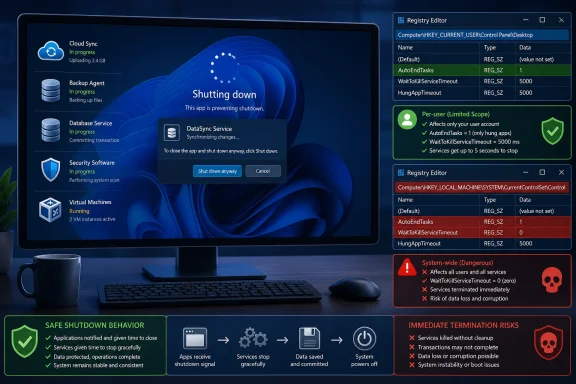
The distinction matters for anyone administering a Windows PC rather than simply trying to leave the desk faster. AutoEndTasks changes how Windows treats applications in the current user session. WaitToKillServiceTimeout, stored under HKEY_LOCAL_MACHINE, changes the grace period for every Windows service on the machine, including backup agents, database components, sync clients, security software, virtual-machine services, and line-of-business software.
Microsoft’s documentation on service shutdown is explicit about the purpose of that wait: services receive a shutdown notification and need time to finish outstanding work before the Service Control Manager terminates them. Microsoft’s current guidance for Distributed File System Replication, for example, describes a 30-second service shutdown allowance and advises administrators to increase the timeout when a busy service needs more time to commit its data cleanly. It does not endorse a zero-second timeout.
The useful conclusion is narrower than MakeUseOf’s headline suggests. If an enthusiast PC repeatedly stalls at shutdown because a disposable desktop application has stopped responding, AutoEndTasks can be an intentional trade-off. If Windows is routinely taking a minute or more to power down, forcing everything closed only conceals a driver, service, application-update, or data-sync problem that should be identified.
AutoEndTasks is a user-session setting, not a shutdown repair
The AutoEndTasks value belongs at HKEY_CURRENT_USER\Control Panel\Desktop and is traditionally stored as a string value, REG_SZ, with 1 meaning enabled. Despite the submitted story’s title saying the author “disabled” a registry value, its instructions actually describe enabling AutoEndTasks.
When enabled, the setting suppresses some of the waiting and prompting Windows normally uses when an application does not cooperate during logoff or shutdown. Windows sends GUI applications end-session messages so they can save state, close files, stop background work, and warn the user about unsaved documents. Automatic termination shortens the path by making the preservation of that work the user’s responsibility.
Tom’s Hardware has independently documented the same tweak for Windows 10 and Windows 11, including the warning that applications may be force-closed after the shortened interval. Microsoft’s own policy documentation also confirms that Windows has a supported administrative control for whether applications are allowed to block or cancel shutdown. In other words, Windows’ delay is deliberate behavior, not evidence of a broken operating system.
For a single-user desktop used mainly for browsing, gaming, or a workflow where documents are consistently saved before shutdown, the risk may be acceptable. It is substantially less acceptable on a PC where Outlook is sending mail, OneDrive or another sync tool is flushing changes, an editor is auto-saving, a browser has an unfinished upload, or a local development stack is writing databases and logs.
A forced close does not distinguish between an app that merely has an idle window open and one that is completing a final write. It terminates based on timing, not on whether the remaining work is safe to abandon.
A zero service timeout can turn a minor delay into data trouble
MakeUseOf presents WaitToKillServiceTimeout as the “service counterpart” to AutoEndTasks, suggesting a value of zero for people who want immediate shutdown. The two are related only in the broad sense that both affect shutdown timing. Their blast radius is very different.
WaitToKillServiceTimeout is located at:
HKEY_LOCAL_MACHINE\SYSTEM\CurrentControlSet\Control
It is a string value expressed in milliseconds. It applies at the computer level rather than to one user profile. Microsoft’s documentation says the value affects all services, not only the service being discussed in its example. That is the warning administrators should take seriously.
Setting the value to 0 tells Windows that services receive essentially no grace period before the system proceeds. A service can still be in the middle of committing transactions, completing a cloud-sync operation, closing a virtual disk, or updating an internal database. The next boot may appear normal; that does not mean the previous shutdown was clean.
This is especially unwise on machines running any of the following:
- PCs that use OneDrive, Dropbox, Google Drive, backup software, or source-control clients to synchronize recently changed files.
- Developer workstations running Docker Desktop, WSL-related services, SQL Server, local web stacks, virtual machines, or test databases.
- Systems with endpoint detection, encryption, device-management, or backup agents that must update state during shutdown.
- Business PCs where a “fast” shutdown is less valuable than recoverable data and reliable application state.
The submitted MakeUseOf article says the normal service timeout is usually five seconds. Microsoft’s current documentation describes 30 seconds in the service shutdown process, while older community guidance has frequently cited 20,000 milliseconds for the registry value. The precise behavior can vary by component and Windows version, but neither record supports treating zero as a broadly safe default.
A short timeout such as 2,000 or 5,000 milliseconds is commonly circulated in tuning guides. It remains a policy choice that can trade clean shutdown behavior for speed. Zero is not a sensible diagnostic step, and it should not be deployed through Group Policy, Intune, imaging scripts, or “performance tweak” bundles.
Find the offender before changing the machine-wide rules
A recurring shutdown delay is actionable evidence. Windows often records enough information to identify the process or service responsible, which is more valuable than forcing the symptom away.
Start by reproducing the issue once, then cancel the shutdown if Windows gives the option. In Event Viewer, check Windows Logs > Application for entries from WinSrv around that time. Microsoft community troubleshooting records show that Event ID 10001 can name an executable that attempted to veto shutdown. The same area can also record an application that Windows terminated after it stopped responding.
For delays that occur after the desktop applications have closed, examine Applications and Services Logs > Microsoft > Windows > Diagnostics-Performance > Operational. Older Microsoft troubleshooting guidance points to Event ID 203 as a useful indicator of processes and services contributing to slow shutdown. This will not diagnose every case, but it provides a starting point grounded in the actual shutdown sequence rather than a guess.
The difference is practical. If the event log identifies Docker Desktop, a GPU utility, an OEM updater, an RGB controller, a printer utility, or a cloud-sync client, updating, repairing, reconfiguring, or removing that component may solve the delay without changing Windows’ data-protection behavior. Microsoft community reports include cases where a stuck Dell update plugin and Docker Desktop were the actual blockers; the registry tweak would merely have hidden them.
For managed environments or persistent cases, Microsoft’s Windows Performance Recorder includes built-in on/off transition profiles, including an On/Off – Shutdown trace. That is the appropriate escalation path when a workstation or fleet has repeatable shutdown slowness that cannot be explained by Event Viewer. The resulting trace is more work to analyze, but it can separate a slow service notification, driver delay, storage issue, or application hang.
The supported policy is clearer for managed Windows devices
Windows Pro, Enterprise, Education, and IoT Enterprise editions have a documented policy named “Turn off automatic termination of applications that block or cancel shutdown.” Microsoft lists it under Computer Configuration > System > Shutdown Options and maps it to the AllowBlockingAppsAtShutdown policy value.
The awkward naming is important. Enabling that policy turns off automatic termination, allowing applications to block or cancel shutdown; disabling it favors automatic termination. Administrators should test the policy’s behavior in their own Windows build and management configuration rather than extrapolating from a consumer registry tip.
Microsoft documents the policy as applicable to supported Windows 10 releases beginning with version 2004 after KB5005101 and to Windows 11 beginning with version 21H2. That gives IT staff a controllable, auditable mechanism for the app-prompt behavior—unlike a collection of undocumented per-user registry edits scattered across endpoints.
That does not make forced shutdown the right fleet-wide posture. On shared lab PCs or kiosk-like devices, automatic closure may be justified. On a finance workstation, developer device, or laptop with user data and cloud synchronization, blocking shutdown can be a useful final guardrail.
If you choose the tweak, limit it to AutoEndTasks
Users who understand the data-loss trade-off and still want fewer shutdown prompts should stop at the per-user AutoEndTasks change. Create or edit AutoEndTasks as a REG_SZ value under HKEY_CURRENT_USER\Control Panel\Desktop, set it to 1, and restart before judging the behavior. Export the relevant registry key first so the change can be undone quickly.
Do not pair it automatically with WaitToKillServiceTimeout=0. Leave the service timeout alone unless a specific service has been measured, identified, and tested. Microsoft’s own service guidance frames the setting as a way to give services enough time to shut down cleanly, not as a universal shutdown accelerator.
Fast shutdown is convenient. A PC that repeatedly waits on the same program is telling its owner something useful about that program, service, or driver. Force-closing applications can be a deliberate personal preference; forcing every service to stop immediately is a machine-wide gamble that turns a visible delay into an invisible failure.
