
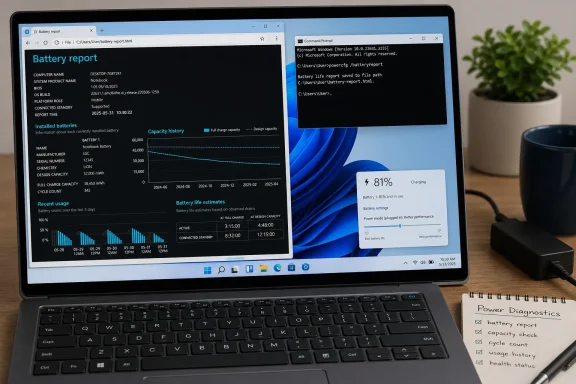
powercfg /batteryreport command turns Windows’ stored power telemetry into a detailed HTML report, giving you a practical view of battery capacity, recent charge and discharge activity, estimated runtime, and longer-term wear.Unlike a third-party battery monitor, Battery Report is already part of Windows. It does not install software, send information to a website, or perform an extended live test. Instead, it creates a local report from battery and power information Windows has recorded on the device.
That makes
powercfg /batteryreportone of the most useful first-line tools for investigating rapid battery drain, declining runtime, inconsistent charging, or a laptop that seems to have aged faster than it should.
 What
What powercfg /batteryreport Does on Windows 11
The
powercfgutility is Windows’ command-line power-management tool. Its
/batteryreportswitch generates a report covering battery usage characteristics and capacity information gathered over the computer’s life.
The standard command is:
powercfg /batteryreportWhen it succeeds, Windows creates an HTML file. You open that file locally in Microsoft Edge, Chrome, Firefox, or another web browser. The report is not uploaded anywhere, and it is not a downloadable Microsoft document; Windows generates it directly on your PC.
For most Windows 11 laptop owners, the report answers three important questions:
- Has the battery’s maximum charge capacity fallen significantly below its original design capacity?
- Is the laptop losing power mainly while actively in use, while idle, or while suspended?
- Does the recent usage history point toward a software setting, a hardware problem, or normal lithium-ion battery aging?
The report is especially useful because it separates a battery-health problem from a power-consumption problem. A battery may be physically healthy but drain quickly because the screen is bright, a demanding application is running, wireless radios are active, or the system is spending too much time in an inefficient sleep state.
Conversely, a lightly used laptop may still have poor runtime if its battery’s usable capacity has materially declined.
Generate a Battery Report from Command Prompt
Microsoft’s standard Windows 11 route starts with an elevated Command Prompt. Running as administrator is the clearest approach because it avoids permissions confusion and follows the supported consumer workflow.
Open an elevated Command Prompt
- Select Start.
- Type Command Prompt.
- Right-click Command Prompt.
- Select Run as administrator.
- Approve the User Account Control prompt.
At the command window, enter:
powercfg /batteryreportThen press Enter.
Windows should display a confirmation message similar to this:
Battery life report saved to file path\battery-report.htmlThe exact path matters. Copy it, take a note of it, or leave the Command Prompt window open until you have opened the report.
Why the report may save somewhere unexpected
The plain
powercfg /batteryreportcommand saves the HTML file in the current working directory. When Command Prompt is opened as administrator, that directory is often:
C:\Windows\System32That surprises many users because they expect a report to appear in Documents, Downloads, or on the desktop. Nothing is wrong if the report is saved in
System32; it simply reflects the folder from which the command was run.
The location shown in Command Prompt is the authoritative answer. Do not assume the file is in a particular folder if Windows reports a different path.
Open the Battery Report in a Browser
Once Windows generates the report, open File Explorer and browse to the folder shown in the command output.
Double-click the
.htmlfile. It should open in your default web browser.
The report is designed as a web page, so it is usually much easier to read in a browser than as raw data in a text editor. You can use the browser’s Find command—typically
Ctrl + F—to jump directly to sections such as Installed batteries, Battery capacity history, or Battery life estimates.
The report stays on your computer unless you deliberately move, share, or upload it.
Consider privacy before sharing the report
A battery report can include device-specific information, such as the laptop manufacturer, battery manufacturer, battery serial number, and system-related details. It does not normally contain personal documents or passwords, but it is still wise to review the report before posting screenshots or sending the full HTML file to a forum, retailer, repair shop, or support agent.
If you need help interpreting it, a screenshot of the relevant capacity and usage sections is often safer than sharing the entire report.
Save the Report Directly to Your Desktop
The
/outputswitch lets you specify both the report’s location and filename. This is the best option when you want a predictable file location every time.
In an elevated Command Prompt, use:
powercfg /batteryreport /output "%USERPROFILE%\Desktop\batteryreport.html"The
%USERPROFILE%variable automatically resolves to your Windows user folder. For example, it may expand to a path resembling:
C:\Users\YourName\Desktop\batteryreport.htmlUsing the environment variable is preferable to manually typing your account name, particularly if the user folder contains spaces or differs from the visible account name.
If your desktop is backed up by OneDrive
Some Windows 11 PCs use OneDrive Folder Backup, which can redirect Desktop files into a OneDrive-managed location. In that situation, the visible desktop may not map neatly to the expected local path.
If the report does not appear on your desktop after using
%USERPROFILE%\Desktop, choose a simple local folder instead:
powercfg /batteryreport /output "C:\BatteryReports\batteryreport.html"Create the
C:\BatteryReportsfolder first if it does not exist. This approach also makes it easier to keep dated reports for comparison.
Use descriptive filenames for long-term tracking
A single battery report is useful, but several reports collected over months are far better for identifying a trend. Instead of overwriting the same file repeatedly, use a clear naming convention:
batteryreport-july.html
batteryreport-after-firmware-update.html
batteryreport-before-service.html
Comparing reports collected under similar conditions can reveal whether capacity is stable, gradually declining, or dropping unusually quickly.
Run Battery Report from Windows Terminal or PowerShell
Command Prompt remains the simplest place to learn the command, but
powercfg /batteryreportalso works from Windows Terminal and Windows PowerShell.
Windows Terminal
On a current Windows 11 installation:
- Press
Windows key + X. - Select Windows Terminal (Admin).
- Approve the elevation prompt.
- Open either a PowerShell or Command Prompt tab.
- Run:
powercfg /batteryreportWindows Terminal is a host application, not a different version of
powercfg. Whether you choose a Command Prompt or PowerShell tab, the same Windows utility generates the report.
PowerShell
You can also search Start for Windows PowerShell, right-click it, and choose Run as administrator.
Run:
powercfg /batteryreportTo write the file to the desktop from PowerShell, use PowerShell’s environment-variable syntax:
powercfg /batteryreport /output "$env:USERPROFILE\Desktop\batteryreport.html"The distinction matters because
%USERPROFILE%is Command Prompt syntax, while
$env:USERPROFILEis PowerShell syntax.
Is administrator access always required?
The official Windows consumer instructions use an elevated Command Prompt, and that remains the best practice. Depending on configuration, a standard user account may be able to generate a report, but elevation helps prevent access and output-location issues.
On company-managed or school-managed PCs, policy may limit access to command-line tools or administrative elevation. If that happens, do not try to bypass organizational restrictions. Use the Windows battery settings for basic checks and contact the organization’s IT support team if a full report is needed.
Limit the Report to Recent Days
The default report can contain a large amount of history, particularly on an older laptop. If you are investigating a specific issue from the last few days—such as a battery drain that began after an app installation or driver update—the
/durationoption can make the output easier to review.
For example, to analyze the previous four days:
powercfg /batteryreport /duration 4Replace
4with the number of days that best matches the troubleshooting window.
A shorter report is helpful when you want to compare:
- Battery behavior before and after a Windows update
- Runtime during a recent business trip
- Drain after installing a game, VPN client, browser extension, or security tool
- Power use before and after changing screen brightness or refresh rate
- Overnight standby behavior over a limited period
Use the standard command again when you need the broader default report:
powercfg /batteryreportA shorter duration does not improve battery health or make Windows collect new data. It simply narrows the period of existing battery history included in the report.
Use XML Only for Data Processing
For normal troubleshooting, HTML is the right format. It is readable, visual, and opens immediately in a browser.
Windows can also output the report as XML:
powercfg /batteryreport /output "C:\BatteryReports\batteryreport.xml" /xmlXML is useful when a script, asset-management platform, spreadsheet workflow, or custom diagnostic tool needs structured data. It is not intended to be the comfortable day-to-day format for someone checking battery condition manually.
Use HTML when you want to read the report. Use XML when another tool needs to parse it.
How to Read the Most Important Battery Report Sections
A battery report contains more information than many users need. The best approach is to start with the sections that reveal the most about battery condition and recent behavior.
Installed batteries
The Installed batteries section identifies the battery or batteries Windows can see. It may include:
- Battery manufacturer
- Battery name
- Serial number
- Chemistry
- Design capacity
- Full charge capacity
- Cycle count, if the hardware exposes it
The two capacity values are the most important.
Design capacity is the battery’s original intended capacity when new. Full charge capacity is the maximum amount of charge the battery currently reports it can hold.
Both values are normally listed in milliwatt-hours, abbreviated as
mWh.
A simple capacity-retention estimate is:
Full charge capacity ÷ Design capacity × 100For example, if a laptop battery was designed for
60,000 mWhbut currently reports
45,000 mWh, it is retaining roughly 75% of its original capacity.
That does not automatically mean the battery requires replacement. Battery aging is expected, and the practical impact depends on the laptop’s power draw and the owner’s runtime expectations. Still, a major reduction in full charge capacity is a strong indication that shorter battery life is primarily caused by normal wear rather than a single misbehaving app.
Do not overinterpret one capacity reading
Battery reporting is based on firmware telemetry and battery-management estimates. A single full-charge-capacity figure is useful, but it is not laboratory-grade proof of battery condition.
Capacity may vary after a calibration cycle, a firmware update, a prolonged period on AC power, or changes in battery-management behavior. Some systems also omit data such as Cycle count, even when the battery physically tracks it.
The better test is a trend: compare several reports over time and look for persistent changes rather than reacting to a small one-time difference.
Recent usage
The Recent usage section shows a timeline of power-state events. It can indicate whether the laptop was active, suspended, on AC power, or on battery power, along with the battery capacity remaining at those points.
This section is valuable when the laptop loses a substantial amount of charge in a period when it was supposed to be asleep. If the system repeatedly shows active time or high battery loss during an unattended period, the issue may involve background activity, connected standby behavior, devices waking the system, or software that prevents efficient sleep.
A report cannot identify every root cause by itself, but it can establish whether the drain occurred while the laptop was actually being used or while it was supposedly idle.
Battery usage
The Battery usage section focuses on energy consumed across time. It is useful for spotting large discharge periods and comparing battery loss with the user’s recollection of how the laptop was used.
A steep decline during active work may be normal if the PC was compiling code, playing games, video conferencing, exporting video, or driving a high-brightness display. A steep decline during light web browsing, document work, or apparent inactivity deserves more investigation.
The key is context. Battery drain is not automatically a fault just because the graph descends quickly.
Usage history
The Usage history section summarizes how long the PC has spent on AC power and battery power. On systems with sufficient history, it can provide a broader view of whether the laptop’s daily runtime pattern has changed.
If battery time has steadily shrunk while the way you use the laptop has remained broadly consistent, battery wear becomes a stronger explanation. If battery time dropped abruptly after a software or configuration change, review settings and recent apps before assuming the physical battery has failed.
Battery capacity history
The Battery capacity history table is often the most revealing part of a Windows 11 battery report. It records historical full-charge-capacity values alongside design capacity.
A slow downward slope is typical lithium-ion aging. A sharp, unexplained capacity drop may be worth monitoring, especially if it coincides with charging problems, sudden shutdowns, excessive heat, or a device that reports 100% but lasts only a short time.
Do not expect every laptop to show a perfect, uninterrupted history. The amount and reliability of recorded data depend on the device, drivers, firmware, battery controller, and how long Windows has been installed.
Battery life estimates
The Battery life estimates section compares estimated runtime based on the battery’s current full charge capacity with a theoretical estimate based on its original design capacity.
This comparison can be useful, but it must be read carefully. It is an estimate derived from recorded usage and observed discharge patterns, not a promise that the laptop will run for the stated number of hours tomorrow.
A battery-life estimate can change substantially with:
- Display brightness
- Refresh rate
- Processor workload
- Graphics workload
- Wi-Fi and Bluetooth activity
- External displays
- Background synchronization
- Browser tabs and video playback
- Ambient temperature
- Battery age
Treat it as a diagnostic baseline, not a precise runtime guarantee.
Check Application Battery Drain in Windows Settings
The battery report provides historical system-level insight. Windows Settings provides a faster view of which supported applications have recently used battery power.
Go to:
Settings > System > Power & battery > Battery usageReview Battery usage per app to identify applications that are consuming more energy than expected.
For apps that expose background controls:
- Select the app’s More options button.
- Choose Manage background activity.
- Change Let this app run in the background.
Available choices may include:
- Always — permits ongoing background activity, notifications, and updates, but can use more power.
- Power optimized — allows Windows to balance updates and battery efficiency.
- Never — prevents the supported app from running in the background when you are not actively using it.
Not every application supports this Windows control. Traditional desktop software may manage background behavior through its own settings, services, task scheduler entries, or startup configuration.
That limitation is important. An app missing from the Windows background-permission list is not necessarily innocent; it may simply be a desktop application that Windows does not manage through the same interface.
Practical Steps After Finding a Battery Problem
A battery report should guide troubleshooting rather than trigger an immediate battery replacement. Start with the least disruptive changes and measure the result.
If capacity has declined
When Full charge capacity is substantially lower than Design capacity, reduced runtime is likely a hardware-aging issue.
Consider these steps:
- Check whether the laptop manufacturer provides a battery-health or charging-limit tool.
- Update BIOS, firmware, chipset, and battery-related drivers from the PC manufacturer.
- Compare the current report with a new report after several normal charge cycles.
- Contact the manufacturer or a qualified repair provider if runtime is unacceptable, charging is unreliable, or the device is still under warranty.
If recent usage shows high active drain
If the report points to rapid discharge while the laptop is active, reduce the system’s power demand:
- Use Power mode settings under Settings > System > Power & battery.
- Enable Energy saver when maximum performance is not needed.
- Lower display brightness.
- Set shorter screen-off and sleep timeouts.
- Reduce refresh rate on displays where a lower option is acceptable.
- Disconnect unnecessary USB accessories.
- Close CPU-intensive browser tabs, games, virtual machines, and media workloads.
- Review startup apps in Task Manager.
If the laptop drains while asleep
A report showing material loss during supposed idle periods should prompt a closer look at sleep behavior.
Check for:
- USB devices, docks, mice, keyboards, or network adapters waking the system
- Background synchronization from cloud-storage, email, or collaboration apps
- Firmware updates that address standby or charging behavior
- Bluetooth and Wi-Fi activity
- Sleep settings that do not match how the laptop is actually being used
For deeper analysis of sleep-state efficiency, Windows also includes specialized power diagnostics such as
powercfg /sleepstudyon supported systems. That report addresses a different problem than
batteryreport, so it is best used after confirming that the drain is happening during sleep or standby rather than active use.
Common powercfg /batteryreport Problems
“The system cannot find the path specified”
This usually means the folder supplied after
/outputdoes not exist or the path was typed incorrectly.
Create the destination folder first, then run the command again. Keep paths with spaces inside quotation marks.
“Access is denied”
Open Command Prompt or Windows Terminal with Run as administrator, or choose an output folder where your account has write permission.
Avoid attempting to save reports into protected system folders unless you are elevated and understand why the location is needed.
“No batteries are installed”
A desktop PC, virtual machine, or laptop with a battery that Windows cannot detect may show this result. Check whether the device actually has a battery and whether it appears in Device Manager.
If a laptop battery is physically installed but consistently invisible to Windows, the issue may involve the battery, internal connection, firmware, or manufacturer-specific hardware support.
The report looks incomplete
Battery-report detail varies by device. Some PCs do not expose a cycle count, full historical capacity data, or every usage metric. Reinstalling Windows can also limit the amount of local history available.
An incomplete report is not necessarily evidence of a failing battery. It often reflects what the laptop firmware and Windows telemetry are able to provide.
Why Battery Report Still Matters on Modern Windows 11 PCs
Windows 11 offers convenient battery controls in Settings, but
powercfg /batteryreportremains the more revealing diagnostic tool when simple percentage readings are not enough. It helps distinguish normal battery chemistry aging from avoidable power consumption, and it gives laptop owners an evidence-based way to decide whether to change settings, investigate software, update firmware, or replace a worn battery.
Windows 10 Home and Pro reached end of support on October 14, 2025, so current consumer guidance should focus on Windows 11. The
powercfgutility remains a familiar Windows command-line component, but the Windows 11 battery report workflow is the practical baseline for supported personal laptops.
The most effective habit is to create a report before making changes, apply one or two targeted adjustments, then generate another report after a meaningful period of normal use. That turns battery troubleshooting from guesswork into a clear comparison of capacity, runtime, and power behavior over time.
Update: Additional details (July 26, 2026)
Technobezz’s updated guidance notes that IT teams can automate Battery Report collection with PowerShell, for example by saving reports to a consistent administrative location such as
C:\ProgramData\battery-report.html. This can be useful for fleet diagnostics, but organizations should control access and retention because reports contain device-specific battery and system information.
For Intune-managed devices, Technobezz points to Windows platform-script deployment through Devices > Scripts and remediations > Platform scripts. It also notes important scope limits: Intune PowerShell scripts do not run on Surface Hub devices or Windows devices in S mode, and the Intune Management Extension does not support Windows Home editions.
