

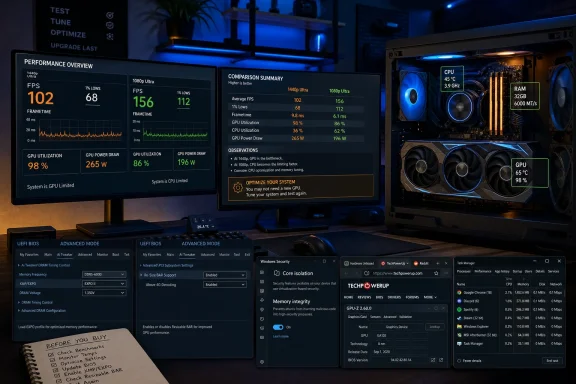
The practical value is still real. Enabling a memory profile that was left at conservative defaults, updating an AMD chipset package on the right kind of X3D system, or finding a Windows setting that damages frametime consistency can turn a disappointing PC back into a serviceable one. What the article does not supply is the part that would prove its personal conclusion: before-and-after numbers, the CPU and GPU involved, the games tested, or even a frametime capture.
Without those, readers should treat the piece as a useful troubleshooting order of operations—not evidence that “CPU graphics performance” broadly eliminates the need for a graphics-card upgrade.
The resolution test is useful, but it is only the first diagnosis
How-To Geek recommends watching GPU utilization during normal play, then reducing resolution—for example, from 1440p to 1080p—to see whether frame rate rises substantially. That is a sound first pass. If lowering the pixel workload produces a large FPS increase, the GPU was likely doing the limiting; if the result barely changes, the system may be CPU-limited.
The missing word is may. A flat frame-rate result can also mean a frame cap, V-Sync, a monitor refresh limit, an engine ceiling, a simulation bottleneck, shader-compilation stutter, asset streaming, or a background process. GPU utilization can be misleading for the same reason: a GPU sitting at 60 or 70 percent does not automatically mean the CPU needs tuning. It may be waiting for the game engine, a cap, or the next frame’s data.
A stronger test records average FPS alongside 1% lows and frametimes at two resolutions, with the same scene and settings. An uncapped game that gains little or nothing when resolution falls while one or more CPU threads are heavily loaded is a credible CPU-bound candidate. A title that is merely capped at 120 FPS is not.
That distinction changes what users should buy. CPU-side improvements can raise frame rate in esports games, strategy games, large multiplayer matches, emulation, and older engines that prize fast cores and low memory latency. They rarely rescue a modern, ray-traced AAA game at high resolution when the discrete GPU is already pinned near full utilization. In that situation, a GPU upgrade remains the direct answer.
XMP and EXPO are the least controversial checks
The strongest recommendation in the How-To Geek article is also the simplest: verify that DDR4 or DDR5 is running at the memory kit’s intended profile rather than a baseline fail-safe speed. Intel describes XMP as an easy BIOS-selected memory-overclocking profile, and AMD’s EXPO is explicitly designed to apply Ryzen-oriented DDR5 overclocking profiles on AM5 platforms.
Calling this “free performance” needs a qualification. The memory was sold at that advertised profile, but Intel and AMD both define XMP and EXPO as overclocking. A system can fail training, become unstable under load, or need a BIOS update before the advertised speed works reliably. The risk is normally manageable, but the responsible workflow is to enable one profile, confirm the configured speed in Windows, then test stability before declaring victory.
For a CPU-limited system, memory tuning can improve more than the average FPS. It can improve frame consistency by reducing the time a CPU spends waiting on memory, especially on Ryzen systems where memory configuration, fabric behavior, and latency can materially affect gaming results. The improvement is workload-specific, though. A game already limited by a GPU’s shader throughput or VRAM capacity will not suddenly gain a new performance tier because DDR5 moved from a default speed to an EXPO setting.
Users who find their memory operating at a low default should fix that before pricing a replacement graphics card. Users whose XMP or EXPO is already enabled should not expect another significant gain merely from revisiting the toggle.
Memory Integrity is a security trade, not a routine FPS setting
The article’s most consequential recommendation is to consider disabling Windows 11 Memory Integrity, the Windows Security feature also known as Hypervisor-protected Code Integrity or HVCI. Microsoft confirms that the feature uses virtualization-based security to isolate kernel-mode code-integrity enforcement from the regular Windows kernel. Its purpose is to make malicious or vulnerable low-level drivers harder to use to compromise a PC.
Microsoft has also acknowledged that Memory Integrity and Virtual Machine Platform can affect gaming performance in some scenarios. That makes the setting a legitimate troubleshooting variable, especially for a machine showing poor lows or unexplained CPU-side stutter. Windows Central and Tom’s Hardware have separately reported Microsoft’s gaming guidance on those options.
But How-To Geek’s framing is too casual for the setting it asks users to disable. Turning off Memory Integrity does not “optimize the CPU” in the ordinary sense; it removes a kernel protection designed to reduce the damage a malicious driver can do. It also does not guarantee an FPS increase, much less a measurable improvement to 1% lows. The article provides no game-specific evidence for its claim that those lows will move.
For home users trying to diagnose a performance problem, a controlled test is reasonable: record a repeatable game run with the feature enabled, disable it, reboot, repeat the same run, and compare frametimes. If the difference is immaterial, turn the protection back on. For managed business PCs, shared computers, or systems that handle sensitive work, disabling an enabled kernel hardening control should be treated as a policy and threat-model decision—not a gaming tweak copied from a checklist.
The important operational point is that Windows 11 can enable Memory Integrity by default on supported clean installations. A user comparing a fresh Windows installation with an older system may therefore be comparing different security configurations without realizing it.
Resizable BAR and chipset updates depend on the platform
Resizable BAR is another valid item to inspect, but it is not a universal performance switch. NVIDIA says the PCI Express capability can speed up certain games by allowing the CPU to access larger portions of GPU memory, while also acknowledging that performance can decline in some titles. Its drivers use game profiles rather than treating the feature as an unconditional benefit.
Independent testing from TechSpot found the gains on an RTX 3080 varied widely and were small on average across its tested games, with some regressions. That is consistent with NVIDIA’s own caveat: enabling the motherboard setting alone does not promise an across-the-board uplift.
There are also prerequisites the simple advice leaves out. The motherboard firmware, GPU VBIOS, processor platform, and graphics driver all need to support the feature. Older installations may require a BIOS update, and firmware changes carry more risk than an ordinary driver update. Confirm that Resizable BAR is active in the GPU control panel or system information page after changing it; do not assume the BIOS toggle completed the job.
Updating chipset drivers is generally sensible, particularly after a Windows reinstall or motherboard change. But the story’s AMD Ryzen 9 9950X3D example is unusually specialized. Dual-CCD X3D processors need software scheduling assistance so games land on the chiplet with the favorable cache arrangement. That does not translate into a major gaming cure for every AMD processor, nor for single-CCD X3D parts, conventional Ryzen chips, or Intel systems.
The broader rule is mundane but effective: install the chipset package from AMD or Intel, install the current graphics driver, apply a stable motherboard BIOS when it addresses a relevant issue, then measure. Do not turn a platform-specific scheduling detail into a generic explanation for poor FPS.
Offloading browser apps to an iGPU will not make the CPU faster
How-To Geek’s final recommendation—assign browsers, chat clients, and media applications to the integrated GPU through Windows’ Graphics settings—has a narrow use case. Windows does provide per-app GPU preferences, and Microsoft documents the ability to choose a power-saving or high-performance processor when multiple GPUs are available.
On a laptop with hybrid graphics, assigning lightweight applications to the integrated GPU can reduce discrete-GPU use and save power. On a desktop, it can occasionally preserve discrete GPU resources while video playback, encoding, or a hardware-accelerated desktop app is active. It may also be useful for a specialized workflow that deliberately reserves the discrete GPU for compute or a game.
It is not a CPU performance optimization, and readers should not expect it to increase game FPS by itself. Windows’ multi-GPU paths can involve copying rendered content between adapters when the rendering GPU and display GPU differ. Moving an application merely shifts where it renders; it does not create CPU capacity, GPU compute throughput, VRAM, or memory bandwidth.
For most desktop gamers, the more direct move is to close or minimize unnecessary GPU-accelerated applications during a game, then verify in Task Manager or a performance overlay whether they were consuming meaningful resources. Browser tabs left playing video, capture software, RGB suites, launchers, overlays, and background synchronization are worth checking. Reassigning every non-game application to an iGPU is usually extra complexity without a demonstrated payoff.
The sensible conclusion is smaller than How-To Geek’s headline but more useful: before buying a GPU, prove the GPU is the limit. Enable the memory profile you paid for, update the platform software appropriate to the hardware you actually own, check Resizable BAR support, and test Windows security changes only with a recorded before-and-after result. If the GPU remains near full utilization and lower resolution produces a meaningful FPS gain, the upgrade fund was never the problem—the graphics card was.