
Windows 11 users can now recover more of the taskbar flexibility that Windows 10 made routine—though the most consequential changes, including moving the bar to the top or sides of the display and changing its overall size, remain tied to Insider preview builds.
As detailed by PCMag, the immediate fixes for a crowded or overly busy taskbar are available in Settings > Personalization > Taskbar: pin and reorder applications, remove default Task View and Widgets buttons, choose a left-aligned layout, and configure taskbar behavior across multiple displays. Microsoft has also made smaller taskbar buttons available, which can help on systems with many pinned or open apps.
The most familiar Windows 10-style adjustment is moving taskbar icons from the centered default back to the left. Under Taskbar behaviors, change Taskbar alignment from Center to Left. That does not move the taskbar itself, but it restores the conventional Start-button-at-the-corner layout many organizations and long-time users prefer.
The same settings area can also enable auto-hide and put the taskbar on every connected screen. For multi-monitor workstations, the latter is often the more useful change: it prevents users from having to cross to the primary display simply to launch or switch applications.
Search is another easy cleanup target. Windows 11 can show a full search box, a compact icon-and-label control, an icon alone, or no taskbar search control at all. Users who rely on Windows Search can retain a full field; those who launch apps from Start or use keyboard shortcuts can reclaim space without removing the feature.
Other background utilities—including Bluetooth, Task Manager, and app-specific tray controls—can be moved out of the hidden-icon area. The Quick Settings panel, opened by selecting the network, volume, or battery area, is separately customizable: its Wi-Fi, Bluetooth, airplane mode, hotspot, and similar controls can be rearranged by drag and drop.
Laptop users should also check Settings > System > Power & battery and turn on battery percentage. The numerical reading is a small change, but it removes the guesswork of reading a compact battery glyph at a glance.
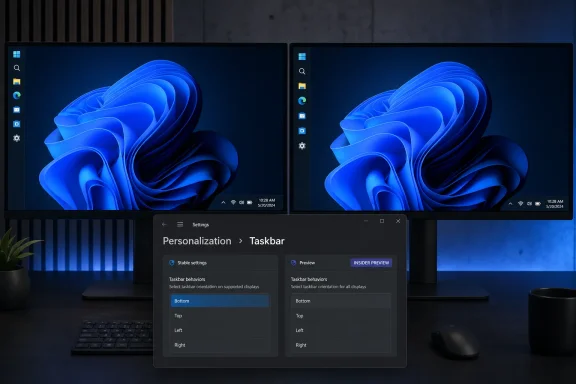
Windows 11 Insider Experimental Preview Build 28120.2387, released July 6, 2026, exposes the setting at Settings > Personalization > Taskbar > Taskbar behaviors, where testers can select bottom, top, left, or right. Vertical taskbars can be especially practical on ultrawide monitors, where horizontal screen space is plentiful but vertical space is at a premium.
Microsoft’s preview work also adds taskbar sizing options. This is not the freeform edge-drag resizing familiar from older versions of Windows; it is a preset-based approach. The existing smaller-button setting is useful for density, while the Insider taskbar-size option changes the bar itself.
That makes the Insider path worth considering only for users who specifically need the restored layout choices and accept pre-release software. For managed endpoints, the safer approach is to use the stable settings already present and wait for Microsoft to promote the larger redesign to a supported release.
The practical takeaway is that Windows 11’s taskbar no longer has to remain a fixed, centered strip of Microsoft defaults. Stable builds can already be decluttered, left-aligned, compacted, and made multi-monitor friendly; the remaining Windows 10-style freedom to relocate and resize the taskbar is now in Microsoft’s Insider pipeline rather than permanently off the table.
The rollout clarifies several current limitations. Although users can select bottom, top, left, or right under Taskbar behaviors, touch gestures, the Search box, and Ask Copilot support in alternate positions are still in development. Auto-hidden and touch-optimized taskbars are not yet supported outside the bottom position.
Microsoft also confirms that the new smaller taskbar currently works only when the bar is placed at the top or bottom. The setting reduces both icon size and taskbar height, rather than merely shrinking buttons.
For Insiders, Build 28020.2623 additionally includes a renewed flight certificate required to keep preview devices eligible for future flights after the present certificate expires on August 11, 2026.
 Start With the Settings That Change Daily Use
The most familiar Windows 10-style adjustment is moving taskbar icons from the centered default back to the left. Under Taskbar behaviors, change Taskbar alignment from Center to Left. That does not move the taskbar itself, but it restores the conventional Start-button-at-the-corner layout many organizations and long-time users prefer.The same settings area can also enable auto-hide and put the taskbar on every connected screen. For multi-monitor workstations, the latter is often the more useful change: it prevents users from having to cross to the primary display simply to launch or switch applications.
Search is another easy cleanup target. Windows 11 can show a full search box, a compact icon-and-label control, an icon alone, or no taskbar search control at all. Users who rely on Windows Search can retain a full field; those who launch apps from Start or use keyboard shortcuts can reclaim space without removing the feature.
The System Tray Has Become a Useful Control Surface
Windows 11’s system tray can be tailored beyond its default overflow menu. In Taskbar settings, users can choose whether the emoji shortcut appears always or only while typing, and can surface shortcuts such as Pen menu and Touch keyboard where those tools make sense.Other background utilities—including Bluetooth, Task Manager, and app-specific tray controls—can be moved out of the hidden-icon area. The Quick Settings panel, opened by selecting the network, volume, or battery area, is separately customizable: its Wi-Fi, Bluetooth, airplane mode, hotspot, and similar controls can be rearranged by drag and drop.
Laptop users should also check Settings > System > Power & battery and turn on battery percentage. The numerical reading is a small change, but it removes the guesswork of reading a compact battery glyph at a glance.
Microsoft Is Finally Testing the Bigger Windows 10-Era Restorations
The key distinction is between what is broadly configurable in Windows 11 today and what Microsoft is still validating through the Windows Insider Program. Microsoft said in its Windows Insider Blog that it is bringing back the ability to place the taskbar on the bottom, top, left, or right side of the display, with alignment options appropriate to each orientation.Windows 11 Insider Experimental Preview Build 28120.2387, released July 6, 2026, exposes the setting at Settings > Personalization > Taskbar > Taskbar behaviors, where testers can select bottom, top, left, or right. Vertical taskbars can be especially practical on ultrawide monitors, where horizontal screen space is plentiful but vertical space is at a premium.
Microsoft’s preview work also adds taskbar sizing options. This is not the freeform edge-drag resizing familiar from older versions of Windows; it is a preset-based approach. The existing smaller-button setting is useful for density, while the Insider taskbar-size option changes the bar itself.
That makes the Insider path worth considering only for users who specifically need the restored layout choices and accept pre-release software. For managed endpoints, the safer approach is to use the stable settings already present and wait for Microsoft to promote the larger redesign to a supported release.
A Few Legacy Habits Still Need Different Tools
The Win+X power-user menu remains valuable for fast access to Device Manager, Disk Management, Terminal, and other administration tools. Its built-in customization is limited, however; editing its shortcuts requires navigating to the hidden WinX folder in the user profile, while third-party utilities can offer more direct menu editing.The practical takeaway is that Windows 11’s taskbar no longer has to remain a fixed, centered strip of Microsoft defaults. Stable builds can already be decluttered, left-aligned, compacted, and made multi-monitor friendly; the remaining Windows 10-style freedom to relocate and resize the taskbar is now in Microsoft’s Insider pipeline rather than permanently off the table.
Update: Taskbar relocation reaches Windows 11’s Beta channels (July 31, 2026)
Neowin reports that Microsoft has now enabled the alternate taskbar positions and smaller taskbar option in two Windows 11 Insider Beta releases: Build 28020.2623 for the 26H1 Beta channel and Build 26220.9022 for the standard Beta channel.The rollout clarifies several current limitations. Although users can select bottom, top, left, or right under Taskbar behaviors, touch gestures, the Search box, and Ask Copilot support in alternate positions are still in development. Auto-hidden and touch-optimized taskbars are not yet supported outside the bottom position.
Microsoft also confirms that the new smaller taskbar currently works only when the bar is placed at the top or bottom. The setting reduces both icon size and taskbar height, rather than merely shrinking buttons.
For Insiders, Build 28020.2623 additionally includes a renewed flight certificate required to keep preview devices eligible for future flights after the present certificate expires on August 11, 2026.
References
- Primary source: PCMag
Published: 2026-07-31T17:20:22+00:00
Missing the Windows 10 Taskbar? Try These Windows 11 Tweaks to Move, Resize, and Customize It | PCMag
Not loving the taskbar in Windows 11? Here's how to easily adjust it so it provides quick and easy access to your favorite apps, and looks more like the classic taskbar you're accustomed to.www.pcmag.com - Related coverage: windowscentral.com
Everything we know so far about Windows 11’s big 2026 (26H2) update arriving this fall, including changes for Start menu, Taskbar, and Search | Windows Central
Here are all the Start menu, Taskbar, and Windows Search improvements coming with version 26H2.www.windowscentral.com - Related coverage: blogs.windows.com
Improving Windows quality: Making Taskbar and Start more personal
In our commitment to Windows quality, we outlined our plans to deliver improvements in performance, reliability, and craft. We are also committed toblogs.windows.com - Related coverage: support.microsoft.com
Customize the Taskbar in Windows | Microsoft Support
Learn how to use the taskbar features in Windows. Hide the taskbar, pin an app, change the location, and more with taskbar settings.support.microsoft.com - Related coverage: pcgamer.com
Microsoft announces plans to give you more control over the Windows 11 taskbar and Start menu | PC Gamer
Top, bottom, left and right.www.pcgamer.com - Related coverage: techradar.com
Windows 11 is getting some much-wanted features for the Start menu and taskbar, and that's great to see — but it's not the change I really want | TechRadar
The thing that tops my wish-list won't ever happen...www.techradar.com - Primary source: Neowin
Published: 2026-07-31T17:34:01+00:00
