

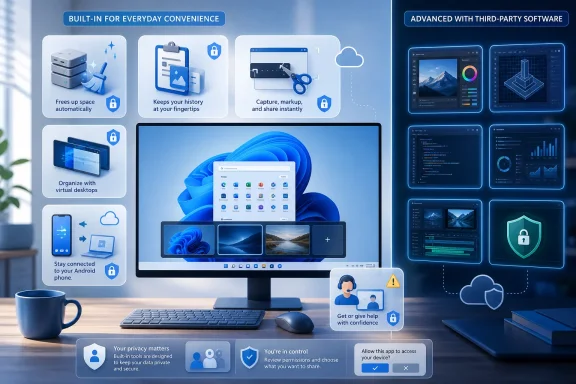
MakeUseOf’s examples—Storage Sense, Clipboard History, Snipping Tool, Task View virtual desktops, Phone Link, and Quick Assist—are real, usable Windows features. Microsoft’s current documentation confirms that all six are maintained parts of the Windows experience. The practical gain is less about Microsoft suddenly eliminating a software category than about reducing the number of background agents, update mechanisms, permissions prompts, and overlapping utilities a home PC needs on day one.
For Windows enthusiasts, the useful conclusion is narrower: test the inbox tool before installing the familiar alternative, then install a specialist application only when its missing capability is one you will actually use.
Storage Sense frees space, but it is not a general-purpose disk cleaner
Storage Sense is the strongest case in MakeUseOf’s list, provided the PC’s constrained storage is the Windows system drive and OneDrive is configured deliberately. Microsoft says Storage Sense clears temporary files and can empty the Recycle Bin or Downloads folder on a schedule selected by the user. It can also work with OneDrive Files On-Demand, turning inactive cloud files back into online-only placeholders rather than deleting them.
That last distinction deserves more attention than it received in MakeUseOf’s account. A file made online-only remains visible in File Explorer, but opening it later requires a network connection. Files marked “Always keep on this device” are exempt, which is exactly how users should protect travel documents, offline project folders, or any data needed during an outage.
Storage Sense also works on the Windows system drive—normally C:—rather than acting as a comprehensive cleaner for every attached disk. A PC with a crowded D: game library, a media archive, a virtual-machine volume, or a developer workspace will still need manual storage management. Microsoft’s Storage settings include per-drive usage views and cleanup recommendations, but neither feature should be confused with capacity planning.
The other limit is safety. Storage Sense is intentionally conservative compared with aggressive cleaner utilities that advertise registry cleanup, application-cache purges, and “performance optimization.” That restraint is a virtue. Registry cleaning has never been a meaningful routine performance-maintenance task for ordinary Windows installations, while indiscriminate cache deletion can sign users out of applications or remove data they expected to retain.
For a fresh Windows 11 installation, turning on Storage Sense and reviewing its Recycle Bin, Downloads, and cloud-content retention settings is reasonable. Enabling automatic Downloads deletion without checking the selected interval is not.
Clipboard History and Snipping Tool reduce friction rather than replace pro tools
Clipboard History is one of the least advertised improvements to the ordinary Windows workflow. Pressing Windows+V opens the history panel, but Microsoft notes that it is off until the user enables it. It retains text, HTML, and bitmap items, and users can pin frequently reused snippets. That can replace a basic clipboard manager for people who mainly need to recover something copied five minutes ago or reuse a small number of stock responses.
The omission is that a clipboard is often a sensitive place. Passwords, confidential text, one-time codes, customer data, and screenshots can all land there. Windows offers clipboard synchronization controls, but users should decide whether they want copied text to leave the device before enabling cross-device sync. On a managed work PC, IT departments may also control or restrict the feature through policy.
Snipping Tool has similarly expanded beyond the old screenshot-and-pen role. Microsoft lists Windows+Shift+S for screen capture and Windows+Shift+R for region-based video recording; recordings are saved as MP4 files in the user’s Videos\Screen Recordings folder by default. Microsoft also positions Snipping Tool’s recorder as an alternative after the deprecation of Steps Recorder, which makes the app more consequential for everyday support documentation than it was a few years ago.
The capture tool is plenty for a bug report, a cropped visual explanation, a quick annotated screenshot, or a short reproduction video. Its text-extraction functions can also save time when a dialog box, image, or scanned document contains text that is easier to copy than retype.
But calling it a replacement for every screen-capture utility would overstate the case. Snipping Tool does not fill the role of a full production recorder with webcam composition, multitrack audio, scheduled capture, advanced export controls, or a deep annotation library. The built-in tool wins when the job is small and immediate. Specialist software still earns its place when recording and editing are part of the job rather than an occasional support task.
Virtual desktops are useful workspace separation, not full session isolation
Windows Task View and virtual desktops solve a common problem without adding another taskbar-resident utility. Users can create separate desktops for work, personal browsing, meetings, development, or a presentation; Windows+Ctrl+Left and Windows+Ctrl+Right switch among them. For someone who had installed VirtuaWin or a similar tool solely to stop unrelated windows from occupying the same workspace, that is enough.
The feature should be understood as organization, not security. Virtual desktops do not create separate Windows accounts, separate permission boundaries, separate browser profiles, or separate VPN states. A notification, shared clipboard item, or application running in the background remains part of the same user session. Someone needing to separate corporate and personal activity should use the controls their employer provides, a distinct account where appropriate, or separate hardware—not merely a second desktop.
This is where the “built-in is enough” argument works best. The native tool handles the mainstream task cleanly: grouping windows by context. Third-party desktop managers remain relevant for people who depend on extensive rules, bespoke keyboard behavior, persistent layouts, or more complex window automation.
Phone Link’s headline features depend on the phone, permissions, and connection
Phone Link can remove several irritating phone-to-PC handoffs. Microsoft says its Android integration can handle messages, recent photos, calls, notifications, and—in supported configurations—mobile apps and file transfer. The expanding mobile-device panel in the Windows 11 Start menu also makes messages, calls, photos, and file sending more visible without requiring users to open the full Phone Link interface.
MakeUseOf is right that this can replace emailing files to oneself or installing a basic notification bridge. Yet Phone Link is much more conditional than the description suggests. Microsoft requires a Windows 10 or Windows 11 PC, a compatible mobile device, the Link to Windows companion experience for Android features, and permissions that grant access to notifications, messages, calls, photos, or contacts depending on what the user enables. Android and iPhone support do not offer the same feature set.
Calls, for example, depend on Bluetooth capability and an active pairing between the PC and phone. Microsoft also says Phone Link does not support work or school accounts, and it warns that granting message permissions can expose sensitive SMS content, including two-factor authentication codes, inside the Windows app. The service is useful on a personally controlled PC; it should be treated more carefully on a shared computer or a machine administered by someone else.
Phone Link is therefore an argument for reviewing permissions, not simply accepting them. Disable features that are not needed, particularly notification and message mirroring, and use a screen lock on the PC. Convenience is the product here; the cost is a wider surface for personal information.
Quick Assist is a family-support tool, not an enterprise remote-access platform
Quick Assist may be the most valuable preinstalled utility for helping a trusted relative who cannot explain a PC problem over the phone. Microsoft documents a straightforward flow: the helper signs in, generates a time-limited code, the other person enters it, and then explicitly approves screen sharing. The helper can view the display, annotate it, or request control. Windows+Ctrl+Q opens the tool directly.
That is genuinely simpler than asking a nontechnical user to download an unfamiliar remote-control product, create an account, locate an ID, and navigate a security warning. It also avoids leaving a general remote-access agent configured to start with Windows after a one-off support call.
The security condition is non-negotiable. Microsoft repeatedly warns users to allow a Quick Assist connection only when they initiated contact with Microsoft Support, their organization’s support staff, or a person they already know and trust. The app’s ease of use is precisely why it is attractive to tech-support scammers who persuade victims to install or open it.
For businesses, Quick Assist is also a poor replacement for a managed remote-support platform. Microsoft’s own guidance points organizations that need conditional access, role-based administration, auditing, tenant boundaries, and Defender integration toward Intune Remote Help. Quick Assist has a different purpose: ad hoc help, not accountable enterprise administration.
The better fresh-install checklist, then, is short. Turn on and configure Storage Sense; enable Clipboard History only if its privacy trade-offs fit the machine; learn the Snipping Tool shortcuts; create a second virtual desktop; set up Phone Link only after reviewing what it can read; and use Quick Assist only with known support contacts. Those steps can eliminate several utility downloads without pretending Windows has made every specialist tool obsolete.