
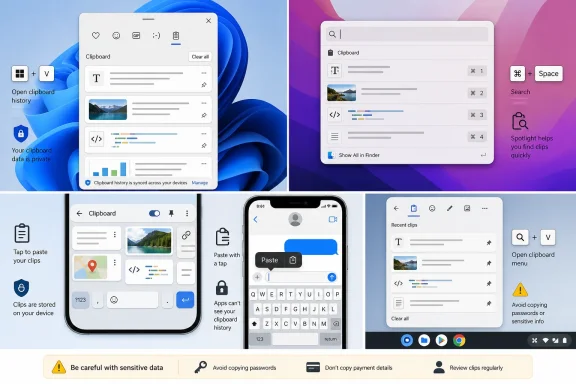
 The Clipboard Is Not a Single Feature
At its simplest, the clipboard is temporary storage for the last item copied or cut. A paste command retrieves that content and puts it into the active document, message, form, or app.
That familiar model still describes the default experience on many devices. Pressing Ctrl+V on Windows, ChromeOS, and Linux, or Command+V on a Mac, normally pastes the current clipboard item. On iPhone and Android, tapping into an editable field and choosing Paste does much the same.
A clipboard history is different. It keeps multiple earlier copies available for reuse. That can be enormously helpful when assembling an email from several sources, moving repeated phrases between apps, or recovering a snippet accidentally replaced by a newer copy command.
But it also changes the privacy equation. A history can retain sensitive text—passwords, private messages, account numbers, client details, or copied authentication codes—well after the user has finished with it. That trade-off explains why systems vary from Windows’ full-featured history panel to Apple’s more limited, device-specific approaches.
The Universal First Step: Paste Into a Safe Field
Before looking for a special viewer, use the lowest-risk and most universal clipboard check:
- Open an app with an editable blank area, such as Notepad, Notes, TextEdit, Word, Google Keep, or a new unsent email.
- Click or tap where text can be entered.
- Use Paste.
- Inspect the result.
- Delete it if it contains anything sensitive.
This approach reveals only the item that is currently active. It cannot bring back material that was replaced by a later copy command, and it will not reveal an operating system’s retained history.
That limitation is important. Users often assume that copied content is permanently retrievable. In reality, older entries exist only if the operating system, keyboard, office suite, or third-party tool has retained them—and only until that tool removes them.
Why a blank note is better than a search box
A blank note or temporary document is preferable to a web search field for private data. Pasting into a search box can cause accidental searches, autocomplete suggestions, browser history entries, or unwanted network requests.
For sensitive clipboard checks, local tools such as Notepad, TextEdit, or an offline note are usually the safer choice. Avoid pasting passwords, recovery codes, financial data, or confidential business material into chat apps, browser forms, and cloud-synced documents merely to inspect it.
Windows 11 Clipboard History: The Most Complete Built-In Viewer
For Windows users, the answer is refreshingly direct: press Windows key + V. Microsoft’s clipboard history panel shows retained copied entries and offers controls to paste, pin, delete, and clear them. If the feature has not been enabled yet, the panel provides a Turn on prompt. Microsoft documents the shortcut and setup process.
How to open and use clipboard history
- Press
Windows key + V. - Select Turn on if clipboard history is disabled.
- Click an entry to paste it into the active application.
- Use the three-dot menu beside an entry to delete it individually.
- Select Clear all to remove non-pinned history entries.
This is one of Windows 11’s more useful productivity features because it converts copy-and-paste from a one-item operation into a lightweight working buffer. Instead of repeatedly switching back to a source document, users can collect several text fragments, images, and formatted selections, then choose the correct item later.
Windows clipboard limits that matter
Windows clipboard history is not unlimited storage. Microsoft says the history holds up to 25 copied entries, with older non-pinned entries removed as newer ones arrive. Supported history formats include text, HTML, and bitmap data, with a maximum size of 4 MB per item. Those storage and format limits are specified in Microsoft’s clipboard guidance.
That means clipboard history is excellent for text snippets, web excerpts, formatted content, and smaller images. It is not intended to replace file storage, a note-taking system, or a password manager.
Pinning is powerful—and potentially risky
Pinning keeps an item from being automatically purged when the history reaches its limit or when Windows restarts. Microsoft notes that standard history is cleared at restart, while pinned entries remain. The distinction is documented in its clipboard troubleshooting section.
That is useful for recurring boilerplate:
- A support-team signoff
- A shipping address
- A standard legal disclaimer
- A frequently used command
- A reusable meeting link
However, pinned entries deserve routine review. Never pin passwords, API keys, recovery codes, private customer records, or temporary authentication information. Convenience can quietly turn a temporary copy action into persistent local exposure.
Clearing Windows clipboard history properly
Windows offers two useful cleanup paths:
- Open
Windows key + V, select the menu, and choose Clear all. - Go to Settings > System > Clipboard, then use Clear clipboard data.
Microsoft says that clearing removes items on the device and in the cloud except pinned entries, so pinned content must be removed or unpinned separately. Microsoft’s settings guidance explains this exception.
The distinction is easy to miss. A user who presses Clear all may assume every copied item is gone, while a previously pinned address or credential-like string can remain available.
Windows Clipboard Sync: Useful, but Treat It as Data Sharing
Windows can sync selected clipboard content across devices signed in with the same Microsoft or work account. The setting is found at Settings > System > Clipboard, under Clipboard history across your devices or Sync across devices, depending on the Windows version and wording displayed. Microsoft confirms the account-linked sync model and available automatic or manual options.
The feature has obvious appeal for a Windows laptop-and-desktop setup. Copy a paragraph on one PC, then paste it on the other without emailing yourself, opening a cloud note, or using a messaging app.
The practical advantages
Clipboard sync can reduce friction in common workflows:
- Moving text between a work desktop and travel laptop
- Reusing a code sample across two Windows systems
- Copying a URL from one computer and pasting it into another
- Transferring small visual snippets without saving a file first
For users who regularly move between systems, it can feel more immediate than cloud storage because it attaches to the copy-and-paste muscle memory they already have.
The security reality
The feature also deserves intentional use. Microsoft explains that synced clipboard material is connected to the Microsoft account or work account used across devices. That account relationship is part of the company’s official setup instructions.
The safest approach is to decide in advance what belongs in a synced clipboard:
- Generally appropriate: public links, non-sensitive notes, generic commands, disposable text.
- Use caution: client names, internal URLs, personal contact information, screenshots.
- Avoid: passwords, private keys, one-time passcodes, payment data, recovery phrases, and confidential documents.
Clipboard sync is a productivity feature, not a secure secrets vault. A purpose-built password manager is the correct tool for login information because it is designed around encryption, access controls, autofill, auditing, and secure sharing.
Android Clipboard History Depends on the Keyboard
Android has no single visual clipboard interface shared identically by every phone. Instead, clipboard history is commonly surfaced by the keyboard application currently being used. That is why the correct first step is to open any app with a text field and bring up the keyboard.
Gboard
With Google’s Gboard, tap into a field and look for Clipboard in the keyboard toolbar. Tapping a saved clip inserts it into the active field; long-pressing an item typically exposes a Pin option.
Pinned content is intended for material users want to retain, while unpinned content is temporary. Android and Gboard clipboard behavior can vary by version and manufacturer, so it is sensible to treat temporary clips as short-lived rather than relying on them for long-term storage.
Samsung Keyboard
On many Galaxy phones and tablets, touch and hold in a text field, choose Clipboard, and select a previously copied item. Samsung’s implementation is especially convenient for users who stay within the Galaxy ecosystem because the clipboard button is integrated into the typing workflow rather than hidden in a separate system application.
The limitation remains the same: the clipboard is an input convenience feature, not an archival tool. If an important note must survive device changes, resets, keyboard changes, or storage cleanup, place it in Samsung Notes, Microsoft OneNote, Google Keep, or another proper note system.
Microsoft SwiftKey on Android
Microsoft SwiftKey presents its clipboard through the keyboard toolbar. Users can open the toolbar, select Clipboard, and tap a clip to paste it. SwiftKey also allows manual creation of saved clips through Toolbar > Clipboard > Pencil > +, then saving the entered text. Microsoft’s SwiftKey documentation describes those steps.
SwiftKey’s stronger organizational options make it attractive for frequent phrases. Clips can be pinned, reordered, deleted with a left or right swipe, and associated with shortcuts that surface the stored phrase in predictions. Microsoft also notes that pinned clips avoid the normal one-hour expiry behavior.
Android’s key lesson: know which keyboard is active
When a clipboard button appears to be “missing,” the problem is often not that the phone lacks clipboard support. It may simply be using a different keyboard than expected.
Check the keyboard currently active on the device. A phone may switch between Gboard, Samsung Keyboard, SwiftKey, a manufacturer keyboard, or an accessibility-oriented alternative. Each can have different clipboard menus, history limits, pinning rules, and privacy behavior.
iPhone and iPad: Current Clipboard, Not a General Built-In History
Apple’s iPhone and iPad workflow is fundamentally different from Windows. The standard iOS and iPadOS experience centers on the current clipboard item: copy something, tap into an editable field, and paste it.
Apple’s current guidance for copying and pasting focuses on that direct workflow and on Universal Clipboard between nearby Apple devices, rather than offering a general system clipboard-history viewer. Apple’s iPhone guide describes copying and pasting current content.
This design has a privacy benefit. There is no obvious, systemwide running list of every recent copy action for someone else to browse. The downside is clear: users cannot rely on iPhone or iPad to retrieve several previous copied items after they have been replaced.
A practical iPhone clipboard-check shortcut
The Shortcuts app can provide a reusable way to display the active clipboard item. Create a shortcut that uses Get Clipboard, then sends the result to an output action such as Quick Look, Show Alert, or Stop and Output.
Apple describes shortcuts as combinations of individual actions that work with apps, device content, and services. Its Shortcuts guide explains the action-based model. The result is not full history, but it can remove the hassle of creating a temporary note every time you need to inspect the currently copied content.
SwiftKey adds saved clips on iPhone and iPad
Users who need a true saved-snippet area on iPhone or iPad can consider Microsoft SwiftKey. In SwiftKey for iOS, the Clipboard supports up to 30 saved clips, with a maximum of 1,000 characters per clip. Unsaved copied text expires after one hour, according to Microsoft. Those limits and management controls are documented by Microsoft.
That can be useful for:
- Email signatures
- Repeated support responses
- Shipping details
- Social-media tags
- Commonly used links
- Template messages
Again, the caution is the same. Saved keyboard clips should contain reusable text, not secrets.
Mac Clipboard History Has Moved Into Spotlight
The Mac clipboard story has changed meaningfully with macOS Tahoe 26. Apple now documents a clipboard-history search experience inside Spotlight, rather than placing it in Finder or a standalone Clipboard app. Apple’s Mac User Guide describes the Spotlight Clipboard interface.
How to view Mac clipboard history
- Press
Command + Spaceto open Spotlight. - Click the Clipboard button to the right of the search field, or press
Command + 4. - Search for the copied material.
- Use an item’s copy control, or select it and press
Command + C. - Paste it where needed with
Command + V.
Apple’s implementation is significant because it treats clipboard history as something users may need to search, not merely scroll through. That is a more scalable approach when a history contains many small items and the user remembers a word or phrase but not when it was copied.
Enable it with caution
Apple warns that sensitive information may appear in clipboard history when users first enable the feature. That warning is included in the Mac clipboard-history instructions.
The warning deserves attention. A searchable clipboard can be excellent for research, writing, coding, and project work. Yet the same searchability can make old snippets easier to discover than users expect.
To remove retained content, open the More menu in Spotlight’s Clipboard view and choose Clear History. Apple documents the clearing option in the same guide.
What older macOS versions should expect
The Spotlight Clipboard control is specifically documented in Apple’s current macOS Tahoe 26 guidance. Earlier macOS releases may not provide the same built-in history experience. On those systems, standard paste behavior still exposes only the active item unless another app has retained history.
That version distinction matters in mixed Mac environments. A feature visible on a newer MacBook may not appear on an older office Mac, even when both use the same Command+C and Command+V shortcuts.
Chromebook Clipboard History Is Fast and Deliberately Small
ChromeOS offers one of the easiest clipboard-history shortcuts: press Search + V or Launcher + V. Google says users can navigate the clipboard menu with the Tab key or arrow keys, then press Enter to paste the selected entry. Google’s Chromebook shortcut reference lists the commands.
Google also states that Chromebook clipboard history can retain up to five copied items. That five-item limit appears in the official shortcut documentation.
Chromebook clipboard shortcuts worth memorizing
Ctrl + C— CopyCtrl + V— Paste the active itemCtrl + Shift + V— Paste as plain textSearch + VorLauncher + V— Open clipboard history- Enter — Paste the selected history item
The plain-text shortcut is particularly valuable when copying from websites, PDFs, chat applications, and rich documents. It prevents unwanted fonts, colors, links, tables, and layout artifacts from following the text into the destination app.
Five items is a feature, not merely a limitation
The five-item cap can feel restrictive compared with Windows’ 25 entries. But it also encourages an appropriate mental model: clipboard history is a short-term staging area, not storage.
For lengthy research or work that must be preserved, use Google Docs, Keep, a text document, or project-management software. The clipboard should reduce repetitive work, not become the only place where important information exists.
Microsoft Office Clipboard Is Separate From Windows Clipboard History
Microsoft Office includes its own Office Clipboard pane in desktop Office applications such as Word, Excel, PowerPoint, and Outlook. It is not a replacement for Windows 11 clipboard history, but it can be valuable when assembling a document from multiple copied fragments.
To use it in most Windows Office apps:
- Open Word, Excel, PowerPoint, or Outlook.
- Go to the Home tab.
- In the Clipboard group, select the dialog box launcher.
- Double-click an item to paste it.
Microsoft says the Office Clipboard holds up to 24 items. When a 25th item is copied, the oldest entry is discarded. The pane also supports Paste All, individual deletion, and clearing all stored items. Microsoft documents the Office Clipboard’s capacity and controls.
Why Office Clipboard still matters
The Office Clipboard is especially useful when formatting is important. It provides a focused environment for collecting text blocks, table elements, and graphics while working inside Office apps.
Typical scenarios include:
- Building a PowerPoint deck from multiple notes
- Consolidating figures from several Excel sheets
- Combining source excerpts into a draft report
- Reusing formatted content across Word documents
- Preparing an Outlook email with several copied sections
Its weakness is scope. Office Clipboard is tied to Office workflows; it should not be confused with a universal view of all Windows clipboard activity.
Sharing Clipboard Content Between Devices
Cross-device clipboard features remove a major annoyance: copying on a phone and having to email, message, or manually retype the content on a computer. Yet they are generally designed for temporary transfer, not for maintaining a permanent, synchronized library.
Apple Universal Clipboard
Apple’s Universal Clipboard lets users copy text, images, photos, videos, and other compatible content on one Apple device and paste it on another. Devices need to be nearby, signed into the same Apple Account, and have Wi-Fi, Bluetooth, and Handoff enabled. Apple lists those Universal Clipboard requirements.
Apple explains that copied content is available on the other device only briefly, or until it is replaced by another copied item. Its iPhone guide emphasizes the temporary nature of Universal Clipboard.
This is a strength, not a deficiency. Universal Clipboard is exceptionally convenient for moving a link, image, or paragraph between a nearby iPhone, iPad, and Mac, but its temporary behavior reduces the risk of turning every device into a long-term repository of copied material.
Phone Link between Windows and Android
Microsoft’s Phone Link and the companion Link to Windows app provide broader Android-to-Windows integration. Microsoft requires a Windows 10 PC with the October 2022 Update or later, or Windows 11; an Android device running Android 10 or later; and both devices connected to the same Wi-Fi network. Microsoft’s Phone Link requirements spell out those baseline conditions.
However, feature availability can be device-dependent. Microsoft maintains a supported-device list for particular Phone Link experiences, which includes many Samsung, HONOR, OPPO, ASUS, vivo, Xiaomi, OnePlus, and other Android devices in select markets. The supported-device page shows why compatibility should be checked rather than assumed.
This is a sensible reminder that “Android” is not a single, uniform product platform. The phone’s brand, software version, manufacturer integration, market, and enterprise policy can all influence whether a cross-device copy-and-paste option appears.
Privacy Rules for Every Clipboard
The best clipboard workflow is not simply the one that stores the most items. It is the one that matches the sensitivity of the data and the duration for which it needs to exist.
A sensible clipboard hygiene checklist
- Use clipboard history for ordinary work text, not sensitive credentials.
- Paste as plain text when formatting is unwanted or could carry confusing content.
- Clear history after sensitive tasks, especially on shared or public-facing PCs.
- Review pinned Windows entries because they persist beyond normal history cleanup.
- Avoid unknown clipboard-manager apps that ask for broad permissions without a clear privacy policy.
- Use a password manager for passwords, passkeys, recovery codes, and secure notes.
- Keep work and personal data separate on managed devices wherever organizational policy requires it.
- Treat cross-device sync as sharing, even when every connected device belongs to the same person.
The clipboard is deceptively powerful because it is woven into nearly every digital task. Windows 11 offers the clearest general-purpose history through Windows key + V; ChromeOS provides a quick five-item menu; macOS Tahoe 26 makes history searchable through Spotlight; Android puts the controls in the active keyboard; iPhone and iPad emphasize the active item rather than a systemwide archive; and Office maintains its own document-focused collection.
Understanding those boundaries turns copy-and-paste from a frustrating disappearing act into a reliable productivity tool—without accidentally making temporary information more permanent, more visible, or more widely shared than it needs to be.
