

For Windows enthusiasts, that matters. The traditional answer to “how do I trim a video, narrate a screen recording, add subtitles, or make a quick social clip?” has often involved downloading a third-party utility, learning a complex professional editor, or accepting a web service’s privacy and watermark compromises. Clipchamp for Windows 11 presents a credible middle ground: approachable enough for occasional edits, yet sufficiently flexible for tutorial makers, family archivists, students, small businesses, and office workers.
It is not a replacement for Adobe Premiere Pro, DaVinci Resolve, or a dedicated digital-audio workstation. Nor is it completely frictionless. Its storage model, account requirements, premium gating, and distinctions between personal and work accounts deserve careful attention. But for a tool bundled with Windows 11, Clipchamp offers considerably more than its modest reputation suggests.
Clipchamp’s Place in Windows 11
Clipchamp is included with Windows 11 and is also available through a modern browser, giving users a desktop-app-style experience while retaining the flexibility of a web-based editor. Thurrott notes that Windows users signing in with a Microsoft account are generally signed into Clipchamp automatically, while local-account users are prompted to authenticate. Thurrott’s guide
That account connection is more than a sign-in convenience. It underpins cloud storage, project availability, content backup, and—in work or school environments—collaboration and OneDrive or SharePoint integration. Microsoft distinguishes between the personal editor and the work or school edition, and the differences are meaningful: work projects are structured around OneDrive or SharePoint project folders, while personal projects retain a more local-first approach unless a user enables cloud backup. Microsoft’s export documentation
The personal version is free for editing with a user’s own media and the included free stock catalog, with exports available up to 1080p HD. Microsoft says that eligible Microsoft 365 Personal and Family subscriptions unlock premium functions such as 4K exports, premium filters and effects, and expanded professional stock media; standalone premium options are also available in some markets and account configurations. Microsoft’s pricing overview
This division defines Clipchamp’s appeal. The free tier is not merely a trial editor that places an intrusive watermark on ordinary work. It is a usable 1080p video editor for Windows 11, provided a project stays within free assets and features. That alone makes it valuable for many common jobs:
- Editing a short family video
- Creating narrated PowerPoint-like explainers
- Recording a software tutorial
- Trimming and captioning a product demo
- Combining photos, clips, music, and titles
- Producing a basic social-media video
- Capturing a webcam update or presentation
- Preparing an audio-only narration project
The most important expectation to set is simple: Clipchamp is best viewed as a consumer-friendly nonlinear editor, not a lightweight media player with a few trim controls.
A Project Model That Is Easy to Understand—Until Storage Enters the Picture
Clipchamp is built around projects. Each project collects user-supplied video, image, and audio files alongside editor-created text, transitions, filters, effects, stock assets, recordings, and other timeline elements. The editor then uses those assets to create an exported video or, in audio-only workflows, an audio file. Thurrott’s guide
That approach is familiar to anyone who has used a serious editor. The source files are not inherently the finished work; the timeline, clip placement, visual adjustments, captions, and effects are what define the project. It is a sensible model, but it creates a responsibility that casual users may not anticipate: source media matters after import.
Microsoft explains that, in the personal version, Clipchamp typically processes imported media locally and may retain temporary copies in a browser cache or a temporary folder. If those working files are cleared, or if the original source material has been moved, renamed, deleted, or lost, Clipchamp can ask the user to locate the affected files again. Microsoft’s media-location guidance
Local-first editing has advantages
This behavior is not inherently a flaw. Local processing offers genuine benefits:
- It can reduce the need to upload large private videos before editing.
- It keeps personal footage under the user’s direct control by default.
- It avoids consuming cloud-storage capacity for every raw clip.
- It can make local editing practical when an internet connection is inconsistent.
Microsoft explicitly describes the personal experience as local by default unless a user opts into Content Backup. Microsoft’s Content Backup documentation
For privacy-conscious Windows users, that is a noteworthy strength. Someone editing a personal recording, home video, or confidential demonstration may reasonably prefer that raw material not be automatically copied to an online service.
The trade-off: file discipline is no longer optional
The downside is that project portability and recovery become more complicated. Clipchamp is not a magic container that guarantees every imported file will remain available forever. Users who treat the Downloads folder as disposable, routinely run aggressive disk-cleanup utilities, or reorganize media archives after beginning a project are more likely to run into relinking prompts.
Microsoft recommends retaining original media files and notes that recovery can be impossible if original files have been deleted or lost while Content Backup was not enabled. Microsoft’s recovery guidance
The practical rule for any substantial project is therefore straightforward:
- Create a dedicated project folder.
- Copy all raw footage, music, images, and narration files into it.
- Import media from that folder.
- Avoid renaming, moving, or deleting those files during production.
- Keep a separate backup before cleaning local storage or resetting Windows.
That simple workflow eliminates much of the risk associated with local-first project handling.
The Editor: A Familiar Timeline With Useful Creative Depth
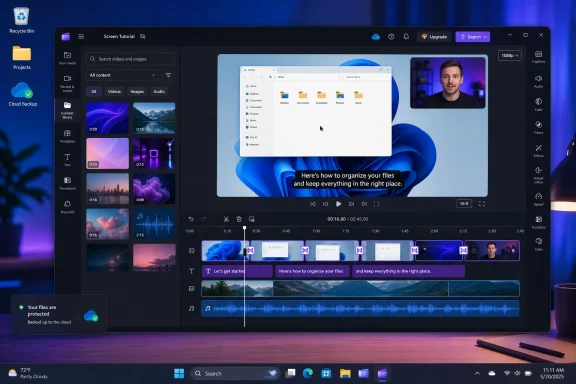
Clipchamp’s core editing experience is centered on the timeline, with a media library to the left, a video preview above, and a context-sensitive properties panel on the right. Thurrott’s overview highlights a toolbar for media, text, content-library items, recording tools, transitions, and related functions, while the properties panel changes according to the selected timeline item. Thurrott’s guide
This is an effective interface decision. Beginners can start by dragging items into the timeline and adjusting their duration. More experienced users can select an item and immediately find relevant controls for fade, filters, effects, color adjustments, speed, audio, and captions rather than navigating through a dense set of menus.
The basics are well covered
For everyday edits, Clipchamp supports the essential operations users expect:
- Dragging images, video clips, and audio clips into the timeline
- Rearranging clips between tracks
- Splitting clips at the playhead
- Deleting unwanted sections
- Closing timeline gaps
- Altering the duration of still images and text
- Layering visual material across multiple tracks
- Adding background music and sound effects
- Resizing or cropping media for the project’s chosen aspect ratio
The ability to split a clip and remove an unwanted segment is especially important. It transforms Clipchamp from a basic assembly tool into a legitimate editing environment. A user can record a five-minute screen demonstration, cut pauses and mistakes, add a title card, insert a screen annotation, and export a clean tutorial without leaving Windows 11.
Layered tracks also matter more than they may initially appear. Text above a video track, an image overlay above a second video clip, or a music track beneath narration are all fundamental building blocks of modern video. Clipchamp’s timeline rules—visual layers above one another and audio tracks beneath the video layers—are intuitive and help users understand compositing without forcing them to learn professional terminology. Thurrott’s guide
Effects and adjustments are practical, not ornamental
Clipchamp includes filters, configurable visual effects, color controls, speed changes, fades, transitions, and blend-related adjustments. Thurrott’s guide
The value here is not simply that a beginner can turn a clip black-and-white or add a blur. The more practical controls are exposure, contrast, saturation, temperature, transparency, crop behavior, and playback speed. These are the tools that rescue slightly underexposed phone footage, normalize mismatched shots, make a still image fit a widescreen canvas, or produce a time-lapse-style demonstration.
Still, the editor’s flexibility should not be mistaken for professional color grading. Clipchamp provides useful corrective controls, but it does not expose the granular scopes, LUT management, keyframing depth, multicamera workflows, codec controls, and advanced color science expected in professional production software. That is not a criticism of its intended audience; it is an important boundary for users deciding whether it fits a high-stakes production workflow.
Recording Tools Make Clipchamp More Than an Editor
A major strength of Clipchamp is that it does not require users to arrive with finished footage. The Record & create area includes ways to record a camera, a screen, audio, and a combined screen-and-camera presentation. Microsoft’s webcam recording guide
That makes it particularly well suited to the kinds of content Windows users produce every day: bug reports, feature walkthroughs, training material, app demonstrations, help-desk explainers, gaming clips, and school presentations.
Screen and camera recording
The combined screen-and-camera mode can capture a display, window, or browser tab while placing a webcam feed over the recording in a picture-in-picture arrangement. Thurrott notes that users can select camera and microphone hardware, use a script overlay, and optionally include system audio when starting a screen recording. Thurrott’s guide
This feature is especially relevant to Windows 11 tutorial creation. A presenter can demonstrate a Settings change, narrate the steps, keep their face visible for a more personal delivery, and then edit the result in the same project. It minimizes the handoff between capture tool and editing tool.
The camera recorder also supports device selection and, depending on the edition and available features, backdrop options, drawing, frames, filters, and teleprompter-style support. Microsoft notes a 30-minute limit on webcam recordings and support for recording resolutions up to 1080p, with final quality also depending on the connected camera hardware. Microsoft’s webcam recording guide
Audio recording and text-to-speech
Clipchamp’s audio recorder supports direct voice capture, while its text-to-speech tool can generate narration from entered text using AI-based voices. Thurrott describes the text-to-speech workflow as a timeline-based clip with voice selection, text entry, pause controls, previewing, and saving. Thurrott’s guide
For accessibility, rapid prototyping, or users who do not want to record their own voice, this is useful. It is also potentially risky from a quality perspective. Synthetic narration can sound detached or unnatural when overused, and auto-generated pauses or pronunciations still need review. Text-to-speech works best as a production aid, not as a substitute for editorial judgment.
The audio workflow has another underappreciated advantage. Microsoft documents that audio-only projects can be exported as M4A files, enabling Clipchamp to serve as a simple audio editor for narration, voice recordings, and basic sound assembly. Microsoft’s export documentation
Users should be precise about that limitation. Microsoft’s current documentation frames M4A export around projects that contain only audio. Anyone seeking to extract audio from an existing video should verify the available workflow in their Clipchamp edition, potentially separating or rebuilding the audio track before export rather than assuming every video project will offer a direct audio-only output option. Microsoft’s export documentation
Captions, Noise Suppression, and the AI Features That Actually Matter
Artificial intelligence features are now routine in creative software, but Clipchamp’s most useful AI-driven additions are not flashy automatic video generators. They are the pragmatic features that reduce tedious manual work.
Autocaptions improve accessibility and discoverability
Clipchamp’s Autocaptions feature transcribes spoken audio and generates a time-coded transcript that users can review and edit. Microsoft says the process uses Azure Cognitive Services to process audio for caption generation, and the transcript can be corrected when recognition makes a mistake. Microsoft’s autocaptions guide
Captions improve video accessibility for deaf and hard-of-hearing audiences, but their value extends beyond accessibility. They also help viewers watching without sound, users consuming a tutorial in a noisy space, and people scanning a video for a specific spoken instruction. For product explainers and how-to videos, captions can improve clarity far more than another decorative transition ever will.
The caveat is familiar to anyone who has used speech recognition: always proofread the transcript. Technical terms, names, acronyms, non-native accents, overlapping speakers, background noise, and poor microphone quality can all produce errors. Caption automation eliminates repetitive transcription work; it does not eliminate editorial responsibility.
Noise suppression can help, but source quality still wins
Microsoft’s Clipchamp editor includes AI noise suppression for compatible audio clips, detached audio, and recordings. For video clips with embedded sound, Microsoft says users may need to separate the audio before applying the feature. Microsoft’s noise-suppression guide
This can be valuable for voice recordings made in a home office, classroom, or shared room. Keyboard noise, HVAC hum, and distant ambient sound can undermine an otherwise useful presentation. But noise suppression should be treated as a repair tool, not a reason to neglect recording technique.
A closer microphone, reduced room echo, modest input levels, and a quiet recording space will usually produce better results than aggressive post-processing. Overprocessed audio can sound metallic, clipped, or unnaturally thin. Clipchamp makes audio cleanup more accessible, but it cannot reconstruct detail that a poor recording never captured.
Templates, Stock Assets, Text, and Transitions
Clipchamp’s content library includes stock video, images, music, sound effects, shapes, overlays, frames, annotations, and animated GIFs. The editor also provides a wide range of text treatments and transitions. Thurrott’s guide
This is where Clipchamp can save non-designers a great deal of time. A template gives a project a visual structure from the start, while stock assets can fill gaps when a user lacks an opening shot, a neutral background, or suitable music. The content library can turn a basic product announcement or photo montage into something more coherent with relatively little effort.
The risk, however, is sameness. Template-heavy video is easy to recognize. A polished template can make a project look professional, but it can also make it look generic if the creator relies on every default animation, font pairing, and music cue. The best use of Clipchamp templates is as a starting structure—one that is customized with original media, concise messaging, and restrained effects.
Text is one of the more important creative components. Clear titles, lower-thirds, callouts, and step labels can make a tutorial significantly easier to follow. The editor’s text styles, font controls, colors, outlines, shadows, and positioning options provide enough range for most casual productions. Thurrott’s guide
The strongest videos use text sparingly. A title should orient the viewer, not occupy half the runtime. An annotation should clarify an action, not compete with it. Clipchamp’s wide selection makes excess easy; discipline makes the result effective.
Exporting, Sharing, and the Difference Between Finished Video and Collaborative Editing
At export time, Clipchamp can produce MP4 video at 480p, 720p, 1080p, and—where a subscription or eligible premium entitlement applies—4K. Microsoft also notes that short videos can be exported as GIFs and that audio-only projects can export to M4A. Microsoft’s export documentation
For most Windows 11 users, 1080p is the practical sweet spot. It is detailed enough for tutorials, presentations, family videos, and standard online publishing while generally requiring less processing time and storage than 4K. Higher-resolution exports are valuable when source footage is genuinely 4K and the target platform or display benefits from it, not simply because the option exists.
Microsoft warns that longer projects and higher resolutions can take longer to export, and its troubleshooting guidance recommends reducing competing browser activity when using the web editor, among other steps. Microsoft’s export troubleshooting guidance
That points to a broader reality: Clipchamp’s ease of use does not exempt it from the demands of video production. Long timelines, high-resolution source media, visual effects, limited RAM, storage pressure, and older graphics hardware can all affect export reliability and speed.
Sharing is not identical across account types
There is an important distinction between sharing a finished video and sharing an editable project. Microsoft says personal-account users can share exported videos through integrations such as OneDrive, Google Drive, YouTube, TikTok, Dropbox, and, in applicable situations, LinkedIn. Microsoft’s sharing documentation
But Microsoft also states that personal Clipchamp projects cannot currently be shared with another user for collaborative editing. Users can open their own project on another computer by signing in with the same account, but multi-user edit collaboration is a work-or-school feature tied to organizational OneDrive or SharePoint controls. Microsoft’s sharing documentation
That limitation matters for small teams and families. If two people need to actively edit the same project, they should not assume that a OneDrive link automatically creates a collaborative editing experience in the personal version. Organizations using Microsoft 365 work accounts are better positioned for that workflow, with permissions such as edit or view-only governed through the underlying Microsoft 365 sharing environment. Microsoft’s sharing documentation
Where Clipchamp Excels—and Where It Requires Caution
Clipchamp succeeds because it addresses a real gap in Windows 11: users need to make videos, but most do not need a full professional post-production suite. Its strongest qualities are clear:
- Included with Windows 11, reducing the need for a separate download
- Free 1080p editing with users’ own media and free assets
- A coherent, approachable timeline-based editor
- Integrated screen, camera, and voice recording
- Useful captions, text-to-speech, and noise-suppression tools
- Stock media, templates, effects, titles, and transitions for faster production
- Audio-only M4A exports for suitable projects
- Local-first handling that can benefit privacy-conscious users
Its limitations are equally important:
- Users must protect and organize original media files.
- Personal and work editions differ substantially in cloud storage and collaboration.
- Some desirable features remain behind premium entitlements.
- AI captions and synthetic voices require human review.
- Advanced creators will outgrow its color, audio, multicamera, keyframing, and delivery controls.
- Browser-oriented and cloud-connected behavior can be sensitive to resource constraints and account configuration.
The conclusion is not that Clipchamp is secretly a professional editing suite. It is that Microsoft has delivered something more useful for ordinary Windows 11 users than a casual glance at the app might suggest. With a disciplined media-storage workflow, realistic expectations, and a willingness to review automated results, Clipchamp can handle a remarkable range of everyday video and audio tasks without leaving the Windows ecosystem.
References
- Clipchamp - Thurrott.com Thurrott.com · 2026-07-26T22:10:13+00:00