
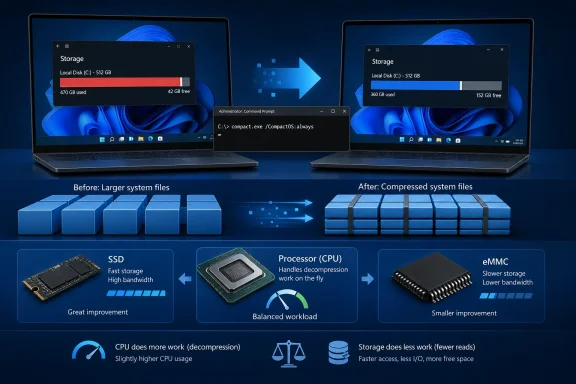
compact.exe /CompactOS:always command can reclaim several gigabytes from the operating system’s footprint, but the claim that it comes with no performance cost is stronger than Microsoft’s documentation supports. Compact OS is a legitimate, built-in Windows deployment feature, and it remains supported on Windows 11. It is chiefly meant for storage-constrained PCs, not as a universal tune-up for every desktop with a modern SSD.NeoWin highlighted the command after Reddit user No-1nternet surfaced Microsoft’s Compact OS documentation. The discovery is useful for owners of 32GB and 64GB devices, virtual machines, thin clients, and older tablets where Windows servicing can become difficult once free space falls into single digits. But the tool is hardly new, and the more important detail is in Microsoft’s own guidance: Compact OS trades some CPU decompression work for fewer storage reads, so the result depends on the hardware.
Microsoft describes Compact OS as a way to keep Windows runtime files compressed on disk. When Windows needs a system binary, it transparently decompresses it. The space saving is real; the blanket performance promise is not.
 Compact OS is supported in Windows 11
compact.exe is the command-line interface for Windows compression features and is documented for Windows 11, Windows 10, and current Windows Server releases. Its Compact OS switches control the state of Windows system binaries rather than indiscriminately applying ordinary NTFS compression to every folder on the drive.
An administrator can inspect the current state with:
compact.exe /CompactOS:query
To enable Compact OS:
compact.exe /CompactOS:always
To undo the change later:
compact.exe /CompactOS:never
The command must be run from an elevated Command Prompt or Terminal session. always is also slightly misleading in everyday language: it does not mean Windows will permanently compress every future file on the machine. It tells Windows to compress the applicable operating-system binaries and retain the Compact OS state until an administrator changes it.
Microsoft’s command reference explicitly distinguishes this from the more general compact command used to compress individual NTFS files and directories. That distinction matters for anyone tempted to point compression at C:\Windows, Program Files, or an entire game library manually. Compact OS uses Windows’ OS-specific mechanism; folder-level compression is a separate decision with different compatibility and performance consequences.
Microsoft’s published savings are meaningful—but old
The eye-catching storage numbers being repeated alongside this tip come from a Microsoft Windows 10 version 1607 footprint comparison, not from a current standardized Windows 11 benchmark. On Microsoft’s 64-bit Windows 10 test installation with 4GB of RAM, the base footprint was 15.06GB. Enabling Compact OS without single-instancing reduced it to 11.3GB, a saving of more than 3.7GB.
With the older single-instancing deployment option included, Microsoft listed a 10.09GB footprint, or more than 4.75GB saved. Those figures establish the order of magnitude that Compact OS can deliver, but they should not be treated as a promise for a fully patched Windows 11 PC in August 2026.
Windows 11’s footprint varies substantially with edition, language packs, optional features, recovery configuration, installed inbox apps, driver packages, hibernation settings, component-store state, and update history. A machine that has accumulated months of feature updates and application installs will not reproduce a clean Windows 10 deployment-image measurement. The only meaningful number for an individual PC is the amount compact.exe actually reports after completing its work.
That still makes Compact OS valuable in the right situation. On a 32GB eMMC laptop or a small virtual disk, recovering even 2GB can be the difference between successfully applying a cumulative update and having Windows fail because it cannot stage files. Microsoft’s storage guidance warns that low available disk space can interfere with updates and contribute to poor system behavior. In that context, free capacity is more useful than preserving every uncompressed system file.
The performance tradeoff depends on CPU and storage
Microsoft’s current Compact OS guidance for Windows IoT Enterprise is clear about the tradeoff. Compression reduces the amount of data Windows must read from storage, but decompression adds CPU work. On newer systems—particularly those with SSD storage—Microsoft says users generally should not observe much downside. That is a practical observation, not a guarantee of zero overhead.
The outcome can even favor Compact OS on a machine limited by slow storage. A low-power device with sluggish eMMC or a slow SATA drive may spend less time reading a compressed binary and decompressing it than it would reading a larger uncompressed file. Conversely, a PC with a fast NVMe SSD and a weak processor has less to gain from reduced reads and more opportunity to expose decompression overhead.
This is why the Reddit user’s report of no noticeable slowdown should be treated as an individual experience, not a benchmark result. Microsoft does not publish a blanket “no performance hit” claim for Compact OS. It says the actual impact depends on the relative performance of the storage and compute hardware.
For most current desktops with a spacious SSD, the expected saving may simply not justify changing the default configuration. A 1TB drive with hundreds of gigabytes free does not become more responsive because Windows system files occupy a few gigabytes less space. For a device already pressed against its storage limit, however, the capacity gain can have a direct operational benefit even if some workloads show a small CPU cost.
Compact OS is not a substitute for storage housekeeping
Compact OS only targets Windows system binaries. It will not meaningfully solve a drive filled by game installs, downloaded media, virtual-machine images, old restore points, developer toolchains, OneDrive files kept offline, or application caches. Users should check what is consuming space before treating system compression as the first remedy.
Windows’ built-in Storage Sense is a more appropriate starting point for many systems. Microsoft says it can automatically remove temporary files, Recycle Bin content, and locally available OneDrive files according to the configured policy. Administrators can manage it through Intune, making it a more scalable fix for a fleet of low-capacity PCs than asking users to run an elevated command manually.
Hibernation is another separate category. Microsoft’s own compact-footprint documentation shows that reducing or disabling the hibernation file can save substantial space, but that choice affects Fast Startup and the ability to hibernate. It should not be made casually on laptops where preserving the current session and battery life behavior are important.
The practical order is simple: identify large files and applications, clear disposable data, remove unused optional features and language packs, and then consider Compact OS if Windows itself is consuming capacity that the machine genuinely needs back. Compression is reversible, but it is still a system-level configuration change rather than a cleanup button.
Power users should avoid compressing everything
Tools such as CompactGUI can apply Windows compression technologies to application and game folders through a graphical interface. They can be useful for advanced users who understand which files are compressible and which software can tolerate the extra processing during reads and writes. They are not equivalent to enabling Compact OS.
Games and applications often already contain compressed archives, media, or package files. Compressing such data again may produce little space reduction while adding work every time it is read. Files that are frequently modified can also be poor candidates. There is no general rule that a folder reporting 100GB on disk will shrink by a predictable percentage, and there is no vendor-wide support guarantee for compressed third-party application directories.
For managed Windows endpoints, the conservative approach is to use the operating system’s supported Compact OS setting only where capacity constraints justify it, test a representative device model, and measure free space before and after. A fleet with the same Windows image can still behave differently if one group runs on eMMC storage and another on fast SSDs.
Compact OS is a useful Windows capability that deserves more visibility than it gets. The corrected takeaway is narrower than the viral headline: it can recover several gigabytes of Windows storage, and it may have little noticeable effect on a modern PC, but the performance result is hardware-dependent. On a nearly full low-capacity device, that is a concrete enough benefit to justify testing the built-in command—after checking its current state first.