
C:\Windows\AppPatch directory and can match known executables with tailored fixes at launch. Microsoft’s own documentation confirms that these .sdb databases can identify an application by its file attributes and apply either warning messages or compatibility fixes.For players, the practical takeaway is straightforward: a surprising number of old Windows games start because the OS is quietly intercepting a narrow set of behaviors that broke as Windows changed. But a shim cannot restore a missing 16-bit execution environment, revive an obsolete kernel driver, or safely re-enable abandoned disc-copy-protection software. The compatibility database is a long-lived engineering tool, not a universal retro-gaming solution.
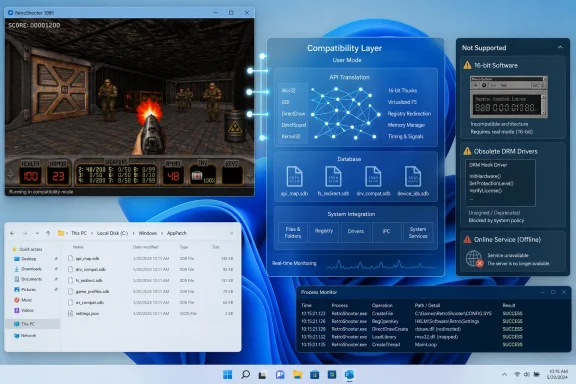 The database contains targeted workarounds, not an old Windows installation
The core mechanism is commonly called application shimming. Rather than alter an old game’s executable on disk, Windows can put a compatibility layer between that program and selected Windows APIs. When the game asks Windows to perform an operation in a way that depends on an old behavior, the shim can modify the answer, redirect the call, or make Windows report a value the game expects.
Microsoft describes the standard application-compatibility database as an indexed binary .sdb file. Its matching process can use details including an executable’s attributes and files located alongside it, enabling Windows to distinguish between programs that may otherwise share a generic filename such as setup.exe or game.exe.
That specificity is the part most users never see. A fix can be as limited as correcting a known version-detection problem, adjusting a display-related behavior, or applying a legacy compatibility layer. The database can also use AppHelp entries: these do not fix the program at all, but can warn users that a known incompatibility exists or prevent an application from running where the failure would be severe.
Microsoft has maintained this machinery for far longer than Windows 11, and its documentation says the system database can be updated through Windows Update. That makes the database more than a static archive installed with the OS. Microsoft can add or revise compatibility treatments as it discovers upgrade blockers or receives reports from software vendors and customers.
The phrase “secret database,” then, is more marketing than revelation. The files are neither hidden nor undocumented, although their contents are not meant to be casually edited. The significant fact is that Windows has carried forward a finely grained compatibility mechanism instead of forcing every old program through a single broad “Windows XP mode.”
Compatibility Mode is the user-controlled edge of the same system
The Compatibility tab in an executable’s Properties dialog is often described as emulation. It is not. Selecting Windows XP or Windows 7 compatibility mode does not boot a virtual copy of that operating system, install an old kernel, or recreate the original hardware and driver stack.
Instead, Windows stores per-application settings and applies flags or predefined compatibility layers when that executable starts. The commonly used options—reduced-color modes, 640-by-480 resolution, altered high-DPI handling, disabled fullscreen optimizations, and administrator elevation—address recurring assumptions made by older software.
Those settings are visible in the registry. Per-machine entries can appear under:
HKEY_LOCAL_MACHINE\SOFTWARE\Microsoft\Windows NT\CurrentVersion\AppCompatFlags\Layers
Per-user settings can also be stored under the equivalent path in the current user hive. Each value identifies a particular executable path, which explains an important limitation: changing compatibility settings for one copy of a game does not automatically apply them to another copy elsewhere on the disk.
For a game that used to work and now crashes after an update, the most sensible first move is not to set every checkbox in the Compatibility tab. Microsoft’s current support guidance for Windows 10 and Windows 11 recommends looking for an updated build from the publisher first, then using the Program Compatibility Troubleshooter. On current Windows 11 systems, Microsoft has moved that troubleshooter into the Get Help experience rather than relying on the old inbox troubleshooters.
There is a practical reason to start conservatively. Compatibility flags can solve one problem while introducing another: forcing an old display mode may affect window behavior, elevated privileges can break access to a modern launcher or cloud-save location, and disabling fullscreen optimizations may not improve every game. Apply one relevant setting, test, and document what changed—especially on a shared PC or an enterprise-managed endpoint.
Where the shims stop working
XDA’s broad suggestion that every game that ran on a past Windows release can run on the latest one is contradicted by Microsoft’s own platform limits. Windows 11 is a 64-bit operating system and cannot directly run 16-bit Windows or DOS software. Its 64-bit editions can run many 32-bit Windows applications through the WOW64 subsystem, but that bridge does not extend to 16-bit executables, 16-bit components, or old 32-bit drivers.
That distinction matters for games from the Windows 3.x, DOS, and early Windows 95 era. A shim can change an API response. It cannot execute an unsupported processor mode inside a modern 64-bit Windows installation. Some old installers receive special treatment: Microsoft documents compatibility substitutions for a limited set of legacy installer stubs that ultimately launch a 32-bit installation engine. That is an installation accommodation, not a general solution for running 16-bit games.
Old copy protection is another hard boundary. A game may have a perfectly usable 32-bit executable and still fail because its original disc check depends on an antiquated kernel-level driver. Microsoft’s developer guidance has long identified missing 64-bit drivers for copy-protection schemes as a common game compatibility problem. Modern Windows security requirements are deliberately hostile to unsigned or insecure kernel drivers, and no ordinary Compatibility Mode checkbox should be expected to reverse that decision.
Graphics stacks and online services create further limits. DirectDraw or Direct3D behavior can sometimes be smoothed over with compatibility settings, but a game that requires a defunct multiplayer service, a discontinued login server, unsupported hardware middleware, or a specific optical-drive DRM driver needs something beyond the built-in database. Depending on the title, the realistic fixes are a publisher patch, a DRM-free re-release, a community-maintained wrapper, an emulator, a virtual machine, or an older isolated system.
The useful conclusion is narrower than XDA’s headline but more valuable: Windows shims are best at preserving conventional Win32 applications whose assumptions changed around them. They are not a substitute for missing platforms, drivers, services, or security models.
Do not treat sysmain.sdb as a tweak file
The AppPatch directory is worth knowing about for troubleshooting and auditing, but it is not a tuning destination. The database files in that folder are binary system data, and deleting, replacing, or registering modified compatibility databases can create difficult-to-diagnose application failures.
Microsoft does provide Compatibility Administrator through the Windows Assessment and Deployment Kit. The tool exists primarily for application-compatibility work in managed environments: administrators can inspect compatibility entries and create custom databases for a known internal application. Microsoft’s documentation also distinguishes between 32-bit and 64-bit versions of the tool when creating custom databases for applications of those respective architectures.
That capability should not be confused with a recommendation for players to manufacture fixes for commercial games. A custom shim database is powerful precisely because it can change how Windows responds to a program. It also adds another locally installed configuration artifact to maintain, test, and remove later. For an individual game, start with a vendor-supported update, a modern re-release, or the built-in troubleshooter before considering ADK tooling.
For IT administrators, the compatibility infrastructure is more useful as an inventory and risk-management concern. A legacy line-of-business app that appears healthy after a Windows upgrade may be relying on an installed custom compatibility database or a compatibility layer entry. Removing such entries during endpoint cleanup, profile migration, or application repackaging can turn a previously functioning app into an outage.
The old-game lesson is that Windows preserves behavior selectively
Windows deserves credit for retaining an unusually deep application-compatibility layer. It is one reason a large share of 1990s and 2000s Windows software still launches on a current PC without users understanding why. Microsoft has chosen to carry hundreds or thousands of narrow exceptions forward rather than make developers and customers repeatedly rebuild software merely because Windows advanced.
But the system works through selective deception, not magic. It recognizes a program, applies an appropriate workaround where one exists, and leaves the modern operating system intact for everything else. When the underlying obstacle is a removed 16-bit subsystem, a blocked copy-protection driver, or a dead online service, the compatibility database has no safe trick to apply.
For anyone with a stubborn old game, that means the next step is to identify the failure class before reaching for Compatibility Mode: installation failure, display failure, privilege failure, old DRM, absent runtime, or unsupported architecture. Windows’ database may solve the first few. Knowing when it cannot is what prevents hours of checkbox-driven troubleshooting.
