
HKEY_LOCAL_MACHINE\SOFTWARE\Policies\Windows\Windows Security is not configuring the documented Microsoft Defender Antivirus scan policy at all.
Microsoft’s current documentation places Defender scan policies under HKEY_LOCAL_MACHINE\SOFTWARE\Policies\Microsoft\Windows Defender\Scan, not under a Windows Security key. More importantly, the ordinary catch-up feature does not need a hidden registry tweak on a normally configured PC: Microsoft says it can automatically run a quick scan after scheduled scans are missed, provided a scheduled scan exists and catch-up quick scans have not been disabled.
PCWorld’s August 17 report raises a useful concern for laptops and desktops that are routinely shut down at night. But the registry location in its published instructions is material, because Windows treats the Policies hive as an administrative control plane. Putting a setting in the wrong branch can leave a reader believing their protection has changed when Defender will ignore it.
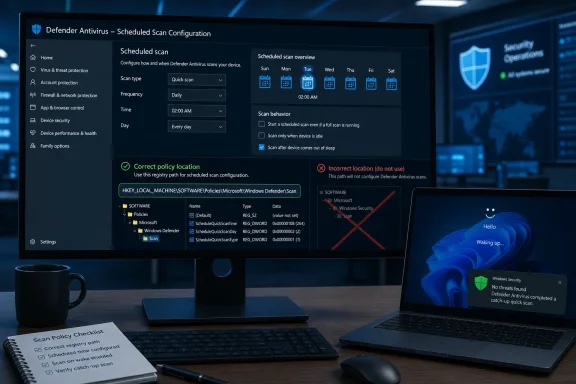 The documented Defender policy path is different
Microsoft maps its Group Policy settings for scheduled scans to Software\Policies\Microsoft\Windows Defender\Scan. That includes the policies named “Turn on catch-up quick scan,” “Turn on catch-up full scan,” and “Define the number of days after which a catch-up scan is forced.”
Those are computer-wide policies, normally administered through Group Policy or an MDM service such as Microsoft Intune. The corresponding policy path in the Group Policy editor is:
Computer Configuration > Administrative Templates > Windows Components > Microsoft Defender Antivirus > Scan
That matters for more than tidy registry housekeeping. The Windows Security app is the consumer-facing interface; Microsoft Defender Antivirus is the antimalware engine and policy component that actually schedules and runs scans. Microsoft’s published policy mappings refer to the latter. The branch cited by PCWorld, SOFTWARE\Policies\Windows\Windows Security, does not match the documented location for Defender scan scheduling controls.
For an IT administrator, the safer approach is not to distribute a .reg file copied from a consumer how-to. Configure the named policy in a domain GPO or Intune profile, then verify its effective state on representative endpoints. A management platform can show what it attempted to apply; it does not automatically prove the antivirus service accepted every policy or that a scan later completed.
Missed schedules and aggressive catch-up scans are separate controls
The terminology is the trap here. Microsoft documents an ordinary catch-up quick scan as a scan launched because a regular scheduled scan was missed—typically because the PC was off at the scheduled time. If catch-up quick scans are enabled, Microsoft says Defender starts one after two consecutive missed scheduled scans when the computer starts, wakes from sleep, or resumes from hibernation.
That is different from the setting PCWorld appears to describe: DaysUntilAggressiveCatchupQuickScan. Microsoft calls this an aggressive catch-up quick scan. Its purpose is broader: it can trigger after a specified number of days without any scans, rather than merely recovering a missed appointment on a schedule.
Microsoft’s Defender configuration documentation says the aggressive setting accepts 0 or a value from 7 through 60 days, and describes 30 days as the default in its device-management definition. Crucially, Microsoft also says aggressive quick scans are triggered only when the normal catch-up quick and full scans are already disabled. In other words, it is not an extra layer that simply stacks on top of the regular missed-scan mechanism.
That distinction changes the advice for most Windows 11 PCs. If the aim is to ensure a machine that missed its normal weekly or daily scan gets one soon after it is powered on, standard catch-up quick scanning is the relevant control. Configuring an “aggressive” threshold can be unnecessary, and may have no effect at all if ordinary catch-up scans remain active.
Microsoft’s own public documentation is not perfectly consistent in how it describes the aggressive policy’s unconfigured state. One Defender CSP page says aggressive scans are disabled when the setting is not configured; a related Defender device-description file lists a default of 30 days. The operational condition is clearer: it is a fallback designed for a device without normal catch-up scans, not a substitute for the normal feature.
What Defender actually scans after a missed run
A quick scan is not a superficial filename check. Microsoft says it examines common malware launch points, including active processes, memory, user profiles, and selected system locations. With real-time protection and cloud protection enabled—the default model Microsoft recommends—that catches the malware categories most likely to establish persistence or run at startup.
A full scan starts with that quick scan and then examines mounted fixed disks, plus removable or network drives if policy permits. It takes considerably longer and can impose a noticeable performance cost. Microsoft’s current enterprise guidance recommends scheduled quick scans alongside always-on real-time and cloud protection, and says most users do not need routine full scans.
That is why the missed-scan setting should not be read as a cure for a PC that was offline for weeks. Real-time protection checks files when they are opened, closed, or browsed, and security-intelligence updates remain a separate maintenance concern. A catch-up quick scan restores a missed layer of periodic inspection; it does not mean the device had no protection until that scan ran.
Windows also can skip a newly scheduled quick scan when another qualifying quick scan was completed during the preceding seven days. Microsoft defines a qualifying scan as one performed after the latest security-intelligence update, with real-time protection enabled and the device rebooted. An administrator investigating “missing” scans therefore needs to distinguish a failed schedule from one Defender intentionally optimized away.
Verify the configuration before changing it
For unmanaged Windows 11 systems, the sensible first step is to check whether Defender Antivirus is the active provider and whether it has been receiving security-intelligence updates. A third-party antivirus product can place Defender in passive mode or change which protections are responsible for scheduled scanning.
Administrators can inspect the standard catch-up preferences in an elevated PowerShell session with:
Get-MpPreference | Select-Object DisableCatchupQuickScan, DisableCatchupFullScan
The confusingly named properties report whether the ordinary catch-up functions have been disabled. In a managed environment, that local result must be read alongside the applied Intune, Configuration Manager, or Group Policy configuration; a domain policy can overwrite a manual registry change at the next refresh.
Microsoft’s documented setup sequence is also worth following in order:
- Configure at least one scheduled Defender scan before expecting a standard catch-up scan to occur.
- Enable catch-up quick scans when missed daily or weekly quick scans should be recovered after the endpoint returns.
- Set the missed-scan threshold through the “Define the number of days after which a catch-up scan is forced” policy only when an organization has a reason to deviate from the default behavior.
- Use the aggressive quick-scan interval only with a clear understanding that it is intended for configurations where normal catch-up scans are disabled.
The administrative risk is modest but real: scan policy values live among security controls that malware and unwanted software sometimes try to alter. Microsoft’s Defender operational log records configuration changes, and an unexpected change should be investigated rather than blindly reversed. On managed PCs, changing the local registry can also create a troubleshooting mess without changing the policy that will ultimately win.
The useful takeaway from PCWorld’s report is that Defender can recover from missed scan windows. The correction is that Windows 11 users should not rely on the registry path it supplied, and they should not mistake the aggressive, days-without-any-scan setting for the standard catch-up behavior that Microsoft already documents for missed scheduled quick scans.
