
Windows 11 exposes Dev Drive under Settings > System > Storage > Advanced storage settings > Disks & volumes > Create Dev Drive. Microsoft lists Windows 11 build 10.0.22621.2338 or newer, local administrator permissions, at least 50GB of free storage, and 8GB of RAM as the minimum baseline; 16GB is recommended. The feature is available across Windows 11 editions, although corporate policy can disable it on managed devices.
The immediate benefit is not that ReFS magically accelerates every Windows application. Dev Drive is designed for development-heavy file I/O: source trees, node_modules, NuGet packages, Python environments, temporary files, object files, and build artifacts. If a project compiles in seconds and contains a few hundred files, creating a second volume and changing every relevant path may be more work than the result justifies.
Microsoft has promoted up to 30% better build-time performance for some file-I/O-heavy scenarios compared with then-current Windows 11 configurations. Treat that as a vendor benchmark, not a guarantee. The gain depends on the language, build system, antivirus configuration, SSD performance, cache behavior, and whether the bottleneck was storage in the first place.
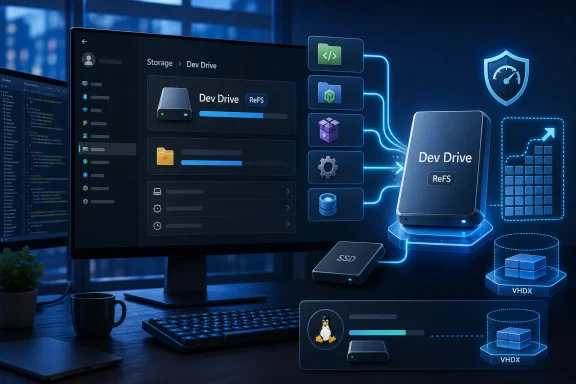 Dev Drive’s format choice is permanent until you erase it
H2S Media is right to stress the one-way nature of the setup. Windows cannot convert an existing storage volume into a Dev Drive, and it cannot convert a Dev Drive back into NTFS in place. The trusted Dev Drive designation is made when the ReFS volume is initially formatted.
That creates a consequence many quick setup guides underplay: a Dev Drive is a data-placement project. Existing repositories must be copied or moved, IDE workspaces repointed, and scripts, environment variables, package-manager caches, and build tools checked for old absolute paths.
For a developer with a large local cache footprint, the most useful first move is often to relocate the files that churn most frequently rather than the whole toolchain. Microsoft recommends placing project-specific directories, files, and package caches on the Dev Drive; it does not require reinstalling Visual Studio, the .NET SDK, the Windows SDK, or every editor onto it.
A cautious migration sequence looks like this:
- Copy one representative repository to the new drive and build it there before deleting the original.
- Move package caches only after confirming the package manager’s supported configuration method, such as npm’s cache setting or NuGet’s global-packages location.
- Search CI scripts,
.envfiles, task-runner configurations, and user-level environment variables for hardcoded drive letters. - Keep caches reproducible and back up source code independently; a Dev Drive is a local volume, not a backup strategy.
The simplest test after creation is File Explorer’s Properties dialog. The new volume should identify its file system as ReFS. Administrators can also use the built-in fsutil devdrv query command to inspect Dev Drive status and filter policy.
A dynamically expanding VHD is the low-risk trial, with one catch
Windows offers three ways to create the volume: a new virtual hard disk, unallocated disk space, or space recovered by shrinking an existing partition. For most individual PCs, a dynamically expanding VHDX is the least destructive way to test whether Dev Drive helps.
A VHDX is stored as a file on an existing disk and grows as data is written, up to the capacity selected during setup. That makes a 150GB or 250GB ceiling less alarming than allocating the same amount as a fixed partition on day one. If the experiment does not help, deleting the VHDX and removing its data is generally simpler than restoring a disk layout after a partition resize.
There is still a performance tradeoff. Microsoft says a physical partition generally avoids the extra virtual-disk layer and may be faster, while a VHD is more flexible for resizing, backup, and storage management. If the goal is maximum local build performance on a workstation with ample SSD capacity, a dedicated partition is the cleaner long-term arrangement.
Portability is more limited than the word virtual implies. Microsoft specifically cautions against copying a VHD hosted on a fixed disk to another computer and then continuing to use it as a Dev Drive. Treat a VHDX as a locally managed development volume, not as a project archive that can be casually shuttled among machines.
Defender performance mode is part of the feature, not an exclusion
The important security distinction in H2S Media’s guide is between Microsoft Defender’s Dev Drive performance mode and a broad folder exclusion. An exclusion tells Defender not to scan files in the excluded location. Performance mode is meant to reduce the performance impact of real-time scanning for files on a trusted Dev Drive while retaining antivirus protection.
Microsoft says that performance mode requires Microsoft Defender Antivirus to be the primary antimalware product, real-time protection to be enabled, antimalware platform version 4.18.2303.8 or later, and security intelligence version 1.385.1455.0 or later. It applies only to Dev Drives, not to the OS volume or ordinary NTFS and FAT32 volumes.
The key correction is that users should not assume they must manually turn performance mode on after every Dev Drive creation. Microsoft documents Defender performance mode as the default for trusted Dev Drives when its prerequisites and relevant policy allow it. What administrators and power users should do is verify the state rather than create a folder exclusion out of frustration.
If a third-party antivirus product is primary, Microsoft Defender’s performance mode will not apply. The drive can remain a ReFS Dev Drive, but the security software’s scanning behavior is then controlled by that vendor’s filter and policy. There is no basis for assuming a third-party product gives the same performance characteristics simply because it is installed on a Dev Drive.
Microsoft’s documentation also warns that Dev Drives can be configured without antivirus filters. That is a security decision, not a build optimization checkbox. Avoid disabling or detaching antivirus filters merely to chase a benchmark; doing so turns a development volume containing downloaded dependencies and cloned code into a less protected place to execute tools.
WSL workloads should stay inside the Linux file system
Developers who primarily build from Ubuntu, Debian, or another WSL distribution should be especially selective. Microsoft says the best WSL performance comes from storing Linux projects in the Linux file system — the WSL virtual disk — rather than on a Windows-hosted Dev Drive.
A WSL distribution can access files on the Dev Drive, but that does not make it the fast path. ReFS also does not support WSL’s metadata mount option, which uses extended attributes to preserve Linux ownership and permissions for files hosted on the Windows file system. Projects that depend on Linux permissions should remain inside the WSL virtual disk or, where appropriate, on NTFS.
This creates a clean division for mixed Windows and Linux development: put Windows-native Visual Studio, MSBuild, .NET, Node.js, and similar file-heavy projects on Dev Drive; keep Linux-native builds, containers, and permission-sensitive WSL projects in the distribution’s own file system.
Managed PCs can block Dev Drive for legitimate reasons
A missing or greyed-out Create Dev Drive button does not necessarily mean the Windows installation is broken. Microsoft’s enterprise documentation says Dev Drive availability and file-system filter attachment can be controlled by Group Policy, Intune, or Configuration Manager.
By default, Dev Drives are optimized by suppressing most file-system filters while allowing antivirus filters, including Microsoft Defender and third-party antivirus filters, to attach. Organizations can require antivirus filters to remain attached, define an allow list for additional filters, or prevent local administrators from changing what attaches to the volume.
That filter policy has real operational effects. Microsoft lists specific filters needed for scenarios such as Docker containers, Projected File System workloads, Microsoft Defender for Endpoint, Process Monitor tracing, and redirecting %TEMP% or %TMP% to a Dev Drive. A developer who creates a volume and later finds a tool behaving differently should check the required filter before concluding that ReFS or the tool itself is faulty.
The sensible first deployment is therefore modest: create a dynamically expanding VHDX Dev Drive, copy one Windows-native repository and its rebuildable cache, confirm Defender remains active, then measure a clean restore and build against the old location. If the results are not materially better, remove the test volume without having reorganized an entire workstation around a feature that did not address the actual bottleneck.