
That is a small but useful clarification for anyone who has watched a workstation switch from an office multifunction printer to a home inkjet, a PDF writer, or a recently used label printer. The August 19 Microsoft Support article applies to Windows 11 and Windows 10, but its Windows 11 instructions use the current Settings path: Settings > Bluetooth & devices > Printers & scanners.
This is a documentation refresh, not evidence of a new Windows printer-management feature or a change to the Windows printing stack. Microsoft’s support material describes the same two modes that have long existed: a fixed default selected by the user, or automatic selection based on the printer most recently used. The practical value is in understanding which mode is in force before treating a changed printer selection as a driver, spooler, or network failure.
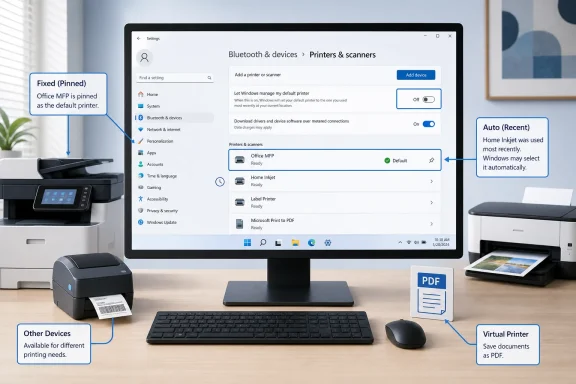 The missing button is a deliberate setting conflict
In Windows 11, the manual route is straightforward: open Settings > Bluetooth & devices > Printers & scanners, turn off Let Windows manage my default printer under Printer preferences, choose the installed printer, and select Set as default. Windows should then show that printer’s status as Default.
Microsoft explicitly says that the button will not be visible while automatic default-printer management is enabled. That behavior can look like a missing Settings control, especially after a user has connected a new printer or after an IT team has added a network queue. It is instead Windows enforcing a choice between two competing policies for the same user profile.
The distinction matters in offices where a printer’s name is not enough to identify its role. A user might have separate queues for black-and-white output, color jobs, secure-release printing, shipping labels, and PDF creation. Allowing Windows to choose the last-used device can be convenient on a laptop that moves between sites, but it is a poor fit for a desktop workflow that depends on every quick-print action going to one controlled queue.
Microsoft’s separate guidance for offline-printer troubleshooting confirms the same dependency: selecting a printer manually causes Windows to stop managing the default automatically. In other words, fixing an “offline” printer and setting a default printer are related but different tasks. A queue can be online and installed correctly while Windows still routes the next job elsewhere because automatic default selection remains enabled.
Automatic selection follows recent use, not printer importance
With Let Windows manage my default printer enabled, Windows uses the last printer used as the default. Microsoft also notes that on mobile Windows devices, changing location can result in a different default printer—the last one used at that location.
The behavior is designed for people who move between home, office, and client sites. A laptop user who prints to a home printer on Friday and an office queue on Monday does not have to manually reset the default each time. For that audience, automatic selection reduces friction.
But “last used” is a narrow rule. It does not mean Windows identifies the fastest printer, the nearest printer, the most capable printer, or the printer approved for sensitive output. It also does not distinguish a one-off job sent to a specialty device from a user’s normal destination. Print one shipping label, then open a document that relies on the Windows default, and the label printer may become the selected target.
For users who regularly print to several destinations, the sensible choice is to decide which failure mode is less disruptive:
- Leave Windows management enabled when the device moves between locations and the most recently used printer is normally the right answer.
- Turn it off and set a fixed default when a single printer or managed queue should receive ordinary print jobs every time.
- Check the actual target printer in an application’s print dialog before sending sensitive, high-volume, or expensive jobs, because applications can expose their own printer choices even when Windows has a default.
The last point is important for help-desk triage. A Windows default printer is a system preference, not a guarantee that every application will ignore its own saved choices, print presets, or document-specific settings. If one application consistently chooses a different queue while the rest of Windows behaves properly, start with that application’s print dialog and saved settings rather than repeatedly changing the Windows default.
Default selection does not repair a broken print queue
Microsoft’s updated default-printer article points users to printer installation guidance when the desired device does not appear in the installed-printers list. That is the correct order of operations: Windows cannot designate a printer as default until it has a usable installed queue.
Microsoft’s broader offline-printer troubleshooting guidance separates the likely causes more usefully. If a printer is unavailable, confirm that the device is powered on and reachable, verify the PC and Wi-Fi printer are on the same network where applicable, inspect the print queue, and restart the Print Spooler service if jobs are stuck. If needed, remove and reinstall the printer.
Changing the default only changes the destination Windows proposes for future jobs. It does not clear stalled documents, re-establish a broken Wi-Fi connection, install a missing driver, or make an unavailable print server reachable. Conflating those operations can waste time: a user may successfully set a new default and still see printing fail because the actual problem is a paused queue or an offline device.
The reverse is also true. A printer that comes back online may still not receive the next job if Windows is automatically selecting a different recently used device. In a mixed office/home setup, verify both the printer’s availability and the default-printer mode before escalating a “wrong printer” report.
Windows 10 remains listed, but its support status changes the advice
Microsoft still lists Windows 10 alongside Windows 11 in the article, with separate instructions reflecting Windows 10’s older Settings layout. However, Microsoft ended free Windows 10 software updates, technical support, and security fixes on October 14, 2025.
That does not stop a Windows 10 PC from printing, nor does it make the default-printer instructions invalid. It does mean organizations should not interpret ongoing support documentation as a sign that Windows 10 has returned to normal servicing. Printer-management issues on Windows 10 may still be resolved through configuration, driver updates from hardware vendors, or local troubleshooting, but the operating system itself is outside Microsoft’s regular security-update lifecycle.
For managed environments, the user-facing toggle is also only one layer of control. Windows printer policies can restrict what printers users may connect to or use, and newer Windows 11 printing protections can affect driver and connection behavior. If the default-printer setting changes but the expected queue is absent, inaccessible, or immediately reverts under a managed account, administrators should check deployment and policy configuration before advising users to edit their printer preferences repeatedly.
Microsoft has not described a new rollout, revised printer-selection algorithm, or change to existing installations in this support update. The immediate takeaway is simpler: choose automatic management for location-driven laptop printing, or disable it before pinning a reliable fixed default.
