
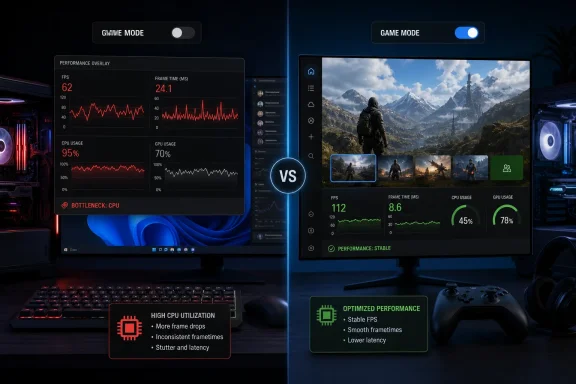
Windows 11’s Game Mode can reduce frame rates and worsen frame-time consistency in some CPU-bound games, according to new testing by MakeUseOf—but the practical takeaway is not that every PC gamer should immediately switch it off. It is that Game Mode remains a workload-dependent toggle, and Microsoft’s newer Xbox mode is a cleaner way to reduce desktop distraction without assuming Windows knows better than a game engine how to schedule its threads.
The MakeUseOf test used a Ryzen 5 5600, Radeon RX 5600 XT and 16GB of DDR4 memory, comparing Game Mode on and off in three titles. With Game Mode disabled, 007 First Light rose from 61.8 FPS to 64.6 FPS on average, while its 1% low increased from 42.3 FPS to 47.9 FPS. In Assassin’s Creed Black Flag Resynced, the same test recorded 52.4 FPS average and 36.8 FPS at the 1% low with Game Mode off, versus 49.8 FPS and 33.3 FPS with it enabled.
The exception was Call of Duty: Warzone. There, Game Mode delivered a marginal average-FPS improvement—107.2 FPS versus 106.5 FPS—but a more noticeable improvement to the 1% low, from 79.4 FPS to 82.1 FPS. That is exactly the sort of mixed result that makes a universal “always enable Game Mode” recommendation increasingly hard to defend.
Microsoft’s own documentation has always made the caveat clear, if less prominently than the Settings toggle: the potential gain from Game Mode depends on the amount and impact of other activity on the PC. In other words, it has the most to contribute when a game is competing with meaningful background work. On a clean, lightly loaded desktop, it may do little. On a machine where the game already pushes the CPU to its limits, an additional layer of resource policy can be neutral—or occasionally counterproductive.
Game Mode is often described as a one-click FPS booster. That description is convenient, but incomplete.
At its core, Windows Game Mode attempts to favor the active game over competing system activity. Microsoft’s older developer documentation describes mechanisms for granting games preferred access to CPU and GPU resources, while Windows can defer some background activity and reduce interruptions from notifications and update behavior. The aim is sensible: make the foreground game more consistent by minimizing contention elsewhere.
But that is a policy decision, not a hardware upgrade. The operating system cannot create CPU throughput that does not exist, and it cannot always identify which threads, child processes, anti-cheat components, launchers, overlays, audio services or network helpers are genuinely critical to a particular game session.
That distinction matters most on systems where the CPU—not the GPU—is the limiting component. A Ryzen 5 5600 remains a capable six-core, 12-thread gaming processor, but games with heavy simulation, streaming, world traversal or draw-call workloads can saturate it. In that situation, even a small change in thread placement, priority behavior or background-service timing can show up not simply in the average frame rate but in 1% lows, the metric more closely associated with the stutters players can feel.
The MakeUseOf figures are not a broad benchmark database. Three games on one AM4 system cannot establish a rule for every Windows 11 PC, game engine or CPU architecture. Yet they illustrate an important point: Game Mode should be tested, not treated as doctrine.
If a title is heavily CPU-bound, it may already have an internal thread scheduler tuned for its engine’s rendering, asset streaming, simulation and networking tasks. Windows then has to balance that application against drivers, audio, input, the desktop compositor, security software and all the routine activity that makes a PC a PC. Game Mode’s effort to steer resources toward the game may help if that outside work is substantial. It can also shift contention rather than eliminate it.
This is particularly relevant to modern multi-process games. A game’s executable is not necessarily the entire gaming workload: launchers, overlays, shader-compilation helpers, anti-cheat services and voice or capture applications may all contribute to the experience. Windows sees processes and threads, while a game engine sees a connected system of jobs that must complete in a particular order. Raising the priority of the visible game process does not automatically optimize that entire chain.
Hybrid processors add another variable. Intel’s recent desktop and mobile CPUs combine Performance-cores and Efficient-cores, and Windows 11 works with platform scheduling hints to decide where threads should run. That system has improved substantially over several Windows releases, but it also means there is no single CPU-behavior story across Ryzen 5000, Ryzen AI, Core Ultra laptops and high-core-count desktop parts.
For administrators and enthusiasts who have spent years manually setting affinity masks, priority classes and service tweaks, this should sound familiar. Blanket tuning can solve one bottleneck while introducing another. The more specialized the workload, the less likely a single global switch is to be optimal.
Xbox mode was first associated with the ROG Xbox Ally handheld line, but Microsoft has positioned it as a broader Windows 11 experience. It presents a console-style library and navigation layer while retaining the ability to switch back to the conventional Windows desktop. The point is convenience as much as performance: controller-first navigation, fewer desktop distractions, and a more direct path into games from a couch, TV, laptop or handheld.
That makes it important not to conflate two different claims.
Microsoft officially describes Xbox mode as a streamlined interface that minimizes background distractions. MakeUseOf reports an estimated 9% reduction in RAM use and says it observed higher performance across several games. But Microsoft has not presented Xbox mode as a guaranteed FPS feature, nor has it published a universal RAM-saving figure that applies to every Windows 11 configuration.
The distinction is not pedantic. A full-screen environment that avoids loading or foregrounding some desktop elements can plausibly lower overhead, especially on memory-constrained handhelds and lower-end PCs. But the benefit will vary with startup applications, RGB utilities, browser tabs, capture tools, endpoint security, telemetry agents and the specific game being played. Xbox mode is not a replacement kernel, a new GPU driver or a magic CPU governor.
What it does offer is arguably a more predictable gaming-session profile: a dedicated interface designed around playing games rather than a hidden attempt to re-prioritize each game’s compute workload. That is a less invasive proposition.
A controlled test is far more useful. Use the same game location or replay, the same resolution and graphics preset, the same driver version, and the same overlay state. Run more than once, because shader compilation, asset caching and background downloads can distort a single pass. Capture both average FPS and frame-time data or 1% lows.
The practical workflow is straightforward:
For a PC that is clearly GPU-limited—such as a modern game at high resolution with ray tracing enabled—Game Mode may barely move the needle because the processor has headroom. For a CPU-limited competitive game or open-world title, its behavior can be more visible, for better or worse. The Warzone result in MakeUseOf’s testing shows why the setting survives: reducing outside interference can improve the smoothness users notice even when average FPS barely changes.
Xbox mode is worth trying for Windows 11 players who want a living-room-friendly interface or who can benefit from a less cluttered session environment. But its arrival does not turn Game Mode into a universally harmful feature, and its reported memory savings should not be mistaken for a vendor-backed performance guarantee.
The next sensible move for enthusiasts is not another permanent tweak. It is a repeatable before-and-after run in the game that matters most—and a decision based on frame times, not the promise attached to a toggle.
The exception was Call of Duty: Warzone. There, Game Mode delivered a marginal average-FPS improvement—107.2 FPS versus 106.5 FPS—but a more noticeable improvement to the 1% low, from 79.4 FPS to 82.1 FPS. That is exactly the sort of mixed result that makes a universal “always enable Game Mode” recommendation increasingly hard to defend.
Microsoft’s own documentation has always made the caveat clear, if less prominently than the Settings toggle: the potential gain from Game Mode depends on the amount and impact of other activity on the PC. In other words, it has the most to contribute when a game is competing with meaningful background work. On a clean, lightly loaded desktop, it may do little. On a machine where the game already pushes the CPU to its limits, an additional layer of resource policy can be neutral—or occasionally counterproductive.
 Game Mode Is Not a Traditional Performance Switch
Game Mode is often described as a one-click FPS booster. That description is convenient, but incomplete.At its core, Windows Game Mode attempts to favor the active game over competing system activity. Microsoft’s older developer documentation describes mechanisms for granting games preferred access to CPU and GPU resources, while Windows can defer some background activity and reduce interruptions from notifications and update behavior. The aim is sensible: make the foreground game more consistent by minimizing contention elsewhere.
But that is a policy decision, not a hardware upgrade. The operating system cannot create CPU throughput that does not exist, and it cannot always identify which threads, child processes, anti-cheat components, launchers, overlays, audio services or network helpers are genuinely critical to a particular game session.
That distinction matters most on systems where the CPU—not the GPU—is the limiting component. A Ryzen 5 5600 remains a capable six-core, 12-thread gaming processor, but games with heavy simulation, streaming, world traversal or draw-call workloads can saturate it. In that situation, even a small change in thread placement, priority behavior or background-service timing can show up not simply in the average frame rate but in 1% lows, the metric more closely associated with the stutters players can feel.
The MakeUseOf figures are not a broad benchmark database. Three games on one AM4 system cannot establish a rule for every Windows 11 PC, game engine or CPU architecture. Yet they illustrate an important point: Game Mode should be tested, not treated as doctrine.
CPU-Bound Games Are Where the Trade-Off Shows Up
The contrast between the two slower titles and Warzone is more useful than the precise FPS figures.If a title is heavily CPU-bound, it may already have an internal thread scheduler tuned for its engine’s rendering, asset streaming, simulation and networking tasks. Windows then has to balance that application against drivers, audio, input, the desktop compositor, security software and all the routine activity that makes a PC a PC. Game Mode’s effort to steer resources toward the game may help if that outside work is substantial. It can also shift contention rather than eliminate it.
This is particularly relevant to modern multi-process games. A game’s executable is not necessarily the entire gaming workload: launchers, overlays, shader-compilation helpers, anti-cheat services and voice or capture applications may all contribute to the experience. Windows sees processes and threads, while a game engine sees a connected system of jobs that must complete in a particular order. Raising the priority of the visible game process does not automatically optimize that entire chain.
Hybrid processors add another variable. Intel’s recent desktop and mobile CPUs combine Performance-cores and Efficient-cores, and Windows 11 works with platform scheduling hints to decide where threads should run. That system has improved substantially over several Windows releases, but it also means there is no single CPU-behavior story across Ryzen 5000, Ryzen AI, Core Ultra laptops and high-core-count desktop parts.
For administrators and enthusiasts who have spent years manually setting affinity masks, priority classes and service tweaks, this should sound familiar. Blanket tuning can solve one bottleneck while introducing another. The more specialized the workload, the less likely a single global switch is to be optimal.
Xbox Mode Separates the Interface From the Scheduler Claim
The alternative proposed by MakeUseOf is Xbox mode, Microsoft’s controller-oriented, full-screen Windows 11 environment that began rolling out to PCs in select markets in April 2026. Microsoft says Xbox mode is available across laptops, desktops and tablets, and can be entered from the Xbox app, Game Bar settings, or with the Win+F11 shortcut on supported builds.Xbox mode was first associated with the ROG Xbox Ally handheld line, but Microsoft has positioned it as a broader Windows 11 experience. It presents a console-style library and navigation layer while retaining the ability to switch back to the conventional Windows desktop. The point is convenience as much as performance: controller-first navigation, fewer desktop distractions, and a more direct path into games from a couch, TV, laptop or handheld.
That makes it important not to conflate two different claims.
Microsoft officially describes Xbox mode as a streamlined interface that minimizes background distractions. MakeUseOf reports an estimated 9% reduction in RAM use and says it observed higher performance across several games. But Microsoft has not presented Xbox mode as a guaranteed FPS feature, nor has it published a universal RAM-saving figure that applies to every Windows 11 configuration.
The distinction is not pedantic. A full-screen environment that avoids loading or foregrounding some desktop elements can plausibly lower overhead, especially on memory-constrained handhelds and lower-end PCs. But the benefit will vary with startup applications, RGB utilities, browser tabs, capture tools, endpoint security, telemetry agents and the specific game being played. Xbox mode is not a replacement kernel, a new GPU driver or a magic CPU governor.
What it does offer is arguably a more predictable gaming-session profile: a dedicated interface designed around playing games rather than a hidden attempt to re-prioritize each game’s compute workload. That is a less invasive proposition.
A Better Test Than Debloating Windows
For most desktop users, disabling Game Mode should be a benchmark experiment rather than the first step in a broad Windows “debloat” campaign. Removing services, disabling scheduled tasks, applying registry scripts and forcing custom CPU affinities can make troubleshooting harder, compromise update behavior, or create new instability for a negligible gain.A controlled test is far more useful. Use the same game location or replay, the same resolution and graphics preset, the same driver version, and the same overlay state. Run more than once, because shader compilation, asset caching and background downloads can distort a single pass. Capture both average FPS and frame-time data or 1% lows.
The practical workflow is straightforward:
- Leave Game Mode enabled if a game shows better frame-time consistency or a measurable gain with no new instability.
- Disable it per the Windows 11 Settings app if a repeatable test shows lower averages or worse 1% lows in the games you actually play.
- Test Xbox mode separately from Game Mode, because the two features address different parts of the Windows gaming experience.
- Close obvious resource consumers first, including browser windows, game launchers no longer needed after startup, cloud-sync clients, recording utilities and unnecessary hardware-control applications.
- Keep graphics drivers, chipset drivers and the game itself current before attributing a performance problem to a Windows toggle.
The Real Win Is Knowing Which Layer Is Bottlenecking
Game Mode’s polarizing reputation is a symptom of a larger PC-gaming reality: Windows performance is now shaped by several layers at once. The game engine, DirectX version, GPU driver, CPU topology, background processes, power plan, memory capacity and display mode can each matter more than a global Gaming setting.For a PC that is clearly GPU-limited—such as a modern game at high resolution with ray tracing enabled—Game Mode may barely move the needle because the processor has headroom. For a CPU-limited competitive game or open-world title, its behavior can be more visible, for better or worse. The Warzone result in MakeUseOf’s testing shows why the setting survives: reducing outside interference can improve the smoothness users notice even when average FPS barely changes.
Xbox mode is worth trying for Windows 11 players who want a living-room-friendly interface or who can benefit from a less cluttered session environment. But its arrival does not turn Game Mode into a universally harmful feature, and its reported memory savings should not be mistaken for a vendor-backed performance guarantee.
The next sensible move for enthusiasts is not another permanent tweak. It is a repeatable before-and-after run in the game that matters most—and a decision based on frame times, not the promise attached to a toggle.
References
- Primary source: MakeUseOf
Published: 2026-08-01T16:00:13+00:00
Loading…
www.makeuseof.com - Related coverage: learn.microsoft.com
Loading…
learn.microsoft.com - Related coverage: digitaltrends.com
Loading…
www.digitaltrends.com - Related coverage: digit.in
Loading…
www.digit.in - Related coverage: support.microsoft.com
Loading…
support.microsoft.com - Related coverage: learn.microsoft.com
Loading…
learn.microsoft.com - Related coverage: theshortcut.com
Loading…
www.theshortcut.com - Related coverage: support.microsoft.com
Loading…
support.microsoft.com - Related coverage: blogs.windows.com
Releasing Windows 11 Builds 26100.8313 and 26200.8313 to the Release Preview Channel
Hello Windows Insiders, today we’re releasing Windows 11 Builds 26100.8313 and 26200.8313 (KB5083631) to Insiders in the Release Preview Channel on Windows 11, versions 24H2 (Build 26100) and 25H2 (Build 26200). This update is availableblogs.windows.com - Related coverage: blogs.windows.com
Loading…
blogs.windows.com