
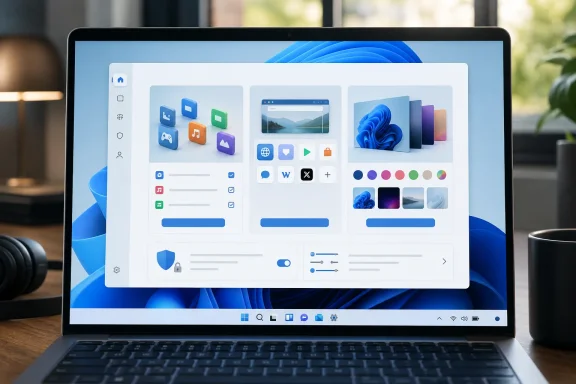
Neowin first highlighted the Get Started refresh after Microsoft released several Insider builds on August 17. Microsoft’s build notes describe three new pages—App install, Site pinning, and Personalized theme—and say the pages can vary according to the device. Testers can close the flow at any point and revisit it by launching Get Started later.
The important detail is not that Windows is getting another introductory screen. It is that Microsoft is turning a long-standing, easily dismissed system component into a personalized recommendation surface. That could make the app more useful for newly provisioned PCs, but it also raises a familiar problem for enthusiasts and administrators: Get Started remains software many users do not want, with no consistent, consumer-friendly removal path.
 What Build 26340.9212 Actually Adds
Microsoft is trialing the revision in the Experimental Insider channel, not shipping it to the general Windows 11 population. Build 26340.9212 is based on Windows 11 version 26H2 through an enablement package, and Microsoft is using its usual Controlled Feature Rollout approach. In practical terms, even eligible Insiders may not receive every element at once.
The new App install page appears designed to point people toward software that Microsoft believes fits their PC or setup. Microsoft has not published a full decision tree explaining whether those suggestions draw on installed hardware, account state, region, prior app installs, Microsoft Store activity, or other signals. “Personalized” is a consequential word here: without those details, users cannot tell precisely why a particular application is recommended.
The Site pinning page puts web shortcuts in the same onboarding flow. Windows already supports pinning websites through browsers and the Start menu, but the new page makes that behavior a first-run recommendation rather than something users find on their own. Microsoft has not said whether the page will prioritize Microsoft Edge, whether it will work equally with other browsers, or whether the recommended sites are fixed, regional, or tailored to account activity.
The Personalized theme page is the least contentious of the three. It gives users a route into changing Windows’ visual appearance, which can be useful on a new installation where Personalization settings are otherwise buried behind several clicks. Yet it also signals the broader purpose of the revamp: Get Started is becoming a guided path through choices Microsoft wants Windows users to make.
The App Is More Embedded Than Its Name Suggests
Get Started has existed in several forms across recent Windows releases and is closely tied to the broader set of inbox Windows experiences that promote setup tasks, Microsoft services, and feature discovery. Microsoft’s own Start menu customization documentation shows that Get Started can be pre-populated in the Start layout on first boot. That placement alone means the app is not merely a help document tucked away in an app list; it is part of the operating system’s initial presentation.
This is why descriptions of the app as impossible to remove need some precision. On some Windows 11 configurations, the normal app interface does not offer an Uninstall command, and Microsoft Q&A threads have documented users encountering it as a default app without a visible removal option. The package can often be removed for the current user with PowerShell commands, but that is neither a clear supported consumer workflow nor a guarantee that provisioning or future feature updates will not restore it.
The practical distinction matters. Users can generally unpin Get Started from Start and ignore it. IT staff can also control portions of the Windows experience through deployment configuration, policy, and app-management tooling. But Microsoft has not announced a straightforward Settings toggle in this build to disable the app permanently, nor has it said the new content pages can be turned off independently.
For ordinary Windows 11 users, then, this update does not solve the complaint that generated the app’s poor reputation. It tries to earn the app’s place by giving it more to do.
Useful Guidance Can Become Promotional Guidance
There is a legitimate case for improving Get Started. Windows 11 has accumulated features across Settings, Microsoft Store, Edge, Phone Link, OneDrive, Windows Backup, accessibility tools, and hardware-specific experiences. The system does not always expose those capabilities at the moment they would be useful. A new owner setting up a laptop may genuinely benefit from a concise path to themes, useful applications, and shortcuts to frequently used web services.
But the same mechanism can blur the line between setup help and promotion. An app-install page is only as helpful as the recommendation logic behind it, and site pinning is only neutral if it works without quietly steering users toward a preferred browser or Microsoft-controlled destinations. Microsoft’s release notes do not identify any promoted apps, websites, browsers, commercial arrangements, or controls for suppressing recommendations.
That omission is larger than it looks. Windows 11 already presents recommendations in Start and other surfaces, and Microsoft has spent much of 2026 refining the Start experience. The company’s May Insider announcement included changes intended to let users reduce Start to a more minimal pins-focused layout, while also acknowledging that changing recommended content requires several settings adjustments and manual unpinning. The Get Started redesign moves in the other direction: it creates another guided entry point for recommendations, even as the rest of Windows gains more controls to limit them.
Microsoft’s stated option to close the Get Started flow is welcome, but it is not equivalent to a preference that says “do not offer this experience again.” For technically inclined users, the difference is obvious. A dismissible onboarding card is temporary friction; recurring invitation surfaces are a product decision.
What It Means for IT Administrators
The build is not a deployment candidate for enterprise estates. Experimental-channel code exists for testing, and Microsoft explicitly warns that previewed features may change, be removed, or never ship outside the Insider program. Organizations should not treat the Get Started pages as a confirmed 26H2 feature commitment.
Still, the preview is worth watching for desktop engineering teams because it shows where Microsoft is concentrating first-run and post-update guidance. A consumer-oriented app-install screen may be harmless on a personal PC but inappropriate on a managed device where software selection is governed by Intune, Configuration Manager, Windows Autopilot, Microsoft Store policies, or internal catalogs. Likewise, browser and website-pinning recommendations can conflict with a company’s default-browser policy, managed favorites, or internal portal strategy.
Administrators should test the new experience in a representative 26H2 Insider ring and record three things before it reaches a broader channel:
- Confirm whether Get Started appears after clean installation, upgrade, Autopilot enrollment, or a major Windows feature update.
- Check whether recommendation pages honor policies that limit consumer experiences, Microsoft Store access, browser configuration, and Start-menu layout.
- Verify whether dismissing, unpinning, removing, or restricting the app persists after cumulative updates and feature upgrades.
Microsoft’s existing deployment documentation makes clear that OEMs can define Start menu pins and that Windows can dynamically deliver app pins. That means an organization’s desired Start layout and Microsoft’s own onboarding components may meet on the same machine. The only reliable answer is testing on the editions, policies, and provisioning paths actually used in the organization.
The Missing Control Is Still the Story
Neowin’s framing of Get Started as an annoying core feature captures a real sentiment, but the stronger finding is more concrete: Microsoft is expanding the app’s role before explaining how users or administrators can control its recommendations. The new pages may be genuinely helpful on newly set-up PCs, particularly for people unfamiliar with Windows 11. They may also be unnecessary clutter for users who deliberately keep Windows free of guided content and promotional prompts.
Microsoft has made one useful concession in the design: the flow is optional in the immediate sense, because it can be closed and reopened later. It has not made the more meaningful concession of declaring how to permanently suppress the experience, what data drives its personalization, or how widely it will be deployed.
For now, Build 26340.9212 is a limited 26H2 experiment, not a mandate for all Windows 11 systems. But if these pages graduate beyond Insiders unchanged, Get Started will no longer be a mostly ignorable welcome app. It will become another Windows surface through which Microsoft recommends software, web shortcuts, and configuration choices—and one that users still cannot cleanly manage from Settings.
