

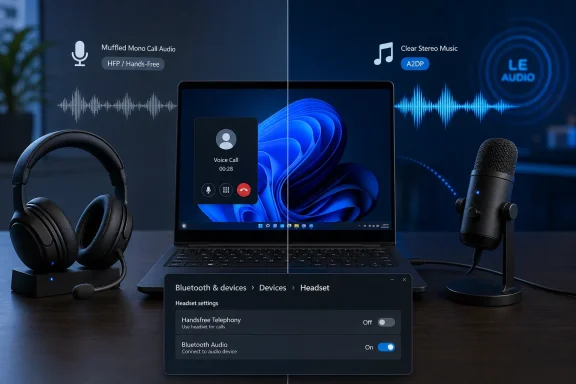
The practical diagnosis is narrower than “Bluetooth is broken.” If sound quality falls sharply, or trouble starts the instant Teams, Discord, Zoom, a game, or another communication app uses the headset microphone, Windows has likely shifted a Bluetooth Classic device from its music-oriented A2DP profile to the Hands-Free Profile, or HFP. That shift is by design. Whether it causes the particular crackles and interruptions described by MakeUseOf depends on the headset, Bluetooth adapter, driver, wireless environment, and application.
For users who have a usable laptop or USB microphone, preventing that profile switch is a reasonable workaround. For anyone who needs the microphone built into their Bluetooth headset, unchecking Handsfree Telephony is not a fix so much as a trade: it preserves higher-quality output by making the headset a playback-only device.
Windows switches profiles when an app opens the microphone
Microsoft describes Bluetooth Classic audio as two fundamentally different jobs carried by two different profiles. A2DP, the Advanced Audio Distribution Profile, handles conventional stereo playback for music, games, video, and general system sound. It has no microphone path.
HFP handles bidirectional headset audio, meaning the PC can play call audio and capture the headset mic at the same time. The cost is severe by current audio standards: Microsoft says HFP provides concurrent monaural capture and playback, using either 8 kHz narrowband speech or 16 kHz wideband speech. The latter is clearer than old telephone quality, but it is still a voice channel rather than a full stereo media stream.
On Windows 11, the behavior can be less obvious than it was on Windows 10. Windows 10 commonly exposed separate playback devices with names such as “Headphones Stereo” and “Headset Hands-Free.” Windows 11 combines the device endpoints in its interface, then chooses the underlying profile automatically.
Microsoft lists two triggers for HFP selection on Windows 11:
- An application opens the Bluetooth headset’s microphone input.
- An application creates an output stream classified as Communications.
That means the problem can appear even when a user did not consciously choose the headset mic inside a call app. An application may have inherited it as the default input device, or it may briefly open the input endpoint during startup, device detection, voice activity monitoring, or game chat initialization. The headset can then shift from A2DP to HFP, and Windows resamples other playback to fit the lower-bandwidth call path.
MakeUseOf’s account gets the central mechanism right: disabling Handsfree Telephony stops Windows from using HFP and restores the audio-only A2DP path. The article overstates one point, however, by treating the setting as the established culprit for random cutouts across Windows. Microsoft’s documentation establishes why the quality changes and why the headset mic disappears when the service is disabled. It does not identify HFP as a general root cause of all Bluetooth interruptions.
A more accurate reading is that the writer’s headset or PC Bluetooth stack was unreliable in its HFP call mode, while it remained stable in A2DP. Fatshark, the developer behind Warhammer 40,000: Darktide, independently publishes the same Handsfree Telephony workaround for PC players whose Bluetooth headset audio cuts out during missions. That corroborates the workaround as a real issue in some workloads, not proof that it will cure every call dropout.
The “fix” deliberately disables the headset microphone
The most important consequence is the one buried beneath the checkbox: if Handsfree Telephony is disabled, Windows loses the Bluetooth profile that carries the headset microphone. The MakeUseOf writer observed exactly that after changing the setting. This is expected behavior, not a configuration mistake.
That makes the setting appropriate in a few specific cases:
- A laptop’s built-in microphone is clearer than the microphone in the Bluetooth headset.
- A USB microphone, webcam microphone, dock microphone, or professional audio interface is already available.
- The headset is used primarily for listening while another device supplies voice input.
- A game or call application needs reliable stereo playback more than it needs the headset’s own microphone.
The first test should therefore be less destructive than disabling the Bluetooth service. In Windows 11, select the Bluetooth headset as the output device and explicitly select the laptop microphone, USB microphone, or webcam microphone as the input device in both Windows Sound settings and the communications app. Then close and reopen the app, or leave and rejoin the call, to ensure it releases the headset’s microphone endpoint.
If audio immediately returns to normal stereo quality and stability, the system was entering HFP because the app had been using the Bluetooth microphone. No Control Panel change was required.
The service-disable route is useful when an app continues to grab the Bluetooth input device, when a game does not offer reliable input-device selection, or when an administrator wants to prevent profile switching for a shared or specialist setup. It is also reversible. In the legacy Devices and Printers interface, right-click the paired headset, open Properties, select Services, clear Handsfree Telephony, and reconnect the device. Re-enable the same service when the headset microphone is needed again.
Windows should make this trade-off far clearer. The control is still hidden behind a legacy Control Panel property sheet rather than presented as an explicit choice in modern Bluetooth or Sound settings: “Use headset microphone, lower call-mode fidelity” versus “Use external microphone, retain stereo playback.” Users instead discover it only after chasing what looks like a failing headset.
Dropouts still have several other likely causes
Handsfree Telephony is a strong lead when the fault is tied to microphone use. It is a weak lead when audio cuts out during ordinary music or video playback, or when the headset is never selected as an input device. In those cases, disabling HFP might appear to help only because it changes the connection’s workload and profile, leaving the actual problem unresolved.
Microsoft notes that some wideband-capable Bluetooth devices are incompatible with particular Bluetooth radios and will fall back from 16 kHz wideband HFP to 8 kHz narrowband mode. That compatibility limitation is relevant because two machines running the same Windows version can behave differently with the same headphones. The Bluetooth radio, its driver, and headset firmware all participate in the connection.
Before treating Handsfree Telephony as the culprit, IT staff and power users should check the pattern:
- If the issue begins only during voice or video calls, inspect the selected microphone and test with the headset mic disabled in the app.
- If the audio turns mono or sounds like a telephone line during calls, HFP is operating as designed; it is not evidence by itself of a defective headset.
- If dropouts happen during music, video, or games with no microphone active, update the Bluetooth driver from the PC maker, remove and re-pair the headset, test closer to the PC, and rule out radio interference or a USB 3.0 device near a Bluetooth dongle.
- If only one app triggers the behavior, reset that app’s input and output selections rather than changing Windows-wide Bluetooth services first.
This distinction matters particularly in managed environments. A blanket instruction to disable Handsfree Telephony could quietly leave employees unable to use headset microphones in Teams, softphone clients, remote-support tools, and browser meetings. The right policy is device- and workflow-specific: retain HFP where the headset mic is required, and route voice capture elsewhere where stereo quality or reliability has priority.
Bluetooth LE Audio is the real long-term escape route
The underlying limitation is largely a Bluetooth Classic issue, not a permanent law of wireless audio. Microsoft has added a better path through Bluetooth LE Audio on supported Windows 11 systems. Its current support guidance says Windows 11 version 24H2, build 26100.4484 or later, can provide stereo playback while the microphone is active on compatible PCs and compatible LE Audio accessories with the necessary manufacturer drivers.
This capability is not a simple Windows Update switch for every existing laptop and headset. Microsoft requires factory-integrated Bluetooth LE Audio support in the PC, the appropriate manufacturer driver, and headphones, earbuds, speakers, or hearing devices that support LE Audio. A recent Bluetooth version number alone does not prove that the complete feature set is available.
Where all of those pieces exist, Windows exposes a “Format when microphone is active” setting under the Bluetooth device’s Sound properties, with mono and stereo choices. Microsoft says stereo is the default on eligible systems. It also acknowledges that some accessories can show audio loss or disruptive glitches in stereo mode and recommends switching back to mono for compatibility—an important reminder that moving beyond HFP improves the available transport, not every vendor implementation.
Windows Central’s reporting on Microsoft’s LE Audio rollout highlighted the same practical result: supported equipment no longer has to surrender stereo playback merely because a microphone is live. For users buying new gear specifically for work calls, game chat, or hybrid meetings, that is a better purchasing criterion than paying extra for a Bluetooth Classic headset with premium music codecs that disappear when HFP takes over.
For existing Bluetooth Classic headsets, the immediate choice remains concrete. Keep Handsfree Telephony enabled if the headset’s microphone is needed, accepting call-mode mono audio; or disable it and select another microphone to keep the headset on the higher-quality stereo path. When cutouts occur only after the microphone activates, that choice is the fastest way to establish whether HFP is involved before replacing hardware that may not be faulty at all.