
The important correction is that this is not one proven Windows bug with one fix. It is a collection of display-mode renegotiation and policy paths involving Windows, the graphics driver, the monitor’s reported capabilities, the cable or dock, and sometimes laptop vendor software. Microsoft documents where to inspect the active refresh rate, but it does not promise that Windows will preserve a user-selected high-refresh mode through every driver reinstall, display disconnect, Safe Mode boot, or projection-mode change.
For users who notice suddenly choppy desktop motion or games that feel less responsive, the immediate check is simple: open Settings > System > Display > Advanced display, select the affected panel if more than one is connected, and inspect Choose a refresh rate. Do this before changing game settings, reinstalling Windows, or assuming a frame-rate cap is at fault.
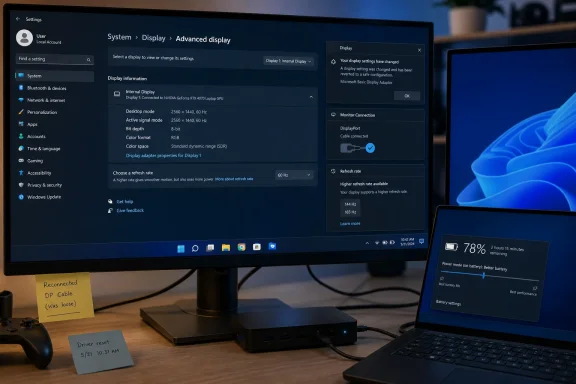 60Hz is often the safe fallback, not a detected hardware limit
A 60Hz selection does not necessarily mean the monitor, cable, or GPU can no longer run at 120Hz, 144Hz, 165Hz, or higher. When Windows loses the previous display configuration—such as during a driver replacement or a hot-plug event—it may rebuild the available modes from the display’s EDID data and the current graphics-driver capabilities. If the system does not restore the formerly selected mode, 60Hz is a conservative, widely compatible result.
That distinction matters for troubleshooting. If the higher option remains in the Advanced display drop-down, the connection is still advertising a compatible high-refresh mode and the practical repair is to select it again. If the option disappears entirely, Windows is not merely forgetting a preference; something in the active path is restricting the modes it can use.
The latter case points first to the physical and driver chain: the port in use, the cable or adapter, a KVM switch, a USB-C dock, a receiver, the monitor’s input setting, or the installed GPU driver. Microsoft’s HDR guidance makes the same underlying point: some combinations of resolution, HDR, connection type, and bandwidth require a lower refresh rate. A monitor can therefore be capable of 144Hz while a particular HDMI adapter, dock, or display mode exposes only 60Hz.
Driver resets and display switching are the most credible triggers
How-To Geek identifies GPU-driver removal and clean installations as common moments for the setting to fall back. That tracks with how Windows behaves when the vendor driver is absent: the system temporarily uses basic display support, then must rediscover the available modes after the Nvidia, AMD, or Intel driver returns. The article’s claim that the original high-refresh selection may not be automatically restored is also consistent with years of user reports involving driver updates and resolution switches.
The useful dividing line is whether the refresh rate changed after a graphics-driver operation or whether Windows stopped offering the expected mode. If the higher rate is available after the vendor driver is installed, select it in Windows and then check the vendor control panel as well. If it is unavailable, install the current driver directly from the GPU maker or PC maker, restart, and test a direct monitor connection before reaching for cleanup tools again.
A full driver purge using Display Driver Uninstaller or a vendor cleanup utility should not be routine maintenance for this problem. It can be appropriate when a driver installation is genuinely damaged, but it also guarantees a temporary loss of the normal graphics stack and can add another mode reset to the diagnosis. Start with the least disruptive change: verify the selected refresh rate, update or reinstall the appropriate driver normally, and retest.
Multi-monitor changes deserve the same discipline. Windows supports PC screen only, Duplicate, Extend, and Second screen only modes, but switching among them can cause the system to reconstruct the display arrangement. A TV, dummy HDMI plug, capture device, KVM, or dock is not interchangeable with a directly connected desktop monitor: each can advertise different resolutions, timing modes, and bandwidth limits.
Laptop battery features can deliberately reduce refresh rate
On laptops and handheld PCs, a recurring 60Hz setting may be intentional power management rather than a failed configuration restore. Microsoft says lower refresh rates reduce display power consumption, and Windows 11’s Dynamic Refresh Rate feature is specifically designed to vary refresh behavior on supported hardware. Microsoft also warns that Dynamic Refresh Rate can limit the maximum refresh rate of some games that do not use variable refresh rate, with disabling it as the stated mitigation when that occurs.
That is separate from a laptop maker’s own controls. ASUS Armoury Crate, MSI Center, Alienware Command Center, Lenovo Vantage, and similar utilities can apply their own battery, GPU, panel, or hybrid-graphics policies. A machine that reliably returns to 60Hz on battery but restores 120Hz or 144Hz on AC power is behaving differently from a desktop that loses its setting after a cable reconnection; the laptop’s power profile is the first place to investigate.
Check Windows’ Power & battery settings, including Energy Saver, but do not assume “Best performance” is a universal cure. It can increase power use and heat while leaving an OEM utility’s panel policy in charge. The better test is to disable the relevant vendor power-saving display option temporarily, set the panel to its intended refresh rate, reboot on AC and on battery, and note which state reproduces the change.
The PowerShell command circulated in the original report for changing the Energy Saver battery threshold addresses when Energy Saver activates; it does not directly set a monitor refresh rate. Treat it as a power-policy adjustment, not a display repair. If the rate changes only with battery state, the goal is to identify the policy that is making that choice rather than repeatedly forcing the display back to a higher mode.
Services tweaks are a narrow remedy, not a first-line fix
The article recommends checking Display Enhancement Service and Display Policy Service. Microsoft’s Windows IoT service guidance describes Display Policy Service as managing connection and configuration of local and remote displays, and warns administrators not to disable it. That makes the service relevant when a heavily “debloated” Windows image or an optimization script has disabled it.
But the evidence does not support treating Display Enhancement Service as a general high-refresh repair. Microsoft describes that service as managing display enhancements such as brightness control, while Display Policy Service is the component more directly associated with display configuration. Turning services on and off indiscriminately can exchange a refresh-rate symptom for problems with brightness, hot-plug behavior, remote displays, or laptop panels.
For an affected PC, open services.msc only if a customization tool, image-tuning script, or manual service change was involved. Restore Display Policy Service to its normal enabled configuration rather than inventing a custom startup arrangement, reboot, and then verify the display setting. If the services were never altered, the cable, dock, monitor input, GPU driver, power policy, and selected Windows mode are more productive places to look.
A short verification routine beats repeated guessing
The fastest response after a driver update, monitor swap, docking event, or game that changes resolution is to confirm the actual Windows setting rather than judge by feel alone:
- Open Advanced display and verify both the active resolution and refresh rate for the correct monitor.
- Confirm that the expected high-refresh option is present before changing any driver or power setting.
- If it is missing, bypass KVMs, docks, adapters, and unusual cables long enough to test a direct connection.
- If it returns only on AC power, inspect Dynamic Refresh Rate and the PC maker’s graphics or display-saving mode.
- If the problem began after a stripped-down Windows configuration, restore Display Policy Service instead of disabling more services.
Microsoft’s own documentation also notes that differing refresh rates across multiple monitors can complicate video playback. That does not mean every display in a mixed setup must run at 60Hz; it means the system’s display configuration deserves verification whenever a new monitor, TV, remote-display session, or dock enters the chain.
Windows has made high-refresh displays easier to configure than it was a decade ago, but it still treats display timing as a negotiated configuration, not an inviolable user preference. After any event that rebuilds that configuration, the practical consequence is straightforward: verify the active rate before spending days trying to explain why a 144Hz monitor suddenly feels like a 60Hz one.
