 Background
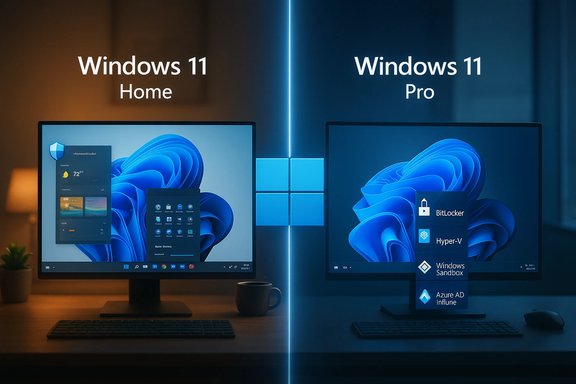
Windows 11 has matured since its initial release, evolving from a visual and UX refresh into a platform with distinct edition-level trade‑offs. The shared baseline between Home and Pro includes the refreshed UI, Snap Layouts, Copilot, Microsoft Defender, and gaming enhancements such as Auto HDR and DirectStorage where hardware supports them. That shared baseline means most everyday workflows — browsing, streaming, Office productivity, and casual gaming — run equally well on either edition.
At the same time, Pro continues to exist as the “control and scale” edition: it’s designed for scenarios where device encryption management, domain/Azure AD integration, host Remote Desktop, and built‑in virtualization deliver measurable operational or security value. For buyers, the decision is rarely about performance — edition does not make a PC faster — but about capability, management overhead, and risk posture.
Core feature comparison: what you always get, and what you don’t
Shared baseline (Home + Pro)
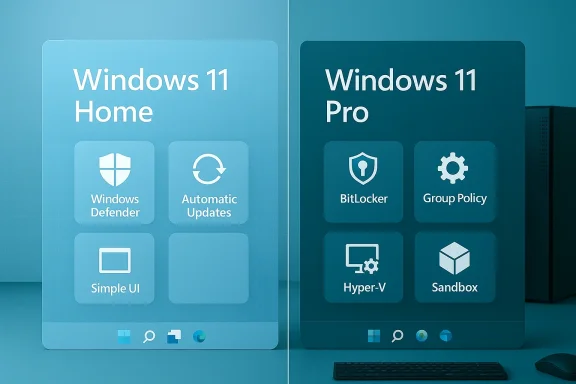
- Full Windows 11 UI and modern shell (centered Start, Snap Layouts, Widgets).
- Built‑in security stack: Microsoft Defender Antivirus, SmartScreen, and anti‑ransomware protections.
- Consumer features like Auto HDR, DirectStorage (hardware dependent), and Android app support where available.
- Windows Hello biometric sign‑in support and basic Device Encryption when hardware is present.
Pro‑only highlights
- BitLocker full‑disk encryption with enterprise-style recovery key management.
- Local Group Policy Editor and the ability to join on‑premises domains.
- Azure AD / Intune enrollment and additional device management capabilities.
- Hyper‑V virtualization and Windows Sandbox for disposable, isolated testing environments.
- Host Remote Desktop (RDP) sessions from the PC (Home can only act as a client).
- Extended hardware ceilings (workstation support for dual physical processors and much larger RAM limits).
These Pro features are not cosmetic. They’re structural: BitLocker changes how you protect data at rest; Group Policy changes how devices are governed across many users; Hyper‑V changes how developers and IT validate builds and test configurations.
Security differences: practical implications
Windows 11 Home includes device encryption on many modern PCs, protecting data with a hardware‑backed flow when the device supports TPM and secure boot. For many consumers, this is a meaningful baseline improvement over older Windows releases.
Windows 11 Pro adds BitLocker, which is more flexible and administratively robust than the basic device encryption offered on Home. BitLocker supports:
- Full‑disk encryption across system and secondary drives.
- Integration with Active Directory or Azure AD for centralized recovery key escrow.
- Policy controls for encryption methods and key rotation.
If protecting sensitive corporate or regulated data is essential, BitLocker + key escrow reduces the risk of data exposure while enabling recoverability — but it also imposes process requirements: export and securely store recovery keys and build procedures for re‑provisioning devices. Mishandled keys or automatic encryption defaults have caused irretrievable data losses for users who didn’t back up recovery keys; treating encryption as an operational responsibility is critical.
Virtualization, development, and testing workflows
For developers, testers, and IT professionals the Pro edition is more than a convenience — it’s a time saver.
- Hyper‑V: Native hypervisor useful for running multiple VMs without third‑party tools. It supports nested virtualization and integrates cleanly with Windows networking and snapshots. This lowers friction for local labs and CI test scenarios.
- Windows Sandbox: A temporary, disposable Windows instance for running unknown or untrusted software safely. Each sandbox session starts fresh and discards state on close — ideal for quick validation.
- WSL and network tooling: While Windows Subsystem for Linux runs on Home, Pro provides a tighter fit for advanced networking and virtualization backends used in professional stacks.
Alternative free virtualization solutions (VirtualBox, VMware Workstation Player) exist and satisfy many hobbyist needs. The value of Pro arises when Hyper‑V’s integration, licensing simplicity, or host‑level network virtualization materially shortens workflows or simplifies compliance.
Management and enterprise capabilities
Windows 11 Pro exists to reduce administrative friction and scale management across multiple devices. Key Pro advantages for businesses:
- Domain join & Group Policy: Enforce policies across machines without cloud tooling. This is foundational for many enterprises and legacy environments that still rely on Active Directory.
- Azure AD + Intune: Pro machines can enroll into modern management and conditional access systems, which is the recommended path for remote work and cloud-first security posture.
- Windows Update for Business: Pro supports more granular update controls and staged deployments, which helps avoid disruptive updates in production. Windows Autopatch and staged rollouts are important in enterprise environments where uptime and compatibility are critical.
However, some powerful enterprise features (advanced DLP, Purview integrations, Autopatch at scale) still require additional server or cloud licenses. Pro is necessary, but not always sufficient, for every enterprise deployment; confirm the full licensing stack when planning a rollout.
Pricing, upgrade mechanics, and license hygiene
Retail and upgrade pricing fluctuate. Recent snapshots show a retail Windows 11 Pro MSRP near $199.99, while the in‑OS Home → Pro upgrade via the Microsoft Store commonly appears as a lower charge (historically around $99 in some markets). Pricing varies by region, promotions, and reseller. Always confirm the price at purchase time.
Practical upgrade routes:
- Settings → System → Activation → Upgrade your edition of Windows → Microsoft Store purchase (seamless in‑place upgrade).
- Settings → System → Activation → Change product key → enter a valid 25‑character Pro product key if you already own one.
Purchase hygiene:
- Prefer Microsoft or reputable retailers. Avoid unknown discount key marketplaces that sell suspiciously cheap Pro keys; these can be OEM‑locked, volume‑limited, or invalidated later.
- Distinguish OEM, retail, and volume licenses: OEM keys generally tie to the original motherboard and are non‑transferable; retail keys usually are. Know your intended lifecycle.
Practical trade‑offs and common myths
- Myth: “Pro makes my PC faster.” Reality: Edition does not change core performance; hardware and drivers do. Pro is about control, not speed.
- Myth: “You must buy Windows 11 to get Windows 11.” Reality: Eligible Windows 10 devices qualify for free upgrades to the equivalent Windows 11 edition through Windows Update. Buying retail Home is only necessary for fresh builds without OEM licenses.
- Real cost: For casual consumers, the incremental value of Pro is often small. For IT environments, the cost of Pro is usually dwarfed by the operational benefits it enables (reduced support calls, compliance posture, centralized recovery keys).
Upgrade decision framework: a structured checklist
Use this checklist to quickly determine whether Pro is justified:
- Upgrade to Pro if:
- You need BitLocker with centralized recovery management.
- You must host Remote Desktop sessions on the PC.
- You require Hyper‑V or Windows Sandbox for development/testing.
- You manage fleets of devices and require Group Policy, domain join, or Azure AD/Intune enrollment.
- You handle regulated or sensitive data that benefits from enterprise controls.
- Stick with Home if:
- Your work is primarily browsing, streaming, consumer gaming, or light productivity.
- You don’t want to manage encryption keys or enterprise tools.
- You want to avoid paying extra for features you will rarely use.
If only one Pro feature (e.g., Hyper‑V or BitLocker) is needed, weigh the upgrade cost against the operational benefit that single feature provides. In many small‑scale scenarios, third‑party tools or disciplined backup practices can substitute for Pro features at lower cost — but they may increase management complexity.
Upgrade precautions and operational best practices
- Inventory first: Confirm the exact Pro features you will use and ensure hardware compatibility (TPM for BitLocker, CPU virtualization support for Hyper‑V, motherboard and CPU for bigger RAM ceilings).
- Backup before you flip: Always do a full backup or image snapshot prior to any edition change or major Windows feature update. Export BitLocker recovery keys if enabling encryption.
- Test on a secondary device or VM: Validate domain join, GPOs, Hyper‑V VMs, and RDP behavior before rolling out to production users.
- Purchase clean keys: Buy from Microsoft or authorized resellers and link licenses to a Microsoft account where possible to simplify reactivation after hardware changes.
- Avoid unsupported hacks: Workarounds to unlock Pro features on Home break with updates and increase long‑term support friction. Use supported upgrade paths.
Step‑by‑step: how to upgrade from Home to Pro (concise)
- Open Settings → System → Activation.
- If you already have a Pro key: choose "Change product key" and enter the 25‑character key. Your system will validate and enable Pro features; reboot when prompted.
- If you don’t have a key: choose the Microsoft Store option and complete the in‑OS purchase; the upgrade is applied automatically and the device reboots as needed.
- After upgrade: confirm Activation status in Settings → System → Activation and verify Pro features (BitLocker, Hyper‑V, Group Policy Editor). Export or escrow any recovery keys deliberately.
Risk spotlight: what can go wrong and how to mitigate it
- Automatic encryption surprises: Some OEM installations and reinstall scenarios enable encryption by default. If you accept defaults and don’t store recovery keys safely, you risk permanent data loss. Export and store recovery keys offline (or in enterprise key escrow) before proceeding.
- Bad keys from marketplaces: Cheap keys may be volume‑locked, non‑transferable, or rescinded. Avoid suspiciously low offers and verify vendor reputation.
- Management misconfiguration: Powerful Group Policy or Intune rules can lock users out or break services if rolled out without testing. Stage policies and have rollback plans.
- Hardware incompatibility: Meeting Windows 11 minimums doesn’t guarantee Pro features run. For example, Hyper‑V requires CPU virtualization features; Pro’s RAM and CPU ceilings still depend on motherboard and CPU physical limits. Check vendor specs.
Flag any claims that lack independent confirmation: if a vendor advertises Pro-exclusive integrations requiring additional subscriptions (for example, advanced Purview or Autopatch benefits), confirm those details against the vendor’s official licensing documents before budgeting. The Pro license is a platform entitlement; many enterprise-grade capabilities still sit behind cloud or server-side subscriptions.
Verdict: who should pay for Pro — and when it’s unnecessary
For most consumer scenarios — students, families, gamers, general creators — Windows 11 Home is the pragmatic choice. It delivers the modern Windows experience, robust baseline security, and consumer features without additional cost or added administrative complexity.
Choose Windows 11 Pro when the features are operationally essential:
- You must host RDP sessions, run Hyper‑V workloads, enforce Group Policy, or centrally manage BitLocker keys.
- Your environment requires device enrollment to Azure AD and the management surface that Pro unlocks.
- You operate in regulated environments where centralized encryption and recovery tooling materially reduce compliance risk.
When in doubt, inventory the single feature that matters most. If enabling Hyper‑V or BitLocker solves a day‑to‑day problem and saves time or risk, Pro often pays for itself. If the answer is “it might be useful someday,” stick with Home and re-evaluate later; Microsoft supports straightforward in‑place upgrades when required.
Closing summary
Edition choice is a trade between simplicity and control. Home maximizes ease of use and value for the majority of users. Pro grants administrative control, advanced encryption, and virtualization that are essential in professional and managed contexts. Purchase and upgrade safely: verify hardware compatibility, back up data, store encryption keys, and buy licenses from reputable channels. Those steps convert the theoretical benefits of Pro into real‑world advantages without the preventable headaches that accompany rushed upgrades.