
Microsoft’s own feature matrix confirms that the everyday Windows experience is effectively shared. Gaming features, Snap layouts, Windows Hello, Defender, Firewall, Secure Boot, Phone Link, the Microsoft Store, accessibility tools, and the consumer-facing Copilot experience are not Pro perks. Buying Pro does not produce a faster desktop, higher game frame rates, better Windows Update quality, or access to a separate class of ordinary apps.
The edition decision is therefore less about whether someone is a “professional” and more about whether the PC must do one of several jobs that Home deliberately does not support.
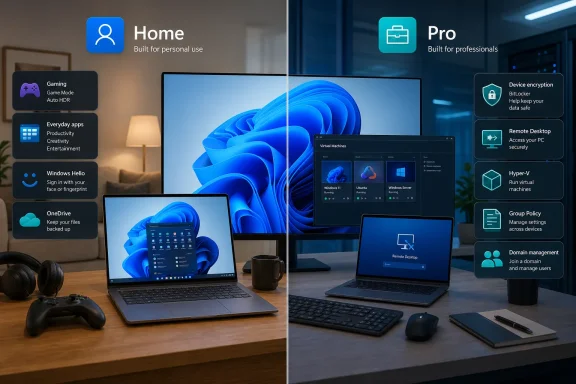 The practical split is host, manage, encrypt, and isolate
Windows 11 Pro adds the functions expected on a device that somebody needs to administer, secure beyond a default configuration, or reach remotely. Microsoft’s support documentation identifies BitLocker Drive Encryption, Remote Desktop hosting, and the ability to join an Active Directory domain or Microsoft Entra ID as central Pro capabilities. PCWorld and Windows Central independently identify the same dividing lines, along with Group Policy, Hyper-V, and Windows Sandbox.
The distinction around Remote Desktop deserves particular care. Windows 11 Home can run the client and connect out to another computer or server. It cannot accept an incoming Microsoft Remote Desktop Protocol session as a host. A Home desktop at home, in a lab, or behind a desk can still be reached through third-party remote-control products, but native RDP hosting requires Pro, Enterprise, Education, or Windows Server.
For a solo user with a small home network, that may not matter. For a technician who needs to administer a workstation from another Windows machine, it can be the deciding feature. Remote access also needs to be set up safely: enabling RDP and exposing it directly to the internet without a VPN, multifactor safeguards, or an access gateway is a security decision, not a convenience toggle.
Pro also carries the management machinery that makes workplace Windows behave like workplace Windows. Domain join and Microsoft Entra ID join allow a PC to participate in an organization’s identity system. Local Group Policy lets administrators apply settings consistently, restrict behavior, and configure parts of Windows that Home users would otherwise have to leave alone or change individually through the registry. Assigned Access and related provisioning features are useful for kiosk systems, shared terminals, and deliberately locked-down devices.
Those capabilities are meaningful in an office, school, repair shop, homelab, or managed fleet. They are largely dormant on a personal gaming PC.
BitLocker is the strongest reason to pay — but Home is not necessarily unencrypted
Engadget highlights BitLocker as a major Pro advantage, and that is correct, provided “BitLocker” means the full management feature. Microsoft says BitLocker Drive Encryption lets Pro, Enterprise, and Education users manually encrypt operating-system drives, fixed data drives, and removable drives through BitLocker To Go. Home does not include that Control Panel experience or its full set of configuration choices.
But the simpler claim that “Home has no encryption” is wrong. Microsoft’s comparison page lists Device Encryption on both Home and Pro, and its BitLocker overview separates that simplified protection from the manually administered BitLocker Drive Encryption available on higher editions. On compatible Windows 11 Home hardware, Device Encryption can protect the system drive and commonly stores the recovery key in the user’s Microsoft account or work account before encryption is enabled.
That makes the real question more specific:
- A Home user with an eligible modern laptop, a Microsoft account, and a need to protect the internal drive against loss or theft may already have adequate baseline encryption.
- A Pro user can choose encryption settings more deliberately, protect secondary internal disks, and encrypt removable storage with Microsoft’s native tooling.
- Anyone enabling either form of encryption needs to verify where the recovery key is stored before changing firmware, motherboard components, boot settings, or storage hardware.
The recovery-key point is more consequential than the edition badge. Encryption protects data when a device is stolen, but a legitimate owner can still be locked out after a hardware or firmware change if the recovery information is unavailable. Microsoft’s documentation makes clear that recovery can be requested when Windows detects changes it cannot distinguish from an attack.
For people who carry sensitive data on USB drives, maintain separate data volumes, or cannot rely on a Microsoft-account-backed recovery key, Pro’s fuller BitLocker control is a defensible purchase. For the ordinary owner of a modern laptop whose files are backed up and whose device already exposes Device Encryption in Settings, it is a weaker reason than many comparisons suggest.
Sandbox and Hyper-V serve real technical work, not a performance upgrade
Windows Sandbox is the Pro-only feature most likely to matter to advanced home users. Microsoft describes it as a disposable, isolated Windows environment: open it, install or run a file, and close it when finished. Its contents are discarded when the sandbox closes. That makes it useful for testing installers, examining unfamiliar attachments, reproducing a software problem, or trying a configuration without contaminating the main Windows installation.
It is not an absolute malware-analysis bunker. Microsoft warns that Sandbox networking is enabled by default, and an untrusted program with network access can still reach the local network or the internet. Users testing genuinely suspicious files should disable networking in the Sandbox configuration and avoid mapping writable host folders into it. A mapped folder is a path back to the host; treating it as harmless defeats much of the isolation being purchased.
Pro also includes Hyper-V, Microsoft’s built-in virtualization platform. It is useful for Windows admins, developers, and people who need repeatable virtual machines. Home users are not barred from virtualization altogether: Oracle VirtualBox and other third-party hypervisors remain alternatives. The value of Pro is access to Microsoft’s integrated stack and features such as Sandbox, rather than the mere ability to run another operating system in a window.
Neither Sandbox nor Hyper-V makes ordinary Windows applications faster. Windows Central’s testing and analysis reach the straightforward conclusion supported by the editions’ shared core: on identical hardware, Home and Pro have comparable everyday performance. Pro supports far more memory — Microsoft sets Windows 11 Home’s ceiling at 128 GB and Windows 11 Pro’s at 2 TB — but that limit has no practical effect on almost every consumer PC sold today.
A workstation with 192 GB or 256 GB of memory is an obvious exception. A 16 GB, 32 GB, or 64 GB desktop is not.
The $60 comparison can mislead existing Windows 11 Home owners
Engadget lists standalone retail pricing of $140 for Windows 11 Home and $200 for Windows 11 Pro, a $60 spread. That is a valid comparison for someone buying a fresh retail license for a self-built PC. It should not be read as a promise that a machine already activated with Windows 11 Home can be converted to Pro for $60.
Microsoft handles an in-place Home-to-Pro conversion through Settings > System > Activation > Upgrade your edition of Windows, which opens the Microsoft Store for an activated Home installation. The Store’s offered upgrade is a distinct purchase path from buying a new Pro retail license. Microsoft’s support page describes the process but does not publish a universal upgrade price there; it can vary by market and storefront. PCWorld has reported a $99 Store upgrade price, which is notably higher than the retail-license difference cited by Engadget.
That changes the buying advice. Someone assembling a PC from scratch should compare the full-license prices before purchasing. Someone who already owns an activated Home PC should check the actual Store offer on that device, then ask whether one missing feature is worth that amount. There is no need to preemptively replace a working Home installation merely because Pro sounds more future-proof.
The upgrade is also an edition upgrade, not a clean reinstall. Microsoft says an activated Home device can move to Pro by entering a valid Pro key or completing the Store purchase, then restarting. Existing applications, personal files, drivers, and settings should remain in place, but a current backup is still the appropriate precaution before any licensing or encryption change.
Windows 10’s end of support does not turn Home users into Pro candidates
Microsoft ended Windows 10 support on October 14, 2025. That date matters because an eligible, genuine Windows 10 device can still receive a digital license when upgrading to the matching Windows 11 edition, but it does not create a free path from Windows 10 Home to Windows 11 Pro. Microsoft’s activation guidance is explicit that the installed Windows edition must match the license entitlement.
A Windows 10 Home digital license maps to Windows 11 Home. A Windows 10 Pro entitlement maps to Windows 11 Pro. Older hardware that does not meet Windows 11 requirements is a separate problem; edition choice cannot bypass the TPM 2.0, supported CPU, memory, storage, and firmware requirements Microsoft enforces for a supported installation.
The cleanest recommendation is therefore simple. Buy or keep Windows 11 Home unless the PC needs full BitLocker management, native RDP hosting, domain or Entra join, Group Policy, Windows Sandbox, Hyper-V, or more than 128 GB of RAM. If one of those requirements appears later, Home can be upgraded in place. Paying for Pro before a real requirement exists buys capabilities that, for most Windows users, will never be switched on.
