
In the latest Windows 11 Release Preview builds for versions 24H2 and 25H2—builds 26100.8968 and 26200.8968, respectively—Microsoft says it has improved the calculation of update progress in the Windows Update settings experience. The same preview release also changes Windows update clean-up behavior with the aim of improving system performance immediately after an update has completed.
Neither change sounds glamorous. Both could matter enormously.
For years, Windows Update has been technically capable but visually opaque. A percentage may appear to pause for long periods, leap forward unexpectedly, or remain at a reassuringly high number while the system is still carrying out substantial work in the background. On slower PCs, that uncertainty is compounded after an update finishes: the desktop may return, but the device can feel busy, sluggish, and less responsive while post-installation maintenance continues.
Microsoft is not promising a redesigned Windows Update interface, faster downloads, or the end of failed cumulative updates. But it is acknowledging two very real pain points: progress reporting that does not always reflect the user’s experience, and the performance tax that can linger after an update appears complete.
That is a welcome direction for Windows 11—provided these improvements make their way from Release Preview testing into the regular monthly servicing cycle without creating new problems of their own.
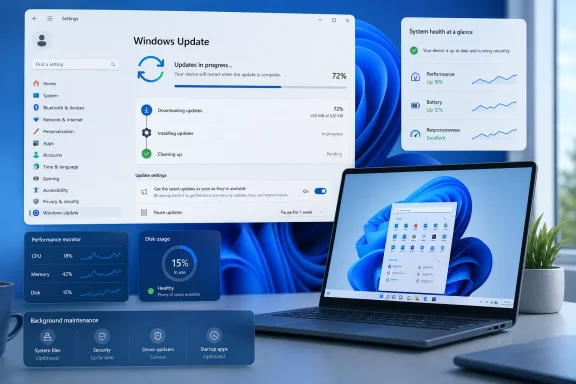 A Modest Windows 11 Update Change With a Large User-Experience Impact
The official wording is restrained:
- Windows Update Settings now has improved calculation of update progress.
- Windows includes revised update clean-up logic intended to improve performance immediately following an update.
Those two lines describe a very different kind of Windows feature improvement. This is not another Copilot integration, Start menu experiment, or visual refresh. It is maintenance work on a critical operating-system service that people generally notice only when something goes wrong.
And Windows Update is noticed often.
A successful update can involve multiple stages, including scanning for applicable packages, downloading payloads, validating content, staging components, preparing changes for installation, applying them online or during restart, migrating settings where required, and removing files that are no longer necessary. A single progress indicator cannot neatly translate all of that complexity into one number.
That technical reality does not excuse a poor experience, however. Users do not need every internal servicing detail. They need a status indicator that behaves predictably enough to answer basic questions:
- Is the update still progressing?
- Is it downloading data or installing files?
- Is a restart required?
- Is the system waiting for a task that may take several minutes?
- Has the update actually finished, or is Windows still performing clean-up?
- Is there a genuine error that needs attention?
When Windows Update reports a percentage that appears frozen, even though background work is continuing, users reasonably assume the process has stalled. That can lead to forced shutdowns, repeated restarts, manual intervention, and unnecessary troubleshooting. In business environments, it can also lead to support calls and delayed rollout decisions.
More accurate Windows 11 update progress will not remove the complexity of servicing, but it could remove some of the doubt surrounding it.
Why Update Progress Has Felt Unreliable
A download and installation meter may look like a straightforward measurement, but Windows servicing is not a linear process. The amount of time spent at any one percentage can vary substantially depending on the device, the update, storage performance, installed drivers, the amount of free disk space, and the health of the component store.
Downloading Is Only One Part of the Process
The most visible Windows Update phases are usually “Downloading” and “Installing.” Behind those labels, however, Windows can be doing a variety of tasks that are not proportional to the number displayed in Settings.
For example, the update may be:
- Checking applicability against the installed Windows build.
- Downloading a differential package rather than a full replacement package.
- Verifying hashes and digital signatures.
- Expanding compressed update content.
- Staging files for the servicing stack.
- Checking dependencies among cumulative updates, drivers, language packs, and optional components.
- Reserving disk space or evaluating whether cleanup is required.
- Preparing a reboot-time transaction.
A progress number based too heavily on downloaded bytes may race ahead and then appear to stop while installation work continues. A number based on installation milestones may move slowly until Windows reaches a checkpoint. Either scenario can look broken even when the update engine is functioning normally.
The fundamental problem is not necessarily that a progress bar pauses. A pause can be perfectly normal. The problem is that users often have no way to distinguish a normal pause from a genuine failure.
The Restart Boundary Can Be Misleading
Windows Update also has a communication problem around restart-required updates. Once Settings says that installation is complete and prompts for a restart, it is natural to assume the difficult part is over.
Often, that is not the case.
Some updates complete a significant portion of their work only after Windows restarts. At that point, the familiar full-screen update phase takes over. Even after the sign-in screen returns, Windows may still be performing deferred clean-up, system optimization, indexing adjustments, or component maintenance in the background.
This creates an awkward gap between what Windows tells the user and what the PC feels like in practice. The update may be technically installed, yet the device may remain less responsive for a period afterward.
Microsoft’s new clean-up change appears targeted directly at that post-update gap.
What Better Progress Calculation Should Mean
Microsoft has not provided a detailed technical explanation of the revised Windows Update progress calculation. It has not claimed that the underlying update pipeline has been rebuilt, that all progress delays are eliminated, or that a new diagnostic interface is being added.
That distinction matters. The change should be interpreted as an improvement to how Windows Update Settings estimates and presents progress, not as proof that every update will be faster.
Still, a better estimate can be valuable in several ways.
Fewer False “Stuck Update” Moments
The clearest benefit is reduced confusion. If the percentage calculation better reflects the actual state of the update workflow, users should encounter fewer cases where an update seems permanently stranded at a specific number.
This is especially relevant for cumulative updates, feature enablement packages, and larger upgrades that may spend long periods validating or applying files. A more realistic progress display can prevent a normal servicing delay from being mistaken for an error.
That matters because impatience can turn a benign update into a recovery exercise. Interrupting Windows while it is applying system-level changes can trigger rollback behavior, boot issues, corruption warnings, or a lengthy repair cycle.
More Confidence During Windows 11 Downloads and Installs
The practical value of a progress indicator is psychological as well as technical. Users are more willing to leave a system alone if it provides credible signs that work is continuing.
For home users, that may simply mean less frustration while waiting for a monthly security update. For IT administrators, it can mean less ambiguity when coordinating update windows across fleets of devices.
A clearer update experience also supports Microsoft’s ongoing push for faster security patch adoption. Security updates are only effective when they are installed. If users feel that Windows Update is unpredictable, slow, or difficult to trust, they are more likely to postpone the process.
Better Baselines for Troubleshooting
Accurate progress reporting may also improve the troubleshooting experience. When a device genuinely fails, clearer phase information makes it easier to identify whether the failure occurred during download, installation, restart processing, or cleanup.
Windows could still do more here. A simple plain-language explanation of the current activity—such as “Preparing files,” “Applying changes,” or “Cleaning up after installation”—would be more useful than a percentage alone. But better calculation is a sensible prerequisite. A status message is only useful if it corresponds to the real servicing state.
The Post-Update Performance Problem Is Real
The second improvement in the Release Preview update may prove more noticeable on older hardware and lower-spec Windows 11 PCs.
Microsoft says it has changed update clean-up logic to improve system performance immediately following an update. In plain terms, Windows is being adjusted to handle the removal or maintenance of update-related files more effectively after servicing completes.
That is a consequential area of the operating system.
Why a PC Can Feel Slow After Updating
Windows updates can leave behind temporary data, superseded components, rollback resources, installation logs, and servicing artifacts. Some of those files are needed briefly so Windows can verify the update or provide a recovery path. Others can be removed later once the system is stable.
The cleanup process is necessary, but it can compete with normal work. On a capable desktop with a fast NVMe SSD and abundant memory, that activity may be barely noticeable. On a budget laptop, a device with a slower solid-state drive, or a PC with limited free storage, it can make a newly updated system feel unexpectedly sluggish.
Common post-update symptoms include:
- A slower desktop immediately after sign-in.
- Delayed Start menu or taskbar responsiveness.
- High disk activity with no obvious foreground application open.
- Fans spinning up during background maintenance.
- Apps taking longer to launch.
- Temporary CPU usage from servicing-related tasks.
- Reduced responsiveness while Windows finishes file cleanup or optimization.
Not every slowdown after an update is caused by cleanup. Antivirus scans, search indexing, driver adjustments, cloud synchronization, and application updates can all contribute. But cleanup is one of the areas Microsoft can directly optimize through Windows servicing logic.
Immediate Performance Is the Key Phrase
The important wording is not merely that cleanup has been improved. Microsoft specifically connects the change to system performance immediately following an update.
That suggests the company recognizes that the success state of Windows Update should not be defined only by whether the system boots again or whether the Settings page says “You’re up to date.” It should also include whether the PC is usable after the update completes.
This is a more user-centered definition of update quality. A patch that technically installs but leaves a machine unresponsive during the next work session is not a fully successful experience.
For Windows 11, where the baseline hardware requirements can already place pressure on older or entry-level PCs, reducing unnecessary post-update overhead is particularly important.
Release Preview Means This Is Not Yet a Guaranteed Fix for Everyone
There is an important limitation: build 26100.8968 for Windows 11 version 24H2 and build 26200.8968 for version 25H2 are currently in the Release Preview Channel.
Release Preview is the final Insider testing channel before changes are broadly incorporated into production releases. It is generally more stable than Dev, Canary, or experimental testing channels, but it is still a preview environment. Features and fixes can be revised, delayed, expanded gradually, or occasionally withdrawn before reaching all mainstream PCs.
What Release Preview Tells Us
The presence of these changes in Release Preview is encouraging for several reasons:
- The improvements are close to the normal Windows servicing pipeline.
- Microsoft has documented them as part of the build’s release notes.
- They apply to both the 24H2 and 25H2 branches represented by the release.
- They are framed as quality improvements rather than speculative experiments.
At the same time, users should not assume their next Patch Tuesday update will instantly feature a transformed download meter or a dramatically faster post-update desktop.
Windows updates often use controlled rollouts. Even once a feature or behavioral change reaches a stable package, availability can vary by device configuration, edition, region, and servicing circumstances. Microsoft may also monitor telemetry and reliability feedback before applying an updated experience to every eligible machine.
24H2 Users Should Not Overlook Lifecycle Planning
There is also a practical reason not to treat these improvements as a reason to stay on an older Windows 11 release indefinitely. Windows 11 version 24H2 has a defined support lifecycle, and Home and Pro users should plan their move to the current supported feature version when it is offered for their device.
The new update progress and cleanup improvements are useful, but they do not replace the importance of running a supported Windows version with current security patches. A better update experience should encourage timely upgrades—not become another reason to defer them.
Microsoft’s Recent Update Disruption Adds Context
The timing is notable because Windows update delivery has recently been in the spotlight for reasons Microsoft would rather avoid.
A recent Azure-related service disruption affected access to Windows Update, the Microsoft Update Catalog, Microsoft Store content, and Windows Server Update Services. Users and administrators could encounter delays, download failures, timeouts, or trouble accessing content. Microsoft later restored the affected services.
That incident illustrates why dependable Windows updates require more than a polished Settings page. The complete experience depends on cloud delivery infrastructure, update metadata services, content distribution, enterprise management tools, device-side servicing components, drivers, compatibility safeguards, and the local condition of each PC.
Better progress reporting cannot solve a cloud outage. It cannot download a package that is temporarily unavailable. It cannot eliminate every compatibility hold. But it can make the local experience more truthful when Windows is able to proceed.
That is still meaningful.
A service outage is inherently disruptive. A vague progress display during normal operation is avoidable friction. Microsoft has control over the latter, and this Release Preview update indicates the company is taking steps to address it.
What This Does Not Fix
Windows Update has multiple pain points, and it is important not to overstate what these two changes accomplish.
It Does Not Guarantee Faster Downloads
Improved progress calculation is not necessarily a throughput improvement. Download speed still depends on internet connectivity, Microsoft’s content delivery network, local network conditions, regional demand, background bandwidth limits, and the size of the update package.
A percentage that behaves more credibly is a better experience, but it does not mean a large feature update will download in minutes on every connection.
It Does Not Eliminate Update Failures
Windows 11 update failures can stem from a broad range of issues:
- Corrupted servicing components.
- Insufficient free disk space.
- Incompatible drivers or firmware.
- Security software interference.
- Damaged system files.
- Enterprise policies.
- Network filtering or proxy configuration.
- Hardware-specific compatibility protections.
- Dependencies involving language packs, optional features, or recovery partitions.
A better meter will make failures easier to recognize if it accurately reflects stalled work, but it will not remove the underlying causes.
It Does Not Replace Better Explanations
Windows still needs more transparent messaging when an update is delayed, blocked, or rolling out gradually. Users often see generic language such as “We’ll try again later” even when the actual reason is a compatibility hold, a driver issue, an unavailable prerequisite, or a staged release.
Microsoft has improved update status communication in certain areas, especially through release health dashboards and documented safeguards. The Windows Update interface itself, however, often remains too terse for users who need an actionable explanation.
The ideal next step would combine accurate progress estimates with clearer state descriptions, meaningful error details, and visible guidance when an update is deliberately withheld from a device.
Practical Advice for Windows 11 Users
Until these improvements reach broader availability, the best approach remains cautious and methodical.
Before Installing a Major Windows Update
A few simple preparations can make Windows 11 updates less stressful:
- Keep enough free storage available. Low disk space can complicate downloads, staging, rollback, and cleanup.
- Save work before starting. Even routine cumulative updates can require a restart.
- Use AC power on laptops. Feature updates and longer servicing sessions should not be dependent on battery charge.
- Avoid force-restarting during apparent pauses. A static percentage is not always a frozen update.
- Disconnect unnecessary peripherals if problems recur. Some update issues involve drivers or attached hardware.
- Check whether the update is subject to a compatibility hold. A delayed offer is sometimes a deliberate protection, not a malfunction.
- Give the system time after the first restart. Background maintenance can temporarily affect responsiveness.
For managed devices, administrators should continue to validate preview changes against representative hardware and application workloads before broad deployment. The update process is common across Windows PCs, but the variables that affect it are not.
A Necessary Shift From “Installed” to “Usable”
The real promise of this update is not that Windows Update will suddenly become exciting. It is that Microsoft is beginning to treat clarity and immediate post-update performance as part of the servicing experience.
That is the correct priority.
Windows 11 has accumulated many visible improvements across Settings, File Explorer, accessibility, search, power management, and AI-assisted features. Yet the operating system’s maintenance workflow remains one of the most consequential parts of daily ownership. Every user depends on it, whether they actively seek updates or simply accept them when Windows asks for a restart.
A cleaner progress calculation helps users trust what they see. Better cleanup logic helps them trust what happens after the screen says the update is done.
Those are not headline-grabbing features, but they are the kind that can quietly improve Windows 11 for millions of people. If Microsoft follows through with clearer progress states, more specific error reporting, and continued work on post-update responsiveness, Windows Update could become less of an interruption and more of what it should have been all along: a dependable background service that keeps PCs secure without making users wonder whether their computer has stopped working.
Update: Windows Update refinements are expected in the August security release (July 28, 2026)
Windows Central now reports that the improved Windows Update progress estimates and revised post-installation cleanup process are expected to reach Windows 11 versions 24H2 and 25H2 through the August 2026 security update, scheduled for Tuesday, August 11.
That provides a clearer anticipated path to general availability than the earlier Release Preview testing alone. The changes would arrive alongside a broader set of quality improvements, rather than as a standalone Windows Update package.
Availability may still vary. Windows Central notes that Microsoft uses Controlled Feature Rollout for many of the update’s changes, so eligible PCs may not all receive the updated behavior immediately after installing the monthly patch.
Update: Optional July patch makes Windows Update changes available ahead of August rollout (July 29, 2026)
Thurrott reports that the refinements are now included in the optional July 2026 update for Windows 11 versions 24H2 and 25H2, KB5101684. That gives users who manually install the non-security preview update an earlier route to the improved progress calculation and post-installation cleanup behavior.
The changes are still scheduled to begin broader, gradual rollout through the August 11 Patch Tuesday release. Installing KB5101684 does not guarantee that every feature will appear immediately, as Microsoft can enable individual changes through Controlled Feature Rollout.
For IT teams, the optional update provides a practical validation opportunity before the August security release. Organizations can test whether the revised update-status behavior and cleanup logic improve the experience on representative hardware without waiting for the changes to reach the wider monthly servicing channel.
