
The shared theme is refreshingly straightforward. Microsoft is finally treating the Windows desktop as something users should be able to shape around their hardware, workflow, and accessibility needs—not merely a fixed canvas for the company’s latest services.
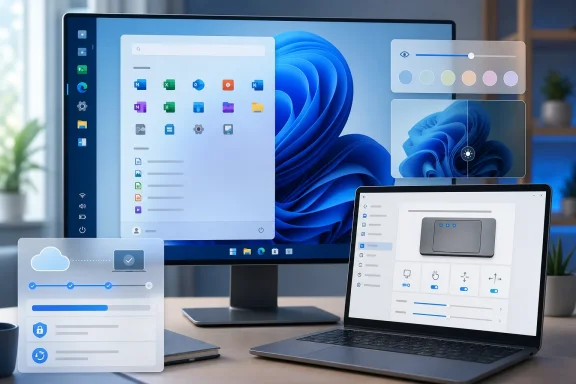 Overview: Windows 11 Is Getting More Personal Again
Windows 11 has often felt caught between two instincts. One is a desire to modernize the desktop with cleaner visuals, cloud integration, and AI-driven assistance. The other is the longstanding Windows tradition of letting users configure their machines in very specific ways.
The 2026 Windows Insider builds suggest that Microsoft is rebalancing those priorities. The company has introduced new flexibility for the taskbar and Start menu, improved essential behaviors such as search and touchpad navigation, and tested recovery options that could be genuinely useful when a Windows installation fails. These are not necessarily headline-grabbing additions, but they are the sort of improvements that can make Windows 11 feel more competent every hour of the day.
The caveat, as always, is that Insider features are works in progress. Microsoft can change their behavior, alter their availability by channel, or postpone them before they reach broader Windows 11 releases. The company also uses gradual rollouts, meaning even supported Insider devices may not receive a feature immediately. Microsoft explicitly distinguishes between phased “gradual rollout” availability and broader normal rollout in its Insider documentation. Microsoft’s Windows Insider Blog
Still, the direction is encouraging. These are five Windows Insider features that deserve attention.
1. A Moveable, Resizable Taskbar
The return of alternate taskbar positions is easily one of the most consequential Windows 11 quality-of-life improvements in the Insider program this year. Microsoft is testing the ability to place the taskbar at the bottom, top, left, or right side of the display through Settings > Personalization > Taskbar > Taskbar behaviors. Microsoft’s May 15 Windows Insider build announcement
For many Windows veterans, this should never have been controversial. Windows 10 allowed taskbar relocation, and users with ultrawide displays, vertical monitors, compact laptop screens, or multi-monitor arrangements often built their workflows around it. The early Windows 11 taskbar removed that flexibility, making the desktop look cleaner at the expense of a familiar productivity preference.
Why taskbar placement matters
A left- or right-side taskbar can be dramatically more efficient on widescreen monitors. Modern displays frequently provide generous horizontal space but comparatively limited vertical room. A vertical taskbar uses that horizontal surplus for app buttons, pinned icons, and system indicators while preserving vertical pixels for documents, web pages, code editors, spreadsheets, and chat windows.
A top-mounted taskbar also makes sense for some users. It can place system navigation closer to browser tabs and application title bars, reducing mouse travel during app switching. For people accustomed to Linux desktop environments, older Windows configurations, or certain macOS-style workflows, this is a long overdue restoration of choice.
Microsoft says that taskbar tooltips, flyouts, animations, and most existing personalization settings—including small taskbar behavior and the option to avoid combining taskbar icons—are designed to work across the new positions. Microsoft’s May 15 Windows Insider build announcement
Small taskbar, big difference
The companion feature is a smaller taskbar option. Microsoft describes it as a more compact taskbar with reduced height and smaller icons, intended to create more room for apps—especially on smaller screens. Microsoft’s May 15 Windows Insider build announcement
That might sound cosmetic, but vertical space is among the most valuable resources on a laptop. A thinner taskbar can mean another line of text in a document editor, a more useful number of rows in a spreadsheet, or fewer interruptions while working in a browser-based dashboard.
Microsoft later made the setting more visible by adding a dedicated Taskbar Size control in the Experimental channel. Microsoft’s June 26 Windows Insider build announcement
The risk: implementation quality matters
Taskbar positioning is deceptively complex. Context menus, notification flyouts, multiple displays, auto-hide behavior, touch targets, full-screen apps, and third-party utilities all need to behave consistently. A feature that technically permits a vertical taskbar but creates awkward notification placement or buggy overflow menus will not satisfy the users who have waited for it.
Microsoft should also resist the temptation to make this an unfinished “checkbox” feature. The Windows taskbar is one of the most visible and heavily used components of the operating system. If alternative positions return, they need first-class polish rather than limited compatibility.
Even so, the fundamental decision is right. Windows 11 needs more user-configurable desktop ergonomics, not fewer.
2. A Start Menu That Lets Users Decide What Belongs There
The revised Start menu controls in 2026 Insider builds are another overdue acknowledgement that Windows users do not all want the same home screen. Microsoft has been testing independent toggles for the Pinned, Recommended, and All sections of Start, as well as choices for small, large, and automatic menu sizing. The company is also testing an option to hide the account name and profile picture in Start. Microsoft’s May 29 Windows Insider build announcement
This is an important correction to Windows 11’s original Start menu philosophy. The earlier design effectively insisted that a recommendation-oriented panel deserved substantial visual real estate, even for users who viewed it as unnecessary, repetitive, or distracting.
From “Recommended” to “Recent”
Microsoft has also renamed the Start menu’s Recommended section to Recent in the relevant Insider build. Microsoft’s May 29 Windows Insider build announcement
That wording is not merely a branding adjustment. “Recommended” implies that Windows is attempting to guide the user toward content, apps, or files. “Recent” more accurately describes a history-based utility: a place to revisit things that have just been used.
The change makes the interface more honest. Windows should be a tool for launching the next task, not an editorial layer competing for attention. A recency list can be useful. A recommendation feed, depending on its implementation, can feel like clutter.
The value of sectional controls
The best part of the new Start menu direction is the ability to configure sections separately. A user who wants a simple app launcher can emphasize Pinned apps and minimize or disable other visual elements. Someone who regularly opens documents from the Start menu can preserve the recent-items area. Another user may want the full menu available but prefer a large layout on a high-resolution monitor.
That is the right model for Windows customization:
- Choose what is visible
- Choose how much space it uses
- Choose whether profile information appears
- Keep the configuration in Settings rather than requiring registry edits or third-party tools
Microsoft has also redesigned the Start settings page around these options. Microsoft’s May 29 Windows Insider build announcement
Privacy and shared-PC benefits
The ability to hide a name and account picture has a small but meaningful privacy benefit. It will matter on shared household PCs, classroom devices, kiosks, or systems displayed in public-facing environments. It will not make Windows anonymous, but it prevents the Start menu from unnecessarily broadcasting account identity whenever the interface is opened.
The same principle applies to the recent-items section. On a personal PC it can save time. On a family device or a workstation used by more than one person, it may reveal files or activity that do not need to be visible at a glance. Fine-grained controls put the decision in the user’s hands.
The risk: choice must not become complexity
Microsoft needs to keep the configuration page understandable. A Start menu with too many ambiguous toggles can turn basic personalization into another Settings scavenger hunt. The controls should use clear descriptions, sensible defaults, and obvious previews.
The company should also preserve parity across device types. A Start layout that works well with a mouse and keyboard may need different spacing and targets on a touch-first 2-in-1. Personalization is only useful when it remains usable.
3. Cloud Rebuild Could Be Windows Recovery’s Most Important Upgrade
The most significant feature in this group may be Cloud rebuild, a new recovery option being tested in the Windows Recovery Environment, or WinRE. Microsoft describes it as a way to restore a Windows 11 PC to a clean, known-good state through a full operating-system reinstall, including situations where Windows cannot boot. Microsoft’s July 6 Windows Insider build announcement
This is not glamorous. It is not a redesign that will dominate social media screenshots. But it targets one of the worst experiences in consumer computing: a PC that is sufficiently broken that normal repair tools no longer work, while the user has no USB installer, no trusted recovery image, and little confidence about what to do next.
How Cloud rebuild differs from Reset this PC
According to Microsoft, Cloud rebuild downloads both the required Windows image and device drivers from Windows Update. The company says this avoids dependence on the health of the current installation, a custom recovery image, or removable installation media. Microsoft’s July 6 Windows Insider build announcement
That distinction is vital. Existing reset options can be useful, but a reset that relies heavily on damaged local components may not be ideal when the very issue is corruption, a failed update, a broken driver stack, or an unreliable Windows image.
A recovery workflow capable of retrieving an operating-system image and the appropriate drivers directly from Microsoft’s infrastructure could reduce the need for another working PC, a USB flash drive, manually downloaded drivers, and a long series of post-install troubleshooting steps.
Why this could help ordinary users
For technically experienced users, a clean installation has always been possible. The challenge is that it takes preparation:
- Create or obtain installation media.
- Ensure the PC can boot from that media.
- Install Windows.
- Acquire networking and chipset drivers if necessary.
- Restore settings, applications, and files.
- Work through any activation or account complications.
Cloud rebuild does not eliminate every one of those steps, and users must still understand the consequences of reinstalling Windows. But it could make the foundational recovery process far less intimidating.
This is especially valuable for laptops. Many users do not maintain bootable USB media, and many newer devices offer limited port availability. A recovery method integrated into WinRE and able to retrieve the required software over the internet is closer to what modern operating systems should offer by default.
The limitations are real
Cloud rebuild depends on an internet connection. That means it may be less useful in the exact situations where a network adapter is malfunctioning, Wi-Fi credentials are unavailable, an enterprise network requires special authentication, or the user has poor connectivity.
There are also data considerations. A full reinstall may remove applications, settings, and potentially personal data depending on the chosen recovery path. Microsoft will need to make the consequences unmistakable before a user commits to the process.
Finally, driver availability is essential. Microsoft’s promise that the recovery flow will obtain device drivers is promising, but unusual peripherals, specialized enterprise hardware, and niche workstation components will remain the edge cases to watch. The feature’s credibility will rest on its behavior across the broad and messy Windows hardware ecosystem.
Still, a recovery feature that works when Windows cannot boot is exactly the kind of problem-solving investment the platform needs.
4. Precision Touchpad Controls That Respect Laptop Workflows
Windows laptops have improved enormously over the past decade, but touchpad software has often lagged behind the hardware. The 2026 Insider program addresses that gap with new Precision Touchpad settings for gesture scrolling behavior, including scrolling and zoom speed, automatic scrolling, accelerated scrolling, and optional single-finger edge scrolling. Microsoft’s May 8 Windows Insider build announcement
For desktop users, these additions may appear minor. For anyone who works from a laptop for hours each day, they are substantial.
Better scrolling without third-party utilities
Microsoft says the new controls allow users to set a baseline scroll and zoom speed, enable scrolling that continues without lifting fingers, activate accelerated scrolling, and perform vertical scrolling with a single finger from the left or right edge of the touchpad. The automatic-scrolling option may require compatible hardware support. Microsoft’s May 8 Windows Insider build announcement
The benefits are practical:
- Long documents become easier to traverse.
- Spreadsheets and development tools can benefit from faster navigation.
- Web browsing feels less physically repetitive.
- Accessibility needs can be better accommodated through speed and gesture adjustments.
- Compact laptop touchpads gain more useful surface area through edge-based input.
The most interesting detail is that Microsoft frames these capabilities as broadly available across applications, while noting that complete support in WinUI 3-based interfaces depends on newer Windows App SDK releases. Microsoft’s May 8 Windows Insider build announcement
That is an important technical qualification. Input features feel broken when they behave differently from app to app. Cross-application consistency matters more than an impressive settings list.
A sign that Windows is taking input seriously
The touchpad is often a Windows laptop’s primary input device, yet many users still install OEM utilities or third-party tools to obtain behavior that feels natural. Microsoft bringing more of that control into Windows Settings is a positive step toward reducing software clutter and making a new PC usable without a vendor-specific control center.
It also aligns Windows 11 with a basic expectation set by competing operating systems: input should be customizable, responsive, and predictable out of the box.
The risk: accidental gestures and inconsistent hardware
Gesture design is delicate. Automatic scrolling and accelerated scrolling can be excellent when tuned properly, but frustrating if they activate unexpectedly or make precise navigation difficult. Microsoft should make these settings opt-in where appropriate and offer clear descriptions, rather than treating faster motion as universally better.
Hardware variation is another challenge. Not every touchpad offers the same size, sensors, firmware quality, or palm-rejection behavior. Windows must avoid presenting controls that imply consistent results on devices that cannot support them equally well.
The upside, however, is substantial. Better touchpad control is one of those Windows 11 improvements that can be felt immediately, not merely noticed in a release note.
5. Screen Tint Is a Small Accessibility Feature With Broad Appeal
The fifth standout feature is screen tint, a new accessibility setting that applies a color overlay across the display to soften visual intensity. Microsoft says the control is intended to help people who find bright or saturated displays tiring or uncomfortable across long sessions. Microsoft’s May 22 Windows Insider build announcement
At first glance, this may sound similar to Night light. It is not quite the same idea.
Night light primarily adjusts the display’s color temperature by reducing blue light. Screen tint appears to provide a broader overlay-based control, with presets and a strength slider, allowing people to modify the overall character of the display rather than simply warming it. Microsoft’s Insider material depicts the feature within Accessibility settings with color choices and adjustable intensity. Microsoft’s May 22 Windows Insider build announcement
Accessibility should not be treated as niche customization
Screen tint is valuable because it recognizes that visual comfort is highly individual. Some users prefer a less harsh screen late in the day. Others may be sensitive to saturation, struggle with migraines, experience eye fatigue, or simply find a toned-down display easier to use for extended work.
A built-in setting is preferable to asking users to search for third-party overlays, GPU-specific controls, or custom display profiles. It also makes the feature more discoverable for people who might not know that an adjustment could help.
The broader lesson is that accessibility features often improve computing for everyone. Captions help in noisy environments. Larger pointer options help on high-resolution displays. Contrast settings help when lighting is poor. Screen tint can make a Windows PC more comfortable whether or not a user identifies it as an accessibility requirement.
It needs careful implementation
Color-sensitive work is the obvious concern. Photographers, designers, video editors, and people preparing documents for print need confidence that their display colors are accurate. Screen tint should therefore be easy to toggle, clearly indicate when it is active, and avoid surprising interactions with calibrated color profiles or HDR workflows.
Microsoft should also ensure that the feature is available through a convenient shortcut, because users may want it at night, during long reading sessions, or when fatigue sets in—not only after navigating deep into Settings.
The underlying idea remains sound. Windows 11 does not need every comfort feature to be flashy. It needs them to be accessible, dependable, and easy to reverse.
The Bigger Story: Windows 11 Is Becoming More Useful Through Restraint
The most reassuring part of these Windows Insider features is what they do not try to do. They do not force a new workflow. They do not require a subscription badge, a Copilot prompt, or a special class of AI PC. They refine the fundamentals.
Microsoft’s recent Insider releases also include improvements to Windows Search, such as substring matching for compound file names and better tolerance for typos or incomplete app names. Microsoft’s May 29 Windows Insider build announcement Microsoft’s June 12 Windows Insider build announcement Those changes reinforce the same point: the most valuable Windows upgrades are often the ones that make familiar actions work with less effort.
The revised Windows Insider Program itself is also intended to make experimentation less intimidating. Microsoft says that, in many cases, users should be able to switch channels or leave the program without a full Windows reinstall, although availability varies by situation and rollout stage. Microsoft’s June 26 Windows Insider build announcement
That does not mean every enthusiast should install preview builds on a primary work machine. Insider software can carry bugs, temporary regressions, compatibility issues, and incomplete features. The safest approach remains to test on a secondary PC, a virtual machine where appropriate, or a device with reliable backups and a clear recovery plan.
But the five features that matter most in the 2026 Windows Insider program are proof that Windows 11 can improve without becoming more intrusive. A moveable taskbar restores a personal preference. A configurable Start menu respects different work styles. Cloud rebuild addresses a genuine support nightmare. Better touchpad settings improve everyday laptop use. Screen tint extends accessibility and comfort.
That is a promising formula for Windows 11: fewer forced ideas, more useful controls, and a desktop that once again feels like it belongs to the person using it.
