
The central finding holds up. Windows 11 includes its own launcher, Snap Layouts, Phone Link, and Clipboard History, but KDE users accustomed to KRunner, KWin’s flexible placement controls, KDE Connect, and Klipper will find important gaps. Microsoft’s current PowerToys documentation confirms that Command Palette and FancyZones fill two of them, while KDE officially distributes KDE Connect for Windows and Ditto remains an actively developed open-source clipboard manager.
The useful correction is that this should not be treated as a blanket “make Windows behave like KDE” recipe. It is a targeted set of replacements for common high-frequency actions: opening things, placing windows, moving data between a phone and PC, and retrieving copied text. Configure those actions deliberately and the result can be faster than stock Windows; install everything with defaults and it can also create new security and support problems.
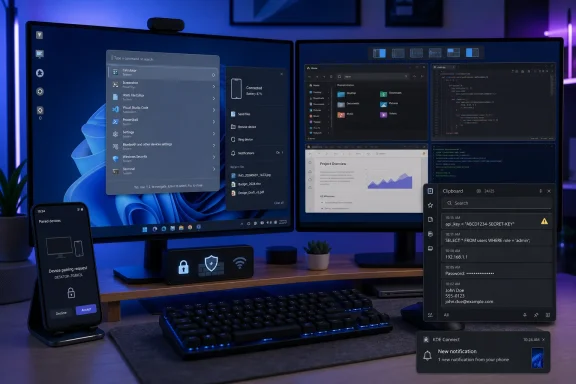 PowerToys Command Palette is a KRunner-style launcher, not a Start menu replacement
How-To Geek identifies PowerToys Command Palette as the closest Windows analogue to KRunner. Microsoft’s documentation supports the broad comparison: the tool can launch applications, run commands, search files and folders, switch between open windows, open Windows Settings pages, perform calculations, search the web, and discover packages through WinGet. Its default shortcut is Win + Alt + Space.
For users who mostly invoke KRunner to start an application, calculate a value, jump to a setting, or open a recent file, Command Palette is a credible replacement. It is also extensible through a built-in extension gallery, which gives it a path to match individual workflows rather than asking every user to accept Microsoft’s preferred Start menu and Search behavior.
But “replaces KRunner” is still too broad if read literally. KRunner is tightly embedded in Plasma’s desktop services and often exposes installed runners that interact with Linux-specific capabilities, desktop sessions, and applications. Command Palette is a Windows utility that must remain enabled and running in the background, and some capabilities depend on extensions or on what Windows has indexed.
The guide also blurs the distinction between the newer Command Palette and the older PowerToys Run. PowerToys has evolved quickly, and readers following old tutorials will encounter inconsistent names, interfaces, and plugin instructions. The current Microsoft documentation calls the utility Command Palette and documents the Win + Alt + Space trigger. Start there instead of assuming that every historical PowerToys Run extension or shortcut still maps cleanly to the new tool.
For managed PCs, that distinction matters. Command Palette can expose WinGet search and installation options, system-service actions, command execution, and extensions in a single launcher. That is useful on a personal workstation, but an IT administrator should evaluate it as a productivity tool with a broad control surface—not merely as a prettier Start menu.
FancyZones offers the missing persistence Windows Snap does not fully provide
Windows 11’s built-in Snap Layouts are better than the article gives them credit for. Pressing Win + Z, hovering over a supported window’s maximize button, or dragging to supported screen areas can place apps into predefined layouts, while Snap Assist helps fill the remaining spaces. Windows also preserves some arrangements through monitor docking changes and supports Snap Groups in the taskbar.
The limitation is customization. Windows chooses among layouts that fit the display size and orientation; it does not give users the same direct control over arbitrary zones, monitor-specific arrangements, and reusable layouts that Plasma users may expect from KWin rules or tiling scripts.
That is where FancyZones earns its place. Microsoft describes it as a window manager that lets users define custom zones and move windows into them with the mouse or keyboard. Its Grid model scales with screen size, while its Canvas model allows freely positioned and even overlapping regions. On a two- or three-monitor desk, that flexibility is more valuable than the basic act of snapping a window.
FancyZones can also be configured to override Windows Snap hotkeys, move windows among zones, assign shortcuts to custom layouts, and manage layouts from a command-line interface. The final detail is particularly relevant for enthusiasts and administrators: the custom layout definitions are stored locally in PowerToys configuration files. That makes layouts portable in principle, though Microsoft warns against manually editing the files because unsupported changes can break FancyZones behavior.
There is one operational catch that new users often discover only after setting everything up: PowerToys must run with administrator rights to reposition elevated applications such as an elevated Windows Terminal or Task Manager. A layout that works for ordinary apps but fails for administrative consoles is not necessarily a FancyZones bug; it is commonly an elevation boundary. Users who routinely work in elevated shells should decide whether running PowerToys elevated is appropriate for their threat model before enabling that behavior.
KDE Connect remains the most KDE-like part of the setup
KDE Connect is the least controversial recommendation because it is the actual KDE service, now offered for Windows as well as Android, iOS, macOS, and Linux. Its purpose is familiar to Plasma users: paired devices can share files and clipboard content, receive phone notifications, use remote-input features, and expose other device-to-device functions depending on platform support and enabled plugins.
How-To Geek is right to flag Windows Firewall as the first place to investigate when devices cannot see each other. KDE Connect discovers devices on the local network and requires the two endpoints to communicate directly. A guest Wi-Fi network, client isolation on an office or apartment network, a VPN that blocks local-LAN access, or a Windows firewall profile set more restrictively than expected can prevent discovery even when both devices appear to be on the same Wi-Fi name.
The security claim deserves more precision. KDE Connect’s device communications are encrypted after pairing, and its design is based on local-network discovery rather than a vendor cloud account. That is materially different from sending every clipboard item or file through a general-purpose synchronization service. It does not mean users should approve pairing requests casually on shared, public, or poorly controlled networks. Pairing establishes trust between devices; review the device name, limit enabled plugins to what is needed, and remove old phones or PCs from the paired-device list.
There is also a documentation oddity worth noting. KDE’s current applications site and download page explicitly offer KDE Connect for Windows, including a Microsoft Store option and offline installer paths. Yet the project’s source repository still contains language saying platforms other than Linux are not officially supported. The official download record is the practical answer for Windows users, but the mismatch indicates that support messaging has not been cleaned up across KDE’s own properties. On a business deployment, test the exact Windows build and required plugins rather than relying on an old repository readme.
Ditto’s extra clipboard history comes with a data-retention cost
Ditto is the recommendation that changes the risk profile most sharply. The project describes the application plainly: it watches the Windows clipboard and stores copied items in a local database so they can be retrieved later. It supports text, images, HTML, and custom clipboard formats, with search and reusable history far beyond Windows’ built-in Win + V panel.
Windows Clipboard History is deliberately constrained. Microsoft says it retains up to 25 entries and has a per-item size limit of 4 MB; older unpinned entries are discarded as new ones arrive. Ditto exists because many developers, help-desk staff, writers, and administrators need a searchable working memory for commands, URLs, snippets, logs, images, and repeated responses.
The consequence is simple: the same tool that rescues a command copied an hour ago may also preserve a password, API token, recovery code, customer record, or sensitive block of text. Windows Clipboard History has similar exposure if it is enabled, especially if cloud sync is turned on, but a long-lived third-party clipboard database increases the amount and duration of locally retained material.
Ditto’s official project page says it is local-first, with no required login, cloud service, or telemetry. That is a privacy advantage over a cloud-backed history service. It does not turn a clipboard archive into a secrets-management product. Do not assume that a local database is safe merely because it stays on the PC.
A safer baseline is straightforward:
- Keep Ditto off shared workstations, jump boxes, and devices used by multiple local accounts.
- Set a conservative maximum history and expiry period rather than preserving every clipboard item indefinitely.
- Use Ditto’s ability to disconnect from clipboard monitoring when handling credentials, recovery material, or other sensitive data.
- Treat password-manager auto-clear settings as helpful but insufficient, because a copied secret can still be captured before it is cleared.
- Check whether company policy permits clipboard-history software before installing it on a managed endpoint.
For many Windows enthusiasts, the payoff is real. Command Palette reduces the time spent searching through the Start menu; FancyZones makes multi-monitor layouts reproducible; KDE Connect keeps a phone from becoming a separate island; and Ditto can turn copy-and-paste from a one-shot action into a searchable working buffer.
The configuration worth adopting is therefore narrower than “install four KDE replacements.” PowerToys is the low-risk foundation, KDE Connect is the cross-device bridge to configure cautiously, and Ditto should be treated as an intentional local data-retention system. Windows 11 can get substantially closer to a Plasma-style workflow—but the final 10 percent comes from settings, permissions, and habits, not from installing another launcher.