

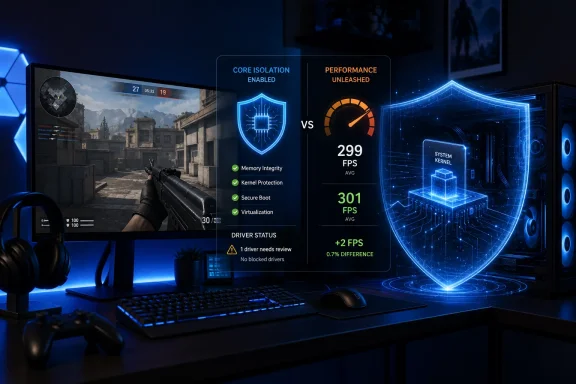
A recent hands-on account from MakeUseOf reached that conclusion after testing Counter-Strike 2, Cyberpunk 2077, and Valorant with Windows 11 Memory Integrity enabled and disabled. Its reported outcome was not a universal FPS windfall: some scenarios showed a marginal change, while others showed effectively none. That is an important corrective to the blanket advice that has circulated since Windows 11’s early days: “Disable Core Isolation for more FPS.” MakeUseOf’s testing report
For Windows gamers, the more useful rule is simple: treat Memory Integrity as a security setting first, and a performance setting second. If a measured, repeatable performance problem points to it on specific hardware, there can be a reason to investigate. But turning it off preemptively—especially on a current gaming PC—is usually a poor first move.
Why the “disable Memory Integrity” tip became so widespread
The advice did not emerge from nowhere. Memory Integrity, also known as Hypervisor-Protected Code Integrity or HVCI, adds a layer of virtualization-backed protection around Windows kernel code. Earlier implementations could impose a noticeable cost on some systems, particularly those with older CPUs, less efficient virtualization support, legacy drivers, and workloads that repeatedly cross the user-mode/kernel-mode boundary.
That historical experience became simplified into a familiar gaming-tweak slogan. The nuance was lost: performance impact varies by processor generation, drivers, game engine, graphics settings, background software, and the way a game interacts with Windows. A tweak that was meaningful on one older configuration became repeated as though it applied to every Windows 11 gaming PC.
Microsoft’s own hardware guidance explains why the blanket recommendation ages badly. Windows 11 automatically enables Memory Integrity only on compatible clean installations meeting a set of hardware and software conditions, including supported processor families, virtualization, sufficient memory, SSD storage, and compatible drivers. For x64 systems, Microsoft identifies Intel 8th-generation Core processors or later for Windows 11 22H2-era enablement logic, alongside AMD Zen 2 and newer processors. Microsoft’s Memory Integrity enablement documentation
The same documentation identifies MBEC/GMET—Mode-Based Execution Control on Intel platforms and Guest Mode Execute Trap-related support on AMD platforms—as a relevant compatibility requirement for the modern Memory Integrity model. Those processor capabilities matter because they reduce the overhead involved in enforcing executable-memory protections through virtualization. Microsoft’s Memory Integrity enablement documentation
In practical terms, that means a Windows 11 gaming machine built around relatively recent hardware is not the same performance proposition as an older PC running early Windows 11 builds with aging peripheral drivers. The existence of an old optimization tip does not guarantee it remains a worthwhile optimization today.
Not every frame-rate change is caused by HVCI
The central problem with anecdotal Windows gaming tweaks is attribution. A player might disable Memory Integrity, restart the PC, launch a game, and observe a different frame-rate result. That does not automatically prove the security feature caused the change.
Gaming performance varies from run to run for reasons that include:
- Shader compilation and cache warm-up
- Game patches and driver updates
- Dynamic resolution behavior
- Background downloads and Windows maintenance
- Overlay software
- RGB-control suites and peripheral utilities
- Audio drivers and virtual audio devices
- Thermal conditions
- Changes to CPU boost behavior
- Differences in map, scene, multiplayer server, or benchmark pass
A two- or three-frame difference is especially easy to misinterpret without a disciplined test. It may be real, but it may also fall within ordinary run-to-run variation. The MakeUseOf report usefully frames the claimed gain as real but uncommon and highly dependent on the configuration, rather than presenting it as a guaranteed Windows 11 gaming boost. MakeUseOf’s testing report
What Windows 11 Memory Integrity actually protects
The name can be misleading. Memory Integrity is not a RAM cleaner, memory optimizer, or a generic antivirus component. It is Windows’ consumer-facing label for HVCI, a core part of the broader Virtualization-Based Security framework.
Virtualization-Based Security, commonly abbreviated as VBS, uses the Windows hypervisor to create an isolated environment that serves as a more protected root of trust. Memory Integrity then runs kernel-mode code-integrity checks inside that isolated environment. Microsoft describes the feature as a protection against malware seeking to exploit the Windows kernel, while also restricting risky kernel memory behavior: executable pages must first pass code-integrity checks, and executable pages cannot also remain writable. Microsoft’s HVCI driver compatibility guidance
That sounds technical because it is technical—but the security principle is straightforward.
Windows has a privileged core called the kernel. Kernel-mode code has an extraordinary degree of control over the computer: hardware access, memory management, process behavior, security products, and the operating system itself. A malicious application running at an ordinary user privilege level is dangerous. Malware or an abused driver operating in kernel mode can be far worse.
Memory Integrity helps Windows decide which kernel-mode code is allowed to execute, and it protects that decision-making process by placing it in a more isolated environment. The result is not invulnerability. It is a meaningful reduction in the ways hostile or unsafe code can gain and abuse deep system privileges.
HVCI, Secure Boot, and TPM are related—but not interchangeable
Confusion often begins when Windows security features are discussed as though they are all one thing. They are not.
Secure Boot is primarily concerned with the boot chain. It helps ensure that trusted components load as the computer starts, limiting the ability of bootkits and other low-level threats to insert themselves before Windows is fully running.
TPM 2.0 is a hardware- or firmware-backed cryptographic component. It can store and protect keys and help support features such as measured boot, device encryption, Windows Hello, and other trust decisions.
Memory Integrity/HVCI works after the machine has booted. It is focused on protecting the integrity of kernel-mode code while Windows is operating.
These protections complement one another. Riot Games’ current Vanguard documentation, for example, distinguishes Secure Boot’s role in verifying the Windows bootloader from TPM 2.0’s cryptographic-key functions, while also listing VBS and HVCI among the relevant security technologies for its optional Vanguard Pre-Check path. Riot Games’ Vanguard On-Demand update
The important takeaway is that disabling Memory Integrity does not merely change a gaming preference. It removes one layer from a broader Windows security architecture.
The kernel risk behind BYOVD attacks
The strongest argument for leaving Memory Integrity enabled is not theoretical. It is the enduring reality of Bring Your Own Vulnerable Driver attacks, usually shortened to BYOVD.
A BYOVD attack does not necessarily require an attacker to write a brand-new malicious kernel driver from scratch. Instead, they can abuse a legitimate driver that is digitally signed but vulnerable, poorly designed, obsolete, or otherwise capable of being manipulated. If loaded, that driver can provide a route to kernel-level privileges or enable the attacker to interfere with security tools.
Microsoft explicitly describes vulnerable drivers as a common tampering route for gaining kernel access. The company notes that the underlying technique can be packaged into easy-to-deploy tooling, but the key defense is to block the vulnerable driver before the attack succeeds in loading it. Microsoft’s guidance on tamper resiliency and vulnerable drivers
This is why “but I only download games from Steam” is not a complete security analysis. Reputable game storefronts lower risk, but Windows machines often accumulate a long tail of software and drivers over time:
- Motherboard utilities
- RGB and fan-control programs
- Older printer and scanner drivers
- Audio-interface software
- Capture-card packages
- GPU monitoring tools
- Keyboard and mouse utilities
- Legacy overclocking tools
- Device-specific control panels
- Game mods, cheats, trainers, and cracked launchers
Not every old driver is malicious. Most are simply old. The issue is that privileged drivers can become exploitable long after their original release, and a valid digital signature does not magically make a vulnerable driver safe.
The risk escalates sharply with questionable downloads. Cheat engines, pirated-game installers, cracked launchers, “free” premium utilities, and supposed FPS boosters are exactly the type of software category where a kernel-level compromise is not an abstract concern. A system may be exposed by what is installed locally, rather than by the storefront through which legitimate games were purchased.
The vulnerable driver blocklist is useful, but it is not complete protection
Windows 11 also includes the Microsoft Vulnerable Driver Blocklist, designed to stop known risky drivers. Microsoft says the list covers drivers with known vulnerabilities that could enable kernel privilege escalation, drivers associated with malicious behavior or malware-signed certificates, and drivers whose behavior can circumvent the Windows security model. Microsoft’s recommended driver block rules
Since the Windows 11 2022 Update, Microsoft says the blocklist is enabled by default for devices, while its enforcement is tied to protections such as Memory Integrity, Smart App Control, or S mode. The list receives regular maintenance through Windows servicing, with Microsoft also publishing more comprehensive recommended rules. Microsoft’s recommended driver block rules
However, gamers should avoid treating the blocklist as a reason to disable HVCI. Microsoft is candid that a blocklist cannot guarantee every vulnerable driver will be stopped. Compatibility and reliability must be weighed against security, which can delay or limit blocking rules where an update might otherwise break legitimate hardware or software. Microsoft’s recommended driver block rules
That caveat reinforces the value of defense in depth. A driver blocklist, HVCI, Secure Boot, timely driver updates, cautious software installation, and security software all address different parts of the problem.
Why current gaming hardware changes the performance equation
There is no honest universal claim that Memory Integrity has zero cost. Virtualization-backed kernel protection is doing work, and all security controls have some trade-off. The question is whether the trade-off is measurable and meaningful on the PC in front of you.
GPU-bound games often have little to gain
A visually demanding AAA game running at high resolution, high texture settings, ray tracing, or other GPU-heavy effects is often GPU-bound. In that situation, the graphics card is the limiting resource. Reducing a small amount of CPU or kernel overhead may not materially alter average FPS because the GPU remains fully occupied.
That helps explain why a game such as Cyberpunk 2077 may show no obvious difference from a Memory Integrity toggle on many systems. It is not proof that HVCI has no overhead; it means the workload has another, larger bottleneck.
CPU-bound competitive games are more plausible candidates
High-refresh esports games can expose smaller CPU-side differences. Counter-Strike 2, Valorant, and similar competitive titles may run at frame rates high enough that CPU scheduling, background programs, drivers, and latency-sensitive processes deserve closer attention.
Even then, the correct conclusion is not “disable HVCI.” It is: test your own system under controlled conditions.
A player running a current CPU with a clean driver stack may see no useful difference. A user with an older processor, an unusual audio setup, legacy capture hardware, outdated RGB software, or a problematic device driver may find a more measurable result. The original report’s broad conclusion—that the gain is often tiny or absent on modern hardware—is consistent with Microsoft’s emphasis on processor capabilities and driver compatibility in Memory Integrity deployment. MakeUseOf’s testing report Microsoft’s Memory Integrity enablement documentation
Driver behavior matters more than many FPS guides admit
One of the most practical insights from the report is its focus on non-game software. The author found older audio-interface software and a leftover RGB utility among the problematic drivers flagged by Windows Security, and updating those components proved more useful than permanently sacrificing kernel protection. MakeUseOf’s testing report
That aligns with Microsoft’s own documentation. HVCI compatibility problems can occur with drivers and applications, including examples involving gaming anti-cheat solutions, third-party input methods, and third-party banking protection tools. Microsoft recommends checking for an update for the relevant app or driver before turning off Memory Integrity. Microsoft’s HVCI driver compatibility guidance
For gamers, this is a valuable inversion of the usual tweak mentality. If turning off Memory Integrity appears to improve a PC’s behavior, the next question should not be “How do I keep it disabled?” It should be “Which driver or low-level utility is struggling under a modern Windows security model?”
A safer Windows 11 gaming-performance workflow
Disabling Memory Integrity should be a diagnostic step of last resort, not line one of a gaming setup checklist. Before touching it, establish whether there is a real performance issue and identify what is actually limiting the system.
Start with a reproducible benchmark
Use the same scene, map, save file, graphics preset, resolution, driver version, and background-app state. Run each test multiple times. Record average FPS, 1% lows, frametimes, CPU utilization, GPU utilization, and temperatures if possible.
A useful sequence is:
- Restart the PC and allow it to settle.
- Disable unnecessary overlays and background recording tools.
- Run the same benchmark or repeatable gameplay sequence at least three times.
- Compare medians rather than the single best run.
- Change only one variable at a time.
- Restore the prior setting if the result is not repeatable.
That process will reveal whether the bottleneck is security overhead, an unstable driver, thermal throttling, GPU saturation, memory pressure, or simply a game that needs different graphics settings.
Inspect Core Isolation warnings before disabling protection
Windows Security exposes Memory Integrity under Windows Security > Device security > Core isolation details > Memory integrity. Microsoft documents that location and notes that turning the feature on requires a restart. Microsoft’s instructions for enabling Memory Integrity
If Windows identifies incompatible drivers, address those warnings directly:
- Install the latest driver from the hardware maker.
- Update the associated utility, not just the driver.
- Remove abandoned motherboard-control, RGB, audio, or overclocking software.
- Disconnect and retest older peripherals if necessary.
- Check whether an old driver remains after uninstalling its parent application.
- Replace unsupported hardware only when it is the genuine source of the conflict.
For deeper troubleshooting, Microsoft points administrators and advanced users to the Code Integrity operational log in Event Viewer, under Applications and Service Logs\Microsoft\Windows\CodeIntegrity\Operational. Memory Integrity compatibility events commonly appear there with Event ID 3087. Microsoft’s Memory Integrity enablement documentation
Pursue performance settings that do not lower kernel defenses
The best Windows 11 gaming optimization is usually the one that targets the real bottleneck without widening the attack surface.
Consider these options first:
- Tune in-game resolution, shadows, ray tracing, crowd density, and CPU-heavy effects.
- Use DLSS, FSR, or XeSS where supported.
- Check that GPU drivers are current and stable.
- Remove redundant launchers, overlays, telemetry tools, and peripheral suites from startup.
- Verify RAM is running at its intended configuration.
- Check CPU and GPU temperatures under sustained load.
- Use a suitable Windows power mode for the desktop or laptop scenario.
- Test Hardware-Accelerated GPU Scheduling and game-specific frame-generation settings only where supported.
- Keep Windows Game Mode enabled unless repeatable testing proves it hurts a specific game.
Microsoft’s documentation describes Game Mode as a way to prioritize hardware resources for games, with potential gains dependent on the number and impact of other tasks running on the PC. Microsoft’s Game Mode documentation
None of these settings promises an automatic FPS miracle. But they address performance without disabling a control built to make kernel compromise harder.
When disabling Memory Integrity can be justified
There are legitimate edge cases. An older, unsupported CPU may experience a more meaningful penalty. A specialized device may rely on a driver that cannot function under HVCI. A user may need to temporarily disable the feature to isolate a boot issue, validate a specific piece of hardware, or replace an incompatible driver.
The key words are temporarily, measured, and specific.
A sensible decision framework looks like this:
| Situation | Best default response |
|---|---|
| Modern Windows 11 gaming PC with no problem | Keep Memory Integrity enabled |
| GPU-bound single-player games | Keep it enabled; tune graphics settings instead |
| Competitive gaming on recent hardware | Benchmark first; do not assume a meaningful gain |
| Older CPU or legacy platform | Test carefully and weigh the measurable benefit against the reduced protection |
| Windows Security reports an incompatible driver | Update, remove, or replace the driver before disabling HVCI |
| Troubleshooting a confirmed driver conflict | Disable only long enough to diagnose and remediate the conflict |
Microsoft itself warns that all drivers must be compatible with virtualization-based code integrity, and that incompatibility can lead to system failure. It recommends testing carefully before broad deployment of the feature in managed environments. Microsoft’s instructions for enabling Memory Integrity
That warning should not be read as an argument against HVCI. It is a reminder that low-level Windows components deserve low-level troubleshooting, not casual toggle-based fixes.
The right trade-off for most Windows 11 gamers
Memory Integrity is not a magical shield, and it is not an untouchable setting that must remain enabled under every imaginable circumstance. It can create compatibility headaches, and older hardware may sometimes expose a performance cost that current systems largely mask.
But the popular “turn it off for FPS” guidance fails because it treats a kernel-hardening technology as disposable background clutter. HVCI helps constrain one of the most damaging Windows attack paths: the abuse of vulnerable or malicious kernel drivers. That protection matters precisely because drivers occupy a uniquely privileged place in the operating system.
For most modern Windows 11 gaming PCs, the likely benefit of disabling Memory Integrity is too small, too inconsistent, or too poorly measured to justify the security trade-off. Update the drivers Windows flags. Remove stale control utilities. Benchmark the actual game. Tune the bottleneck that is really holding back performance.
The better free upgrade is not a switch that weakens Windows at its core. It is a cleaner driver stack, a controlled benchmark process, and the discipline to demand evidence before trading kernel security for a frame-rate gain that may never meaningfully appear.