

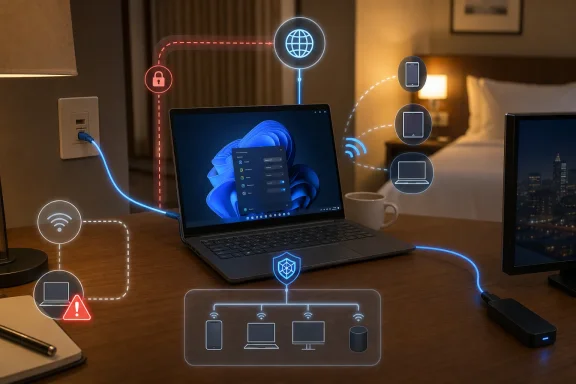
How-To Geek’s walkthrough correctly identifies three Windows mechanisms—Mobile hotspot, Internet Connection Sharing, and Network Bridge—but they are not interchangeable choices in the way a consumer router’s modes often are. Microsoft’s current Windows 11 documentation confirms that Mobile hotspot can share a Wi-Fi, Ethernet, or cellular uplink via Wi-Fi or Bluetooth. Its documentation also confirms that Windows still supports a Network Bridge. What Microsoft does not present is a unified “router mode” with the management and recovery behavior people expect from even an inexpensive travel router.
For an emergency connection, that distinction is manageable. For a regular setup, it is the reason to buy dedicated hardware.
Mobile hotspot is the fastest route to a working Wi-Fi network
Windows 11’s built-in Mobile hotspot is the first option to try. Open Settings > Network & internet > Mobile hotspot, select the connection to share, choose Wi-Fi or Bluetooth under “Share over,” set a name and password if needed, and enable it. Microsoft also exposes the switch through Quick Settings, which makes it useful when the Internet connection changes from hotel Wi-Fi to Ethernet or cellular data.
The important practical advantage is that this is actual connection sharing, rather than merely putting two interfaces on the same network. Windows assigns the connected devices addresses on its own private network and translates their outbound traffic through the PC’s upstream connection. In networking terms, it is performing network address translation, or NAT, and providing the basic address assignment clients need to get online.
That behavior makes Windows 11 Mobile hotspot unusually useful at captive portals. Sign the laptop into the hotel’s landing page once, then connect phones, tablets, consoles, or streaming sticks to the laptop’s hotspot. From the venue’s perspective, the laptop is the authorized device; the downstream clients are behind its translated connection.
There is a material qualification to the appealing “login once” story: it works only where the venue permits it and where its portal authorizes the laptop’s connection normally. A hotel can enforce device limits, session timers, bandwidth caps, or terms that prohibit connection sharing. It can also require a new authorization after a disconnect or after it decides the session has expired. NAT reduces the number of devices visible upstream; it does not override the network operator’s access controls.
Mobile hotspot also does not turn a laptop into an access point with router-grade radio coverage. The laptop’s Wi-Fi adapter, antenna placement, driver, thermal state, and power settings set the real limit. A PC processor is generally not the bottleneck for a handful of clients browsing the web or streaming modest traffic. The weak link is normally the wireless side, particularly when one adapter is trying to maintain the uplink connection while also serving a local hotspot.
How-To Geek cites an eight-device limit, and the Windows 11 interface displays connected-device counts. Microsoft’s consumer support page, however, documents the feature without publishing a blanket eight-client maximum. Treat eight as a realistic Windows interface expectation rather than a capacity commitment for every adapter and driver combination. In a pinch, the right number of clients is the fewest necessary.
Before relying on the hotspot for an extended session, disable its Power saving setting. Windows Central has documented that the setting can turn the hotspot off when Windows sees no connected devices. More significantly, Microsoft’s Modern Standby documentation makes clear that hotspot behavior during sleep depends on the PC’s standby capabilities; for many machines, the hotspot is off while the system sleeps. Keep the laptop connected to power, prevent sleep, and do not assume a closed lid will leave a network running.
Internet Connection Sharing is the answer for a wired-only client
Mobile hotspot cannot distribute the connection through Ethernet. This is where Internet Connection Sharing, or ICS, remains valuable despite being buried in the classic Control Panel interface.
Run ncpa.cpl, identify the adapter with Internet access, open its Properties dialog, select the Sharing tab, and permit other network users to connect through that connection. Then choose the second adapter—the wired Ethernet port, a USB Ethernet dongle, or another suitable interface—as the private side. The downstream device should be set to obtain an address automatically.
This remains the better Windows tool for connecting an Ethernet-only appliance to hotel Wi-Fi, getting a desktop or small server online through a laptop, or giving a travel device wired access when wireless setup is unavailable. Microsoft’s older ICS technical documentation confirms that the feature is designed to share one Internet-connected interface through a private connection and supports connection-management functions including port mappings.
The downside is that ICS is purposefully basic. It creates a separate private network instead of extending the upstream LAN. The commonly seen 192.168.137.x address range is normal behavior for Windows ICS, with the PC typically acting as the local gateway at 192.168.137.1. That is useful because it isolates the connected device from the upstream network, but it can collide with a lab or appliance already configured to use the same address range.
ICS also has no polished control plane for the features administrators expect from a router: no friendly DHCP reservation screen, no VLAN configuration, no traffic prioritization, no per-client reporting, and no simple inbound port-forwarding workflow. Microsoft documents that ICS can expose port-mapping controls, but that is very different from a supported management interface on a travel router or firewall appliance.
For emergency outbound connectivity, none of that is a deal-breaker. For a remotely managed device, game server, self-hosted service, or anything requiring inbound access, ICS is the wrong long-term foundation.
A Network Bridge solves a different problem—and Wi-Fi is the trap
Windows’ Network Bridge is often described alongside ICS because it also involves two adapters. It does something fundamentally different.
A bridge operates at Layer 2, passing traffic between network segments so the downstream device appears to be on the same upstream LAN. It does not provide the isolation and address translation of ICS. The connected device should receive an address from the existing network’s DHCP server and behave like it was plugged directly into that network.
That can be appropriate on a wired LAN where the downstream device genuinely needs to be visible to another system on the same subnet. An appliance that expects local broadcast discovery, a managed device tied to a specific LAN address, or a testing environment with an existing DHCP server may require that arrangement. Microsoft’s netsh bridge documentation confirms that Windows 11 still includes a bridge function intended to link network segments.
It is also the option most likely to create a misleading “connected, no Internet” condition when the uplink is Wi-Fi. A normal Wi-Fi client connection is usually not designed to forward frames for a second device with a different MAC address. Windows may allow the bridge to be created in the interface, while the upstream access point or wireless driver cannot actually pass the downstream device’s traffic.
That is why a laptop connected to hotel Wi-Fi should normally use ICS for a wired device, not Network Bridge. With ICS, the hotel sees the laptop’s connection and Windows translates traffic for the Ethernet client. With a bridge, the hotel network may see neither a usable second client nor a valid route at all.
There is another operational consequence: bridging a device directly onto an unfamiliar hotel or public network removes the small layer of separation that ICS provides. A private Windows hotspot or ICS subnet does not make the host invulnerable, but it is a safer default than placing an unmanaged device straight onto a shared local network.
VPN sharing works only if the Windows host actually routes the traffic through the tunnel
How-To Geek is right that a laptop can serve as a convenient place to terminate a WireGuard connection before sharing connectivity onward. But the statement that every downstream device will automatically be tunneled is too broad.
With Mobile hotspot or ICS, all downstream Internet traffic traverses the Windows host. Whether it then enters WireGuard depends on the WireGuard configuration and routing policy on that host. A full-tunnel profile normally routes general Internet destinations through the VPN; a split-tunnel profile routes only the subnets listed in its configuration. If the tunnel is limited to a home LAN such as 192.168.1.0/24, connected devices may be able to reach that home network while their ordinary web traffic still exits through the hotel or ISP connection.
The safer test is concrete: connect one client to the Windows hotspot, check its public IP address, then verify that it can reach the intended home-network resource. Do that before entering credentials, synchronizing sensitive files, or assuming the public network cannot inspect traffic metadata. A VPN can protect traffic in transit to its endpoint, but it does not make the hotel disappear from the path; the hotel can still see that the laptop is connected and exchanging encrypted traffic.
The emergency-router checklist is shorter than it looks
A Windows 11 PC is a valid contingency router when the goal is to get a small number of devices online quickly. The configuration that has the highest chance of working is also the least ambitious:
- Use Mobile hotspot when the clients can join Wi-Fi and use ICS when a client must use Ethernet.
- Keep the PC on AC power, disable hotspot power saving, and configure Windows so it does not sleep during the session.
- Use a new hotspot password rather than reusing a home Wi-Fi password, especially on a public uplink.
- Avoid Network Bridge over a Wi-Fi uplink unless there is a specific same-subnet requirement and time to test it.
- Verify a VPN’s actual route from a connected client instead of assuming that activating WireGuard on the PC creates a full tunnel for everything behind it.
The overlooked point is that Windows 11’s feature is most useful precisely because it is not a transparent bridge in its normal hotspot and ICS modes. Its NAT behavior lets one authorized laptop connection provide a private, temporary network for devices that cannot handle captive portals or need a wired fallback. Once this becomes a routine need, the missing management features, unreliable sleep behavior, limited Wi-Fi coverage, and adapter-specific quirks are the signal to replace the workaround with a travel router.