
Removing a Microsoft Store-style app from Windows can take it out of Start, Settings, and the current user’s app list while leaving the package payload on disk for another user or a dependent component. The distinction is not a bug in the Uninstall button; it is the intended MSIX deployment model, and it has consequences for storage accounting, vulnerability remediation, and enterprise app removal.
Neowin’s August 5 report draws attention to Microsoft’s recent Inside MSIX explanation of per-user and all-user removal. Microsoft’s own documentation confirms the core point: staging an MSIX package is a machine-level operation, while registering it is per-user. A normal removal request therefore targets the user’s registration first. If no remaining registration or dependency needs the files, Windows can then destage the package and delete its payload.
The important correction to the usual “the app is still installed” framing is that Windows is tracking a package’s machine-wide availability separately from whether a particular person can use it. An app that has vanished from one profile is correctly uninstalled for that profile. It is not necessarily gone from the PC.
Microsoft’s MSIX engineering team says “install” is an informal description rather than a single formal deployment state. A package is indexed and staged for the machine, then registered for a user. Registration is the stage that makes the app usable: it creates the Start menu presence, file associations, and applicable runtime configuration for that account.
Removal reverses that path. Microsoft’s June 30 Inside MSIX post describes a per-user removal as a
That final condition is the part visible Windows UI does not explain. The Apps page can truthfully show that an app was removed from the current account even while the same package directory remains under the protected
On a one-user home PC, that distinction often disappears quickly because no one else is registered for the app. On a shared workstation, family PC, lab machine, Windows 365 environment, Azure Virtual Desktop host, or Remote Desktop Session Host, it is routine. Removing an app from one person’s profile must not break it for another person who still has it registered.
Microsoft’s own Windows servicing guidance makes the operational consequence explicit. When an old Appx package is flagged as vulnerable, administrators are told to query
This is why “remove it for all users” is more than a stronger version of pressing Uninstall. A machine-wide removal has two jobs:
The distinction also explains a familiar enterprise-management failure: an administrator removes a preinstalled app, creates a test account, and finds the app appears again. The removal may have affected an existing profile while the provisioned package family remained configured for future profiles—or vice versa. Microsoft’s DISM documentation is similarly clear that removing provisioning stops registration for new accounts but does not remove the app from profiles where it is already registered.
For a supported audit, elevated PowerShell is the right starting point:
The first view answers which user profiles still register an Appx or MSIX package. The second answers whether Windows still intends to add that package for users. Neither should be confused with the list shown in Settings for the currently signed-in account.
That shared design is why an app removal may release less storage than its headline size implies. The app’s own package can be removed, while a framework remains because another installed package still depends on it. Microsoft says the operating system tracks both installation-time dependencies and active run-time references, and it may retain older framework versions until no application needs or is actively using them.
This is more than a disk-space optimization. It prevents the removal of a library that would otherwise break another packaged application. A framework package’s presence alone is therefore not evidence of abandoned software or failed cleanup.
There is one technical imprecision in the simplified version of this story: the conventional Visual C++ Redistributable is not interchangeable with MSIX VCLibs. Microsoft’s Windows App SDK documentation identifies VCLibs as the framework dependency used by packaged apps, while unpackaged apps use the traditional Visual C++ Redistributable. Both can coexist, but they are managed through different deployment systems. Likewise, a reference to a “.NET runtime” needs care: MSIX framework packages can carry .NET-related dependencies, but that does not mean every separately installed .NET runtime is an MSIX package.
For IT teams, the usable rule is straightforward: do not delete a framework package merely because the application that originally drew attention to it has been removed. Establish what still depends on it first.
MSIX normally improves cleanup over many older Windows deployment patterns. Microsoft documents that virtualized registry entries and virtualized AppData files are removed when the package is uninstalled. But Windows 11 also permits developers, under specific capabilities and declarations, to use unvirtualized locations in the current user’s profile. Data written there can remain after removal by design—for example, game saves or files intended for use by another application.
Traditional MSI uninstallers are not a clean counterexample. Microsoft’s own MSIX documentation notes that conventional applications can leave files and Registry entries behind after removal. Whether those leftovers are intentional data preservation, an installer’s limitation, or poor vendor hygiene depends on the application. The MSIX difference is that the package deployment engine has explicit states—staged, registered, provisioned, dependent—that can make retained files visible even when no “leftover” has been created.
The practical lesson is to separate the question “Can this user launch the app?” from “Does this device still hold its package or data?” They are different questions, and Settings answers only the first reliably.
For administrators, it is a compliance concern. An obsolete package held by an inactive profile can remain relevant to vulnerability scanners, even though no current desktop session exposes it. Microsoft’s troubleshooting guidance for vulnerable modern apps directs admins to identify the profiles holding the old version, remove it for all users where appropriate, and check whether the app remains provisioned.
The Windows UI is behaving as designed, but it hides the distinction that matters in managed environments. A successful per-user uninstall means the app is gone for that user. A successful device cleanup requires confirming that the package has been deregistered for every relevant profile, deprovisioned where necessary, and released by any remaining framework or package dependency.
The important correction to the usual “the app is still installed” framing is that Windows is tracking a package’s machine-wide availability separately from whether a particular person can use it. An app that has vanished from one profile is correctly uninstalled for that profile. It is not necessarily gone from the PC.
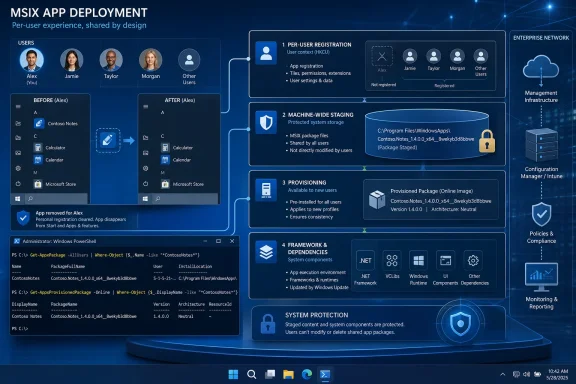 MSIX separates the app’s files from a user’s access to them
Microsoft’s MSIX engineering team says “install” is an informal description rather than a single formal deployment state. A package is indexed and staged for the machine, then registered for a user. Registration is the stage that makes the app usable: it creates the Start menu presence, file associations, and applicable runtime configuration for that account.Removal reverses that path. Microsoft’s June 30 Inside MSIX post describes a per-user removal as a
RemovePackageAsync operation that deregisters the package for the user and, in the simplest case, destages it because no references remain.That final condition is the part visible Windows UI does not explain. The Apps page can truthfully show that an app was removed from the current account even while the same package directory remains under the protected
C:\Program Files\WindowsApps location. The directory is shared machine infrastructure, not a private copy installed into each user profile.On a one-user home PC, that distinction often disappears quickly because no one else is registered for the app. On a shared workstation, family PC, lab machine, Windows 365 environment, Azure Virtual Desktop host, or Remote Desktop Session Host, it is routine. Removing an app from one person’s profile must not break it for another person who still has it registered.
Microsoft’s own Windows servicing guidance makes the operational consequence explicit. When an old Appx package is flagged as vulnerable, administrators are told to query
Get-AppxPackage -AllUsers to find every profile that still has it, and to check provisioned packages separately. A scanner can therefore find an old vulnerable version even when the administrator’s own Start menu no longer shows the app.
Provisioning is the hidden third state administrators must account for
A package can also be provisioned. In practical terms, provisioning tells Windows that a package family should be registered automatically for users of that device. Microsoft’s documentation says the deployment system evaluates provisioned package families during sign-in and registers the appropriate staged version if the user does not already have one.This is why “remove it for all users” is more than a stronger version of pressing Uninstall. A machine-wide removal has two jobs:
- It must remove the package family from the provisioned list so it is not registered again at a later sign-in.
- It must deregister the package from existing users, including inactive profiles that may never appear in the administrator’s current session.
The distinction also explains a familiar enterprise-management failure: an administrator removes a preinstalled app, creates a test account, and finds the app appears again. The removal may have affected an existing profile while the provisioned package family remained configured for future profiles—or vice versa. Microsoft’s DISM documentation is similarly clear that removing provisioning stops registration for new accounts but does not remove the app from profiles where it is already registered.
For a supported audit, elevated PowerShell is the right starting point:
Code:
Get-AppxPackage -AllUsers
Get-AppxProvisionedPackage -OnlineShared frameworks are supposed to outlive individual apps
The same architecture applies below the visible application layer. MSIX supports framework packages: shared components installed once and referenced by several packaged applications. Microsoft lists the Windows App SDK, WinUI 2, VCLibs, and the DirectX Runtime among common examples.That shared design is why an app removal may release less storage than its headline size implies. The app’s own package can be removed, while a framework remains because another installed package still depends on it. Microsoft says the operating system tracks both installation-time dependencies and active run-time references, and it may retain older framework versions until no application needs or is actively using them.
This is more than a disk-space optimization. It prevents the removal of a library that would otherwise break another packaged application. A framework package’s presence alone is therefore not evidence of abandoned software or failed cleanup.
There is one technical imprecision in the simplified version of this story: the conventional Visual C++ Redistributable is not interchangeable with MSIX VCLibs. Microsoft’s Windows App SDK documentation identifies VCLibs as the framework dependency used by packaged apps, while unpackaged apps use the traditional Visual C++ Redistributable. Both can coexist, but they are managed through different deployment systems. Likewise, a reference to a “.NET runtime” needs care: MSIX framework packages can carry .NET-related dependencies, but that does not mean every separately installed .NET runtime is an MSIX package.
For IT teams, the usable rule is straightforward: do not delete a framework package merely because the application that originally drew attention to it has been removed. Establish what still depends on it first.
“Removed” also does not guarantee every trace of user data is gone
There are two different kinds of remnants that are often merged into one complaint. The first is a staged package payload retained for another user, provisioning rule, or dependency. The second is application data created outside the package’s normal isolated storage.MSIX normally improves cleanup over many older Windows deployment patterns. Microsoft documents that virtualized registry entries and virtualized AppData files are removed when the package is uninstalled. But Windows 11 also permits developers, under specific capabilities and declarations, to use unvirtualized locations in the current user’s profile. Data written there can remain after removal by design—for example, game saves or files intended for use by another application.
Traditional MSI uninstallers are not a clean counterexample. Microsoft’s own MSIX documentation notes that conventional applications can leave files and Registry entries behind after removal. Whether those leftovers are intentional data preservation, an installer’s limitation, or poor vendor hygiene depends on the application. The MSIX difference is that the package deployment engine has explicit states—staged, registered, provisioned, dependent—that can make retained files visible even when no “leftover” has been created.
The practical lesson is to separate the question “Can this user launch the app?” from “Does this device still hold its package or data?” They are different questions, and Settings answers only the first reliably.
The security and storage consequences are different
For ordinary home users, this is mostly an explanation for why free space may not jump after removing an app. Rebooting or hunting throughWindowsApps is not a fix; manually deleting package directories can damage the deployment state Windows uses to service apps and frameworks.For administrators, it is a compliance concern. An obsolete package held by an inactive profile can remain relevant to vulnerability scanners, even though no current desktop session exposes it. Microsoft’s troubleshooting guidance for vulnerable modern apps directs admins to identify the profiles holding the old version, remove it for all users where appropriate, and check whether the app remains provisioned.
The Windows UI is behaving as designed, but it hides the distinction that matters in managed environments. A successful per-user uninstall means the app is gone for that user. A successful device cleanup requires confirming that the package has been deregistered for every relevant profile, deprovisioned where necessary, and released by any remaining framework or package dependency.
References
- Primary source: Neowin
Published: 2026-08-05T00:48:01+00:00
Loading…
www.neowin.net - Related coverage: learn.microsoft.com
Loading…
learn.microsoft.com - Related coverage: learn.microsoft.com
Loading…
learn.microsoft.com - Related coverage: techcommunity.microsoft.com
Loading…
techcommunity.microsoft.com - Related coverage: support.microsoft.com
Loading…
support.microsoft.com - Related coverage: bsi.bund.de
Loading…
www.bsi.bund.de - Related coverage: devblogs.microsoft.com
Loading…
devblogs.microsoft.com - Related coverage: devblogs.microsoft.com
Loading…
devblogs.microsoft.com - Related coverage: positioniseverything.net
Loading…
www.positioniseverything.net