
For affected users, the practical result is the same. Files saved to Desktop, Documents, and Pictures may be copied to Microsoft’s cloud and synchronized among devices signed into the same OneDrive account. PCWorld correctly identifies the place to check: the OneDrive client’s Sync and backup settings, not merely the broader Windows Backup page in Settings.
The part worth getting right is the off-ramp. Turning off OneDrive’s “PC folder backup” has a choice that can determine whether files remain local, remain in the cloud, or appear to vanish from their traditional folder path. Users should not click through that dialog on autopilot.
 What Windows 11 Is Actually Backing Up
Microsoft calls the feature “PC folder backup,” though many administrators will recognize it by its older name: Known Folder Move. It applies to three high-traffic Windows folders—Desktop, Documents, and Pictures—and changes their effective location so that OneDrive manages their contents.
Once active, a user’s Documents folder may no longer resolve to the conventional local path under their profile. Instead, it points into the OneDrive directory. File Explorer continues to present the folder as “Documents,” which is convenient until a user needs to understand where their data is stored, what happens when synchronization fails, or why a second PC has suddenly acquired the same desktop icons and document files.
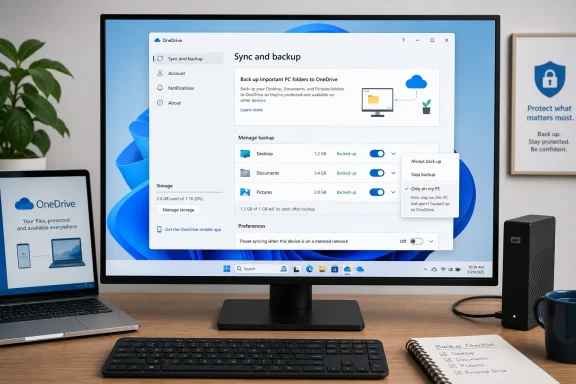
Microsoft documents the feature as an opt-in backup setting: in OneDrive, users can open Settings, choose Sync and backup, and select Manage backup to turn individual folders on. The company also promotes the feature during OneDrive setup and Windows migration flows. That distinction matters because “Windows 11 automatically backs up everything” overstates the behavior, while “it is only a harmless prompt” understates how easily the setting can become active on a machine signed into a Microsoft account.
PCWorld’s reporting is useful precisely because many people only discover the arrangement after the fact. A PC may have been configured months earlier, a Microsoft 365 subscription may have encouraged OneDrive setup, or an older PC’s configuration may have carried forward during a device migration. By the time users notice, they often assume Windows has simply changed where Documents or Desktop lives.
Check the OneDrive Status Before Moving Anything
The first step is not to disable the feature. It is to determine whether it is actually enabled and whether the files are fully present on the computer.
Click the OneDrive cloud icon in the Windows notification area, open the Settings gear, choose Settings, then select Sync and backup and Manage backup. The page should show the status of Desktop, Documents, and Pictures individually.
If a folder is shown as backed up, files in it are being synchronized to OneDrive. That does not necessarily mean every file is safely stored offline. OneDrive’s Files On-Demand feature can leave some items as cloud-only placeholders, visible in File Explorer but downloaded only when opened. This is especially relevant on laptops with limited storage or systems where someone previously selected “Free up space.”
Before disabling backup, open File Explorer and inspect the folder. Files with a cloud icon may not be locally available. Microsoft warns that cloud-only files can prevent a clean move back to the PC when folder backup is stopped. If there is any uncertainty, right-click the affected folder or its important subfolders and select Always keep on this device. Wait for synchronization to complete before making the change.
This is also the point to check OneDrive’s storage situation. A full OneDrive account can interrupt uploads, while a syncing error can leave the local and cloud versions out of step. “Backed up” should not be treated as proof of a recoverable backup unless users can see the expected files locally and in OneDrive’s web view.
The Two Choices When You Turn Backup Off
PCWorld highlights the most consequential part of the process: after turning off backup for Documents, Pictures, or Desktop, OneDrive asks where the files should remain. The wording can look deceptively simple.
Microsoft’s support documentation describes the choices as keeping files only in OneDrive and removing them from the computer, or keeping files only on the PC and removing them from OneDrive. The safe choice for a person trying to end cloud synchronization while retaining a usable local Documents, Pictures, or Desktop folder is “Only on my PC.”
Selecting the OneDrive-only option does not destroy the files outright, but it removes them from the PC’s corresponding folder. To a user who expects Documents to still contain their work, this can look much like deletion. The files should remain in OneDrive, but applications that depend on the local folder path may no longer find them where expected.
The local-only choice is better understood as a migration, not a simple switch. OneDrive must move or copy the contents out of its managed location and restore them to the standard local Windows folder. The process may take time for large photo libraries, development folders, or document archives. It should be allowed to finish before the user shuts down, unlinks the account, or starts deleting duplicates.
Repeat the process separately for Desktop, Documents, and Pictures. Do not assume that disabling Documents also turns off the other two. Each folder has its own toggle and may have a different amount of data, synchronization state, and local availability.
Stopping Folder Backup Does Not Remove OneDrive
Disabling PC folder backup stops OneDrive from automatically managing those three Windows folders. It does not sign the user out of OneDrive, uninstall the client, remove other files from the OneDrive directory, or stop synchronization for folders that remain inside OneDrive.
That is a meaningful limitation for users seeking a complete separation from Microsoft’s cloud service. A file saved directly under OneDrive - Personal, for example, will continue to synchronize even after Desktop, Documents, and Pictures are returned to local storage. Microsoft’s own guidance for keeping a file on the PC but out of OneDrive is to move it outside the OneDrive folder structure.
There are three different actions that are routinely confused:
- Turning off PC folder backup returns Desktop, Documents, or Pictures to local management but can leave the rest of OneDrive active.
- Unlinking the PC signs that Windows installation out of the OneDrive sync client, stopping routine synchronization while leaving cloud files in the account.
- Uninstalling OneDrive removes the client application, but it does not erase cloud data or automatically restore files that still live in the OneDrive folder.
For most people, disabling folder backup is the appropriate first move. It preserves the ability to use OneDrive deliberately for a project folder or a manually chosen archive without allowing it to take over the Windows folders where software routinely saves files by default.
Why “Backup” Is Not the Same as a Backup Plan
OneDrive provides useful protection against a lost laptop, drive failure, or accidental local deletion, and synchronization offers a version history and recycle bin for many files. But it is still primarily a synchronization service. A deletion, unwanted edit, ransomware-encrypted file, or bad sync can propagate across devices and into the cloud account.
That is why the strongest local setup is not simply “turn OneDrive off.” It is to keep primary files where the user intends them to live, then maintain a separate backup on an external drive, NAS, or another backup system with versioned copies. The backup must be independent enough that a mistake in the working folder does not immediately replace the backup copy.
Users who keep OneDrive enabled should also consider separating active sync folders from long-term archives. Putting every document library, photo collection, and desktop item under one account raises the consequences of a storage-limit problem, account-access issue, or mistaken bulk deletion. A smaller, intentional OneDrive footprint is easier to verify and restore.
The Immediate Action for Windows 11 Users
The practical takeaway from PCWorld’s report is straightforward: open OneDrive’s Manage backup page and inspect the three switches. If Desktop, Documents, or Pictures are enabled without the user’s informed choice, turn them off one at a time, select “Only on my PC,” and confirm that the files have returned to the local folders before changing anything else.
Do not begin by deleting the OneDrive folder or uninstalling the app. That can turn a manageable configuration change into a file-recovery exercise. The configuration Microsoft exposes is reversible, but the choice presented during shutdown of folder backup decides where the files live next—and that is the decision Windows 11 users should make deliberately.