
For people using 13- and 14-inch laptops, tablets, or Windows handhelds in desktop mode, the appeal is obvious: opening File Explorer, Settings, a browser, or a productivity app often ends with the same extra click on the maximize button. A system-level preference could remove that repetitive step. On a multiple-monitor desktop, however, making every application consume an entire 27- or 32-inch panel is a much less universal improvement.
The immediate takeaway is simpler than the feature’s name suggests: this is not a stable Windows 11 option, and it is not yet a documented commitment from Microsoft. It is a feature flag discovered in the earliest mainstream Insider track, where Microsoft explicitly says experiences are under active development and may change, be delayed, or never ship.
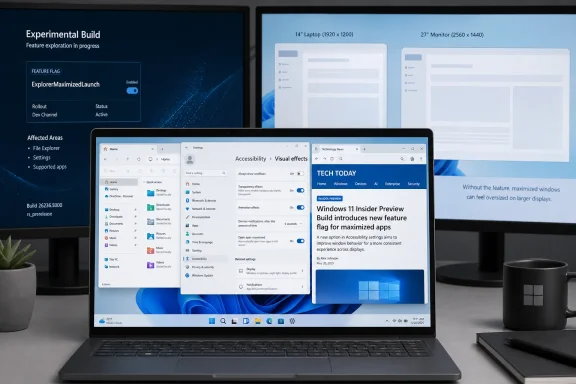 Build 26340.9212 is an Experimental-channel test, not a general release
Microsoft released Windows 11 Insider Preview build 26340.9212 to the Experimental channel on August 17, 2026. The build is part of Microsoft’s reworked Insider structure, in which Experimental replaced the old Dev-channel role for features still being actively developed, while Beta is intended for changes closer to release.
That distinction matters for administrators and enthusiasts tempted to switch channels solely for one small setting. Experimental is the channel where Microsoft expects feature churn. A control can be moved, renamed, altered substantially, or disappear in the next flight; its presence does not establish a Windows 11 26H2, Beta, Release Preview, or retail delivery timeline.
Microsoft’s official notes for build 26340.9212 call out other visible work, including File Explorer context-menu changes. They do not list Open apps maximized. That omission does not prove the setting is accidental, but it does mean there is no official definition of what it covers, how broadly it is enabled, or whether Microsoft intends to ship it.
Windows Latest says the toggle appears under Settings > Accessibility > Visual effects, next to transparency and animation controls. Its placement signals that Microsoft may be treating the preference as a usability accommodation rather than a conventional multitasking setting. That is a sensible rationale for smaller touch devices, but the location may be unexpected for users who would otherwise look under System, Multitasking, or Personalization.
“Every app” is a bigger promise than Windows windowing usually allows
The phrase Open apps maximized sounds definitive, but Windows application launch behavior is not governed by one uniform rule. Many classic Win32 apps save their last window size and position themselves; some use shortcut properties; some open multiple document windows; others deliberately set their own initial bounds. Web apps, packaged apps, elevated utilities, dialog boxes, and apps launched through background activation can all follow different paths.
Windows Latest reports that File Explorer launched maximized after the setting was enabled. That is useful evidence that the flag can affect at least a core Windows application, but it is not proof that it reliably governs every application category. Microsoft has not published an affected-app list or described whether the preference applies only to primary top-level windows.
There is also a crucial distinction between maximized and full screen. A maximized window fills the usable desktop but normally retains the title bar, window controls, and taskbar. Full-screen modes, commonly activated inside an app with its own command such as F11, are application-controlled and can hide much of that interface. This new toggle, based on the report and its Settings wording, concerns maximized windows—not a global full-screen mode.
That limitation is healthy. A global full-screen default would create more problems than it solves for administrative consoles, development tools, remote-desktop sessions, file-transfer dialogs, and applications that open transient utility windows. Even a maximized default will need exceptions if Microsoft wants it to work well beyond simple single-window apps.
Turning the switch off does not appear to restore prior layouts
The most important detail in Windows Latest’s hands-on testing is what happens after the toggle is disabled. The report says File Explorer continued to open maximized because Windows retained the last window state used by the app. In other words, switching the experimental preference off did not restore the previous non-maximized size.
That behavior is technically understandable: Windows has long retained window placement for many applications, and a global maximize preference may simply change the launch state once, leaving ordinary per-app state persistence to take over afterward. But it creates a poor expectation boundary. A user could reasonably interpret an on/off setting as an active policy—on means maximize newly opened windows; off means return to normal app behavior.
Instead, the present test may behave more like a one-way nudge that rewrites the state Windows later remembers. If Microsoft ships the setting in that form, it should make that behavior explicit, or it should preserve each app’s pre-toggle geometry and restore it when the setting is disabled. Without one of those approaches, the control will generate support questions from users who believe it has failed to turn off.
For managed fleets, this is more than a cosmetic consideration. Organizations that standardize desktop layouts, support mixed monitor configurations, or use line-of-business software with specialized window positioning should not assume a future consumer-facing accessibility setting will be harmless. There is no Group Policy, Mobile Device Management policy, registry documentation, or enterprise deployment guidance from Microsoft for this feature at present.
ViVeTool can expose it, but that is not the same as supported enablement
Windows Latest says some testers may need to use ViVeTool and enable feature ID 62915050 before the toggle appears. ViVeTool is widely used by Windows enthusiasts to turn on hidden Windows feature flags, but it is not a Microsoft-supported configuration interface. A feature ID can be removed, repurposed, or behave differently in another build.
The practical risk is modest for a disposable test machine and much higher for a work PC. Enabling flags outside their intended rollout can expose incomplete user interfaces, dependencies Microsoft has not enabled, or behavior that differs from the eventual shipped version. It can also muddy feedback: a problem caused by an unsupported feature configuration is not necessarily representative of what Microsoft would deliver broadly.
Anyone testing the setting should treat it as a lab-only change:
- Use an Experimental-channel device that can tolerate preview-build regressions and feature changes.
- Record the affected applications’ normal window behavior before enabling the setting, because disabling it may not reinstate those dimensions automatically.
- Do not assume that a successful File Explorer test establishes compatibility with browsers, Microsoft 365 desktop apps, developer tools, remote-management consoles, or internal Win32 software.
- Avoid deploying ViVeTool-based changes across managed endpoints, since Microsoft has not documented a supported configuration path.
The feature’s current rollout status is also unclear. Windows Latest reports that the option is not visible to every Insider on the build, and Microsoft has not announced a controlled rollout population or eligibility criteria. The absence of a public release-note entry leaves no official way to distinguish a deliberately limited test from a flag that is simply unfinished.
The useful version would understand screens and apps
Microsoft already uses device posture and screen size in parts of Windows’ touch experience. Windows 11 previously used maximized-by-default behavior for certain small devices in tablet posture, recognizing that freeform windows make less sense when screen real estate is scarce and touch targets are small.
The new toggle potentially extends that idea to conventional desktop mode, but a single global switch is blunt. A laptop user may want Outlook, Edge, and Excel maximized while still preferring a compact File Explorer window, calculator, terminal, chat client, or password manager. The preference can flip again when that same machine docks to two external displays.
A more mature implementation would offer per-app overrides and display-aware rules: maximize new windows on the built-in 14-inch panel, preserve normal placement on an ultrawide or multi-monitor desk, and exempt apps whose workflow benefits from smaller windows. Windows has enough information about display topology and per-app placement to make that possible; whether Microsoft wants to build that complexity into an accessibility setting is another matter.
For now, Open apps maximized is best read as a small but credible attempt to reduce friction on compact Windows devices—not evidence that Windows 11 has solved window management. Its real test will be whether Microsoft documents the feature, explains how it interacts with saved window placement, and gives users a way to avoid turning a large desktop display into a succession of unnecessarily full-screen workspaces.