
A Phone Link window that has lost Messages, Notifications, or its device connection needs symptom-specific troubleshooting, but Appuals’ August 2 guide misses a major change that can make a “missing Photos” report look like a broken app: Microsoft has moved Phone Link’s photo experience to File Explorer on Windows 11. Reinstalling, resetting permissions, or pairing the phone again will not restore a Photos tab that Microsoft is deliberately retiring.
Appuals is right to separate a blank or crashing Phone Link app from a phone that remains paired while one capability stops syncing. Microsoft’s own troubleshooting distinguishes notification relay from messaging and photos, and Android battery optimization can indeed interrupt the Link to Windows background connection. But the guide treats Photos as a feature that should still be repaired inside Phone Link, even though Microsoft’s current support material directs Windows 11 users to access a linked phone’s files through File Explorer instead.
For Windows users, the practical consequence is simple: identify which layer failed before deleting device records. A stopped notification feed can be fixed by restoring notification access; a disconnected iPhone can require a fresh Bluetooth pairing; a genuinely blank app can warrant Repair or Reset. Missing photos, however, may be a product transition rather than a fault.
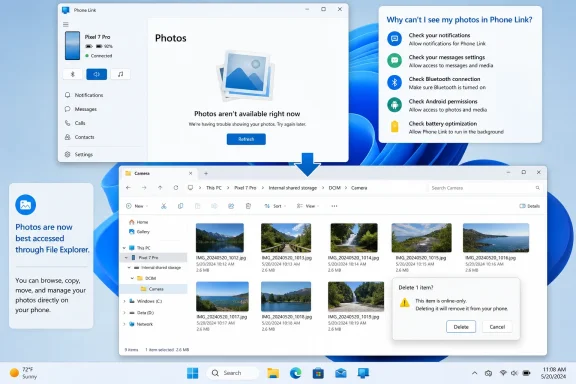
Microsoft says the Photos feature is moving from Phone Link to File Explorer on Windows 11, where the linked handset appears in the navigation pane and exposes the Camera folder and other phone folders. Windows Central first reported the migration in November 2025 after spotting Phone Link’s in-app notice telling users that Photos was moving out of the application.
That makes the Photos portion of Appuals’ decision tree outdated for an increasing share of users. Its advice to update Phone Link and re-enable the Photos permission remains relevant to older interfaces and configurations, but it cannot solve the absence of a Photos page once the Windows 11 migration has reached a PC. The correct first check is now Windows Settings: go to Bluetooth & devices > Mobile devices > Manage devices and enable the option to show the mobile device in File Explorer. Then open File Explorer and select the phone in the left navigation pane.
The new path changes more than the interface. Microsoft says File Explorer can expose all accessible phone folders, not merely recent camera-roll images, and allows copy, paste, drag-and-drop, multi-select, video, and audio handling. It also introduces a data-loss risk the Appuals guide does not mention: files shown there are online-only. Deleting one from File Explorer deletes it from the linked phone, so users should copy items to local storage before cleaning up folders.
This is especially important for help desks. “Phone Link photos stopped working” is no longer enough to prescribe an app reset. On Windows 11, the first question should be whether the user is looking for a missing Phone Link gallery that Microsoft has removed, or whether the linked device itself is missing from File Explorer. Those are different incidents with different owners: Phone Link configuration in the first case, Mobile devices integration in the second.
That is preferable to a blanket reset because it preserves a working pairing. Android permissions are granular, and the app may separately need access to notifications, SMS, contacts, phone functions, and photos depending on what the user expects to do from Windows. Turning every permission on can be expedient, but it is unnecessary for a machine that only needs notification relay or calling.
Appuals also correctly identifies Android battery management as a common cause of a connection that works briefly and fails after the handset has been idle. Microsoft’s support guidance specifically tells users to exempt Link to Windows from battery optimization where their phone exposes that control. The exact labels vary—“Don’t optimize,” “Unrestricted,” or a vendor-specific equivalent—but the testing principle is sound: change the setting, lock the phone for several minutes, then generate a new notification or message.
There is one limit that no reset can remove. Microsoft says Android 15 and later can classify two-factor authentication codes, one-time passcodes, and other sensitive alerts as protected content. Phone Link may show a placeholder rather than the notification text. That is operating-system policy, not an expired Phone Link permission, and the code must be read on the phone.
Samsung users have a separate blind spot. Microsoft says notifications from apps and files held in Secure Folder do not surface in Phone Link. An administrator or user who tests with a banking, authenticator, or work app installed in Secure Folder can mistakenly conclude that Windows notification relay is broken when the restriction is confined to that protected Android container.
Once paired, three iPhone Bluetooth permissions govern what Windows receives. Share System Notifications enables notifications and messages; Show Notifications also affects messages; and Sync Contacts supplies contacts and call history. A user who can place calls but cannot see message content or notifications should inspect these specific toggles before removing the pairing.
However, expectations for iPhone users need to remain narrower than the Appuals guide implies. Microsoft’s current Phone Link messaging documentation says iPhone support does not include sending or receiving images, GIFs, or Memojis, does not support creating or replying to group messages, and discards the Phone Link message history when the Bluetooth connection ends. A blank iPhone photo gallery, therefore, should not be diagnosed as a missing Phone Link photo permission. Phone Link’s iOS feature set is mainly calls, text handling, contacts, and notification relay; it is not Android’s richer phone-integration model.
If the iPhone becomes permanently disconnected, Microsoft’s clean-pair procedure matches the broad approach in the Appuals guide: remove the iPhone from Windows Bluetooth settings, forget the PC on the iPhone, turn Bluetooth off on both devices for 10 seconds, turn it back on, and pair again through Phone Link. Removing only one side leaves stale Bluetooth state in place and is the most common reason a “fresh” pairing does not behave like one.
Repair is the low-impact action because it attempts to fix the installed package without deliberately clearing its local state. Reset can erase that state and require the phone relationship to be rebuilt. It should not be used simply because Notifications, Photos, or Messages have one isolated failure; each of those can be blocked upstream by a phone permission, a background-power rule, a Bluetooth permission, or an expected product limitation.
The Appuals guide does well to tell users to remove stale records from Phone Link, Windows Mobile devices, ordinary Bluetooth settings, and the phone where a device is duplicated or stuck reconnecting. But that cleanup is disruptive. It is an appropriate escalation for an offline ghost device or a pairing loop, not a routine response to a single missing notification.
That changes the recommendation for managed fleets. There is little value in building a complex Phone Link remediation process around an unsupported Windows 10 endpoint, particularly when Phone Link is deeply tied to evolving cross-device features and the Photos experience is already being redirected toward Windows 11’s Mobile devices and File Explorer integration.
The efficient repair order is now clear: verify whether the missing feature still belongs in Phone Link; repair the exact Android permission, iPhone Bluetooth permission, or background setting tied to that feature; remove pairing records only for duplication or persistent reconnection failures; and Repair or Reset the Windows app only when the app itself cannot load. For photos on Windows 11, start in File Explorer—and copy before deleting.
For Windows users, the practical consequence is simple: identify which layer failed before deleting device records. A stopped notification feed can be fixed by restoring notification access; a disconnected iPhone can require a fresh Bluetooth pairing; a genuinely blank app can warrant Repair or Reset. Missing photos, however, may be a product transition rather than a fault.
 The Photos Tab May Be Gone by Design
Microsoft says the Photos feature is moving from Phone Link to File Explorer on Windows 11, where the linked handset appears in the navigation pane and exposes the Camera folder and other phone folders. Windows Central first reported the migration in November 2025 after spotting Phone Link’s in-app notice telling users that Photos was moving out of the application.That makes the Photos portion of Appuals’ decision tree outdated for an increasing share of users. Its advice to update Phone Link and re-enable the Photos permission remains relevant to older interfaces and configurations, but it cannot solve the absence of a Photos page once the Windows 11 migration has reached a PC. The correct first check is now Windows Settings: go to Bluetooth & devices > Mobile devices > Manage devices and enable the option to show the mobile device in File Explorer. Then open File Explorer and select the phone in the left navigation pane.
The new path changes more than the interface. Microsoft says File Explorer can expose all accessible phone folders, not merely recent camera-roll images, and allows copy, paste, drag-and-drop, multi-select, video, and audio handling. It also introduces a data-loss risk the Appuals guide does not mention: files shown there are online-only. Deleting one from File Explorer deletes it from the linked phone, so users should copy items to local storage before cleaning up folders.
This is especially important for help desks. “Phone Link photos stopped working” is no longer enough to prescribe an app reset. On Windows 11, the first question should be whether the user is looking for a missing Phone Link gallery that Microsoft has removed, or whether the linked device itself is missing from File Explorer. Those are different incidents with different owners: Phone Link configuration in the first case, Mobile devices integration in the second.
Android Sync Problems Still Start With Permissions and Power Controls
For Android phones, Appuals’ central diagnosis holds up: a connected status does not prove that each feature has the access it needs. Microsoft documents notifications as an independent feature, meaning texts and photos can continue working while the notification feed fails. The vendor’s prescribed recovery is narrow: search Android Settings for Notification access, switch Link to Windows off and back on, approve the prompt, then reopen the Notifications section in Phone Link.That is preferable to a blanket reset because it preserves a working pairing. Android permissions are granular, and the app may separately need access to notifications, SMS, contacts, phone functions, and photos depending on what the user expects to do from Windows. Turning every permission on can be expedient, but it is unnecessary for a machine that only needs notification relay or calling.
Appuals also correctly identifies Android battery management as a common cause of a connection that works briefly and fails after the handset has been idle. Microsoft’s support guidance specifically tells users to exempt Link to Windows from battery optimization where their phone exposes that control. The exact labels vary—“Don’t optimize,” “Unrestricted,” or a vendor-specific equivalent—but the testing principle is sound: change the setting, lock the phone for several minutes, then generate a new notification or message.
There is one limit that no reset can remove. Microsoft says Android 15 and later can classify two-factor authentication codes, one-time passcodes, and other sensitive alerts as protected content. Phone Link may show a placeholder rather than the notification text. That is operating-system policy, not an expired Phone Link permission, and the code must be read on the phone.
Samsung users have a separate blind spot. Microsoft says notifications from apps and files held in Secure Folder do not surface in Phone Link. An administrator or user who tests with a banking, authenticator, or work app installed in Secure Folder can mistakenly conclude that Windows notification relay is broken when the restriction is confined to that protected Android container.
iPhone Pairing Is a Bluetooth Relationship, With Tighter Limits
The iPhone version of Phone Link needs a different troubleshooting path than Android, and Appuals correctly emphasizes Bluetooth Low Energy and the sharing controls attached to the PC’s Bluetooth entry on the iPhone. Microsoft requires Windows 10 version 1903 or later, or Windows 11, a Bluetooth Low Energy-capable PC, and iOS 16 or later. The company also says Phone Link does not support work or school accounts.Once paired, three iPhone Bluetooth permissions govern what Windows receives. Share System Notifications enables notifications and messages; Show Notifications also affects messages; and Sync Contacts supplies contacts and call history. A user who can place calls but cannot see message content or notifications should inspect these specific toggles before removing the pairing.
However, expectations for iPhone users need to remain narrower than the Appuals guide implies. Microsoft’s current Phone Link messaging documentation says iPhone support does not include sending or receiving images, GIFs, or Memojis, does not support creating or replying to group messages, and discards the Phone Link message history when the Bluetooth connection ends. A blank iPhone photo gallery, therefore, should not be diagnosed as a missing Phone Link photo permission. Phone Link’s iOS feature set is mainly calls, text handling, contacts, and notification relay; it is not Android’s richer phone-integration model.
If the iPhone becomes permanently disconnected, Microsoft’s clean-pair procedure matches the broad approach in the Appuals guide: remove the iPhone from Windows Bluetooth settings, forget the PC on the iPhone, turn Bluetooth off on both devices for 10 seconds, turn it back on, and pair again through Phone Link. Removing only one side leaves stale Bluetooth state in place and is the most common reason a “fresh” pairing does not behave like one.
Resetting Phone Link Should Be the Last App-Side Move
A blank Phone Link window, repeated crash, or failure before the device-selection screen is a Windows app problem until proven otherwise. In that case, Appuals’ Repair-then-Reset order follows Microsoft’s general Windows guidance: open Settings > Apps > Installed apps, select Phone Link, open Advanced options, try Repair, and use Reset only if Repair fails.Repair is the low-impact action because it attempts to fix the installed package without deliberately clearing its local state. Reset can erase that state and require the phone relationship to be rebuilt. It should not be used simply because Notifications, Photos, or Messages have one isolated failure; each of those can be blocked upstream by a phone permission, a background-power rule, a Bluetooth permission, or an expected product limitation.
The Appuals guide does well to tell users to remove stale records from Phone Link, Windows Mobile devices, ordinary Bluetooth settings, and the phone where a device is duplicated or stuck reconnecting. But that cleanup is disruptive. It is an appropriate escalation for an offline ghost device or a pairing loop, not a routine response to a single missing notification.
Windows 10 Remains a Compatibility Case, Not a Supported Desktop Platform
Microsoft still lists Windows 10 as technically compatible with Phone Link when the required feature updates are present, which explains why Appuals continues to include it in its setup guidance. Yet Windows 10 support ended on October 14, 2025. In August 2026, a Phone Link failure on Windows 10 can still be troubleshot, but the host operating system no longer receives free Windows Update security fixes or general technical support from Microsoft.That changes the recommendation for managed fleets. There is little value in building a complex Phone Link remediation process around an unsupported Windows 10 endpoint, particularly when Phone Link is deeply tied to evolving cross-device features and the Photos experience is already being redirected toward Windows 11’s Mobile devices and File Explorer integration.
The efficient repair order is now clear: verify whether the missing feature still belongs in Phone Link; repair the exact Android permission, iPhone Bluetooth permission, or background setting tied to that feature; remove pairing records only for duplication or persistent reconnection failures; and Repair or Reset the Windows app only when the app itself cannot load. For photos on Windows 11, start in File Explorer—and copy before deleting.
References
- Primary source: Appuals
Published: 2026-08-02T12:01:01+00:00
Loading…
appuals.com - Related coverage: support.microsoft.com
Loading…
support.microsoft.com - Related coverage: support.microsoft.com
Loading…
support.microsoft.com - Related coverage: learn.microsoft.com
Loading…
learn.microsoft.com - Related coverage: scscc.club
- Related coverage: windowscentral.com
Microsoft is removing yet another handy Windows 11 feature — the ability to view photos in the Phone Link app | Windows Central
The Phone Link app is losing support for viewing photos from your phone. Microsoft says to use the File Explorer app instead.www.windowscentral.com