

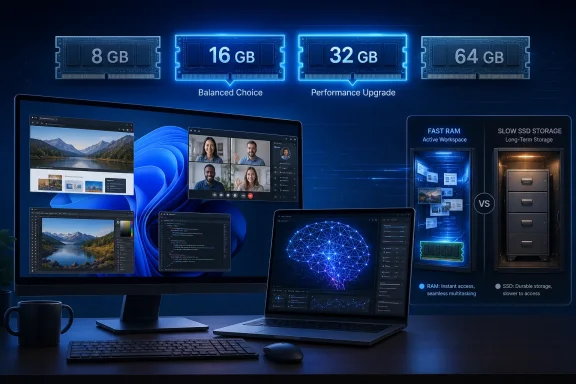
That does not mean every Windows laptop with 8 GB is unusable, nor does it mean that every gamer or content creator automatically needs 64 GB. The right amount of RAM depends on the applications you run simultaneously, the size of the files and projects you work with, whether graphics are integrated or dedicated, and—crucially—whether the memory can be upgraded later.
The biggest mistake is treating RAM like storage. A 1 TB SSD provides room for files, games, and applications, but it does not replace the high-speed memory Windows uses while those applications are actively running. A PC can have abundant SSD capacity and still feel painfully slow if it runs out of available RAM during a video call, a busy browsing session, or a demanding game.
For buyers looking at new Windows 11 laptops and desktops, 16 GB is the current sweet spot, 32 GB is the performance-minded upgrade, and 8 GB should be approached as a budget compromise rather than a default recommendation.
RAM Is Your PC’s Active Workspace
RAM stands for Random Access Memory. It is the fast, temporary workspace used by Windows, open programs, browser tabs, documents, and game assets while the PC is powered on.
A useful analogy remains the desk-versus-filing-cabinet comparison:
- Your SSD or hard drive is the filing cabinet where data is stored permanently.
- Your RAM is the desk where current work is laid out.
- Your processor is the person doing the work.
- Your graphics processor, when present, is a specialist handling visual workloads.
A small desk does not stop work entirely. It simply forces constant shuffling. Files must be put away, brought back, and rearranged repeatedly. On a computer, that shuffling occurs when Windows runs short of physical memory and begins using part of the storage drive as virtual memory.
Modern NVMe SSDs are fast compared with older hard drives, but they remain dramatically slower than system RAM. When the system starts paging data to storage, the symptoms are familiar:
- Browser tabs reload unexpectedly.
- Windows pauses when switching apps.
- Video calls stutter while a presentation or browser is open.
- Games hitch while loading new areas.
- Creative apps become slow to preview, scrub, or export projects.
- The PC feels busy despite low CPU utilization.
More RAM does not always make a computer faster. If a system has plenty of free memory, adding more will not magically double frame rates or launch apps instantly. But when memory is the bottleneck, increasing capacity can transform the responsiveness of the entire machine.
Windows 11’s Minimum Is Not a Comfortable Target
Windows 11 requires 4 GB of RAM as a minimum hardware specification. That is an installation and compatibility threshold, not a recommendation for an enjoyable modern computing experience.
A PC with 4 GB can technically boot Windows 11 and run lightweight tasks, but it has almost no room for real-world multitasking. The operating system, security services, drivers, cloud-sync tools, update mechanisms, and startup programs consume a meaningful share before a user opens a browser.
Even 8 GB systems can become constrained faster than buyers expect. A browser with several modern websites open, a Teams or Zoom call, Microsoft Word, a PDF, and background applications can bring an 8 GB Windows PC close to its limits.
This is why the distinction between minimum requirements and recommended configuration matters. A machine that meets the minimum is not necessarily a machine that will remain pleasant to use for several years.
The 2026 RAM Recommendation at a Glance
| Typical use case | Recommended RAM | Practical verdict |
|---|---|---|
| Basic browsing, email, streaming | 8–16 GB | 8 GB works with limits; 16 GB is preferable for Windows |
| Students and remote work | 16 GB | Best balance for Office apps, research, calls, and multitasking |
| General home and family PCs | 16 GB | The best default for a new Windows 11 machine |
| Casual and competitive gaming | 16 GB | Still viable, especially with a dedicated GPU |
| AAA gaming and heavy multitasking | 32 GB | Strong recommendation for higher-end systems |
| Photo editing and design work | 16–32 GB | Depends on image size, layers, and app usage |
| 4K video editing | 32 GB | Practical baseline for smoother editing workflows |
| 8K video, 3D, engineering, data work | 64 GB or more | Workstation territory |
| Local AI models and AI development | 32 GB minimum; often more | Strongly dependent on model size and GPU memory |
| Chromebook and cloud-first use | 8 GB | Usually sufficient for lightweight cloud workloads |
The most useful rule is simple: buy for your busiest normal day, not your lightest one.
If a PC is used only for email and occasional streaming, 8 GB may be tolerable. If it regularly handles browser-heavy research, Office applications, cloud syncing, video conferencing, multiple displays, and background software, 16 GB is a much safer choice.
8 GB RAM: Still Functional, Increasingly Restrictive
An 8 GB configuration remains common in entry-level laptops, inexpensive desktops, and Chromebooks. It can still be appropriate, but only where the workload and price are right.
Where 8 GB still makes sense
8 GB remains workable for:
- Light web browsing with a restrained number of tabs
- Email, documents, and spreadsheets
- Streaming video
- Basic schoolwork
- Simple photo management
- Lightweight point-of-sale or kiosk systems
- Cloud-focused Chromebook use
- Secondary or travel computers
For ChromeOS, 8 GB is especially reasonable because the platform is typically used for browser-first and cloud-based activity. That does not mean Chromebooks never benefit from more memory, but the operating system’s lighter footprint can make 8 GB feel less restrictive than it does on a full Windows machine.
Why 8 GB is a risky Windows purchase
The problem is not that Windows 11 cannot run on 8 GB. The problem is that today’s typical software habits assume more headroom.
Web browsers are a major reason. Each tab may represent an isolated process, often with scripts, advertisements, media components, cached content, and extensions. Add a messaging client, a password manager, security software, cloud storage, and a video call, and 8 GB disappears quickly.
Integrated graphics can make the situation worse. Many laptops without a dedicated GPU use shared system memory for graphics tasks. In practical terms, a machine advertised with 8 GB may have less than 8 GB available for Windows applications once graphics memory is reserved or dynamically assigned.
An 8 GB laptop with soldered, non-upgradeable memory is therefore a particularly short-sighted buy. It may be inexpensive on day one, but it can become frustrating long before its processor or SSD has become obsolete.
The sensible verdict on 8 GB
8 GB is the floor, not the target, for a primary Windows PC. It is acceptable for tightly budgeted, lightweight use, but 16 GB is usually worth the upgrade when buying a machine intended to last several years.
16 GB RAM: The New Mainstream Standard
For most Windows users, 16 GB is the right answer in 2026. It is enough for productive multitasking without pushing buyers into unnecessary workstation-level spending.
A 16 GB system gives Windows room to breathe. It can keep more browser tabs, documents, and apps available in memory, reducing the likelihood that the operating system must fall back to slower storage-based virtual memory.
Everyday users and home PCs
A 16 GB Windows laptop or desktop is well suited to:
- Heavy web browsing
- Streaming on multiple services
- Email and personal finance tools
- Microsoft 365 and Google Workspace
- Multiple monitors
- Video calls and screen sharing
- Home photo libraries
- Light image editing
- Casual gaming
- Background synchronization from OneDrive, Dropbox, or other cloud services
This is also the safest specification for a family PC. Shared computers tend to accumulate software, browser extensions, startup utilities, antivirus tools, and multiple user accounts. The extra memory capacity helps keep that system responsive as its software load grows.
Students and remote workers
For students, hybrid workers, and remote professionals, 16 GB should be viewed as the baseline configuration.
A typical work or study session may involve a browser loaded with research tabs, Microsoft Word or Excel, Outlook, a PDF reader, Teams or Zoom, a note-taking app, and cloud storage synchronization. That workload is not extreme by workstation standards, but it is more than enough to expose the limits of 8 GB.
The value of 16 GB is not merely raw speed. It is consistency. The computer remains responsive while applications compete for memory in the background.
Is 16 GB enough for the long term?
For a mainstream Windows PC, yes. A well-balanced system with 16 GB of RAM, a modern processor, and a fast NVMe SSD should remain capable for general computing for years.
However, future-proofing has limits. Buyers who already know they will edit 4K video, run virtual machines, play new AAA games, work with enormous datasets, or experiment with local AI models should skip directly to 32 GB rather than treating 16 GB as a permanent solution.
32 GB RAM: The Upgrade That Removes More Compromises
For demanding users, 32 GB is the most compelling performance upgrade available in a new PC. It is not required for everyone, but it provides meaningful headroom for workloads that can overwhelm a 16 GB machine.
The key benefit is not that all applications consume 32 GB. Most do not. The benefit is that large applications can run alongside the rest of the Windows environment without forcing aggressive swapping, tab discarding, or project slowdowns.
Gaming: 16 GB remains viable, but 32 GB is increasingly attractive
Modern games vary enormously in memory requirements. Many still run well with 16 GB, particularly when the PC is dedicated primarily to gaming and has a capable dedicated graphics card.
But gaming rarely happens in isolation. A typical enthusiast setup may also include:
- Discord or another voice-chat service
- A web browser with guides, music, or video open
- Steam, Xbox, or other game launchers
- GPU monitoring tools
- Capture and streaming software
- RGB control utilities
- Game overlays
- Background downloads or Windows updates
Those concurrent applications can make 16 GB feel tighter than a game’s published minimum specification suggests. Games featuring large open worlds, high-resolution textures, extensive mod libraries, simulation systems, or shader compilation can also create heavier memory pressure.
For a new gaming desktop or premium gaming laptop, 32 GB is the better target. It offers breathing room for demanding titles, multitasking, modding, streaming, and future releases.
That said, RAM is only one part of gaming performance. A 32 GB system paired with a weak GPU will not outperform a well-balanced 16 GB system with a stronger graphics card. Buyers should prioritize the GPU first for gaming, then choose enough RAM to avoid creating a secondary bottleneck.
Creative work: capacity depends on project complexity
Creative applications can be deceptive. A simple photo edit may run beautifully on 16 GB, while a layered image, panoramic composite, batch export, or AI-assisted feature can push memory consumption much higher.
For Photoshop and similar design tools, 16 GB is often sufficient for lighter work. But 32 GB is the practical recommendation for frequent creative work involving large raw files, many layers, high-resolution assets, several applications open together, or a second display.
Video editing is even more memory-sensitive. Editing HD footage can be manageable with 16 GB, but 4K timelines, multicam projects, high-bitrate codecs, large effects stacks, motion graphics, and background media caching all benefit from 32 GB or more.
For 8K editing, advanced 3D rendering, complex CAD scenes, visual effects, scientific visualization, or high-end audio production, 64 GB is no longer excessive. It can be a sensible professional configuration.
Virtual machines and development
Developers, IT administrators, and security professionals frequently need more RAM than office users because they run isolated environments.
Virtual machines reserve memory for guest operating systems. A Windows virtual machine might need several gigabytes on its own, and a Linux test environment, container workflow, local database, browser, IDE, and documentation can all remain active at the same time.
For occasional experimentation, 16 GB can work. For regular virtualization, local software development, containers, and test labs, 32 GB should be considered the starting point.
Local AI Workloads Change the Conversation
AI PCs have made memory capacity an increasingly prominent part of the buying decision, but marketing language can obscure what actually matters.
A neural processing unit, or NPU, accelerates certain AI workloads efficiently. It can help support on-device features without constantly relying on the CPU or GPU. But an NPU does not eliminate the need for memory.
System RAM, GPU VRAM, and unified memory are different
Local AI performance depends on several types of memory:
- System RAM for Windows, applications, model data, and CPU-based inference
- GPU VRAM for models accelerated on a discrete graphics card
- Unified memory in systems where the CPU and GPU share the same memory pool
- Storage capacity and speed for loading large model files and datasets
A local language model can require substantial memory depending on its size, precision, quantization, context length, and inference engine. Smaller quantized models may run on machines with 16 GB, but practical multitasking becomes limited quickly. Larger models can require 32 GB, 64 GB, or significantly more system memory or VRAM.
This makes the blanket claim that every AI PC needs exactly 32 GB too simplistic. 32 GB is a strong starting point for people who expect to run local AI tools, but it is not a universal guarantee of compatibility with every model or workflow.
The real AI PC recommendation
For users who mainly use cloud-based AI assistants, 16 GB remains entirely reasonable. The service performs the heaviest processing remotely.
For people running local image generation, offline transcription, coding assistants, machine-learning experiments, or local large language models, 32 GB is the safer minimum. Users working with larger models, advanced development environments, or GPU-heavy AI pipelines should assess both RAM capacity and graphics memory before buying.
RAM Speed Matters, but Capacity Comes First
Modern Windows PCs may use DDR4, DDR5, LPDDR5, or LPDDR5X memory. These specifications describe different generations and designs of memory technology.
DDR5 has become increasingly common in desktops and performance-oriented laptops, while LPDDR5 and LPDDR5X are widely used in thin-and-light notebooks because they can deliver strong bandwidth with better power efficiency. However, buyers should not assume every new PC uses the same memory standard. Budget systems and older platforms may still use DDR4, and that is not automatically a deal-breaker.
Capacity versus speed
If forced to choose, buyers should generally prioritize enough capacity first.
A system with 16 GB of appropriately matched memory will usually provide a better everyday experience than one with 8 GB of faster memory. Likewise, 32 GB is often more useful for demanding workflows than chasing small speed improvements.
Speed becomes more important in certain scenarios:
- Integrated graphics gaming
- Memory-sensitive productivity software
- Video encoding and rendering
- High-refresh-rate gaming
- Workloads that move large datasets repeatedly
- Systems with powerful CPUs that can benefit from added bandwidth
Dual-channel memory still matters
Memory configuration can also influence performance. Two matching memory modules often enable dual-channel operation, increasing available memory bandwidth compared with a single module.
This can matter especially for PCs with integrated graphics, which rely on system RAM rather than dedicated VRAM. A laptop or desktop with two properly matched sticks of RAM can perform noticeably better in graphics-heavy work than a similar capacity configuration limited to single-channel operation.
For upgrades, matching memory type, supported speed, capacity, and timing remains important. Randomly mixing modules can work, but it can also cause the system to run at slower settings or introduce compatibility problems.
Can You Upgrade RAM Later?
The answer varies sharply by device type.
Desktop PCs are usually the easiest to upgrade
Traditional desktop computers are generally the most upgrade-friendly systems. They typically use accessible DIMM slots, making it possible to add memory or replace existing modules later.
Before upgrading, confirm:
- The motherboard’s maximum supported RAM capacity
- The memory generation: DDR4 or DDR5
- Number of available slots
- Supported speeds
- Whether the existing configuration uses one or two modules
- Whether a BIOS update is needed for certain high-capacity kits
A desktop upgrade from 16 GB to 32 GB can be one of the most cost-effective ways to extend a system’s usable life.
Laptops require model-specific verification
Laptops are more complicated. Gaming notebooks, mobile workstations, and some larger mainstream models may use replaceable SO-DIMM modules. Many thin-and-light systems, however, use soldered memory attached directly to the motherboard.
Soldered RAM helps manufacturers reduce thickness, weight, and power consumption, but it removes the possibility of a later capacity upgrade. A 16 GB ultrabook with soldered memory may remain a sound purchase. An 8 GB model with soldered memory is much harder to recommend if it will serve as a primary Windows PC.
The correct process is to check the exact model’s hardware documentation or maintenance guide. Product families often include several configurations, and two laptops with nearly identical names may have different upgrade options.
Do not buy based on upgrade assumptions
A common buying error is assuming every laptop can be upgraded later. That assumption is increasingly unsafe.
If memory is soldered, the configuration chosen at checkout is effectively permanent. In those cases, spending more for 16 GB or 32 GB can be more valuable than choosing a slightly larger SSD, because external or replaceable storage is easier to add later than permanently fixed RAM.
How to Check Whether Your Current PC Needs More RAM
Windows includes everything needed to assess memory pressure.
- Press Ctrl + Shift + Esc to open Task Manager.
- Select the Performance tab.
- Choose Memory from the left-hand menu.
- Leave the window open while using your normal applications.
- Watch usage during the kind of work that normally causes slowdowns.
High memory use alone is not automatically a problem. Windows intentionally uses spare RAM for caching, and a high percentage can be normal during a demanding task.
The warning signs are more practical:
- Memory usage stays near maximum during ordinary work.
- The PC slows markedly when switching between programs.
- Browser tabs reload repeatedly.
- Task Manager shows little available memory.
- Disk usage spikes when the computer becomes unresponsive.
- Applications close, crash, or display out-of-memory errors.
A memory upgrade is most valuable when it resolves a demonstrated bottleneck. If RAM usage is modest but the PC still feels slow, investigate the SSD, processor, thermal performance, malware, startup software, driver issues, or an aging battery and power profile before assuming memory is the cause.
The Best RAM Buying Advice for 2026
The most balanced approach is to avoid both extremes: do not buy the bare minimum simply because it is cheaper, and do not pay for 64 GB because it sounds impressive if the workload will never use it.
Choose 8 GB only when the limits are acceptable
An 8 GB system can still fit a low-cost Chromebook, a basic secondary device, or a tightly constrained Windows purchase. It should not be the default configuration for a long-lived primary laptop.
Choose 16 GB for the majority of people
For everyday Windows users, students, remote workers, families, and casual gamers, 16 GB is the best balance of price, responsiveness, and longevity.
It is the capacity that makes modern multitasking feel normal instead of carefully managed.
Choose 32 GB for demanding work and better longevity
Buy 32 GB if the computer will regularly handle:
- New AAA games
- Streaming or recording gameplay
- Large photo projects
- 4K video editing
- Software development
- Virtual machines
- Large spreadsheets and databases
- Local AI tools
- Multiple high-resolution displays
- Heavy browser and application multitasking
Choose 64 GB or more when your work proves it necessary
Workstation-level memory capacity is justified by professional workloads, not casual future-proofing. Complex 3D projects, high-resolution video, engineering simulations, advanced virtual labs, data science, and large local AI models can all make 64 GB a practical investment.
For everyone else, that money may be better spent on a faster processor, a stronger GPU, a larger SSD, or a higher-quality display.
Final Verdict
The modern Windows RAM landscape is clearer than the specifications sheets often make it appear. 8 GB is survivable but constrained, 16 GB is the mainstream standard, and 32 GB is the smart step-up for demanding users.
For a new Windows 11 laptop or desktop intended for ordinary home use, school, office work, streaming, web browsing, and everyday multitasking, 16 GB offers the best overall experience. It provides enough breathing room for modern software without imposing the cost of a workstation configuration.
For gamers, creators, developers, and local AI users, 32 GB is increasingly the more comfortable choice. It will not solve every performance problem, but it reduces one of the most common causes of slowdowns: a capable PC being forced to rely on slower storage because it has run out of active workspace.
The most important detail is upgradeability. When memory is soldered into a thin laptop, the RAM decision is permanent. Choosing enough on day one is not excess—it is a way to ensure that the rest of the hardware can stay useful for as long as it deserves to.