
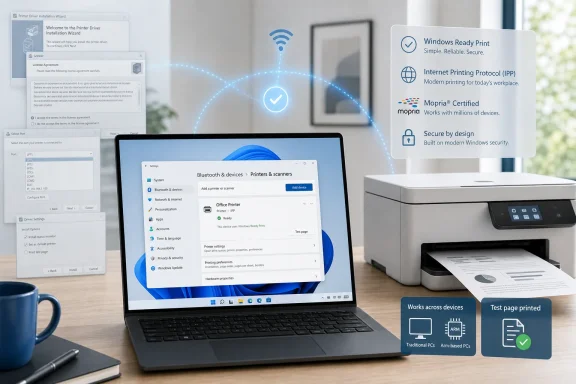
 Overview: Windows 11 Is Finally Treating Printers Like Modern Network Devices
For decades, installing a printer on Windows has often meant installing a software bundle. The printer itself may have been straightforward, but the path to a working print queue commonly included a vendor download page, a multi-hundred-megabyte setup executable, optional utilities, marketing prompts, background services, and a restart.
That old workflow was rooted in a real technical constraint. Traditional printer drivers translated Windows print jobs into the device-specific instructions each model needed, exposing settings for trays, duplexing, media types, finishing options, scanner functions, fax capabilities, and color management. Microsoft still describes the classic architecture as a spooler plus drivers that render application output into a printer-understandable format and provide configuration interfaces. Microsoft’s printing architecture documentation
The industry, however, has steadily moved toward network standards that let printers advertise their capabilities directly. Windows Ready Print is Microsoft’s current name for the Windows modern print platform, which had already been evolving around the Internet Printing Protocol (IPP), eSCL scanning, and cloud-oriented Universal Print technologies. Microsoft’s Windows Ready Print documentation
The significance is not that Windows has suddenly learned how to print. It is that Microsoft is changing which technology Windows 11 prefers when both the modern and legacy paths are possible. For a compatible printer discovered on the local network or connected over a supported interface, the new default can eliminate the driver hunt entirely.
What Changed on July 1, 2026
Microsoft announced that new printer installations would begin defaulting to Windows Ready Print during July 2026 where the device supports it. The company characterized the change as a modernization of driver selection: Windows should prefer its inbox IPP Class Driver instead of automatically routing users toward a third-party driver workflow. Microsoft’s Windows Ready Print and driver-selection announcement
This shift is part of a longer plan, not a one-off Settings change. Microsoft’s published servicing roadmap says that Windows 11 and Windows Server 2025 began restricting new printer-driver publication to Windows Update on January 15, 2026, and that the driver-ranking order would be modified on July 1, 2026 to always prefer the Windows IPP inbox class driver. Microsoft’s third-party printer-driver servicing plan
That wording matters. Microsoft is not removing every vendor driver, disabling old printers, or making a user’s existing setup disappear. Instead, it is changing the preference order for compatible devices during a new installation.
The practical difference
Under the old model, a new Windows 11 PC might discover a printer and then:
- Locate a vendor package through Windows Update or prompt the user to obtain one.
- Install manufacturer code and a model-specific driver.
- Add vendor configuration utilities, tray monitors, update services, or companion applications.
- Create the print queue and expose the printer’s features through the OEM driver interface.
With Windows Ready Print, the intended route is more direct:
- Windows discovers an IPP-capable printer.
- The operating system uses the built-in Microsoft IPP class driver.
- The printer reports supported capabilities through standard protocols.
- Windows creates a usable queue without requiring a conventional third-party driver installation.
Microsoft says the result is intended to deliver a more consistent experience across PC architectures, including Arm-based Windows devices where legacy drivers have historically been a compatibility weak point. Microsoft’s Windows Ready Print overview
This is not merely a cosmetic rebrand. The renamed platform formalizes Microsoft’s preference for a print stack that is less dependent on thousands of independently maintained driver packages.
The Epson XP-4105 Test Shows Why the Change Matters
The most useful part of the early Windows Ready Print story is not the policy language. It is the fact that a real consumer printer reportedly installed with almost no ceremony.
In the MakeUseOf test, an Epson XP-4105 was added to a freshly configured Lenovo IdeaPad through Settings > Bluetooth & devices > Printers & scanners > Add device. The printer was selected from the network-discovered list, appeared as ready, and successfully printed a test page without a driver-selection prompt, vendor installer, or detour to Epson’s website. MakeUseOf’s Epson XP-4105 installation report
That is exactly the outcome Windows users have long expected from Wi-Fi printers but have not consistently received. In an era when smartphones and tablets generally discover and print to compatible network devices with little more than a confirmation tap, a Windows PC requiring a driver CD—or the digital equivalent of one—has increasingly felt outdated.
The report puts the install time at roughly one to three minutes. That is an individual hands-on result rather than a Microsoft benchmark, so it should not be treated as a guaranteed setup time for every network, router, printer firmware version, or Windows 11 configuration. Still, the important result is the absence of the traditional friction points rather than the exact minute count. MakeUseOf’s hands-on testing
Why the printer name may not exactly match the box
One detail in that test will be familiar to anyone who has used Windows printers before: the Epson XP-4105 appeared as an “EPSON XP-4100 Series” device. That is not necessarily an error, because closely related models can share a common capability profile or standardized driver identity. MakeUseOf’s report
A generic family name is not, by itself, evidence that Windows installed the wrong software. The more meaningful checks are whether the device can print successfully and whether the expected options—such as paper sizes, color modes, duplexing, and available trays—are correctly represented in the Windows print dialog.
For consumers, this could be an important adjustment in expectations. A printer setup that lacks an elaborate branded installer may feel suspiciously bare, but in many cases that simplicity is the entire purpose of the new approach.
How Windows Ready Print Works
At the center of Windows Ready Print is IPP, the Internet Printing Protocol. Rather than relying on a proprietary driver to tell Windows what a printer can do, an IPP-capable printer can communicate supported features and accept jobs through a standardized protocol.
Microsoft positions Windows Ready Print as the operating system’s preferred means of communicating with printers, covering IPP printing, eSCL scanning, and Universal Print integration. The company says this approach does not require third-party driver installation and is designed to provide improved security, compatibility, and reliability compared with legacy printing. Microsoft’s Windows Ready Print overview
Mopria certification is the clearest compatibility signal
The main consumer-facing indicator is Mopria certification. Mopria is an industry alliance involving printer manufacturers and software vendors that defines standards around IPP printing and eSCL scanning; Microsoft says Windows Ready Print is designed to work with Mopria-certified printers, and that many existing printers already qualify. Microsoft’s explanation of Mopria and Windows Ready Print
That does not mean every Mopria-certified printer will offer every vendor-specific setting through the Windows interface. It does mean the device is aligned with the standards Windows Ready Print relies upon, making a driverless or near-driverless install much more likely.
For buyers, that changes the printer-shopping checklist. Specifications such as print speed, ink or toner cost, duplex capability, scanner quality, and Wi-Fi reliability remain essential. But Mopria certification now has a stronger Windows 11 relevance than it did when it was mostly associated with mobile printing.
Print Support Apps remain part of the plan
Microsoft’s modern approach is not necessarily hostile to manufacturer customization. Rather than having an OEM package own the entire printing pipeline, vendors can use Print Support Apps to add device-specific experiences while Windows keeps the core IPP path standardized. Microsoft’s Windows Ready Print documentation
That distinction is crucial. A standardized transport and driver model can coexist with an app that offers maintenance information, ink or toner status, advanced finishing controls, scanning workflows, or specialized printer functions. The question is whether manufacturers implement those tools with restraint—or reproduce the clutter of the old installer era in a new form.
Why Microsoft Is Pushing Away From Legacy Printer Drivers
The argument for Windows Ready Print has three parts: security, reliability, and cross-device compatibility.
Security: fewer privileged driver components to trust
Printer drivers have traditionally been a difficult part of the Windows ecosystem. They are often complex, deeply integrated pieces of vendor software, and many are maintained long after the original printer launch. Microsoft’s case is blunt: the sheer number of driver packages across models and manufacturers makes it impractical to verify the security of all of them. Microsoft’s Windows Ready Print guidance
A standards-based inbox driver reduces the number of third-party components required for basic printing. That does not make printing risk-free—networked printers, firmware, document parsers, and print queues still require sensible security practices—but it can reduce the software surface area involved in attaching a device to a PC.
This has particular value in businesses, schools, and managed fleets where a harmless-looking printer installation can otherwise introduce software that has received little scrutiny outside the manufacturer’s own ecosystem.
Reliability: fewer breakages after Windows updates
A printer that worked yesterday but fails immediately after an operating-system update is one of the most persistent Windows support stories. Driver compatibility, deprecated interfaces, unsigned components, and product-specific services can all complicate a simple print job.
Microsoft explicitly identifies post-update driver problems as a reliability issue that modern printing seeks to avoid. With the inbox IPP class driver, Windows is responsible for the common plumbing rather than relying on an older OEM package to remain compatible with every supported Windows release. Microsoft’s modern print platform documentation
That is a compelling benefit, particularly for home users who do not want to diagnose driver versions and for IT teams who do not want to package, deploy, test, and maintain a separate driver stack for every printer model.
Compatibility: a better fit for Arm PCs
Windows on Arm has become more visible as thin-and-light laptops prioritize battery life and integrated AI capabilities. Yet peripheral drivers can still be an obstacle when a vendor’s older x86-oriented package has not been updated for Arm64.
Microsoft says Windows Ready Print works regardless of PC architecture, while not all traditional drivers work with Arm devices. Microsoft’s Windows Ready Print documentation For users with a Windows 11 Arm laptop, that can be more than a convenience improvement; it can be the difference between a printer being immediately useful and becoming a troubleshooting project.
What Windows Ready Print Does Not Solve
The new default should not be mistaken for universal printer compatibility. Older printers, proprietary devices, and printers lacking IPP or Mopria support can still require the classic vendor-driver path.
Microsoft’s servicing plan confirms that Windows will continue to allow vendor-supplied driver installation through separate manufacturer packages. Existing third-party drivers can also continue to be installed, and security fixes for the legacy platform remain tied to the support lifecycle of the Windows version in question. Microsoft’s legacy driver servicing FAQ
That is good news for owners of equipment that cannot cleanly transition to standards-based printing. A business with an older wide-format printer, a specialized label printer, a production MFP with advanced finishing equipment, or an unusual industrial device does not need to discard working hardware simply because Windows is modernizing its default behavior.
Advanced features may need closer inspection
Basic printing is the easiest workload to standardize. More specialized needs are less predictable:
- Color-calibration controls and ICC workflow tools
- Specialty media profiles
- Booklet and imposition features
- Stapling, hole punching, folding, or mailbox finishing
- Secure release and badge-authentication systems
- Vendor-specific scan-to-cloud workflows
- Fax utilities and custom monitoring tools
- Maintenance, cleaning, firmware, and consumables-management features
Some of these capabilities may be exposed through IPP, some may be provided by a Print Support App, and some may still work best through a vendor driver or utility. Microsoft’s strategy does not promise feature parity for every edge case; it promises a better default installation path for standard-capability devices.
For a home inkjet or office laser printer used for ordinary documents, that distinction may barely matter. For a graphics professional, a print shop, or a company whose workflow depends on device-specific finishing features, it is a reason to validate the Windows Ready Print experience before standardizing across an entire fleet.
The Settings Toggle Gives Users an Escape Hatch
Windows 11 does not force everyone to accept the new path. Microsoft’s driver-selection controls include a “Default install printers using Windows Ready Print” setting under Settings > Bluetooth & devices > Printers & scanners, allowing users to revert to the legacy-oriented behavior before adding a new printer. Microsoft’s Windows Ready Print rollout announcement
Independent reporting on the July 2026 Windows 11 update also identifies that exact Settings location and describes the new IPP-based behavior as the default for supported devices. Windows Central’s July 2026 Windows 11 update coverage
The default should be left on for most people. If a compatible printer installs cleanly, prints correctly, and exposes the needed controls, Windows Ready Print offers a cleaner system with less third-party software to manage.
Turning it off makes sense when a printer’s workflow depends on the OEM package, when a feature is absent from the standardized queue, or when an organization has a known and validated driver deployment process that it is not ready to replace.
Existing printers should not be disrupted simply by the new default
The rollout is focused on new installations, not on silently replacing every printer queue already configured on a Windows 11 PC. Microsoft’s documentation and rollout language describe a preference change for future installation choices, which is materially different from an automatic migration of established devices. Microsoft’s driver-selection announcement
That restrained approach is sensible. Printers are often embedded in workflows, and a surprise change to a familiar queue could break specialized settings that users do not even realize depend on the existing driver.
Windows Protected Print Mode Is Related, but It Is Not the Same Feature
One potential point of confusion is Windows Protected Print Mode. It arrived alongside the broader modern-print push, but it is a separate security control with far more dramatic implications.
Windows Ready Print changes the preferred installation method for supported printers. Protected Print Mode, by contrast, makes Windows print exclusively through the Windows Ready Print stack and removes printers that use third-party drivers when the mode is enabled. Microsoft’s Windows Protected Print Mode documentation
Microsoft says that when Protected Print Mode is turned on:
- Printers dependent on third-party drivers are uninstalled.
- A Mopria-certified printer previously using an OEM driver can be reinstalled with Windows Ready Print.
- A printer that was already installed with Windows Ready Print remains in place.
- Unsupported software printers can also be affected, including the traditional OneNote desktop printer.
- XPS and Fax components can be removed and may require reinstallation after the mode is disabled. Microsoft’s Protected Print Mode behavior guide
For the average home PC, Windows Ready Print is the more immediately relevant feature. Protected Print Mode is best viewed as an optional hardening measure—particularly attractive for managed environments—rather than a button to enable casually without reviewing the consequences.
What This Means for Windows 11 Users Buying a Printer
The next printer purchase should increasingly be evaluated as a network-device decision rather than just a hardware purchase. Windows Ready Print rewards printers that follow modern standards and can advertise their capabilities cleanly to the operating system.
A sensible Windows 11 buying and setup approach now looks like this:
- Prefer Mopria-certified or clearly IPP-capable models. That is the strongest indication that Windows Ready Print can offer the simplified installation route Microsoft is promoting. Microsoft’s Windows Ready Print overview
- Connect the printer to the network first. A well-configured Wi-Fi or Ethernet connection gives Windows the best opportunity to discover the device and query its capabilities.
- Use Settings before visiting the manufacturer’s support page. Go to Settings > Bluetooth & devices > Printers & scanners > Add device and see whether Windows can add the printer directly.
- Print a test page and inspect the feature list. Verify the basics—paper size, color, duplexing, trays, quality settings—before assuming the standard setup is sufficient for every task.
- Install vendor software only when it solves a real problem. A scanner workflow, advanced photo printing utility, firmware updater, or specialized finishing option can justify it. Installing a large package merely because that was once standard practice should no longer be automatic.
This is a subtle but meaningful shift in user behavior. The old instinct was to start at the printer maker’s website. The better first move on Windows 11 may now be to let the operating system attempt the standardized path.
The Bigger Picture: Printing Is Becoming Less of a Driver Problem
Windows Ready Print will not make printer frustrations disappear. Poor Wi-Fi coverage, stale firmware, router isolation settings, consumable problems, broken discovery services, misconfigured DNS, and older hardware can still derail an otherwise simple installation.
But Microsoft is addressing one of the most unnecessary sources of friction: the assumption that every printer requires a unique, vendor-controlled software stack before it can perform the basic task it was bought to do. The company’s wider retirement plan for legacy v3 and v4 driver servicing makes clear that this is a strategic direction rather than a short-lived Windows 11 experiment. Microsoft’s third-party driver servicing timeline
For mainstream home and small-office printers, the upside is substantial. A compatible device can be discovered, added, and used without an installer wizard, uncertain driver selection, or a collection of background utilities that users never wanted.
The Epson XP-4105 experience reported this week captures the appeal neatly: select the printer, wait briefly, print. If Windows Ready Print delivers that outcome consistently across compatible devices, the next Windows 11 printer installation may finally feel like a normal part of using a modern PC rather than a trip back to the era of driver CDs.
Update: Group Policy can control Windows Ready Print driver ranking (July 31, 2026)
Guiding Tech reports that managed Windows 11 devices can have the Windows Ready Print default controlled through Group Policy rather than the Settings toggle available to individual users.
Administrators can use the “Configure Windows Ready Print driver ranking” policy under Local Computer Policy > Administrative Templates > Printers. Enabling it permits Windows Ready Print driver selection for new compatible printer installations; disabling it retains the traditional driver-installation approach.
That means businesses, schools, and other managed environments can stage or block the transition on their own timetable. If the Windows Ready Print option is grayed out in Settings, the device is likely governed by an organization’s policy.
