
For home users who become default tech support for family and friends, the useful lesson is not to put every conceivable portable app onto a flash drive. It is to separate the jobs: one bootable environment for file rescue and inspection, one Microsoft recovery path, and a short set of diagnostics that turn symptoms into evidence.
The practical failure mode is familiar. A PC begins freezing, displaying blue screens, redirecting browsers, or refusing to boot. The temptation is to run repair commands or reset Windows immediately. A prepared kit can establish whether the machine has a failing drive, bad memory, unwanted software, a damaged Windows install, or an encryption lock standing between the technician and the user’s files.
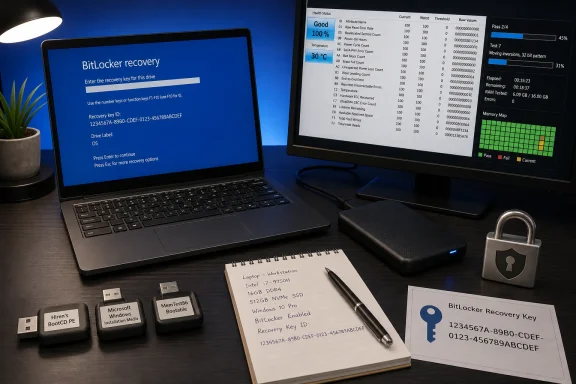 Hiren’s BootCD PE is useful, but it is not current Windows recovery media
Hiren’s BootCD PE remains the most flexible item in this type of kit because it starts a separate Windows Preinstallation Environment and carries an assortment of portable utilities for files, partitions, disks, browsers, networking, and system inspection. When the installed Windows copy cannot reach the desktop, that separation is valuable: it gives the technician a chance to copy data and inspect storage without continuing to boot from a suspect system drive.
How-To Geek recommends putting portable utilities on the Hiren’s drive, and that is a sensible way to avoid carrying a collection of single-purpose sticks. But Hiren’s own download page currently lists Hiren’s BootCD PE x64 version 1.0.8, dated March 2024. That does not make it unusable, but it does mean a drive created once and forgotten can contain old definitions, old browsers, and old utilities by the time an emergency arrives.
The Hiren’s project is also maintained by enthusiasts rather than Microsoft. Its PE environment should therefore be treated as a diagnostic and data-rescue workspace, not as a trusted substitute for Microsoft’s supported recovery path or for a clean Windows installer. Use it to back up user folders, collect SMART data, identify partitions, or run a vendor storage diagnostic. Be much more cautious about using a third-party boot toolkit to modify boot records, registry hives, or partitions without first preserving the user’s data.
There is a second compatibility issue. Hiren’s FAQ acknowledges that some images can run into Secure Boot problems on fully updated UEFI systems because boot components may be revoked. The only responsible preparation step is to boot the finished USB on a spare or noncritical system, verify that it reaches its desktop with Secure Boot enabled, and record what happened. Discovering that firmware will not start the drive while a production PC is down defeats the point of carrying it.
A Windows recovery drive and Windows installation USB serve different jobs
How-To Geek correctly advises keeping a Windows recovery drive ready, but it blurs recovery media and installation media together. Microsoft treats them as related but different tools, and the distinction changes what a technician should carry.
A recovery drive created through the built-in Recovery Drive utility can include files specific to the PC on which it was made, including installed updates and manufacturer customizations. Microsoft says this media can restore that device to a factory state even after a drive replacement or complete wipe. It is best regarded as machine-specific insurance, especially for an OEM laptop with vendor drivers and a custom recovery configuration.
Windows installation media created with Microsoft’s Media Creation Tool is the more broadly reusable option. It can reinstall a matching edition of Windows on another PC, and it provides a path to boot a non-working machine into setup and recovery options. It is the stick a family technician is more likely to need when helping multiple systems, provided it is recreated whenever a major Windows release changes.
Neither device protects personal data. Microsoft explicitly warns that a recovery drive does not include the user’s files, while a clean installation erases files, applications, manufacturer customizations, and settings. Before choosing Reset, Recover from a drive, or a clean reinstall, the correct first move is usually to copy the user profile, documents, photos, browser data where possible, and any business files to separate storage.
The current Windows 11 installation USB should have at least 8GB available when it is built, be labeled with its Windows version and creation date, and be periodically refreshed. Windows 10 support ended on October 14, 2025, so a technician maintaining an old Windows 10 installer should understand what it is: a compatibility recovery option for an unsupported operating system, not a route back to a supported security baseline.
BitLocker can stop every offline tool before the repair starts
The most important addition to the five-drive advice is a BitLocker recovery-key procedure. A modern Windows 11 laptop may encrypt its system drive by default, and booting into alternate recovery environments can leave the internal disk inaccessible until its 48-digit recovery password is supplied.
Microsoft’s BitLocker documentation says Windows Recovery Environment may demand that key when recovery is launched manually from removable repair media. Changing firmware settings or boot order can also trigger BitLocker recovery. In other words, selecting the USB stick as the boot device can itself introduce an authentication step the person doing the repair cannot bypass.
For personally owned systems, the owner should confirm where the recovery key is stored before anything breaks. For work devices, it may be escrowed in Microsoft Entra ID or Active Directory, with access controlled by IT. The recovery key is sensitive: putting a text copy on the same unencrypted USB toolkit that anyone can pick up is poor practice. Store it in the owner’s Microsoft account, a managed enterprise directory, a password manager, or another separately protected location.
This is also why a toolkit needs a handwritten—or securely stored—device record. Include the PC model, Windows edition, whether BitLocker is enabled, whether the machine uses a Microsoft account or a work account, and where recovery information is held. The contents do not need to be elaborate. They need to be available when the display only shows a BitLocker recovery screen.
CrystalDiskInfo and MemTest86 diagnose; they do not prove a single cause
CrystalDiskInfo earns a place on a portable drive because it makes drive-provided SMART telemetry readable. Its official documentation says a Caution state can indicate unstable sectors or other early warning signs, and a Bad state means critical thresholds have been crossed. When those warnings appear, the immediate job is backup and replacement planning—not another round of Windows repair.
Still, SMART is an early-warning system, not a clean bill of health. A drive can freeze under load, drop off the bus, or produce file-system corruption without presenting an obvious red flag in a summary screen. Conversely, a warning can identify the attribute that needs attention without proving that every observed crash came from storage. A good workflow records the detailed SMART values, checks the drive manufacturer’s diagnostic where available, and copies data before running any extended test that could stress marginal hardware.
MemTest86 performs a similarly important narrowing job for unexplained instability. PassMark’s current free MemTest86 release boots independently of Windows and supports current UEFI systems, including modern DDR5-era hardware. The vendor’s current Version 11.7 image is UEFI-only, however. Older legacy BIOS systems need the older Version 4 release instead, a compatibility point absent from many generic “keep this on a USB” recommendations.
A memory-test error is serious evidence, but it does not automatically identify the DIMM that should be replaced. Reseat memory, remove overclocks and XMP or EXPO profiles where appropriate, test modules one at a time, and consider motherboard slots and CPU memory-controller stability. PassMark also documents cases where parallel testing can produce false positives on a small number of systems, so a result worth acting on should be recorded and, where practical, repeated under a simpler configuration.
AdwCleaner is a cleanup tool, not an incident-response verdict
AdwCleaner is the least complicated item in the set and perhaps the easiest to misuse. Malwarebytes positions it as a Windows utility for adware cleaning, and it remains helpful for browser hijackers, unwanted search changes, bundled software, and potentially unwanted programs. It does not need a conventional installation, though Malwarebytes notes that it still writes some files to the local machine.
A detection for a potentially unwanted program is not equivalent to finding credential-stealing malware or a remote-access trojan. Review the scan results before cleaning, preserve logs, and avoid claiming that a single cleanup has made a system safe. For a browser issue, also examine browser extensions, policy settings, proxy configuration, scheduled tasks, and newly installed applications. If a machine shows signs of account compromise, the response must include password resets from a known-clean device and review of the affected accounts—not merely removal of a toolbar or redirector.
The practical toolkit can therefore remain small:
- Keep a tested Hiren’s BootCD PE drive for data rescue and hardware inspection, but update it deliberately rather than treating it as permanent media.
- Keep current Microsoft Windows installation media separate from a recovery drive created for a particular PC.
- Store a tested copy of MemTest86 appropriate for the hardware’s UEFI or legacy BIOS requirements.
- Carry portable diagnostics such as CrystalDiskInfo and AdwCleaner, while recognizing that their output guides the next step rather than completing the repair.
- Maintain verified backups and separately protected BitLocker recovery information for every system likely to need help.
A USB stick full of tools is valuable when it prevents guesswork. The item that saves the most data, though, is often the one outside the kit: a current backup and a recovery key available before anyone changes the boot order, opens a partition tool, or starts a reinstall.
