
The distinction matters most for freezes, failed launches, broken Settings pages, or malfunctioning hardware after Patch Tuesday. A repair command can restore damaged protected files, but it cannot make a bad display driver stable, undo a newly installed cumulative update, fix a failing SSD, or remove unwanted software. Starting with the least destructive, most easily reversible action preserves both evidence and working configuration.
Microsoft’s recovery documentation supports that hierarchy: it lists uninstalling a recent update for a PC that began failing after an update, System Restore for trouble after recent software or configuration changes, and installation media after those recovery paths are exhausted or unavailable.
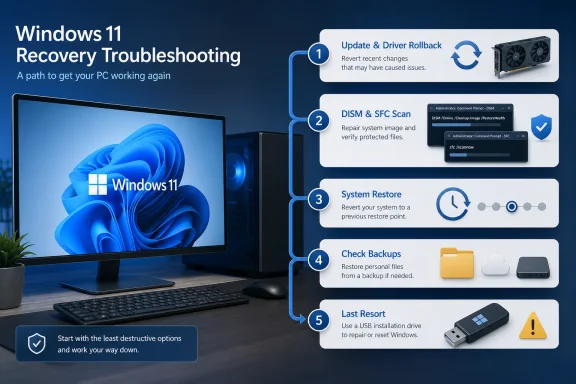 Start with the change that preceded the failure
MakeUseOf correctly points users toward uninstalling Windows updates and rolling back device drivers, but this should be the first branch in the process when there is a clear timeline. If a machine froze for the first time immediately after a cumulative update, a graphics driver installation, a storage-controller update, or an application deployment, treating the event as generic “Windows corruption” skips the strongest clue.
For Windows updates, open Settings > Windows Update > Update history > Uninstall updates and identify the update installed just before the problem began. Microsoft confirms that some updates cannot be removed, and warns that uninstalling a security update carries risk. That risk is real: removing a cumulative update can reopen vulnerabilities fixed by that package. But a system that cannot work reliably is not protected in any useful sense, so the right response is to remove the suspected update, restore normal operation, and then watch for Microsoft’s corrected replacement.
If the PC cannot reach the desktop, Windows Recovery Environment offers the same general remedy through Troubleshoot > Advanced options > Uninstall Updates. That is a more useful escape route than a reinstall USB because it keeps the existing operating system, applications, and user profile in place while reversing one recent servicing change.
Driver rollback is narrower and often safer when the failure is tied to a particular device. Microsoft’s documented route remains Device Manager > device Properties > Driver > Roll Back Driver, with administrator rights required. The button may be unavailable when Windows has no previous driver package to restore, which is why IT administrators should keep known-good OEM driver packages available for critical hardware rather than rely on Windows Update as the only source.
The key is specificity. A black screen after a GPU driver update, disappearing Wi-Fi after a wireless driver deployment, or boot failures after a storage driver change are driver cases. A broad inability to launch built-in Windows components is more likely to justify system-file repair. Treating every fault the same leads to long scans that never had a credible chance of fixing the actual cause.
DISM and SFC repair different layers of Windows
The MakeUseOf article recommends running DISM /Online /Cleanup-Image /RestoreHealth before sfc /scannow, and that is the conventional, supported order when Windows system-file corruption is genuinely suspected.
System File Checker examines protected operating-system files in the installed Windows instance. When it finds a modified or damaged protected file, it attempts to replace it with a correct copy. DISM works one layer underneath by checking and repairing the Windows component store—the servicing source SFC depends on for replacements. If that source is damaged, SFC can report corruption it cannot repair or restore the wrong outcome only partially.
Run both from an elevated Windows Terminal or Command Prompt:
DISM /Online /Cleanup-Image /RestoreHealth
sfc /scannow
There is an operational catch that consumer guides often omit: DISM is not a universal offline repair command. For an online Windows installation, it may use the configured Features on Demand repair source, which in many consumer setups means Windows Update. On managed PCs, Group Policy, WSUS configuration, a blocked Windows Update connection, proxy rules, or an unavailable source can make RestoreHealth fail even though the syntax is correct.
Microsoft’s DISM documentation supports supplying a known-good repair source and using /LimitAccess when administrators need to prevent fallback to Windows Update. That is valuable in enterprise environments, but the source must match the installed Windows version, language, and servicing level closely enough to supply compatible components. Pointing DISM at a random ISO, a different feature release, or an old installation USB can turn a straightforward repair into an unproductive error hunt.
For home users, a successful DISM run followed by an SFC result stating that it found no integrity violations means only that protected system files are intact. It does not clear the RAM, disk, driver, firmware, application, or malware layers. If freezing continues after both commands return clean results, repeating them is usually wasted time. Check Reliability Monitor, Event Viewer, storage health, temperatures, and the recent-change timeline instead.
System Restore remains useful, but it is not a backup
System Restore is the strongest of the three remedies when a software installation, driver deployment, registry change, or update altered the machine and a usable restore point predates the problem. It rolls back system files, registry settings, and installed programs without ordinarily changing personal documents, photos, and other user files.
That does not make it consequence-free. Applications installed after the chosen restore point can be removed or damaged by the rollback, and updates installed after the point can disappear as well. Microsoft explicitly recommends checking Windows Update afterward because restoring a system can roll back recent security fixes. Users should also save current work and back up irreplaceable files before beginning any recovery action; “personal files are not affected” is not a substitute for a backup when the system is already unstable.
The important qualification to MakeUseOf’s account is that the author’s enabled System Restore configuration is not a baseline readers can safely assume. Microsoft now distinguishes legacy System Restore from its newer Point-in-time restore experience. On unmanaged Windows systems with an OS drive of at least 200 GB, Microsoft says Point-in-time restore is enabled by default; it remains disabled by default on IT-managed devices, while Windows 11 version 26H2 is set to enable the newer feature by default more broadly.
That newer recovery option is materially different from classic System Restore. Microsoft describes it as restoring the OS, applications, settings, and files on the Windows drive to an earlier point, with restore points typically retained for up to 72 hours. Classic System Restore is more targeted: it restores system files and settings and leaves personal files alone. Administrators and power users should not confuse the two just because both use the language of restore points.
Before a problem occurs, check Settings > System > Recovery for Point-in-time restore on supported Windows 11 builds, and search for Create a restore point to inspect classic System Protection. If neither mechanism has a restore point from before the incident, neither can rescue the machine. Recovery features only help when they were enabled—and had time and space to create a usable checkpoint.
Reinstalling Windows has a middle ground
The choice is not limited to “run repair commands” or “wipe the computer.” Microsoft’s current recovery guidance includes a less disruptive Windows 11 option, Fix problems using Windows Update, which reinstalls the current version of Windows while preserving apps, documents, and settings. It is a notable omission from the three-repair checklist because it can be appropriate when the operating system itself appears damaged but the user wants to avoid the cleanup burden of a conventional installation-media rebuild.
Reset this PC is another intermediate option, although it removes installed applications and resets settings even when the user chooses to keep personal files. Both approaches still demand a backup. A failing drive, unexpected power loss, encryption issue, or a mistake selecting a recovery option can turn a supposedly non-destructive repair into data recovery work.
A clean installation from USB remains appropriate when Windows is compromised, unbootable with no viable recovery path, persistently corrupted after repair attempts, or burdened by problems that cannot be isolated. It is also appropriate after hardware faults have been addressed, not before. Reinstalling onto a failing SSD may produce a brief illusion of success followed by the same failures and another lost day.
The durable lesson from MakeUseOf’s experience is not that three commands and menus can always save a broken PC. It is that Windows recovery works best when each action is tied to a suspected cause: reverse the recent update or driver first, repair the servicing stack and protected files when evidence points there, and use restore points only with full awareness of what they will roll back. Installation media should stay available—but it should no longer be the reflexive first response.
