
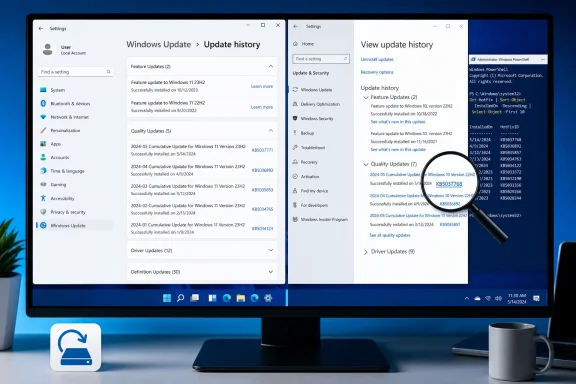
 Overview: What Windows Update History Actually Tells You
Update history is a local record of Windows Update activity on the device in front of you. It is useful for confirming that a particular update installed and identifying the matching Knowledge Base (KB) number that Microsoft uses in release notes, known-issue documentation, and standalone packages.
That scope is important. Update history is not a complete forensic ledger of every system change, every Microsoft Store app update, or every driver deployment from a hardware vendor. Nor is it a replacement for enterprise reporting in a managed fleet. It is the best first-stop view for normal Windows servicing on an individual PC.
Microsoft separates Windows servicing into broad update types. Feature updates typically introduce a new Windows release and functionality, while quality updates arrive more frequently and principally deliver security fixes, reliability changes, and smaller improvements. A single quality update can also contain prior fixes, which is why seeing the latest successful cumulative update is often more useful than trying to install a long backlog of older ones manually. Microsoft Support
The practical strength of the Windows Update history page is its simplicity:
- It shows whether a Windows-delivered update installed.
- It shows the date Windows recorded for installation.
- It exposes KB numbers that can be searched against Microsoft documentation.
- It provides a direct route to the uninstall screen for eligible updates.
- It keeps normal update investigation inside Settings rather than requiring administrative tools.
Its limitation is equally clear: the page is a starting point, not a complete servicing database. A missing entry in a PowerShell command does not necessarily mean an update never installed, just as a result in a servicing-package query does not always map neatly to the friendlier Settings history view.
View Update History in Windows 11
Windows 11 places update controls under a dedicated Windows Update category in Settings. The direct path is short and should be familiar to anyone who routinely checks update status.
- Open Start.
- Select Settings.
- Choose Windows Update.
- Select Update history.
Microsoft documents this as the standard route for seeing installed Windows updates and the date on which they were applied. Microsoft Support
Expand Every Category Before Assuming an Update Is Missing
The Windows 11 update history screen presents information in grouped sections rather than as one flat timeline. Depending on the device and update mix, these can include:
- Quality Updates
- Driver Updates
- Definition Updates
- Other Updates
- Feature Updates
That organization is useful, but it can also create confusion. A user hunting for a security cumulative update may look only at the first visible group, while a driver or platform component update appears elsewhere in the list. Expand relevant categories before concluding that Windows did not install an update.
For routine support work, note three details:
- The KB number, such as
KB50xxxxx. - The installation date shown in the local history.
- The update classification, especially whether it is a cumulative quality update, driver update, or feature update.
Those three pieces of information provide enough context to look up Microsoft’s official release notes, assess whether the update is related to an issue, and determine whether a rollback option is likely to exist.
The Fastest Windows 11 Shortcut
Instead of navigating through Settings manually, press Windows key + R, type the following command, and select OK:
ms-settings:windowsupdate-history
Microsoft’s Settings URI reference explicitly lists ms-settings:windowsupdate-history as the URI for Windows Update — View update history. It is a particularly useful shortcut for help desk scripts, remote-support instructions, or users who need to reach the page quickly without remembering the Settings layout. Microsoft Learn
The URI approach is elegant because it opens the relevant Windows Settings page rather than a look-alike Control Panel view or a generic Windows Update landing page. However, organizations can limit access to Settings pages through policy, so a managed device may not expose every option in the same way as a personal PC. Microsoft Learn
View Update History in Windows 10
Windows 10 uses the older Settings category structure. The destination is functionally similar, but the route includes the former Update & Security section.
- Open Start.
- Select Settings.
- Choose Update & Security.
- Select Windows Update.
- Choose View update history.
Microsoft continues to document this Windows 10 path alongside the Windows 11 method for devices still running the operating system. Microsoft Support
The terminology difference between Windows 10 and Windows 11 matters when giving instructions to another person. Telling a Windows 10 user to open Settings > Windows Update can be ambiguous because their Settings app retains the broader Update & Security category. Conversely, Windows 11 users will not find the old Windows 10 category name.
Windows 10 Support Status Changes the Context, Not the Navigation
Microsoft’s free Windows 10 support ended on October 14, 2025. The operating system still runs, and the update-history screen remains relevant for systems covered by extended servicing arrangements or other supported contexts, but the end of free support makes it more important to understand what a listed update represents and what servicing channel the PC uses. Microsoft Support
For Windows 10 users, history review is especially valuable when verifying a managed update, checking the last security patch date, or documenting a problem before contacting an IT administrator. It should not, however, be treated as proof that a device is fully protected; the Windows version, servicing status, security software, and management policy all matter.
The same Run command works where supported:
ms-settings:windowsupdate-history
Because Microsoft documents the URI rather than limiting it to a single release, it is the cleanest cross-version shortcut for reaching the local update history page. Microsoft Learn
Use Update History to Identify a Problematic Update—Not to Remove Updates Casually
A common mistake is treating Windows Update history as an invitation to remove anything recent. It is better understood as a diagnostic record. If a problem began after a specific update, the history page helps establish the timeline and gives the update’s KB number, which can then be checked against Microsoft’s release notes and known issues.
To open the uninstall view in Windows 11:
- Open Settings.
- Go to Windows Update.
- Select Update history.
- Choose Uninstall updates.
- Select the eligible update.
- Select Uninstall.
Windows 10 follows the equivalent route:
- Open Settings.
- Select Update & Security.
- Open Windows Update.
- Choose View update history.
- Select Uninstall updates.
- Choose an update and select Uninstall.
Microsoft cautions that not all updates can be removed and does not recommend uninstalling updates unless it is necessary. Microsoft Support
Why Uninstall Is Not a General Maintenance Tool
Removing a recent security or cumulative update can be the right response when there is a reproducible compatibility failure, a confirmed driver conflict, or a boot issue tied to a new patch. But it has real trade-offs:
- The PC may lose security fixes included in that cumulative update.
- The removed update can return through normal servicing unless the underlying issue is resolved.
- The apparent culprit may only have exposed an older hardware, software, or configuration problem.
- Some updates—particularly foundational servicing components—are not available for removal.
A safer workflow is to record the KB number, compare it with Microsoft’s documentation, verify the timing, and remove it only when the evidence is strong enough to justify the security and stability risk. Microsoft’s own guidance explicitly frames uninstallation as a remedy for update-related errors, not an everyday optimization step. Microsoft Support
Reinstall Before Escalating on Windows 11
Windows 11 also includes a recovery option that can reinstall the current Windows version while keeping apps, files, and settings. Under Settings > System > Recovery, the Fix problems using Windows Update option can repair Windows system files and components by reinstalling the same version already on the PC. Microsoft Support
That option is not a replacement for update history, but it changes the troubleshooting calculus. When the issue looks like servicing corruption rather than a bad individual update, reinstalling the current version can be less disruptive than removing patches one by one.
When Windows Will Not Boot: Use Windows Recovery Environment
If Windows cannot start normally after an update, there is no opportunity to browse Settings history first. This is where Windows Recovery Environment (Windows RE or WinRE) becomes the appropriate tool.
From Windows RE, the general route is:
- Select Troubleshoot.
- Open Advanced options.
- Select Uninstall Updates.
- Choose the appropriate rollback action for the latest update.
Microsoft documents Windows RE as a route to uninstall a recent update when the normal Windows desktop is unavailable. Microsoft Support
The key distinction is that WinRE is a recovery interface, not a history viewer. It is designed to help restore bootability by removing the latest applicable update, rather than presenting a complete chronological inventory of every installation.
Feature-Version Rollback Is Different From Removing a Quality Update
A feature update moves Windows to a newer release. If that release causes compatibility or stability issues, Windows may offer a Go back option from within the installed operating system:
Settings > System > Recovery > Go back
Microsoft says this rollback opportunity is generally available for a limited period after an upgrade—commonly 10 days—and depends on retaining the required previous-installation files. It preserves personal files but removes applications, drivers, and Settings changes made after the upgrade. Microsoft Support
This is a broader intervention than removing a monthly cumulative update. A quality-update uninstall targets a servicing change within the current Windows version; Go back returns the PC to its prior Windows version. The distinction matters when analyzing history, because a feature update entry may be relevant even when the immediate complaint appears to involve a smaller monthly patch.
Use PowerShell and Command Prompt for Audits, Not as a Replacement for Settings
The Settings history page is best for everyday local investigation. Command-line tools are valuable when a support technician needs structured output, remote inventory, scriptable checks, or a deeper view of component servicing.
PowerShell: Check Installed Hotfixes
Open Windows PowerShell and run:
Get-HotFix
To put the newest reported entries first:
Get-HotFix | Sort-Object InstalledOn -Descending
Microsoft documents Get-HotFix as a Windows-only cmdlet that uses the Win32_QuickFixEngineering WMI class to list installed hotfixes on the local computer or specified remote computers. Microsoft Learn
For a direct CIM query, use:
Get-CimInstance -ClassName Win32_QuickFixEngineering
Microsoft also documents that query as a way to list installed hotfixes. Microsoft Learn
Why PowerShell Results Can Differ From Update History
This is the most important caveat in command-line update checking: Get-HotFix is not a universal history command. Microsoft notes that Win32_QuickFixEngineering represents updates supplied by Component Based Servicing (CBS) and does not return every update sourced through Microsoft Windows Installer (MSI) or Windows Update. Microsoft Learn
That explains a frequent troubleshooting contradiction: Settings may list an update that Get-HotFix does not, or the command output may not resemble the categorized history shown in the Windows Update interface. Neither view is automatically “wrong”; they are reporting through different servicing lenses.
For practical purposes:
- Use Settings to see the consumer-facing Windows Update history.
- Use Get-HotFix or
Get-CimInstancefor hotfix-oriented checks and scripts. - Use servicing-package tools when investigating component-store state.
- Avoid comparing raw command-line output to Settings line by line.
DISM and System Information
For a broad look at servicing packages, open an elevated Command Prompt and run:
Dism /Online /Get-Packages
DISM package enumeration is more technical than Settings history and may produce a large list. Microsoft’s DISM documentation describes the corresponding package query capability as a way to retrieve information about packages in an online running operating system or an offline Windows image. Microsoft Learn
Another lightweight inventory command is:
systeminfo
Review the Hotfix(s) section, but treat it as an inventory aid rather than the authoritative replacement for the Settings page. It is best suited to quick evidence gathering in a support session.
Do Not Build New Workflows Around WMIC
Older troubleshooting guides often recommend commands such as wmic qfe. That advice is increasingly obsolete. Microsoft states that the Windows Management Instrumentation Command-line (WMIC) utility has been deprecated since Windows 10 version 21H1, while WMI itself remains unaffected and PowerShell is the recommended replacement. Microsoft Learn
The transition is more than theoretical: Microsoft says WMIC is uninstalled when Windows 11 version 25H2 is installed, although it can be restored through optional features or DISM and is not recommended for future-facing workflows. Microsoft Learn
Use Get-CimInstance or Get-HotFix instead. That approach aligns with current Microsoft guidance and avoids scripts that work on one machine but fail on a newer Windows 11 installation.
Match the Local KB Number With Microsoft’s Release Documentation
A KB identifier bridges the gap between “something installed on Tuesday” and a meaningful technical explanation. After copying a KB number from Update history, use Microsoft’s release-history documentation to determine:
- The Windows version and OS build affected.
- Security and reliability changes included.
- Known issues and mitigation details.
- Prerequisites or servicing-stack considerations.
- Whether an out-of-band update or later cumulative update supersedes it.
Microsoft’s Windows release-history pages describe available updates for a particular version and link to details, including release notes and known issues. For example, the Windows 11 version 25H2 history explains that selecting an update exposes additional details and that the newest update includes previous important security fixes. Microsoft Support
This distinction prevents a common error: treating a local installation record as if it were Microsoft’s full public release record. Local history answers what installed on one PC. Release history answers what Microsoft shipped for that Windows version.
Use Microsoft Update Catalog for Manual Packages, Not Local History
The Microsoft Update Catalog is useful when a KB number must be downloaded manually, whether for offline servicing, controlled deployment, or a targeted repair. Microsoft says the catalog can be searched by title, description, applicable products, classifications, and Knowledge Base article number. Microsoft Update Catalog
To locate a package:
- Open Microsoft Update Catalog.
- Enter the full KB number.
- Confirm the Windows version, architecture, and update classification.
- Select Download for the correct package.
Microsoft’s standalone-installer guidance specifically notes that Catalog users can search for a KB number and use the Download button for the applicable architecture. Microsoft Support
The risk here is selecting the wrong package. A similar KB title can have separate downloads for x64, ARM64, Windows client, Windows Server, dynamic updates, or other product variants. Always match the package to the installed Windows release and hardware architecture. Manual installation should be deliberate, especially where cumulative-update checkpoint requirements apply.
Managed PCs and Surface Devices Need a Slightly Different Reading
On a personal PC, Settings > Windows Update > Update history remains the correct first view. On a work or school device, the local record may not tell the entire operational story because update policy, deployment rings, compliance reporting, deferrals, and deadlines can be controlled centrally.
Windows Update for Business reporting, for example, relies on permissions and services across Microsoft Entra ID or Intune, Azure resources, and Microsoft 365 administration. That makes it an administrator reporting workflow rather than a substitute for a user checking one PC in Settings. Microsoft Learn
Surface owners have an additional consideration: firmware. Microsoft recommends using the Surface app > Help & support section to check driver and firmware update status. The company also states that Surface firmware updates cannot be uninstalled or reverted to an earlier version. Microsoft Support
That makes careful identification more important on a Surface device. If a history entry corresponds to firmware rather than an ordinary Windows quality update, the normal “uninstall the latest update” instinct may not apply.
A Practical Windows Update History Workflow
For most Windows 11 and Windows 10 problems, use a disciplined sequence rather than jumping immediately to rollback tools.
- Open Update history through Settings or
ms-settings:windowsupdate-history. - Expand the categories and identify the most recent relevant entry.
- Record the KB number, update type, and installation date.
- Check Microsoft’s release information for the matching update and its known issues.
- Reproduce or verify the timeline before tying the update to the failure.
- Use Uninstall updates only when necessary and only for an eligible update.
- Use WinRE if Windows will not boot.
- Use PowerShell, CIM, DISM, or enterprise reports when the situation requires an audit beyond the Settings view.
The enduring value of Windows Update history is not that it provides every possible servicing detail. It is that it gives users a clear, local, and understandable starting point. On Windows 11, the path is Settings > Windows Update > Update history; on Windows 10, it is Settings > Update & Security > Windows Update > View update history. From there, KB numbers, release notes, recovery tools, and command-line checks can turn a vague “the update broke something” report into a specific and defensible troubleshooting path.
