
A recent How-To Geek walkthrough highlights the practical PowerShell and Registry-based fixes behind those changes. The commands are short, reversible, and useful for experienced Windows users who want a desktop that feels less like a curated Microsoft surface and more like a tool they control.
That distinction matters. Windows 11 is not uniquely hostile to customization; in many areas, it is remarkably configurable. The problem is that some high-friction defaults remain buried behind keyboard shortcuts, policy values, packaged components, or command-line tooling rather than appearing as clear choices in Settings.
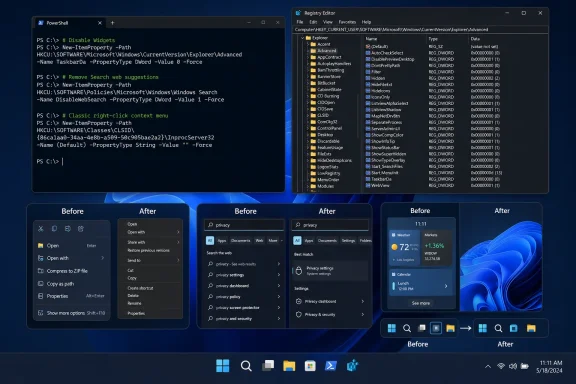 Overview: Three Small Frictions That Add Up
The three annoyances addressed here are not catastrophic bugs. Windows 11 remains a capable platform for work, gaming, development, and general computing. But desktop operating systems are used through muscle memory, and a single extra click or unwanted search result repeated dozens of times a day can make the interface feel needlessly resistant.
The changes fall into three distinct categories:
- Restoring the classic context menu removes the extra “Show more options” step introduced in Windows 11.
- Disabling web suggestions in Search prioritizes local apps, settings, and files over internet-oriented results.
- Removing the Windows Web Experience Pack goes beyond hiding the Widgets icon and uninstalls the component powering the Widgets board.
Each solution uses a different Windows mechanism:
- A per-user Registry class override for the context menu.
- A per-user policy Registry value for Search-related suggestions.
- The Windows Package Manager—better known through the
wingetcommand—to uninstall a Windows-delivered package.
That mixture is revealing. A user-facing preference, a policy control, and a package-management action all accomplish things that many enthusiasts would reasonably expect to find in one coherent personalization experience.
A Sensible Safety Baseline Before Changing Windows
These are modest tweaks, but they still modify the Registry or remove a Windows component. That means the safest approach is not to treat PowerShell as mysterious or dangerous—it is to treat commands as precise instructions whose effects should be understood before execution.
Microsoft’s own documentation describes reg as the command-line toolset for adding, deleting, importing, exporting, and querying Registry data in Windows. The reg add and reg delete commands used here are native Windows tools, not third-party hacks. Microsoft’s reg command reference also confirms that Registry deletion can remove either values or complete subkeys, which is why copying commands exactly is important.
Before proceeding:
- Use an account with administrator rights where a command requires elevation.
- Copy commands exactly, including quotation marks and braces.
- Close unsaved work before restarting Explorer or Windows.
- Keep the matching undo command with the original command.
- On a work-managed computer, assume that organizational policy may override or later replace personal changes.
A quick Registry backup is also prudent for anyone who prefers a recovery point beyond the reverse command:
reg export "HKCU\Software\Classes\CLSID" "$env:USERPROFILE\Desktop\CLSID-backup.reg"
This backup is broader than the single context-menu key discussed below, so users should store it safely and avoid importing it casually. The more restrained approach is simply to use the documented reversal commands in each section.
Restore the Full Windows 11 Right-Click Menu
Windows 11’s streamlined context menu was intended to reduce visual clutter and foreground common actions such as Copy, Paste, Rename, Share, and Delete. The cost is that many long-standing commands, including entries supplied by applications, file utilities, and legacy shell extensions, are now placed behind Show more options.
Microsoft’s own community support material acknowledges the fallback: users can select Show more options or use Shift + right-click to reveal the extended menu. A Microsoft Q&A discussion describes precisely that behavior. For occasional use, the shortcut is fine. For people whose workflows depend on context-menu extensions, however, it adds an avoidable interruption to a highly frequent action.
Why the classic menu still has an audience
The classic context menu remains appealing because it is information-dense and predictable. It can surface commands from archivers, version-control clients, image tools, cloud-storage sync services, developer environments, and security software without requiring another click.
The newer menu is not inherently wrong. On touch devices, compact systems, or machines with a minimal selection of installed software, it can be cleaner and easier to scan. But Windows is also used by power users with layered desktop workflows, and the old menu’s advantage is not nostalgia—it is immediacy.
The PowerShell command
Open PowerShell or Windows Terminal as administrator and run:
reg add "HKCU\Software\Classes\CLSID\{86ca1aa0-34aa-4e8b-a509-50c905bae2a2}\InprocServer32" /f /ve
This creates a Registry entry under HKEY_CURRENT_USER, abbreviated as HKCU. That scope matters because the change applies to the currently signed-in user rather than every account on the PC.
The command uses the built-in reg add utility, and the /ve parameter targets the key’s default unnamed value. Windows accepts Registry additions and deletions through this native command interface, as outlined in Microsoft’s Registry command documentation.
Apply the change by restarting Explorer
The change will not necessarily appear until Windows Explorer reloads. A full reboot works, but restarting Explorer is quicker:
Stop-Process -Name explorer -Force
The desktop, taskbar, and File Explorer windows will briefly disappear and then restart automatically. Microsoft’s PowerShell documentation notes that stopping a process outside the current user’s ownership can require an elevated session, reinforcing why opening an administrator terminal is the safest approach for this workflow. The Stop-Process reference also explains the permissions implications of process termination.
After Explorer returns, right-click a file, folder, or blank area of the desktop. The full traditional menu should appear directly.
How to undo the classic-menu tweak
To restore Windows 11’s condensed context menu, run:
reg delete "HKCU\Software\Classes\CLSID\{86ca1aa0-34aa-4e8b-a509-50c905bae2a2}" /f
Then restart Explorer again:
Stop-Process -Name explorer -Force
Microsoft documents the reg delete syntax, including the /f switch that suppresses the deletion confirmation prompt, in its official reg delete reference.
The risk: an effective but unofficially fragile preference
The central caveat is that this is a Registry-based shell behavior change, not a clearly supported toggle in Windows 11 Settings. The technique has remained popular because it works reliably for many installations, but Microsoft can alter Explorer or context-menu loading behavior in future feature updates.
That does not make the tweak reckless. It simply makes it a configuration that should be revisited after major Windows updates. If it stops working, users can remove the key cleanly rather than stacking additional shell-modification tools on top of it.
Stop Windows Search From Turning Local Queries Into Web Searches
The second tweak addresses a more philosophical Windows 11 complaint: Search is often used to find something on the PC, yet the interface may inject online suggestions and Bing-oriented results into that task.
When someone presses the Windows key and types the name of an application, control-panel item, file, or setting, the desired result is usually local and immediate. Search suggestions can be useful for users who deliberately want a web lookup, but they can make the Start menu feel less focused when the intent is simply to launch Notepad, find a document, or open a system setting.
The policy-backed Registry value
The proposed command creates a DisableSearchBoxSuggestions policy value for the current user:
reg add "HKCU\Software\Policies\Microsoft\Windows\Explorer" /v DisableSearchBoxSuggestions /t REG_DWORD /d 1 /f
Sign out and sign back in, or restart Windows, after running it.
This is not an arbitrary Registry path. Microsoft’s Policy CSP documentation lists DisableSearchBoxSuggestions as a user-scoped Windows Explorer policy at Software\Policies\Microsoft\Windows\Explorer. Microsoft’s ADMX Windows Explorer policy reference identifies both the policy name and the Registry location.
That official policy mapping is important. It means the change uses a Windows policy mechanism rather than relying solely on a hidden Explorer preference.
What the command changes—and what it may not
The practical goal is to suppress web-style suggestions when searching. Yet it is worth being precise: Microsoft’s current policy documentation labels DisableSearchBoxSuggestions as a control for search-box suggestions in Explorer. It is therefore best understood as a policy-based reduction of search suggestions, rather than a universal guarantee that every version, channel, or future revision of the Windows 11 Start Search experience will eliminate all Bing-related content.
Microsoft separately documents enterprise privacy policies that can restrict web search and web results through values such as DisableWebSearch and ConnectedSearchUseWeb. Those policies live under a different Windows Search Registry branch and are aimed at managed deployment scenarios. Microsoft’s Windows privacy policy documentation lists those settings and their values.
For personal PCs, the DisableSearchBoxSuggestions command is the less invasive tweak described in the original walkthrough. It targets the current user and is easily reversed. But users should not confuse it with a comprehensive enterprise configuration that changes every connected-search behavior across Windows.
Undo the Search change
To remove the value and return to the default behavior:
reg delete "HKCU\Software\Policies\Microsoft\Windows\Explorer" /v DisableSearchBoxSuggestions /f
Sign out and back in, or restart the PC.
This reversibility is a major strength. Rather than installing a permanent Start-menu replacement or a tool that hooks into Search behavior, the command adds one policy value and deletes it when no longer wanted.
Why the missing Settings toggle is the real issue
The technical workaround is simple. The product-design issue is not.
Windows 11 already offers a substantial set of Search and privacy controls, and enterprise administrators can manage much more through Group Policy, MDM, and policy Registry values. But ordinary users should not need to know the difference between HKCU, HKLM, Explorer policies, and Search policies to express a straightforward preference: when I search for something on my device, prioritize device results.
That preference should be clear in Settings, described in plain language, and easy to reverse. A policy-backed configuration is powerful, but it is not a substitute for a discoverable personal-choice control.
Remove Widgets Rather Than Merely Hide Them
Widgets are the clearest example of the difference between visual decluttering and feature removal.
Windows 11 lets users turn off the Widgets item in the taskbar. Microsoft’s support documentation explains that this is done from taskbar settings by toggling Widgets on or off. Microsoft’s Widgets support page also makes an important point: hiding the taskbar entry does not make the Widgets board inaccessible, because it can still be opened with Windows key + W or a side swipe.
For users who simply dislike the taskbar button, that is perfectly adequate. For users who want the board, feed, and associated web-focused experience removed, it is only a partial solution.
What Widgets are designed to do
Microsoft describes Widgets as dynamic cards that can show weather, news, traffic, stocks, photos, and other app-related information. The experience is designed for glanceable updates and quick actions rather than replacing full applications. Microsoft’s overview of Widgets also explains that the board can be accessed through the taskbar, the Win + W keyboard shortcut, or touch gestures.
That design has genuine benefits:
- Weather and traffic cards can be convenient.
- Sports and finance updates can be useful at a glance.
- App widgets offer a lightweight dashboard model.
- Notifications and announcements can surface time-sensitive information.
The downside is that not every user wants dynamic news, feeds, alerts, and web-linked content integrated into the desktop shell. Some prefer a quieter taskbar and choose dedicated apps or websites when they actively want information.
Uninstall the Windows Web Experience Pack
To remove the component rather than simply hide the button, open an elevated PowerShell window and run:
winget uninstall "Windows Web Experience Pack"
Then restart Windows.
winget is Microsoft’s command-line client for the Windows Package Manager, which can discover, install, upgrade, configure, and remove applications on Windows client PCs. Microsoft’s WinGet overview describes the tool as the package-management command-line interface, while the official winget uninstall documentation explains that the command removes a specified installed package.
Microsoft support personnel have also provided the same winget uninstall "Windows Web Experience Pack" instruction in answers addressing Widget removal and repair. A Microsoft Q&A response from Microsoft external staff pairs that uninstall command with the corresponding reinstall command.
Reinstall Widgets later
If the experience is missed or a Windows feature later depends on it, reinstall the package with:
winget install 9MSSGKG348SP
Then restart Windows.
The package identifier is more specific than the display name, which can be useful if a command returns an ambiguity prompt. Microsoft’s winget install documentation explains that package installation can be targeted by identifiers and other filters, while its uninstall documentation similarly notes that --id, --name, and exact matching options can help resolve package selection. Microsoft’s WinGet install command guide and uninstall command guide outline those options.
A more explicit reinstall variant is:
winget install --id 9MSSGKG348SP
The risk: Widgets are not the only web-facing surface
This is the tweak that deserves the most caution. The Windows Web Experience Pack is not merely a cosmetic taskbar icon. It powers Widgets and can support other web-based Windows experiences, depending on the Windows 11 version and Microsoft’s evolving component design.
That does not mean uninstalling it will damage Windows in normal use. Microsoft support answers have used the uninstall-and-reinstall sequence as a way to repair Widgets. But it does mean the action should be treated as a package removal, not as an on/off switch for one isolated button. Microsoft Q&A guidance explicitly uses the component’s uninstall and reinstall commands in a Widget troubleshooting context.
For users who merely want less distraction, the lower-risk option is to:
- Turn off the Widgets taskbar entry.
- Disable Widgets opening on hover.
- Turn off taskbar badges and announcements.
- Remove or hide individual cards and feeds.
Microsoft documents all of these controls on its Widgets support page, including taskbar removal, hover behavior, and notification settings. Microsoft’s Widgets configuration guidance is the better first stop for users who want a quieter desktop without uninstalling a component.
PowerShell Is the Delivery Mechanism, Not the Point
It is easy to frame these fixes as proof that PowerShell is intimidating or that Windows customization is reserved for experts. That is not quite right. In all three cases, the command line is simply the most direct way to reach an underlying Windows capability:
reg addcreates a specific Registry configuration.reg deleteremoves it cleanly.Stop-Processreloads Explorer so a shell change takes effect.winget uninstallremoves a package.winget installrestores it.
The commands are approachable because they are narrow. No scripting knowledge is required to paste a known-good command, observe the result, and retain the reversal command.
The broader lesson is that Windows 11’s real customization gap is not a lack of technical capability. The operating system plainly has the ability to switch these behaviors. The gap is one of product surfacing: the ability to make a preference understandable, discoverable, and safely reversible from the interface that most users already know.
The Better Standard for Windows 11 Customization
A modern operating system should not force a false choice between Microsoft’s preferred default and a Registry edit. It should offer both: sensible defaults for mainstream users and visible, supported switches for people with different workflows.
The classic right-click menu should be an Explorer setting. Local-first Search should be a Search setting. Complete Widgets removal—or a clearly labeled reduced-functionality mode—should be a Widgets setting.
Until then, these PowerShell commands offer a practical route to a more focused Windows 11 setup. They are especially valuable because they are specific rather than sweeping: one changes a per-user shell behavior, one applies a policy value, and one removes a named package that can later be restored.
That is the right way to customize Windows—deliberately, reversibly, and with a clear understanding of what each change actually does.
