
That is a small distinction, but it matters when a new system is sluggish, an installer has hung, or startup software needs trimming before it becomes a recurring nuisance. From Task Manager’s Startup apps section, users can review which programs launch at sign-in and disable items they do not need.
 The most practical shortcuts are the reversible ones
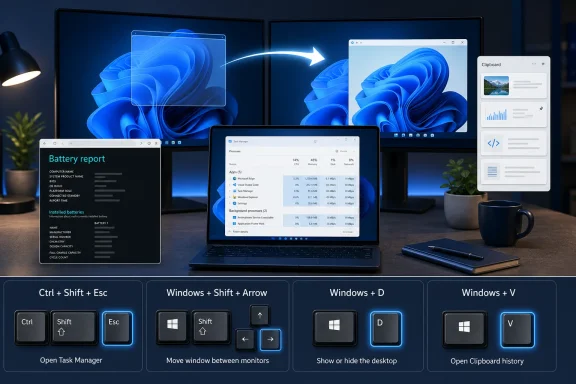
Several of the shortcuts highlighted by Windows Central are built into Windows 11 and are worth committing to muscle memory. Windows+V opens Clipboard history, provided it has first been enabled in Settings > System > Clipboard. It is particularly helpful when moving several snippets of text, commands, serial numbers, or links between apps.
Windows+D toggles the desktop without manually minimizing each window. Pressing it again restores the previous arrangement, making it safer and faster than repeatedly clicking Minimize.
For laptop owners, the powercfg /batteryreport /output "C:\battery_report.html" command remains a useful diagnostic. Microsoft documents powercfg /batteryreport as a way to create an HTML report of battery-use history, capacity figures, and estimates. It is useful when assessing a used laptop, though the report is not a definitive measure of real-world runtime: workload, display brightness, sleep behavior, and battery calibration still matter.
One display shortcut needs a correction
Windows Central advises using Windows+an arrow key to recover an app that has vanished onto another display. That shortcut will snap the active window left or right on the current screen, but it is not the dedicated multi-monitor move command.
For a window stranded on another monitor, use Windows+Shift+Left Arrow or Windows+Shift+Right Arrow. Microsoft lists those combinations specifically for moving an app window between desktops. If nothing happens, bring the target program to the foreground with Alt+Tab first.
The more advanced setup tip—pressing Shift+F10 during Windows Setup and running start ms-cxh:localonly to create a local account—may work on some current Windows 11 installation paths, as Windows Central reports. But it is an unsupported workaround rather than a documented deployment method, so administrators should test it against the exact Windows 11 image and edition they intend to deploy.
The lasting takeaway is less about memorizing a fixed list than knowing which shortcuts solve common recovery tasks: open Task Manager, retrieve copied text, reveal the desktop, inspect battery history, and bring lost windows back into view.
