
The core advice is straightforward: remove what does not serve your workflow, keep important controls within easy reach, and avoid changing settings merely because they look cleaner in a screenshot. The best Windows 11 taskbar is not necessarily the most minimal one. It is the one that reduces repetitive actions while remaining easy to navigate under pressure.
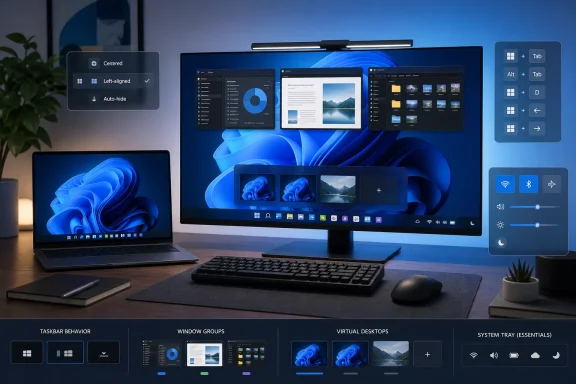 Overview: Why the Windows 11 Taskbar Still Matters
The Windows 11 taskbar is a persistent command center for launching software, switching among active windows, checking system status, receiving alerts, and opening essential controls. Its visual redesign moved app icons to the center by default, simplified several controls, and made the overall presentation more consistent with the Windows 11 interface.
For many longtime Windows users, that centered layout remains the most controversial change. The practical reality is more balanced: centered icons can work well on wide screens and modern laptops, while a left-aligned taskbar can feel more efficient for users with ingrained Windows habits or a dense list of active applications.
The taskbar also has a more limited native customization range than earlier Windows releases. Windows 11 does not officially let users move the taskbar to the top or sides of the display, freely resize it, or apply the deep visual modifications once common in older versions of Windows. That limitation makes the settings that are available more important.
A thoughtful setup should focus on four goals:
- Faster application access
- Cleaner visual organization
- Better multitasking visibility
- Less interruption from nonessential icons and alerts
The following Windows 11 taskbar customization options are built into the operating system and can be reversed at any time.
Start With a Taskbar Audit
Before changing individual settings, take a moment to audit what is currently occupying taskbar space. Look at every pinned icon, every visible system-tray utility, and every default button positioned near Start.
A cluttered taskbar often develops gradually. An app gets pinned after installation, another appears because it was used once, and a utility adds a tray icon that remains visible indefinitely. Eventually, the taskbar becomes a collection of old habits rather than a representation of current work.
Identify Your High-Frequency Apps
The ideal pinned-app list is smaller than most people expect. Pin applications that you launch repeatedly and that benefit from immediate access.
For many users, a practical core list might include:
- A preferred web browser
- File Explorer
- An email client
- A messaging or collaboration app
- A password manager
- A notes application
- A media player or music service
- A screenshot or screen-recording tool
- A primary productivity suite
- One or two specialized work applications
The goal is not to pin every application you use. If an app is needed only occasionally, Search and the Start menu are usually better places for it. Over-pinning creates a long horizontal row that becomes harder to scan, especially when multiple windows are open.
Consider the Order, Not Just the Apps
Taskbar icon order matters. Place applications in a sequence that reflects how you work, rather than alphabetically or according to installation history.
For example, a work-focused layout could place File Explorer, browser, email, Teams or Slack, and Microsoft Office apps together. A creative layout might prioritize a browser, file manager, image editor, video editor, capture utility, and media player.
Windows 11 allows pinned apps to be rearranged through drag and drop. This sounds minor, but it is one of the most useful customization features because muscle memory develops quickly. Once an app always occupies the same position, launching it becomes nearly automatic.
Pin and Unpin Apps for Faster Access
Pinning apps remains the foundation of an efficient Windows 11 taskbar. A pinned application stays available whether it is currently open or not, eliminating the need to repeatedly search through Start or desktop shortcuts.
To pin an application:
- Open Start or use Search to locate the application.
- Right-click the application.
- Select Pin to taskbar.
If the app is already running, right-click its taskbar icon and choose Pin to taskbar. This is often the quickest route when an application has already proven it deserves permanent placement.
To remove an app, right-click its pinned taskbar icon and select Unpin from taskbar.
Do Not Confuse Pins With Open Windows
A common source of confusion is that a running app can appear on the taskbar even if it has never been pinned. When the app closes, that icon disappears unless it has been explicitly pinned.
A pinned app, by contrast, remains in place after closing. When open, Windows uses visual indicators to show that the application is active. This makes it possible to keep a stable, predictable app layout while still seeing which programs are currently running.
Use Jump Lists Where Available
Right-clicking many pinned apps opens a Jump List, which may include recent files, frequently used locations, browser shortcuts, playback controls, or app-specific commands.
Jump Lists can make a pinned icon much more useful than a simple launcher. For instance, a File Explorer Jump List may provide quick access to frequent folders, while an Office application may surface recently opened documents.
This is one reason to prioritize genuinely useful applications over one-off shortcuts. A carefully selected pinned app can function as both a launcher and a compact workflow hub.
Choose Centered or Left-Aligned Taskbar Icons
Windows 11 centers taskbar icons by default. This gives the desktop a symmetrical appearance and can make pinned apps feel closer to the center of attention, especially on large displays.
However, visual style and workflow are not the same thing. Users who have worked with Windows for years may find left alignment faster because the Start button and first pinned app always begin at the lower-left corner.
To change Windows 11 taskbar alignment:
- Open Settings.
- Navigate to Personalization > Taskbar.
- Expand Taskbar behaviors.
- Find Taskbar alignment.
- Choose Left or Center.
When Center Alignment Works Best
Centered icons can be a strong choice for:
- Laptops with limited horizontal space
- Wide monitors where the middle of the screen is naturally easier to reach
- Users who keep only a small number of pinned applications
- Touch-oriented or tablet-style workflows
- People who prefer a visually balanced desktop
The layout can also reduce cursor travel when frequently switching between a few central applications. On a large ultrawide monitor, this can be more comfortable than repeatedly moving to the far-left edge.
When Left Alignment Is More Practical
Left alignment tends to favor:
- Longtime Windows users
- Keyboard-and-mouse productivity workflows
- Users with many pinned applications
- Multi-monitor setups
- Users who rely heavily on Start and File Explorer
- People who value a predictable fixed starting position
There is no objectively superior option. The strongest approach is to choose one layout, use it for several work sessions, and evaluate whether it genuinely reduces friction. Switching back and forth every day prevents the muscle memory benefits that taskbar personalization is meant to create.
Clean Up Default Taskbar Items
Windows 11 can display several built-in controls near the Start button, including Search, Task View, and Widgets. Depending on the Windows version, installed apps, region, and organizational policies, the exact selection can differ.
The important point is that these controls should be evaluated by utility, not by default status. A visible icon deserves taskbar space only if it saves time.
Open Settings > Personalization > Taskbar, then review the options in Taskbar items.
Search: Visible Button, Icon, or Minimal Footprint
Search is one of Windows 11’s most capable navigation tools, but it does not necessarily need to occupy a large portion of the taskbar. In many Windows 11 configurations, Search can be displayed in different styles, such as a full search box, a compact icon, or hidden from the taskbar.
Hiding Search does not remove Windows Search. Pressing the Windows key and typing still opens a search workflow, and Windows + S remains a direct keyboard shortcut.
For users who search constantly with the mouse, a visible Search control can be worthwhile. For keyboard-first users, reducing it to an icon—or removing the taskbar display entirely—can create a cleaner layout with little practical loss.
Task View: Useful for Desktops, Redundant for Others
Task View provides an overview of open windows and virtual desktops. It can be useful for users who regularly separate work, personal tasks, communications, and creative projects across multiple desktops.
The corresponding keyboard shortcut, Windows + Tab, remains available even when the Task View button is hidden. That means users who rely on keyboard navigation can remove the button without losing the feature.
Keep Task View visible when you use virtual desktops frequently or prefer visual window management. Hide it if it is merely another icon you never click.
Widgets: Decide Based on Attention, Not Appearance
The Widgets board can surface weather, calendar information, headlines, market data, reminders, and personalized content. It can be convenient, but it also creates a potential interruption point on a screen intended for focused work.
Widgets can still be opened with Windows + W when the taskbar button is hidden. This makes the choice easy: keep the icon visible only if you deliberately use the Widgets board often enough to justify persistent space.
For a distraction-minimized taskbar, turning off the Widgets button is one of the simplest wins.
Be Careful With Outdated “Chat” Advice
Many older Windows 11 customization guides still refer to a dedicated Chat taskbar button associated with the original consumer Teams integration. That advice is no longer universally applicable.
Current Windows 11 installations may instead treat Microsoft Teams, Microsoft Copilot, or other communication tools as normal applications that can be pinned, unpinned, or managed according to their own installation and policy settings. If a guide tells you to toggle a specific Chat entry but that option does not exist, the guide is describing an earlier Windows 11 configuration.
The reliable method is to check the settings actually exposed on your PC, then pin the current communication or AI application only if it is part of your normal workflow.
Organize the System Tray and Hidden Icons
The system tray, positioned at the right side of the Windows 11 taskbar, handles a different category of information. It includes core status controls such as network, volume, battery status on portable devices, clock, notifications, and the Quick Settings entry point.
It may also contain icons for background utilities, cloud sync clients, security tools, collaboration software, hardware controls, and update managers.
Unlike pinned apps, tray icons are often installed automatically. That is why the tray is one of the most common sources of visual clutter.
Understand the Overflow Area
Windows can place less frequently used icons in an overflow area, normally accessed through the upward chevron. This gives users a useful middle ground: an app can remain available without claiming a permanent position on the visible taskbar.
Open Settings > Personalization > Taskbar, then look for Other system tray icons. From there, you can control which supported app icons are visible directly and which remain in the overflow area.
On many systems, icons can also be rearranged by dragging them between the visible tray and the hidden overflow menu.
Keep Essential Status Tools Visible
Visible tray icons should generally be reserved for utilities that require quick status checking or frequent interaction. Examples may include:
- Cloud-storage synchronization status
- VPN connections
- Security software alerts
- Audio enhancement controls
- Display-management tools
- Clipboard managers
- Backup utilities
- Hardware-specific controls for peripherals
If an icon does not need to be checked regularly, move it to the overflow area. The objective is not to hide important software; it is to separate constant status tools from background services that simply need to stay available.
Avoid Hiding Security-Critical Signals
Minimalism has limits. Hiding every icon can make it easier to miss a failed backup, disconnected sync service, VPN status change, or security warning.
For this reason, a clean taskbar should not become an opaque taskbar. Keep direct visibility for the tools where a status change matters immediately. Move passive utilities out of sight, but do not bury essential protection and connectivity indicators merely for cosmetic reasons.
Enable Auto-Hide When Screen Space Matters
The Windows 11 taskbar occupies only a narrow band of the screen, but on smaller laptops and compact displays, that vertical space can be meaningful. Auto-hide removes the taskbar until you move the pointer to the screen edge where it is positioned.
To enable it:
- Right-click an empty area of the taskbar.
- Select Taskbar settings.
- Expand Taskbar behaviors.
- Enable Automatically hide the taskbar.
The taskbar returns when the pointer reaches the bottom edge of the primary display, or when touch interaction calls it into view on supported devices.
The Benefits of Auto-Hide
Auto-hide can be especially valuable for:
- Smaller laptop screens
- Reading long documents
- Editing photos or videos
- Working in spreadsheets
- Remote desktop sessions
- Full-screen productivity applications
- Users who want a cleaner desktop when not switching apps
It also reduces the visual pressure of persistent notifications and tray icons. For some users, simply removing a constant strip of indicators improves focus.
The Trade-Off: One More Motion
Auto-hide introduces a small but real cost: accessing pinned apps, Start, or the system tray requires moving the cursor to the screen edge and waiting for the taskbar to appear.
That may be insignificant for casual users, but it can be irritating in high-frequency desktop workflows. If you switch windows every few seconds, keep an eye on clock and VPN status, or work across multiple displays all day, the permanent taskbar may still be the more efficient choice.
Auto-hide is best treated as a workflow experiment, not an automatic improvement.
Control Taskbar Button Grouping and Labels
By default, Windows 11 groups multiple windows from the same app into a single taskbar button and usually hides text labels. This keeps the taskbar compact, but it can slow down users who manage several documents, browser windows, folders, or spreadsheets simultaneously.
Windows 11 includes options to change this behavior.
Open Settings > Personalization > Taskbar > Taskbar behaviors, then find the setting for combining taskbar buttons. Depending on the Windows 11 version and display configuration, the wording may vary slightly, but the primary choices typically include:
- Always, hide labels
- When taskbar is full
- Never
Always, Hide Labels: Best for Compact Layouts
This default-style setting combines an app’s windows into one button. Selecting or hovering over that button reveals thumbnails or window choices.
It works best when:
- You typically have only one or two windows per app
- You prefer a compact taskbar
- You rely on keyboard shortcuts such as Alt + Tab
- You use a smaller display
- You favor an icon-only visual style
The downside is that a browser with several windows, or File Explorer with several folders open, may require an extra step to identify the exact window you need.
When Taskbar Is Full: The Balanced Setting
The middle option displays separate labeled windows while there is enough space, then combines them once the taskbar becomes crowded.
For many users, this is the most practical compromise. It provides the clarity of separate windows during ordinary work while preventing the taskbar from becoming unusable in a busy multitasking session.
This setting is especially helpful on medium and large displays where there is enough width to benefit from temporary labels.
Never Combine: Maximum Visibility, Maximum Space Use
Choosing Never displays each open window as an individual labeled taskbar button. This is useful for users who work with many similar windows and need immediate visual distinction.
It can improve workflows involving:
- Multiple File Explorer folders
- Numerous spreadsheets
- Several Word documents
- Multiple browser windows
- Parallel remote desktop sessions
- Development tools and terminal windows
- Repeated PDF or image reference files
The trade-off is obvious: individual buttons consume significant space. If many applications are open, taskbar buttons shrink and may eventually require scrolling. A highly personalized Windows 11 taskbar should balance clarity against capacity rather than assume that “never combine” is always better.
Optimize the Taskbar for Multiple Monitors
A multi-monitor setup changes the taskbar equation. More screen real estate can make separate labeled buttons easier to accommodate, but it can also create uncertainty about where windows will appear and which display should hold key controls.
Windows 11 includes multi-display taskbar settings that let users decide how taskbar buttons behave on secondary monitors. These options are particularly useful if different screens serve different roles, such as communication on one display and focused work on another.
Match the Layout to the Role of Each Display
A sensible multi-monitor strategy might look like this:
- Keep the main taskbar on the primary work display.
- Use secondary taskbars for windows open on those displays.
- Consider more detailed button labels on a large secondary monitor.
- Keep the primary display’s tray area accessible for VPN, audio, battery, and connection status.
- Avoid filling every monitor with duplicate distractions unless the workflow truly benefits from it.
Users who regularly move applications between displays should also consider whether centered icons remain intuitive. A left-aligned layout can provide a more consistent visual anchor when displays are arranged side by side.
Use Keyboard Shortcuts to Support a Cleaner Taskbar
The most effective Windows 11 taskbar personalization does not require every feature to remain visible. Keyboard shortcuts can replace rarely clicked controls and allow a cleaner interface without sacrificing capability.
Useful shortcuts include:
- Windows — Open Start
- Windows + S — Open Search
- Windows + Tab — Open Task View
- Windows + W — Open Widgets
- Windows + A — Open Quick Settings
- Windows + N — Open notifications and calendar
- Windows + T — Move focus through taskbar apps
- Windows + Number — Launch or switch to the corresponding pinned taskbar app
- Alt + Tab — Switch between open windows
- Windows + D — Show or hide the desktop
The Windows + Number shortcut is particularly valuable. The first pinned app is Windows + 1, the second is Windows + 2, and so on. A stable icon order turns the taskbar into a keyboard-accessible launcher with almost no visual overhead.
This approach is often more efficient than adding more icons. Rather than making every command visible, keep the most important destinations pinned and learn the few shortcuts that replace the rest.
Build a Taskbar That Fits Your Workflow
There is no universal ideal Windows 11 taskbar configuration. A gaming PC, a corporate laptop, a creative workstation, and a compact travel notebook may all benefit from dramatically different layouts.
A focused productivity layout could use left-aligned icons, a small set of pinned work apps, hidden Widgets, compact Search, visible cloud-sync and VPN indicators, and “When taskbar is full” grouping.
A minimal laptop layout may favor centered icons, auto-hide, no Task View button, no visible Widgets button, and only a few carefully selected pinned applications.
A power-user desktop may use left alignment, visible Task View, numerous pinned utilities, active system-tray controls, and never-combined labeled windows for faster context switching.
The essential principle is to make each choice intentional. Keep what saves time. Hide what creates distraction. Reassess the arrangement whenever work habits change.
Windows 11’s native taskbar options may not satisfy every enthusiast who wants total interface control, but they provide enough flexibility to build a cleaner and more responsive desktop. With a short audit, a smaller set of useful pins, better system-tray discipline, and taskbar button behavior tuned to real multitasking needs, the taskbar can become less of a default Windows feature and more of a practical extension of how you work.
