
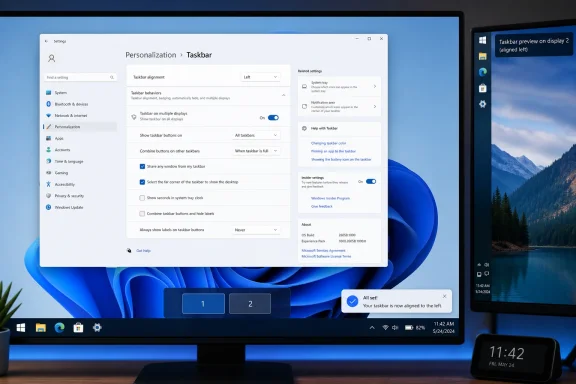
Windows 11 users can now make the taskbar look and behave far more like its Windows 10 predecessor—starting with left-aligned icons, a cleaner system tray, and, for Windows Insiders, the long-awaited ability to move the bar to any screen edge. As outlined in a new PCMag guide, most of the useful changes live under Settings > Personalization > Taskbar and require no third-party utility.
The first fix for many Windows 10 holdouts is simple: open Taskbar behaviors and change Taskbar alignment from Center to Left. From there, users can pin and reorder regularly used applications, remove unwanted Task View and Widgets buttons, and choose whether Search appears as a full box, an icon with a label, or not at all.
Microsoft’s own support guidance confirms that the same settings page controls taskbar items, system-tray visibility, automatic hiding, badges, and whether taskbars appear on every connected display. That makes it possible to reduce a crowded primary monitor without sacrificing quick access on a multi-monitor workstation.
The biggest change remains limited to Windows Insider testing. Microsoft introduced alternate taskbar positions in the Experimental channel in May, allowing placement at the top, bottom, left, or right edge of the display. The feature also supports icon alignment appropriate to each position, plus labeled, uncombined app buttons for users who prefer a more information-dense vertical taskbar.
That matters most for developers, administrators, and ultrawide-monitor users: moving the taskbar to a side can preserve vertical space for terminals, code editors, consoles, and document windows. Microsoft says the capability is still under active development, with auto-hide, tablet optimization, touch gestures, search boxes, per-monitor positions, and drag-and-drop behavior not yet fully supported in alternate layouts.
The smaller-taskbar option is also currently tied to the Experimental channel. Microsoft’s June Insider update added a dedicated Taskbar Size control, while the earlier rollout established the practical result: smaller icons and a shorter bar, rather than merely reduced icon scaling.
The Quick Settings flyout—the combined Wi-Fi, sound, battery, and related controls—can be rearranged by dragging its controls into a preferred order. Laptop users can also enable battery percentage under Settings > System > Power & battery, replacing the vague battery glyph with a useful numerical readout.
Windows 11 now also permits the system-tray clock and date to be removed under Settings > Time & language > Date & time. Microsoft notes that the same page can enable seconds in the clock, though that setting uses more power.
The practical split is now clearer than it was in earlier Windows 11 releases. Left alignment, app pinning, search controls, taskbar auto-hide, tray cleanup, multi-display behavior, Quick Settings order, battery percentage, and clock visibility are ordinary settings changes. Top, left, and right taskbar placement plus full compact sizing remain Insider features, so production PCs should not be enrolled merely to recreate a Windows 10 layout.
Microsoft’s own support guidance confirms that the same settings page controls taskbar items, system-tray visibility, automatic hiding, badges, and whether taskbars appear on every connected display. That makes it possible to reduce a crowded primary monitor without sacrificing quick access on a multi-monitor workstation.
 The Classic Layout Is Finally Becoming Possible Again
The biggest change remains limited to Windows Insider testing. Microsoft introduced alternate taskbar positions in the Experimental channel in May, allowing placement at the top, bottom, left, or right edge of the display. The feature also supports icon alignment appropriate to each position, plus labeled, uncombined app buttons for users who prefer a more information-dense vertical taskbar.That matters most for developers, administrators, and ultrawide-monitor users: moving the taskbar to a side can preserve vertical space for terminals, code editors, consoles, and document windows. Microsoft says the capability is still under active development, with auto-hide, tablet optimization, touch gestures, search boxes, per-monitor positions, and drag-and-drop behavior not yet fully supported in alternate layouts.
The smaller-taskbar option is also currently tied to the Experimental channel. Microsoft’s June Insider update added a dedicated Taskbar Size control, while the earlier rollout established the practical result: smaller icons and a shorter bar, rather than merely reduced icon scaling.
A Better System Tray Requires Less on Screen
For stable Windows 11 builds, the more immediate gains come from stripping back defaults. In Taskbar settings, users can control Pen menu, Touch keyboard, Emoji and more, Virtual touchpad, and individual background-app icons. Icons can also be dragged out of the hidden-icons overflow area when they need to remain visible.The Quick Settings flyout—the combined Wi-Fi, sound, battery, and related controls—can be rearranged by dragging its controls into a preferred order. Laptop users can also enable battery percentage under Settings > System > Power & battery, replacing the vague battery glyph with a useful numerical readout.
Windows 11 now also permits the system-tray clock and date to be removed under Settings > Time & language > Date & time. Microsoft notes that the same page can enable seconds in the clock, though that setting uses more power.
Keep the Supported Tweaks Separate From the Hacks
The Win+X power-user menu still provides quick access to Device Manager, Terminal, Disk Management, and other administrative tools. Its underlying shortcut folder can be found at%LocalAppData%\Microsoft\Windows\WinX, but Windows exposes limited supported editing controls. Utilities such as Win+X Menu Editor can alter the menu further, although they add a maintenance and trust consideration that does not apply to built-in settings.The practical split is now clearer than it was in earlier Windows 11 releases. Left alignment, app pinning, search controls, taskbar auto-hide, tray cleanup, multi-display behavior, Quick Settings order, battery percentage, and clock visibility are ordinary settings changes. Top, left, and right taskbar placement plus full compact sizing remain Insider features, so production PCs should not be enrolled merely to recreate a Windows 10 layout.
References
- Primary source: PCMag UK
Published: 2026-07-31T17:20:22+00:00
Missing the Windows 10 Taskbar? Try These Windows 11 Tweaks to Move, Resize, and Customize It
Not loving the taskbar in Windows 11? Here's how to easily adjust it so it provides quick and easy access to your favorite apps, and looks more like the classic taskbar you're accustomed to.uk.pcmag.com - Related coverage: blogs.windows.com
Improving Windows quality: Making Taskbar and Start more personal
In our commitment to Windows quality, we outlined our plans to deliver improvements in performance, reliability, and craft. We are also committed toblogs.windows.com - Related coverage: support.microsoft.com
Navigate and explore the Windows taskbar | Microsoft Support
Navigate and explore the Windows taskbar. It includes the main elements in the Windows taskbar like the Start button, Search, System tray, Notifications center, and Multiple display.support.microsoft.com