
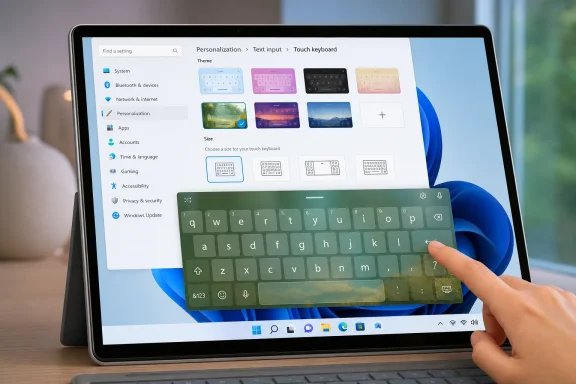
Microsoft is reminding Windows 11 users that one of the operating system’s most overlooked interfaces—the touch keyboard—does not have to remain a plain gray slab at the bottom of the screen. The built-in keyboard can be changed with colorful themes, custom colors, resized keys, and personal background imagery, turning a utilitarian input panel into something that better suits a Surface tablet, a 2-in-1 laptop, or any touchscreen PC. WinCentral’s report on the reminder is a timely nudge that these options are already part of Windows 11 rather than an app download or experimental add-on.
Windows personalization discussions tend to center on wallpapers, dark mode, accent colors, taskbar behavior, and Start menu tweaks. Yet the touch keyboard appears in precisely the moments when the physical keyboard is unavailable, folded behind a convertible display, detached from a tablet, or simply inconvenient to reach.
That makes the keyboard more than decorative screen furniture. On a device used in tablet mode, it becomes a primary working surface for writing messages, searching the web, entering passwords, responding in Teams, and adding notes. A touch-first interface should feel intentional, readable, and reasonably pleasant to use.
Microsoft’s latest social-media reminder puts the spotlight on that neglected part of the Windows 11 experience. According to the accompanying coverage, users can choose from built-in themes, alter colors, create a custom look, apply a background image, modify keyboard sizing, and select alternative layouts. The report also highlights the adjacent typing tools—including emoji, GIFs, clipboard access, and voice input—that make the touch keyboard a broader text-entry hub rather than just a collection of virtual keys.
The timing is notable because this is not a new Windows 11 feature announcement. It is a reminder that a mature capability remains available and useful. Microsoft introduced a dedicated touch keyboard personalization system during the early Windows 11 period, initially describing 13 themes, Surface-color-matched options, custom background images, and a setting to resize the keyboard. Microsoft’s original Windows 11 Insider announcement confirms that the company treated touch keyboard customization as a core part of its input redesign.
This is the keyboard that receives the colorful themes, sizing adjustments, custom color controls, and background customization discussed in Microsoft’s reminder.
That distinction matters. A user who launches the accessibility keyboard and cannot find a gallery of visual themes has not necessarily encountered a bug; they may simply be using the wrong Windows component.
For everyday tablet-style typing, the touch keyboard is the correct feature. For assistive input and mouse-driven key selection, the accessibility On-Screen Keyboard remains the more appropriate tool.
The exact arrangement of controls can vary somewhat with Windows 11 servicing changes, device type, installed languages, and the version of the Settings app. But the overall route—Personalization > Text input—is the key destination.
A built-in theme is a sensible starting point for several reasons:
A practical custom configuration could use:
The feature is appealing because it transforms the keyboard from a fixed operating-system panel into a space that can match a device owner’s taste. A favorite color gradient, a subtle landscape, an abstract pattern, or a personal photograph can make the interface feel less generic.
But this is also where restraint matters most.
A family photo, travel shot, or image with text can create several problems:
For that reason, users should avoid images that reveal:
Microsoft supports multiple touch keyboard layouts, including Default, Split, Small, Traditional, and Handwriting panel modes, with additional Japanese-specific layouts. The official touch keyboard guide describes the intended use of each one and notes that availability can depend on the language in use.
For many users, this should be the baseline. The touch keyboard is not attempting to duplicate a full desktop keyboard exactly; it is prioritizing key targets that are more forgiving for touch input.
Microsoft notes that the split layout is not available in all languages. Its support page makes that limitation explicit, so users should not assume every language configuration exposes identical input controls.
This layout is well suited to:
It is a reminder that “tablet mode” does not mean every user wants a phone-like typing experience. Some Windows users need a more PC-like arrangement even when their device is being held as a slate.
The strongest Windows 11 touch workflow is not necessarily keyboard-only. It may involve switching among touch typing, handwriting, voice input, and clipboard history depending on the task.
That consistency matters. It prevents a customized touch keyboard from feeling disconnected when a user opens emoji search, changes language input, or launches dictation.
The practical advantages include:
For people using a touchscreen laptop with a physical keyboard attached most of the time, the Always option can be helpful. It ensures that the touch keyboard is only a tap away, even when Windows does not automatically decide to show it.
For a detachable or tablet-oriented device, When no keyboard attached may provide the cleanest experience. The icon appears when it is most likely to be relevant without permanently consuming space in the system tray.
Microsoft also notes that an attached keyboard can be wired or Bluetooth. Its support documentation therefore treats both connection types as relevant when determining the touch keyboard icon’s behavior.
A sensible setup sequence is:
Windows 11 includes broader accessibility settings for items such as text cursor thickness, a colorful text cursor indicator, mouse pointer sizing, Sticky Keys, Toggle Keys, and Filter Keys. Microsoft’s accessibility support page details these separate options.
For touch keyboard users, the most practical guidance is straightforward:
The strongest aspects are clear:
The implementation can also feel hidden. A large share of Windows 11 users may never visit Personalization > Text input, especially if they primarily operate a traditional laptop with a hardware keyboard. Microsoft’s reminder is useful precisely because it resurfaces a setting that is easy to miss.
There is also a difference between visual personalization and productivity. A colorful keyboard is enjoyable, but a properly sized split layout or a compact undocked keyboard may have a much larger effect on real-world typing comfort. The best result comes from treating theme selection as one part of a broader touch-input setup.
The touch keyboard should adapt accordingly. A dark theme may work best in evening use, a high-contrast layout may better support accessibility, a split arrangement may make tablet typing more comfortable, and a compact undocked keyboard may preserve space while browsing or messaging.
Microsoft’s reminder is therefore more useful than it first appears. The gray default is not mandatory, and neither is a one-size-fits-all virtual keyboard layout. Windows 11 already provides the tools to make touch typing more personal, more comfortable, and—when configured thoughtfully—more practical.
 A Small Windows 11 Feature With a Bigger Point
Windows personalization discussions tend to center on wallpapers, dark mode, accent colors, taskbar behavior, and Start menu tweaks. Yet the touch keyboard appears in precisely the moments when the physical keyboard is unavailable, folded behind a convertible display, detached from a tablet, or simply inconvenient to reach.That makes the keyboard more than decorative screen furniture. On a device used in tablet mode, it becomes a primary working surface for writing messages, searching the web, entering passwords, responding in Teams, and adding notes. A touch-first interface should feel intentional, readable, and reasonably pleasant to use.
Microsoft’s latest social-media reminder puts the spotlight on that neglected part of the Windows 11 experience. According to the accompanying coverage, users can choose from built-in themes, alter colors, create a custom look, apply a background image, modify keyboard sizing, and select alternative layouts. The report also highlights the adjacent typing tools—including emoji, GIFs, clipboard access, and voice input—that make the touch keyboard a broader text-entry hub rather than just a collection of virtual keys.
The timing is notable because this is not a new Windows 11 feature announcement. It is a reminder that a mature capability remains available and useful. Microsoft introduced a dedicated touch keyboard personalization system during the early Windows 11 period, initially describing 13 themes, Surface-color-matched options, custom background images, and a setting to resize the keyboard. Microsoft’s original Windows 11 Insider announcement confirms that the company treated touch keyboard customization as a core part of its input redesign.
The Important Distinction: Touch Keyboard vs. On-Screen Keyboard
Before changing themes, Windows 11 users need to identify which virtual keyboard they are opening. Windows uses similar language for two different tools, and confusing them can lead to frustration.The touch keyboard
The touch keyboard is the modern Windows 11 panel designed for touchscreen typing. It typically opens when a user taps a text field on a touchscreen or selects the touch keyboard icon in the taskbar’s system tray. Microsoft describes it as a keyboard that can be operated with a fingertip or pen and used with several layout choices. Microsoft’s touch keyboard guide documents the behavior and available layouts.This is the keyboard that receives the colorful themes, sizing adjustments, custom color controls, and background customization discussed in Microsoft’s reminder.
The accessibility On-Screen Keyboard
The On-Screen Keyboard, by contrast, is an accessibility feature intended to let people select keys with a mouse, pointing device, joystick, or switch input. It can be activated from Settings > Accessibility > Keyboard, or withWindows + Ctrl + O. Microsoft’s accessibility documentation makes clear that it serves a different function from the touch keyboard.That distinction matters. A user who launches the accessibility keyboard and cannot find a gallery of visual themes has not necessarily encountered a bug; they may simply be using the wrong Windows component.
For everyday tablet-style typing, the touch keyboard is the correct feature. For assistive input and mouse-driven key selection, the accessibility On-Screen Keyboard remains the more appropriate tool.
Where Windows 11 Keeps Touch Keyboard Customization
The main place to start is:- Open Settings.
- Select Personalization.
- Open Text input.
- Choose Touch keyboard.
- Pick a built-in theme or begin configuring a custom one.
The exact arrangement of controls can vary somewhat with Windows 11 servicing changes, device type, installed languages, and the version of the Settings app. But the overall route—Personalization > Text input—is the key destination.
Built-in themes are the quickest win
The easiest way to leave the default gray look behind is to select an existing theme. This requires no design work and gives users a fast preview of how the keyboard will look when summoned.A built-in theme is a sensible starting point for several reasons:
- It is quick to apply and reverse.
- Colors are preselected rather than requiring manual tuning.
- Key labels, surfaces, and contrast are designed as a coherent visual set.
- It avoids the potential distraction of a busy image background.
- It can create visual continuity with a device color or overall desktop style.
Custom colors make more sense than they sound
The most appealing result is not always the loudest one. A restrained custom theme can be more useful than a highly saturated preset, particularly for people who type frequently on a tablet.A practical custom configuration could use:
- A dark, low-glare keyboard surface.
- High-contrast labels.
- An accent shade that resembles the system accent color.
- Clearly defined key boundaries.
- A subtle rather than photographic background.
Custom Background Images: Personalization With Limits
One of the more distinctive Windows 11 touch keyboard features is the ability to set a custom background image. Microsoft’s Windows 11 documentation and earlier Insider posts confirm that the theme engine supports customized keyboard backgrounds, while the company later addressed bugs involving custom theme changes and background-image previews. Microsoft documented the original background-image capability and subsequent fixes tied to custom Text Input themes.The feature is appealing because it transforms the keyboard from a fixed operating-system panel into a space that can match a device owner’s taste. A favorite color gradient, a subtle landscape, an abstract pattern, or a personal photograph can make the interface feel less generic.
But this is also where restraint matters most.
Why a photo can look great in Settings and fail in daily use
A high-detail photo may look excellent in the preview pane but become visually noisy during real typing. Virtual keyboard keys need to be found quickly. Their boundaries and labels need to remain legible while a user’s fingers partially obscure the screen.A family photo, travel shot, or image with text can create several problems:
- Key lettering may blend into light or high-contrast areas.
- Detailed backgrounds can make individual keys harder to scan.
- Bright imagery can be tiring in dim rooms.
- A photo can disclose personal details when the keyboard is visible during meetings, screen shares, or public use.
- Background colors can make emoji and clipboard panels look visually inconsistent.
Privacy deserves a place in personalization decisions
Custom image backgrounds are not a security flaw by themselves. Still, the choice can have privacy consequences in ordinary real-world situations. A keyboard may pop up while responding to a message in a café, signing into a service, or sharing an app window.For that reason, users should avoid images that reveal:
- Names, email addresses, or phone numbers.
- Children’s schools, team logos, or locations.
- Travel details or home addresses.
- Company materials, internal dashboards, or sensitive work imagery.
- Personal photos that should not be visible on a shared device.
Layout and Size Matter More Than Theme Color
Microsoft’s reminder is visually focused, but the more consequential touch keyboard options involve layout, position, and scale. A keyboard that looks good but covers half the current app or forces awkward thumb movement is not actually personalized in a meaningful way.Microsoft supports multiple touch keyboard layouts, including Default, Split, Small, Traditional, and Handwriting panel modes, with additional Japanese-specific layouts. The official touch keyboard guide describes the intended use of each one and notes that availability can depend on the language in use.
Default layout for straightforward touchscreen typing
The standard touch-focused layout uses larger keys and removes some less-frequently used keys to make finger typing easier. It is an appropriate choice for general writing on a Surface Pro, a touchscreen laptop in tent mode, or a Windows tablet.For many users, this should be the baseline. The touch keyboard is not attempting to duplicate a full desktop keyboard exactly; it is prioritizing key targets that are more forgiving for touch input.
Split layout for two-handed tablet use
The Split keyboard divides keys toward the left and right edges of the display. This is particularly useful when holding a tablet with both hands, because thumbs can remain closer to their natural resting positions.Microsoft notes that the split layout is not available in all languages. Its support page makes that limitation explicit, so users should not assume every language configuration exposes identical input controls.
Small layout for flexibility and screen space
The Small keyboard is compact and movable, making it valuable when an app needs more visible screen area. It is also the layout that Windows uses when the default, split, or traditional keyboard is undocked. Microsoft’s documentation explains that relationship between docking and the compact mode.This layout is well suited to:
- Short chat replies.
- Entering a web address.
- Adding a quick search term.
- Working in a small app window.
- Typing while a document or image must stay visible.
Traditional layout for familiar key access
The Traditional keyboard more closely resembles a physical keyboard and offers an expanded selection of keys. That can be useful for people who need familiar placement for navigation, punctuation, or function-related tasks while still working entirely through touch.It is a reminder that “tablet mode” does not mean every user wants a phone-like typing experience. Some Windows users need a more PC-like arrangement even when their device is being held as a slate.
Handwriting remains a valid alternative
The Handwriting panel accepts pen or fingertip writing and can be the fastest input method for short notes, names, unusual spellings, and situations where tapping individual keys is awkward. Microsoft documents a setting under Bluetooth & devices > Pen & Windows Ink for users who prefer to write with a fingertip rather than a pen. The touch keyboard support guide outlines that option.The strongest Windows 11 touch workflow is not necessarily keyboard-only. It may involve switching among touch typing, handwriting, voice input, and clipboard history depending on the task.
Touch Keyboard Themes Extend Beyond the Keyboard
One of Windows 11’s better design decisions is that Text Input customization is not limited to a single panel. Microsoft expanded touch keyboard themes to several associated experiences, including input method editors, the emoji panel, and voice typing. Microsoft’s Windows 11 Insider announcement for Build 22504 describes this broader application of the theme system.That consistency matters. It prevents a customized touch keyboard from feeling disconnected when a user opens emoji search, changes language input, or launches dictation.
The practical advantages include:
- A more coherent interface across text-entry tools.
- Less abrupt switching between dark and light panels.
- Better visual identity for users who rely heavily on pen, touch, and voice.
- A stronger sense that Windows 11’s text services are part of one system.
How to Make the Touch Keyboard Easier to Reach
A customizable keyboard is only valuable if it is available when needed. Microsoft offers taskbar settings that control whether the touch keyboard icon appears always, never, or only when no physical keyboard is attached. Microsoft’s guidance for enabling and disabling the touch keyboard documents these system-tray choices.For people using a touchscreen laptop with a physical keyboard attached most of the time, the Always option can be helpful. It ensures that the touch keyboard is only a tap away, even when Windows does not automatically decide to show it.
For a detachable or tablet-oriented device, When no keyboard attached may provide the cleanest experience. The icon appears when it is most likely to be relevant without permanently consuming space in the system tray.
Microsoft also notes that an attached keyboard can be wired or Bluetooth. Its support documentation therefore treats both connection types as relevant when determining the touch keyboard icon’s behavior.
A sensible setup sequence is:
- Set the keyboard icon to Always during the initial customization period.
- Test the chosen theme in a browser, messaging app, document editor, and dark-mode application.
- Try the default, split, small, and traditional layouts.
- Adjust keyboard size for the device’s screen dimensions.
- Decide whether Always or When no keyboard attached better fits daily use.
Accessibility Should Take Priority Over Aesthetics
The colorful themes are welcome, but they should never displace accessibility considerations. A keyboard’s usefulness depends first on whether its keys can be seen, distinguished, and selected accurately.Windows 11 includes broader accessibility settings for items such as text cursor thickness, a colorful text cursor indicator, mouse pointer sizing, Sticky Keys, Toggle Keys, and Filter Keys. Microsoft’s accessibility support page details these separate options.
For touch keyboard users, the most practical guidance is straightforward:
- Choose contrast before choosing novelty.
- Prefer legible key labels over decorative backgrounds.
- Increase keyboard size if touch accuracy is a problem.
- Use a conventional layout when muscle memory matters.
- Keep a physical keyboard available for sustained production work.
- Consider handwriting or voice input where individual key targeting is difficult.
The Strengths and Limitations of Microsoft’s Approach
Microsoft deserves credit for treating touch typing as part of the Windows 11 personality rather than a feature reserved for basic tablet use. The available theme system, custom background support, keyboard resizing, and connected input surfaces offer a degree of flexibility that feels appropriate for modern hybrid PCs.The strongest aspects are clear:
- No additional software is required.
- The customization is built into Windows 11 Settings.
- Visual preferences can be paired with practical size and layout controls.
- Themes can carry across multiple text-input interfaces.
- The keyboard supports touch, pen, handwriting, voice, emoji, and clipboard-related workflows.
The implementation can also feel hidden. A large share of Windows 11 users may never visit Personalization > Text input, especially if they primarily operate a traditional laptop with a hardware keyboard. Microsoft’s reminder is useful precisely because it resurfaces a setting that is easy to miss.
There is also a difference between visual personalization and productivity. A colorful keyboard is enjoyable, but a properly sized split layout or a compact undocked keyboard may have a much larger effect on real-world typing comfort. The best result comes from treating theme selection as one part of a broader touch-input setup.
A Better-Looking Keyboard Is Also a More Intentional Windows Experience
Windows 11’s touch keyboard customization is a small feature, but it reflects a larger truth about hybrid computing: the interface changes meaning when the user changes posture. A laptop used on a desk, a 2-in-1 held in both hands, and a tablet paired with a pen are not the same machine in practice, even if they run the same operating system.The touch keyboard should adapt accordingly. A dark theme may work best in evening use, a high-contrast layout may better support accessibility, a split arrangement may make tablet typing more comfortable, and a compact undocked keyboard may preserve space while browsing or messaging.
Microsoft’s reminder is therefore more useful than it first appears. The gray default is not mandatory, and neither is a one-size-fits-all virtual keyboard layout. Windows 11 already provides the tools to make touch typing more personal, more comfortable, and—when configured thoughtfully—more practical.
References
- Primary source: thewincentral.com
Published: 2026-07-27T07:15:45+00:00
Windows 11 Touch Keyboard Gets Stylish Themes and Custom Colors - WinCentral
Windows 11 lets you personalize the touch keyboard with colorful themes, custom backgrounds, and different layouts. - Read in Windows 11 News on WinCentral thewincentral.com
- Related coverage: support.microsoft.com
Get to know the touch keyboard | Microsoft Support
Discover how to open the touch keyboard and learn about the different layouts.support.microsoft.com
