
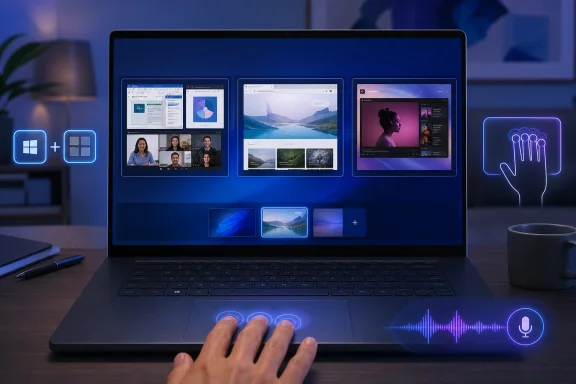
 Overview: What Windows 11 Virtual Desktops Actually Do
A virtual desktop is a separate Windows workspace for a different collection of apps, windows, and projects. One desktop might hold a browser, Teams, and work documents; another can be reserved for personal browsing, media, or a presentation setup. Microsoft describes multiple desktops as a way to compartmentalize work, reduce visible clutter, and keep different activities organized. Microsoft Support
The important distinction is that virtual desktops are a workflow organization feature, not a separate Windows sign-in, virtual machine, or security boundary. They help isolate what is visible and active at a given moment, but they remain part of the same user session.
That makes fast navigation central to the feature’s value. If switching involves hunting for controls or rearranging windows every time, the organization benefit disappears. Windows 11’s desktop shortcuts and gestures avoid that friction.
For most users, the ideal setup is straightforward:
- Use keyboard shortcuts for immediate left-right movement.
- Use Task View when several desktops are open and visual confirmation matters.
- Use four-finger gestures on a precision touchpad or touchscreen.
- Keep the Task View button enabled if mouse-driven navigation is preferred.
- Customize the taskbar and
Alt + Tabbehavior so desktop separation remains meaningful.
The Fastest Windows 11 Desktop Shortcut
The quickest way to switch virtual desktops in Windows 11 is the built-in left-right keyboard combination:
| Action | Shortcut |
|---|---|
| Move to the desktop on the left | Windows key + Ctrl + Left Arrow |
| Move to the desktop on the right | Windows key + Ctrl + Right Arrow |
Microsoft lists both combinations as the primary shortcuts for moving among virtual desktops, alongside Windows key + Ctrl + D to create a desktop and Windows key + Ctrl + F4 to close the desktop currently in use. Microsoft Support
Why the arrow-key method is the default recommendation
This route is fast because it does not open a separate interface. There is no Task View overlay, no selection stage, and no pointer travel. The active desktop changes as soon as the shortcut is pressed.
It is especially effective when a desktop layout becomes habitual. A user who always keeps communication on the first desktop, active project work on the second, and reference material on the third can navigate by direction rather than by visual inspection.
The main limitation is equally obvious: the shortcut is directional, not absolute. If five desktops exist and the target is three positions away, it may take several presses. In that scenario, Task View can be the more efficient option.
Use it as a desktop navigation habit
A practical workflow might look like this:
- Create a Work desktop for the current project.
- Create a Communication desktop for email, chat, and meetings.
- Create a Reference desktop for browser research, documentation, and notes.
- Use
Windows key + Ctrl + Left ArroworRight Arrowto move between those spaces without interrupting the task at hand.
The advantage is not merely speed. Keyboard desktop switching also keeps hands on the keyboard, which matters for coding, writing, spreadsheets, and any workflow built around shortcuts.
Task View: The Best Choice When You Need to See Every Desktop
Task View is Windows 11’s visual desktop manager. Open it with:
Windows key + Tab
Microsoft’s current shortcut documentation identifies Windows key + Tab as the command to open Task View, while its multitasking guide explains that Task View presents both open windows and multiple desktops in one interface. Microsoft Support Microsoft Support
Once Task View is open, select the thumbnail for the desktop you want. Windows brings that workspace forward immediately.
When Task View is better than arrow-key switching
Task View is the strongest option when you have more than a couple of desktops open, especially if their order has changed during the day. Instead of pressing right or left repeatedly and hoping to land in the correct place, you can confirm the destination visually.
It is also more than a switcher. In Task View, users can:
- Create a new desktop.
- Rename desktops for clearer organization.
- Select a desktop directly.
- Move an app window from one desktop to another.
- Close an unused desktop.
- See which applications are active in each workspace.
Microsoft notes that closing a desktop does not close its open applications; the windows are moved to the next available desktop. Microsoft Support
That behavior is useful, but it can also surprise users. Closing a “Presentation” desktop, for example, will not terminate PowerPoint or the browser window that was open there. It simply relocates those windows, so the workspace should be checked after consolidation.
Navigate Task View without a mouse
Task View also makes Windows 11 virtual desktop navigation accessible when a mouse or touchpad is unavailable.
- Press
Windows key + Tab. - Press
Tabto move focus among available controls. - Use the arrow keys to move through desktop and window options as focus permits.
- Press
Enterto activate the selected desktop or window.
This is not as immediate as the left-right desktop shortcuts, but it is valuable for keyboard-only use and for situations where the destination desktop must be identified visually before switching.
Switch Desktops From the Windows 11 Taskbar
Mouse users do not need to remember the Windows key + Tab shortcut. Windows 11 also exposes desktop thumbnails through the Task View button on the taskbar.
Hover over the Task View icon, or select it, then choose the desktop thumbnail to bring it forward. Microsoft documents both the taskbar route and the keyboard route for opening Task View. Microsoft Support
Restore the Task View button if it is missing
The Task View icon can be hidden, but the virtual desktops feature remains available. To restore the button:
- Right-click an empty area of the taskbar.
- Select Taskbar settings.
- Find Taskbar items.
- Turn Task view on.
Microsoft’s Windows 11 taskbar documentation confirms that the Task View control is managed from Taskbar settings under Taskbar items. Microsoft Support
This detail matters because older Windows instructions often point users toward an outdated taskbar context-menu option labeled Show Task View button. In current Windows 11 builds, Taskbar settings > Taskbar items > Task view is the appropriate path.
The mouse-driven advantage
The Task View button is not necessarily faster than keyboard shortcuts, but it is more discoverable. It gives new Windows 11 users a visible, low-risk way to inspect desktops before moving.
That makes it a good fit for:
- Shared household PCs.
- Touch-first hybrid laptops.
- Users who do not memorize keyboard commands.
- Workstations where virtual desktops are used occasionally rather than continuously.
Four-Finger Gestures on Touchpads and Touchscreens
On supported hardware, Windows 11 provides a direct gesture equivalent to the left-right keyboard shortcut:
- Swipe left with four fingers to move to the desktop on the left.
- Swipe right with four fingers to move to the desktop on the right.
Microsoft documents this action for both touchscreens and touchpads. On touchscreens, a four-finger horizontal swipe switches desktops; on touchpads, the same gesture moves between virtual desktops. Microsoft Support
Touchpad gestures: fast, but hardware-dependent
The four-finger swipe is one of the best Windows 11 virtual desktop gestures on laptops because it keeps navigation close to the typing position. It can feel almost immediate once learned: swipe, work, swipe back.
However, there is an important technical condition. Microsoft notes that some touchpad gestures only work with precision touchpads. Microsoft Support
That means the problem may not be user error if a four-finger desktop swipe does nothing. An older laptop, a vendor-specific driver, a disabled touchpad, or an unsupported touchpad implementation can prevent the feature from behaving as expected.
Touchscreen gestures: a modern replacement for older advice
Windows 11’s touchscreen behavior differs from many older Windows 10 tutorials. The current gesture for switching desktops is a four-finger left or right swipe across the screen. Microsoft separately lists three-finger horizontal swipes as a way to switch to the last open app, making the difference important for users who find themselves switching apps rather than workspaces by mistake. Microsoft Support
This is a useful refinement in Windows 11’s touch model:
- Three fingers left or right: switch open apps.
- Four fingers left or right: switch virtual desktops.
The distinction is easy to forget, but it explains a large share of gesture confusion.
Fix a Four-Finger Swipe That No Longer Switches Desktops
A desktop gesture can stop working even on a fully supported Windows 11 laptop because four-finger controls are configurable. The same gesture can be assigned to another action.
To check the setting:
- Right-click Start.
- Open Settings.
- Choose Bluetooth & devices.
- Select Touchpad.
- Expand Four-finger gestures.
- Review the swipe-action drop-down menu and assign it to desktop switching.
Microsoft confirms that Windows 11 allows three-finger and four-finger touchpad gestures to be customized from Settings > Bluetooth & devices > Touchpad, using the options within the corresponding gesture sections. Microsoft Support
Check the three-finger setting too
The Three-finger gestures panel is worth checking alongside the four-finger controls. It will not normally determine virtual desktop switching, but an altered three-finger configuration can make the laptop feel inconsistent if users expect it to switch apps and it instead opens Task View, shows the desktop, or runs a custom action.
A sensible configuration is:
- Three-finger swipe: switch between open apps.
- Four-finger swipe: switch desktops.
That arrangement preserves a logical division between application navigation and workspace navigation, matching Windows 11’s documented defaults. Microsoft Support
The risk of over-customization
Custom gestures are a strength of Windows 11, but they can become a support problem on shared or managed devices. A user may not realize the action was remapped, while another person assumes the touchpad is malfunctioning.
For that reason, the native desktop-switching assignment is generally the best choice for most laptop users. Customization is valuable when there is a clear workflow need; otherwise, it can reduce predictability.
Voice Access Can Trigger Desktop Shortcuts
Windows 11 Voice access provides another route to desktop switching for users who need hands-free control or who rely on accessibility features. Microsoft states that Voice access is available in Windows 11 version 22H2 and later, and that it can execute individual keys and keyboard combinations through spoken commands. Microsoft Support
After Voice access is enabled and listening, use the command pattern:
Press <key1> <key2> <key3>
For desktop navigation, that means speaking the equivalent of:
Press Windows Control Left
or:
Press Windows Control Right
The exact spoken recognition experience can vary with the configured language, microphone quality, and the way key names are interpreted. The central point is that Voice access can issue keyboard combinations, allowing the standard Windows desktop-switching shortcuts to be invoked without physically pressing the keys. Microsoft Support
Create a dedicated voice shortcut
Windows 11 also supports custom Voice shortcuts. These can perform keyboard actions, making them useful for creating memorable phrases such as “Next desktop” or “Previous workspace.”
Microsoft’s Voice access documentation lists Press keyboard keys as an available action type for voice shortcuts. Microsoft Support
To create one:
- Activate Voice access by saying “Voice access wake up” or “Unmute.”
- Say “Open voice shortcuts.”
- Say “Click create new shortcut.”
- Set the phrase under When I say.
- Under Perform action(s), choose Press keyboard keys.
- Assign
Windows key + Ctrl + Left ArroworWindows key + Ctrl + Right Arrow. - Select Apply.
- Save the shortcut.
Microsoft documents those creation steps and notes that Voice shortcuts are currently available in English for the United States, United Kingdom, India, New Zealand, Canada, and Australia. Microsoft Support
Voice navigation will not replace the speed of a practiced keyboard shortcut for every user. Its value is accessibility, consistency, and the ability to turn a multi-key combination into a short, natural phrase.
Make Virtual Desktops Feel Properly Separate
Switching quickly is only part of the Windows 11 virtual desktop experience. If every desktop displays every application on the taskbar and in Alt + Tab, the workspaces can still feel blurred together.
Windows 11 includes settings that control whether open windows from all desktops appear everywhere or only on the desktop currently in use. Go to:
Settings > System > Multitasking > Desktops
Under that section, Windows lets users choose whether taskbar windows appear only on the active desktop or across all desktops, and it offers a similar option for the Alt + Tab switcher. Microsoft Support
Recommended configuration for focused work
For a clearer separation between workspaces, select:
- On the taskbar, show all the open windows: Only on the desktop I’m using
- Show all open windows when I press Alt + Tab: Only on the desktop I’m using
This reduces accidental context switching. A browser window from a personal desktop will not constantly appear beside work applications on the taskbar, and Alt + Tab becomes a more focused app switcher.
The alternative—showing all windows on all desktops—can be useful for users who want quick access to everything without explicitly moving to another desktop. But it weakens the organizational purpose of desktop separation.
Name desktops and give them visual identity
Windows 11 supports desktop renaming, and Microsoft also allows a separate picture background for each desktop. Microsoft Support
A naming scheme such as Work, Meetings, Writing, Personal, and Reference is much easier to navigate than a row of generic “Desktop 1,” “Desktop 2,” and “Desktop 3” labels.
Different wallpaper images can reinforce the distinction, although Microsoft notes that per-desktop backgrounds work with Picture mode rather than slideshow or unique solid-color setups. Microsoft Support
Choosing the Right Switching Method
There is no single best way to switch desktops in Windows 11. The best option depends on how many workspaces are open, what hardware is available, and whether speed or visual confirmation matters more.
Use keyboard shortcuts when
- The target desktop is immediately left or right.
- You use a desktop PC or external keyboard.
- You spend most of the day typing.
- You want the fastest path with no on-screen overlay.
Use Task View when
- You have several desktops open.
- You need to see where an app or project is located.
- You want to create, rename, close, or reorganize desktops.
- You are moving app windows between workspaces.
Use four-finger gestures when
- You have a precision touchpad or compatible touchscreen.
- You want fast laptop navigation without reaching for the keyboard.
- Your workflow alternates constantly between adjacent workspaces.
Use Voice access when
- Hands-free navigation is needed.
- Keyboard use is difficult or unavailable.
- Repetitive switching benefits from customized spoken commands.
Conclusion
Windows 11 makes virtual desktops genuinely practical when users treat switching as a reflex rather than a separate task. The most efficient route remains Windows key + Ctrl + Left Arrow or Right Arrow, while Task View provides the visual control needed for more complex desktop arrangements. Four-finger swipes deliver the same fluid navigation on supported touchpads and touchscreens, and Voice access extends the feature to hands-free workflows.
The settings behind those controls matter just as much as the shortcuts themselves. Restoring the Task View button, checking four-finger gesture assignments, and limiting taskbar and Alt + Tab visibility to the active desktop can turn virtual desktops from a rarely used feature into a dependable Windows 11 productivity system.
