
These are not exotic enterprise tools or obscure registry tweaks. They are everyday capabilities that affect multitasking, media playback, external storage, and the basic act of moving information from one application to another. Some have been available in Windows for years; others have improved substantially in recent Windows releases. Together, they underline an important truth: macOS and Windows approach desktop productivity from very different assumptions.
For Mac users who also maintain a Windows laptop, desktop, virtual machine, or work PC, these differences can become impossible to ignore.
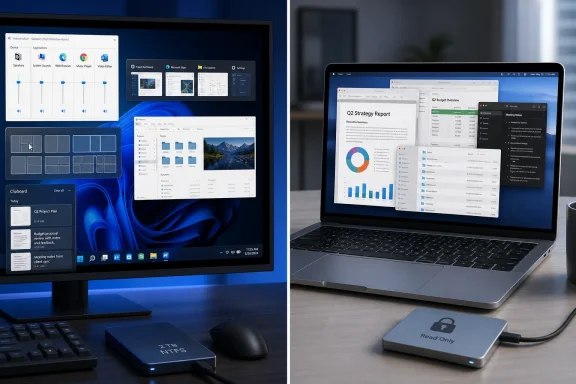 Overview: When Familiar Features Become Missing Features
Windows and macOS have gradually borrowed ideas from one another. Windows has become more design-conscious and touch-friendly, while macOS has added stronger window tiling, a more flexible Control Center, and system features that increasingly support modern hybrid work.
However, the two platforms still differ in their view of how people use applications. macOS tends to emphasize the application as the central unit of work. Windows, by contrast, often treats the individual window as the central unit.
That philosophical difference explains many of the frustrations Windows users encounter after switching to a Mac. A person may have one browser window for research, another for work, a third for personal accounts, multiple File Explorer windows, a video meeting, a document editor, and a music app all open at once. Windows is generally designed to expose and arrange those separate windows quickly.
macOS can accomplish much of the same work, but it may require extra shortcuts, gestures, Mission Control views, or third-party utilities. That is not always a deal-breaker. It is, however, a recurring source of friction.
The following five features show where Windows productivity tools continue to outpace native macOS behavior for certain workflows.
1. A Proper Per-App Volume Mixer
One of Windows’ most practical quality-of-life features is also one of its least glamorous: the Volume Mixer.
At its simplest, it lets users set different audio levels for individual applications. A browser playing a loud video can be lowered without muting a Teams meeting. A music app can run quietly in the background while a game, voice call, or training video remains at a comfortable level. Each active app gets its own controls, and Windows can also support app-specific audio output choices in its sound settings.
That is the sort of feature that becomes indispensable once it is part of a daily routine.
Why it matters in real work
Audio is no longer just a single desktop-wide resource. A typical workday may include:
- A Microsoft Teams, Zoom, or Slack huddle
- Background music from Spotify, Apple Music, or a browser tab
- Notification sounds from email and messaging apps
- Video playback in a browser
- Screen recordings or voice-over work
- A separate headset or external speaker setup
A single master volume slider is simply too blunt for this kind of multitasking. If Spotify is too loud during a call, reducing the entire Mac’s output also reduces the voice of the person speaking. If a web page suddenly auto-plays audio, the user may have to hunt down the tab or lower every app at once.
Windows handles this scenario more directly. Open the Volume Mixer, find the active app, drag its slider, and continue working. It is an immediate, visual, system-level control.
macOS still relies too heavily on app developers
macOS provides a master volume control and lets many apps include their own internal sound settings. But that is inconsistent by design. One app may expose a precise volume slider, another may offer only mute or unmute, and a third may provide nothing at all.
This places the burden on individual developers rather than the operating system. The result is an uneven experience, particularly for browser-based services and older desktop software.
Third-party Mac utilities can add app-specific audio controls, and several do a good job. The problem is not that there is no workaround. The problem is that a core desktop audio function still requires a workaround.
The Windows advantage
Windows’ per-app volume controls are valuable because they are:
- Built into the operating system
- Easy to discover through sound settings
- Useful for both casual and professional workflows
- Capable of handling individual app volume levels
- Better suited to simultaneous calls, media, and notifications
For anyone who constantly balances voice calls, music, and browser audio, the absence of a full native macOS volume mixer remains one of the clearest Windows advantages.
2. Alt+Tab That Prioritizes Windows, Not Applications
The difference between Alt+Tab on Windows and Command+Tab on macOS sounds minor until a person works with multiple windows from the same app.
Windows’ task switcher is built around open windows. macOS’s primary app switcher is built around applications. That distinction changes the entire rhythm of keyboard-driven multitasking.
Windows makes the target visible
On Windows, pressing Alt+Tab cycles through open windows. If there are three File Explorer windows, two browser windows, an Excel workbook, a chat app, and a video call, the task switcher gives the user a visual path to the specific window needed.
This approach is especially effective when windows are spread across several monitors. It is not necessary to first select an app and then locate the correct document or folder window within that app. The user goes directly to the destination.
Windows can also show recent browser tabs in the task switcher depending on the user’s multitasking settings. That behavior is not ideal for everyone, but it reinforces Microsoft’s broader emphasis on making individual work surfaces readily accessible.
macOS makes the app the first stop
On macOS, Command+Tab moves between applications. It is fast and elegant when each app has one primary window, but it becomes less efficient when an app has several open windows.
For example, selecting Finder through Command+Tab does not immediately present a choice between five Finder windows. The user may need to use `Command+`` to cycle within the application, invoke Mission Control, use App Exposé, or click the desired window manually.
Each method works. None is inherently unusable. But each adds a second step to a task that Windows completes in one.
The keyboard shortcut issue also matters. Command+\`` is more awkward thanAlt+Tab` for many users, particularly on laptop keyboards and compact external keyboards. It also assumes the user remembers that macOS distinguishes app switching from window cycling in the first place.
Mission Control is powerful, but it is not identical
macOS supporters may reasonably point to Mission Control, App Exposé, Spaces, Stage Manager, and trackpad gestures. These tools can make window management highly effective, particularly for users who work visually and rely on a trackpad.
Mission Control is excellent at providing a broad overview of open windows. Spaces are useful for separating projects. App Exposé can reveal windows belonging to one application. Stage Manager offers another way to group active tasks.
But these are not direct replacements for Windows-style Alt+Tab. They ask users to switch modes: from typing to gesture navigation, from focused work to a visual overview, or from one shortcut to a sequence of shortcuts.
For users who spend all day moving among documents, folders, browser windows, and communication tools, the Windows method remains faster because it more closely matches the desired action: bring this exact window to the front.
A more nuanced comparison
Windows is not flawless here. A crowded Alt+Tab list can become visually busy, and browser tab integration may create more entries than some people want. macOS also has a long-standing advantage in allowing users to hide applications, organize work into Spaces, and use trackpad gestures with unusual fluidity.
Still, the fundamental Windows approach is more direct for window-heavy workflows. It gives individual windows first-class status instead of treating them as secondary objects beneath their parent applications.
3. More Flexible and Customizable Window Management
Window snapping has become one of the defining productivity features of modern Windows. What began as a simple way to place a window on the left or right half of the display has evolved into a broader system of layouts, keyboard controls, multi-monitor behavior, and workflow customization.
macOS has improved dramatically in this area, especially since native window tiling became a more prominent part of the operating system. But Windows still offers a more complete out-of-the-box story—and a more capable Microsoft-supported path for advanced customization.
macOS window tiling is finally useful
Modern macOS versions allow users to tile windows more naturally than earlier releases. Users can drag a window toward display edges and corners, choose tiling options from window controls, or use keyboard shortcuts to position windows in common layouts.
This is a meaningful improvement. The days when many Mac users immediately installed a third-party snapping utility just to achieve basic side-by-side work are largely over.
For many tasks, native macOS tiling is enough:
- Comparing two documents
- Keeping a video call beside notes
- Placing a browser next to a writing app
- Splitting the display into quarters
- Expanding a window to fill the screen
Apple deserves credit for recognizing that manual resizing is not a productivity feature.
Windows Snap Layouts go further
Windows takes the concept further through Snap Layouts, which make multiple arrangements available directly from the maximize button, keyboard shortcuts, and drag-based interactions. Depending on display size and configuration, users can choose from several layouts that may include halves, thirds, columns, grids, and asymmetrical arrangements.
The key strength is not merely the number of preset shapes. It is the way Windows helps users populate a layout. After snapping one app into a position, Windows can suggest other open windows for the remaining spaces. This reduces repetitive dragging and turns a screen layout into a quick, guided workflow.
The feature is particularly effective on large external monitors and ultrawide displays, where a simple 50/50 split is often a poor use of available screen real estate.
PowerToys FancyZones is the real productivity differentiator
The most compelling part of the Windows window-management story is FancyZones, a utility within Microsoft PowerToys. FancyZones allows users to create reusable custom layouts made from grids or freely arranged canvas zones.
A user can create a layout with:
- A large central writing area
- A narrow research panel on the left
- A tall chat or email column on the right
- A small reference window in a corner
- Separate arrangements for laptop and external displays
- Different layouts for portrait and landscape monitors
This is not technically part of Windows itself in the same sense as Snap Layouts. PowerToys is a separate Microsoft utility that must be installed. That distinction matters, and calling it fully “native” would overstate the case.
However, it remains an official Microsoft solution, integrates deeply with Windows, and is free. In practical terms, it offers a level of configurable window placement that macOS users generally still obtain through third-party software.
Why custom zones matter
Window management is often dismissed as cosmetic. It is not. Repeatedly resizing, repositioning, and searching for windows creates small interruptions that accumulate throughout the day.
Custom zones can reduce that overhead. They create predictable locations for recurring tools, making it easier to build a visual routine around a task. A writer may always keep source material at the left. A developer may reserve a bottom strip for logs. A financial analyst may use a tall column for communication and a broad center pane for spreadsheets.
The more complex the workflow, the more Windows’ flexibility becomes valuable.
Where macOS still has strengths
macOS retains some advantages. Its full-screen Spaces behavior can feel cleaner for distraction-free work, and users with a Magic Trackpad or MacBook trackpad may prefer its gesture-driven navigation. The window controls are visually restrained, and Apple’s approach avoids overwhelming users with too many layout choices.
But simplicity has a cost. For users who need nonstandard layouts, macOS still tends to push them toward external utilities. Windows, especially with PowerToys, provides more options without requiring users to leave the Microsoft ecosystem.
4. Clipboard History That Is Fast, Visible, and Mature
Clipboard history is one of those features that sounds trivial until it changes how someone works. Standard copy and paste supports only the most recently copied item. Clipboard history turns the clipboard into a short-term workspace.
Windows has offered this capability for years through Windows+V. Once enabled, it lets users retrieve previously copied text, links, images, and other supported items. Frequently used clips can be pinned, and text clipboard data can be synchronized across compatible signed-in Windows devices.
That makes it far more than a basic copy-and-paste feature.
The everyday value of Windows clipboard history
Consider a routine task such as composing an email from several sources. A user may need to copy:
- A customer name
- An order number
- A support case link
- A quote from a document
- A shipping address
- A formatted snippet of instructions
Without history, copying item six overwrites item five, which overwrote item four, and so on. The user must constantly switch back to source windows and repeat the copying process.
With Windows clipboard history, the user can copy several items in sequence and retrieve them later from a single panel. That sounds like a small change, but it can dramatically reduce context switching.
macOS Tahoe improves the situation—but version matters
macOS Tahoe introduced native clipboard history through the updated Spotlight experience. That closes a longstanding gap for users who are running the latest macOS release.
But operating system version is not an academic detail. A Mac running macOS Sequoia does not gain a Tahoe feature simply because it exists elsewhere in Apple’s software lineup. For users who delay an upgrade due to interface changes, application compatibility concerns, workplace policies, hardware limitations, or personal preference, the lack of built-in clipboard history remains real.
This is a useful reminder that “macOS has the feature now” and “my Mac has the feature now” are not always the same statement.
Windows still provides a more established workflow
Windows clipboard history is not perfect. It must be enabled, it is subject to privacy considerations, and users should avoid copying passwords or highly sensitive data unless they understand how their clipboard tools are configured. Clipboard synchronization also deserves caution in managed or shared environments.
Nevertheless, Windows provides a mature, keyboard-first implementation that is easy to invoke and understand. Windows+V has become a recognizable shortcut for users who work across documents and applications all day.
Apple’s addition of native clipboard history is welcome. Yet it also illustrates how long Mac users had to rely on third-party clipboard managers for a function that Windows users have treated as ordinary for years.
The privacy trade-off
Clipboard history has a potential downside on both platforms: copied data can be sensitive. Passwords, account numbers, private messages, one-time codes, and internal business information may pass through the clipboard.
That does not make the feature unsafe by definition. It does mean users should be deliberate:
- Avoid copying secrets unnecessarily
- Review clipboard synchronization settings
- Clear history on shared or managed devices
- Use pinned clips carefully
- Understand how third-party clipboard managers store data
The key point is that convenience should be paired with sensible data hygiene. Windows offers the convenience natively; macOS users on older releases may still need external tools to achieve it.
5. Native NTFS Write Support for External Drives
The fifth missing feature is less visible than volume controls or window switching, but it can become a major obstacle when moving files between systems: writing to NTFS-formatted storage from macOS.
NTFS remains the standard file system associated with modern Windows installations and many Windows-formatted external drives. macOS can typically read NTFS volumes, allowing a Mac user to open files and copy them to the Mac. But native write support is another matter.
If a Windows user hands over an NTFS external drive and asks a Mac user to add files, delete outdated folders, rename data, or update a project, macOS may not be able to complete the task without additional software.
Why this continues to matter
It is tempting to dismiss NTFS as a Windows-only concern, especially because exFAT works across both Windows and macOS. For a newly formatted external drive intended to move files between platforms, exFAT is often the sensible choice.
But real-world storage is messy. People do not always control the formatting of the drives that arrive on their desks. Legacy backup drives, client-provided disks, office archive volumes, media libraries, and drives used by Windows-based devices may already use NTFS.
In those cases, “just format the drive as exFAT” is often not a solution. Reformatting erases the drive. Even when data can be copied elsewhere first, the process may take hours and require spare storage capacity.
The practical frustration
The limitation is especially noticeable in small, everyday situations:
- Adding files to a colleague’s Windows external SSD
- Updating a folder on a shared archive drive
- Removing large files to free space
- Exporting a project from a Mac to a Windows-formatted disk
- Editing data during travel without access to a Windows PC
- Managing storage for a household with both Mac and Windows computers
The Mac can see the disk. It can read the disk. Yet it may not be able to perform the most basic file-management actions on it.
That feels counterintuitive because the hardware connection itself is rarely the issue. USB-C, USB-A, Thunderbolt, and external storage enclosures can all work perfectly. The obstacle is the file system.
Third-party NTFS tools fill the gap, with caveats
There are third-party NTFS utilities for macOS that add write capability. Some are commercial products, while others use open-source technologies or more technical installation methods.
These tools can be useful, but they come with trade-offs:
- They add software dependency to a basic storage task
- They may require elevated permissions or system extensions
- Compatibility can vary after macOS upgrades
- Performance may differ from native file-system support
- Reliability is crucial because file-system errors can risk data loss
- Business users may be unable to install them on managed Macs
For important data, users should be careful. Before relying on a third-party NTFS driver for critical backups or large transfers, it is wise to maintain an independent copy of the data and test the workflow with nonessential files.
Apple’s perspective is understandable, but the limitation remains
Apple has its own modern file system, APFS, and Windows does not natively provide full APFS support either. From that perspective, the complaint can seem one-sided.
Still, NTFS has an unusually large installed base because of Windows’ reach in personal computing, business environments, and external storage workflows. A Windows user encountering an APFS drive is less likely to see it as a general-purpose exchange format. A Mac user encountering NTFS is more likely to encounter a disk that belongs to a colleague, employer, customer, or household member.
That does not obligate Apple to implement full NTFS write support. But it explains why the omission remains frustrating.
Windows Is Not Perfect—and macOS Is Not Failing
None of these missing Windows features prove that macOS is inferior. That would be an overly simplistic conclusion.
macOS offers strengths that Windows users often appreciate after switching:
- Strong integration with iPhone, iPad, Apple Watch, and AirPods
- Consistent hardware and software design
- Excellent laptop battery life on Apple silicon
- High-quality trackpads and gestures
- A UNIX-based foundation for development and command-line work
- Smooth media and creative workflows
- Powerful built-in accessibility features
- Tight security controls and a curated software environment
Likewise, Windows has its own weaknesses. The operating system must support an immense range of hardware, drivers, peripherals, form factors, enterprise policies, and legacy software. That flexibility can make the experience feel less consistent. Windows also includes more settings layers, more optional components, and more opportunities for OEM software to complicate a clean installation.
The issue is not that one platform is universally better. It is that certain Windows desktop productivity features are more mature, more direct, or more configurable than their macOS equivalents.
The Larger Lesson for Cross-Platform Users
The five features—per-app volume control, window-first task switching, customizable layouts, clipboard history, and NTFS writing—have something in common. They address the small operational details that shape a workday.
None of them is likely to determine whether someone buys a computer on its own. But combined, they influence how many clicks, keystrokes, app installs, and workarounds are required to get through ordinary tasks.
Windows often excels when users want the operating system to expose controls directly and let them fine-tune behavior. macOS often excels when users prefer a more curated environment with fewer visible options and stronger integration across Apple devices.
For people who move constantly between both systems, Windows can feel refreshingly accommodating in the moments when work gets complicated. The Volume Mixer prevents audio conflicts. Alt+Tab surfaces the correct window. Snap Layouts and FancyZones make large displays more productive. Clipboard history reduces repetitive copying. NTFS compatibility helps external drives remain useful instead of becoming read-only obstacles.
macOS has narrowed some of these gaps, and its recent improvements to window tiling and clipboard history show that Apple is responding to long-standing productivity complaints. But the comparison also demonstrates how durable good desktop features can be. Once users build habits around tools that save time dozens of times per day, those tools stop feeling optional.
They become the features a Mac user misses most.
