
That distinction is more than semantic for administrators and power users. The remaining classic surfaces are where Windows still exposes driver-dependent workflows, manual printer provisioning, domain-era system configuration, and specialized network controls. Microsoft design leader March Rogers said in April that the company is working through migration of old Control Panel controls into Settings, but explicitly tied the slow pace to the need not to break network and printer devices or their drivers.
Windows Latest’s August 27 report correctly identifies a broad modernization effort underway in Windows 11. Its conclusion that Control Panel will eventually disappear, however, goes further than Microsoft’s public record. The official statements establish a migration direction; they do not establish a deprecation commitment for the Control Panel executable, its shell namespace, or the many .cpl and Win32 dialogs that still underpin administrative tasks.
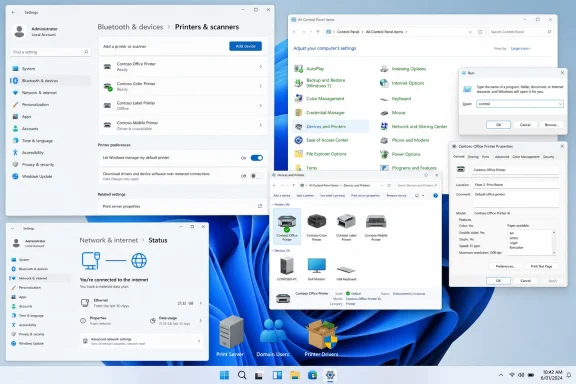 Microsoft has confirmed the UI work, not a retirement timetable
Microsoft’s July 31 Windows quality update says WinUI 3 has expanded into more of the Windows shell, naming Widgets and the new Run experience, with AutoPlay and more File/Folder Properties dialogs due in Windows Insider Experimental builds. That is the clearest first-party confirmation of the design work described by Windows Latest.
The refreshed Run dialog is already a defined Insider feature. Microsoft announced on May 1 that it is an opt-in experience for Experimental-channel Insiders, enabled through Settings > System > Advanced. That detail matters because it shows the company is testing behavioral and compatibility changes behind a choice rather than replacing a foundational shortcut for every Windows user at once.
The official posts do not promise a general-availability date for Run, AutoPlay, or the redesigned Properties surfaces. Microsoft said in July that enhancements would begin rolling out more broadly across Windows 11 PCs in the fall, yet that is a broad statement about its quality and design work rather than a feature-by-feature ship schedule. Insiders should also remember that Experimental-channel features can change or disappear before reaching retail Windows.
Windows Latest’s performance comparison of the new Run dialog against the classic version is therefore interesting, but it should not be treated as a Microsoft performance guarantee. The crucial practical point is simpler: the new Run experience remains optional in Microsoft’s current test implementation, and the classic dialog is still present.
The Control Panel problem is compatibility, not cosmetic consistency
Rogers’ April response is unusually direct about why Microsoft cannot simply finish the transition by hiding Control Panel. The company is moving old controls into modern Settings apps “carefully,” he said, because it must avoid breaking a wide range of network and printer devices and drivers.
That concern is borne out by Microsoft’s own support material. A current Microsoft troubleshooting article for the manual Add Printer wizard still instructs customers to open Control Panel, go to Devices and Printers, choose Add Printer, and work through the manual setup path. The article addresses a case where the wizard’s Windows Update driver list does not show every registered driver and recommends manually obtaining a driver from the Windows Update Catalog.
In other words, the classic path is not merely a leftover interface that has escaped a design cleanup. It remains part of a documented recovery and deployment workflow for printer hardware that cannot always be handled through automatic discovery or a vendor’s simplified installer. Repainting the window in WinUI does not remove the need to preserve the underlying driver, port, queue, policy, and error-handling capabilities.
Printing also illustrates why a seemingly narrow UI decision can affect enterprises disproportionately. A home PC may use a USB or IPP-capable printer and never encounter the legacy wizard. An organization can have shared queues, line-of-business printer drivers, specialized label printers, accounting codes, print-management agents, older server connections, and policies built around established Windows print mechanisms. The interface must keep enough fidelity to support those paths before it can replace them.
Microsoft’s March post on its modern print platform frames the same transition from the other side: device-specific drivers have historically increased management overhead, reliability problems, and security exposure, and the company wants safer modern alternatives. That is a strategic reason to reduce dependency on legacy printer plumbing. It is also an admission that the transition is large enough to require ecosystem cooperation rather than a one-release switch.
A modern Print Management app would not automatically replace Print Management
The newest element in Windows Latest’s report is its claim that a modern Print Management app is testing in the Release Preview Channel. Windows Report separately described the same redesign as associated with the August 14 Release Preview update, KB5120998. Yet it also noted that Microsoft’s published changelog did not specifically announce the redesigned app.
That leaves the feature in an awkward but familiar pre-release position: it appears to be observable in testing, while Microsoft has not publicly defined its role, scope, supported editions, or replacement status. The phrase “Print Management” is particularly easy to overread because Windows includes several overlapping printing surfaces: Settings’ Printers & scanners page, Devices and Printers, the legacy Add Printer wizard, the Print Management console used by administrators, printer-server tools, and application-level print dialogs.
A redesigned application could improve one of those experiences without retiring all the others. Microsoft has not said whether the current testing replaces the Print Management Management Console snap-in, which Windows editions will receive it, whether it can administer remote print servers, or how it will coexist with Windows Protected Print Mode and third-party print-management software.
Those omissions matter to IT teams. Windows Protected Print Mode, for example, moves clients to the modern print stack and Mopria-certified printing, but Microsoft documentation also describes compatibility boundaries. An administrator using a protected-print client cannot use Print Management to manage servers that have Windows Protected Print Mode disabled. A new front end cannot erase constraints in the architecture beneath it.
The safe reading is that the app is evidence of Microsoft’s direction, not proof of one-for-one parity with every administrative console. Organizations that depend on print servers or nonstandard drivers should validate the new tool in a representative lab rather than assuming an updated design signals feature equivalence.
The Settings app still routes users into the old Windows
Windows Latest points to two visible examples of unfinished migration: Bluetooth file transfer and manual printer addition. Those handoffs are a useful reminder that Windows 11’s Settings app often serves as a discovery and entry layer while older components execute the advanced task.
That pattern persists well beyond the visuals called out in the report. Advanced system configuration, legacy networking controls, driver-specific property sheets, and administrative consoles remain distributed across Settings, Control Panel, Microsoft Management Console snap-ins, and direct commands. Windows veterans often reach those areas through commands such as sysdm.cpl, ncpa.cpl, appwiz.cpl, or control printers; management scripts and documentation may invoke them directly.
Microsoft can reduce ordinary users’ exposure to that complexity by moving common controls into Settings. It cannot eliminate the complexity merely by removing the Control Panel icon. A forced redirect before equivalent workflows exist would turn many troubleshooting procedures into dead ends, particularly for help desks that need to install a driver manually, change a device’s advanced settings, or follow vendor documentation written for classic Windows interfaces.
For readers maintaining Windows estates, the immediate response is restraint rather than alarm:
- Keep the existing Control Panel and MMC-based steps in internal runbooks where they are tied to a validated device or driver workflow.
- Test the new Run, AutoPlay, Properties, and print experiences on Insider hardware separately from production administrative procedures.
- Ask printer and network-device vendors whether their supported Windows 11 workflows depend on legacy dialogs, shell extensions, or device-specific property pages.
- Treat any redesigned Print Management application as a preview until Microsoft publishes supported scenarios and replacement guidance.
The likely outcome is a long overlap, not a sudden cutoff
Microsoft has a clear incentive to consolidate settings: fewer duplicate interfaces, a more coherent Windows 11 design, and a cleaner route toward modern driver and printing models. The incoming WinUI work shows that effort has moved from isolated Settings pages into highly visible shell dialogs.
Still, the evidence points to a prolonged overlap. Microsoft is modernizing the places users encounter most often first—Run, AutoPlay, File Explorer properties, printer-facing experiences—while the harder compatibility work remains beneath them. The company’s own documentation continues to rely on Control Panel-era paths for printer-driver troubleshooting, and its design leadership has acknowledged the risk of breaking devices and drivers.
Control Panel is becoming less central to day-to-day Windows 11 use, especially for consumers. It is not obsolete in the operational sense that matters to administrators. Until Microsoft publishes replacement matrices for the remaining legacy workflows and withdraws its own Control Panel-based support procedures, the practical assumption should be that Windows 11 will continue shipping both worlds side by side.