
C:\Temp, but the permanent registry change proposed in a recent IT’S GEEK TO ME column will not make File Explorer universally capable of handling long paths. Microsoft’s own documentation says the setting works only for applications that explicitly opt in, and File Explorer remains a conspicuous weak point.The column, published by the Odessa American, correctly identifies the familiar
MAX_PATHboundary behind many ZIP extraction failures: the traditional Win32 limit is 260 characters for a complete path, not simply a file name. A ZIP can contain a perfectly valid file whose nested folders, final name, and chosen extraction directory add up to more than Explorer can process.
For the reader who downloaded a large archive of election-related documents, the immediate advice is sound: do not extract from
C:\Users\<name>\Downloadsinto another deeply nested folder. Create a deliberately short destination such as
C:\Tempor
C:\Zip, move the archive there, and extract to a short-named subfolder. That removes the user profile, Downloads directory, and often the archive name itself from the path calculation.
But the underlying Windows behavior is more complicated than “flip LongPathsEnabled to 1 and the restriction is gone.”
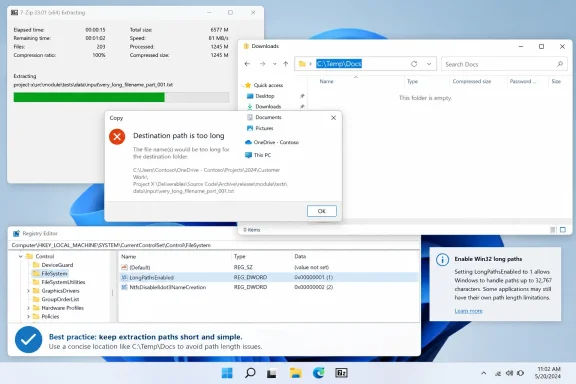 The 260-character limit applies to the whole route
Microsoft defines
MAX_PATHas 260 characters for a conventional Win32 path. That count includes the drive letter, colon, backslashes, every parent folder, the filename, the extension, and a terminating character used internally. The practical result is that a 90-character filename may be harmless in
C:\Tempbut fail in a path such as
C:\Users\Ed\OneDrive - Organization\Documents\Research\Downloaded archives\....
The ZIP error is especially misleading because the archive can open far enough for Explorer to inspect it before extraction fails. Explorer is trying to create the archive’s internal folder hierarchy at the selected destination. The full destination path is therefore:
Extraction folder + ZIP’s internal folders + final file nameA user may shorten the ZIP filename and still hit the same wall if one of the archive’s embedded paths is long. Conversely, moving the archive from Downloads to
C:\Tempmay be enough even without renaming anything.
Microsoft also notes a less obvious constraint: Windows paths can have a large overall capacity in software designed for extended-length handling, but an individual file or folder component is commonly limited to 255 characters by the filesystem. Enabling long paths cannot rescue an archive containing a single filename longer than the destination volume permits.
The registry setting is an application opt-in, not a universal switch
The column’s largest omission concerns the registry value at
HKEY_LOCAL_MACHINE\SYSTEM\CurrentControlSet\Control\FileSystem\LongPathsEnabled. Setting that
DWORDto
1, or enabling the Group Policy setting at Computer Configuration > Administrative Templates > System > Filesystem > Enable Win32 long paths, is a legitimate Windows configuration. Microsoft documents both methods.
However, Microsoft’s Win32 documentation is explicit that two conditions are required for modern long-path behavior: the system policy or registry value must be enabled and the application must declare itself long path aware in its manifest. The setting does not rewrite old applications, retrofit every Windows shell component, or guarantee that every installer, backup client, file manager, or archive tool can now use paths beyond 260 characters.
That caveat is decisive for this case. Microsoft’s OneDrive support documentation says that File Explorer does not use the long-path setting, even where Windows file-system support has been enabled. Microsoft’s support forums have repeatedly made the same distinction: Explorer may display or traverse portions of a long hierarchy, but operations that create, rename, extract, copy, or extend a path can still fail.
So a reboot after changing
LongPathsEnabledis reasonable—the value can be cached by running processes—but it should not be presented as a guaranteed repair for Explorer’s ZIP extraction dialog. On a managed work PC, it also may be unavailable: Group Policy can override a local registry edit, and changing a machine-wide key requires administrator privileges.
The practical conclusion is simple: enable the policy where an organization has applications built to use it, but do not depend on it as a rescue button for a ZIP archive that Explorer already rejects.
A shorter extraction path is the dependable first response
The safest workflow for the affected reader is operational rather than administrative:
- Create a short, temporary folder such as
C:\TemporD:\X. - Move the ZIP file itself into that folder.
- Extract the archive into an equally short destination, such as
C:\Temp\Docs. - Avoid extracting directly into Downloads, Desktop, Documents, a synced OneDrive directory, or a long project hierarchy.
- After confirming the files are usable, move only the needed material into its permanent location, shortening folder names where necessary.
Microsoft Q&A guidance for the exact “destination path is too long” ZIP message similarly recommends placing the archive near the drive root and extracting from there. The advice works because it reduces the number of fixed characters before Explorer begins appending the archive’s own internal structure.
This is also why the reader’s inability to rename the file should not be treated as proof that the archive itself is malformed. The dialog’s “rename the Compressed (zipped) Folder” wording is generic and often points users at the wrong object. Windows may mean the ZIP filename, the intended extraction folder, or simply the resulting path. Renaming a ZIP may help, but moving it to a shorter path generally removes more characters in one step.
Users should also be wary of opening individual documents inside a ZIP by double-clicking them in Explorer. Explorer can use temporary extraction handling in that scenario, introducing another path users cannot see or control. Extracting the archive to
C:\Temp\Docsfirst gives the operator an auditable location and avoids betting on Explorer’s temporary-folder behavior.
Third-party extractors can bypass Explorer’s limitation
The columnist’s recommendation to use 7-Zip is sensible, with one qualification: 7-Zip is an alternative archive manager, not a magic exemption from every Windows naming rule. It can avoid limitations in Explorer’s built-in Compressed Folders handler and provides more direct control over the output directory, which is why it is frequently successful with archives Explorer refuses to unpack.
Microsoft Q&A responses addressing this same ZIP error have suggested 7-Zip as an alternative after advising users to extract near the drive root. The two actions should be treated as complementary rather than interchangeable. Use a short destination even with 7-Zip, because the target filesystem’s per-component limits still apply, and because files may later need to be opened, copied, synchronized, or indexed by software that does not handle extended paths well.
For IT administrators, the useful distinction is between extracting the archive and making its contents operational. A third-party extractor may successfully write a deep tree to disk, but a later attempt to copy that tree with Explorer, attach a document to an email, sync it through a cloud client, or feed it to a legacy line-of-business application can reproduce the failure elsewhere.
That is why archive producers should avoid publishing deeply nested ZIPs with verbose folder names when the target audience includes Windows users. The publisher controls the archive’s internal names; the downloader controls only the final extraction location. A government or enterprise release packaged with a concise top-level folder and predictable directory names is materially easier to use than one that assumes every recipient runs tools with extended-path support.
OneDrive can make a marginal path fail
The column’s criticism of OneDrive has a factual basis, though it overstates the case by treating OneDrive as the cause rather than an amplifier. A local OneDrive folder normally sits beneath the user profile and may include an organization name, so it consumes a meaningful part of the path budget before a user creates any project folders.
Microsoft’s OneDrive documentation acknowledges the practical limitation: even with the Windows long-path policy enabled, File Explorer does not use it. Microsoft advises users facing overly long OneDrive or SharePoint paths to rename the item through the web service when possible.
For an organization that uses OneDrive Known Folder Backup, this means Desktop and Documents may no longer be safe “short” destinations. A user who thinks they are extracting to a local Documents folder can instead be adding the length of the OneDrive root and any tenant branding to every resulting file path.
C:\Tempis more reliable precisely because it sits outside that redirected structure.
The immediate fix for the reader’s archive is therefore not a registry edit and not a debate over cloud storage. It is to extract from a short, local path first. If Explorer still produces the error, use 7-Zip or another archive manager that supports extended paths, then keep the resulting files in a structure that the rest of the Windows tools on that PC can actually manage.
References
- Primary source: Odessa American
Published: August 9, 2026 at 5:00 PM UTC
Loading…
www.oaoa.com - Related coverage: learn.microsoft.com
Loading…
learn.microsoft.com - Related coverage: learn.microsoft.com
Naming Files, Paths, and Namespaces - Win32 apps | Microsoft Learn
The file systems supported by Windows use the concept of files and directories to access data stored on a disk or device.learn.microsoft.com - Related coverage: support.microsoft.com
What are the file path length limits? | Microsoft Support
File path length limits across Windows, macOS, OneDrive, SharePoint, and Office.support.microsoft.com - Related coverage: support.microsoft.com
Loading…
support.microsoft.com - Related coverage: cpubproddsstorage.blob.core.windows.net
Loading…
cpubproddsstorage.blob.core.windows.net - Related coverage: microfocus.com
Loading…
www.microfocus.com