
A merged PDF is useful for far more than tidying email attachments. It can turn a set of invoices into one expense record, assemble signed forms into a single packet, combine scanned pages for submission, or create one shareable document from several reports. The key is choosing a workflow that matches the sensitivity of the files, the complexity of the page arrangement, and whether the work needs to stay entirely on the device.
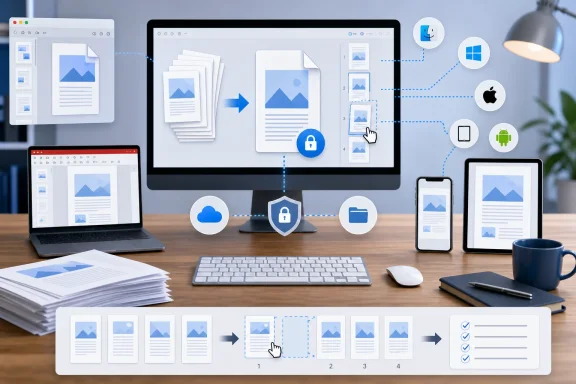 The First Decision: Local Merge or Online PDF Merger?
Before selecting a tool, decide whether the documents can safely leave the device. That choice matters more than the number of PDFs being combined.
An offline PDF merger processes files locally. This is generally the preferred route for tax returns, identification documents, health records, employment paperwork, contracts, bank statements, or anything protected by a work or school policy. Tools such as PDFsam Basic explicitly position their merge workflow as local processing, while PDF24 Creator likewise describes its desktop application as an offline Windows solution.
An online PDF merger is convenient when the files are non-sensitive and already accessible from cloud storage. Most web tools follow the same basic pattern: upload the PDFs, rearrange them, select Merge, and download the result. For example, Xodo’s browser-based merger supports adding files, reordering them, merging them, and saving the finished document.
That simplicity has a trade-off. Browser services introduce an additional handling step, and the privacy implications depend on the provider, service configuration, login state, retention policy, and the storage destination selected after the merge. For ordinary handouts, receipts, or public documents, that may be acceptable. For confidential records, a local tool is the more conservative choice.
A practical selection guide
Use this short rule set:
- Mac and only a few PDFs: Use Preview.
- Mac and a folder full of mixed files or images: Try Finder Quick Actions.
- Windows and sensitive documents: Use PDFsam Basic, PDF24 Creator, or desktop Acrobat.
- Windows and complex page-level work: Use Adobe Acrobat or a full PDF editor.
- iPhone, iPad, or Android: Use a trusted PDF app such as PDF Expert or Xodo.
- Any device, non-sensitive files, no installation allowed: Use a reputable browser merger.
- Paper pages that have not yet become PDFs: Scan them into one multi-page PDF instead of creating separate PDFs and merging later.
Combine PDF Files on a Mac With Preview
For existing PDFs on a Mac, Preview remains the most direct built-in option. It can merge full documents, insert selected pages from another PDF, and rearrange the result in a thumbnail sidebar. Apple’s current documentation confirms that Preview can add individual pages from one PDF to another or merge the complete contents of multiple PDFs. Apple Support
Merge entire PDFs in Preview
- Open the first PDF in Preview.
- Select View > Thumbnails to display the page sidebar.
- Drag another PDF from Finder directly into the thumbnail sidebar.
- Drop it at the exact point where its pages should appear.
- Reorder any pages by dragging their thumbnails.
- Save the merged file.
This is particularly effective when one document should act as the “base” file and another needs to be appended or inserted between existing pages. Preview supports dragging a whole PDF from Finder into an open document’s sidebar, while pages can be moved individually after insertion. Apple Support
Merge only selected pages
Preview is also useful when the task is not a whole-file merge. Open both documents, enable View > Thumbnails in each window, select the pages to keep, and drag those thumbnails into the destination document.
Hold Command while selecting non-adjacent pages. That makes it possible to combine, for example, page 1 of a cover letter, pages 3–5 of a report, and the final page of a signed agreement without exporting each selection as a separate temporary PDF first. Apple Support
The important Preview warning
Preview can save changes automatically. Apple specifically advises creating duplicates before combining documents if the original PDFs must remain untouched. Choose File > Duplicate before dragging pages around, especially when working with an irreplaceable signed document or a carefully prepared source file. Apple Support
That behavior is both Preview’s strength and its main risk. It is fast because it minimizes dialogs and extra prompts, but it rewards a cautious workflow: duplicate first, merge second, inspect third.
Create a Single PDF From Finder
Finder provides a faster route when the files are already organized in one folder and no page-by-page editing is needed. Rather than opening every document in Preview, select the source files and invoke Finder’s PDF creation action.
- Open Finder.
- Select the files to include.
- Control-click the selection.
- Choose Quick Actions.
- Select Create PDF.
- Name the resulting document if prompted.
Apple documents Create PDF as a Finder Quick Action and notes that Quick Actions can also appear at the bottom of Finder’s Preview pane. If the pane is hidden, enable it through View > Show Preview. Apple Support
When Finder is better than Preview
Finder’s approach is most useful when:
- The files are already in the required sequence.
- The source documents are simple PDFs, images, or related file items.
- The goal is a single quick handoff document.
- Page-level insertion, deletion, and rearrangement are unnecessary.
The limitation is ordering. Selection order can affect how the combined output is arranged, so it is wise to rename files with sortable prefixes such as 01-Cover.pdf, 02-Report.pdf, and 03-Appendix.pdf before using the action. That small preparation step avoids one of the most common PDF merge failures: a finished file whose pages are technically complete but logically scrambled.
Combine PDFs on Windows With Adobe Acrobat
Windows does not offer the same built-in PDF merging workflow that macOS users get through Preview. For dependable results, use a dedicated PDF application rather than attempting to simulate a merge through printing or relying on a browser viewer.
Adobe Acrobat is the conventional choice for users who already have access to its document-management features. Its Combine Files tool can bring together PDFs as well as other supported file types, including Word documents, Excel spreadsheets, PowerPoint presentations, images, audio, video, and web files. Acrobat also lets users preview, rearrange, expand, and remove pages before creating the final sequential PDF. Adobe Acrobat Help
How to merge PDFs in Acrobat on Windows
- Open Adobe Acrobat.
- Select Menu > Combine files.
- Choose Add Files, or drag files into the Combine Files window.
- Arrange the file thumbnails in the required order.
- Expand a file thumbnail if individual pages need to be reviewed or repositioned.
- Remove unwanted files or pages.
- Select Combine.
- Rename and save the newly created PDF.
Adobe’s instructions distinguish the entry point by platform: Windows uses Menu > Combine files, while macOS uses File > Combine files. The rest of the process is broadly the same, including drag-and-drop ordering and page-level review. Adobe Acrobat Help
Why Acrobat remains valuable
Acrobat’s advantage is not merely that it merges PDFs. It is the degree of control available before committing to the output:
- Reorder whole files.
- Open a file’s page thumbnails.
- Move individual pages between documents.
- Remove pages from the new merged output.
- Combine multiple document formats into a PDF package.
- Save the final file where it belongs, rather than relying on a browser download folder.
For business workflows, this is important. A combined PDF often becomes a record sent to a client, legal team, HR department, insurer, or government portal. The ability to inspect the page sequence before creating the result is worth more than shaving off a few clicks.
Reader versus Acrobat
The distinction between Acrobat Reader and the full Acrobat product matters. Adobe documents the Combine Files experience as part of Acrobat’s desktop workflow, so users who only have a basic PDF reader may not see the option they expect. Adobe Acrobat Help
On managed work or school PCs, a missing feature can also reflect administrative policy rather than a broken installation. Organizations may restrict cloud-connected document services or limit available PDF capabilities. In that situation, use the organization-approved PDF application rather than copying confidential files into a personal online merger.
Best Offline PDF Merger Options for Windows
A local PDF app is the better Windows answer when privacy, repeat use, or large files are involved. Two particularly practical options are PDFsam Basic and PDF24 Creator.
PDFsam Basic: cross-platform and privacy-focused
PDFsam Basic is a free, open-source desktop application available for Windows, macOS, and Linux. Its merge module supports whole-document combinations, page ranges, bookmark handling, form handling, and optional table-of-contents generation. PDFsam Basic
To merge files:
- Open PDFsam Basic.
- Select Merge PDF.
- Drag PDF files into the input list.
- Arrange them in the intended order.
- Set the output file name and location.
- Select Run.
The workflow is straightforward, but the deeper settings are valuable when the source files are more complicated than a stack of simple pages. PDFsam supports merging selected page intervals, deciding how bookmarks should be handled, and controlling what happens to interactive forms. PDFsam Basic
That makes it a strong option for Windows users who need to combine reports while preserving structure rather than merely concatenating pages.
PDF24 Creator: a Windows-focused desktop toolbox
PDF24 Creator is another local Windows option. Its creator interface supports assembling, modifying, merging, splitting, rotating, sorting, extracting, and moving PDF pages, while the vendor describes the desktop product as an offline tool that keeps files on the PC. PDF24 Creator
PDF24 Creator is especially useful for users who want more than one PDF task in the same program. It can combine PDFs, turn documents or images into PDFs, adjust page order, and support output settings such as metadata, compression, passwords, watermarks, and page numbers. PDF24 Creator
The potential downside is complexity. A toolbox with many PDF functions can feel less immediate than Preview or a single-purpose merger. For occasional use, that may be more interface than necessary. For regular office work, it can be a worthwhile all-in-one utility.
Merge PDFs Online From Any Browser
Online PDF merging is the most flexible cross-platform route. It works on Windows, macOS, Linux, Chromebooks, tablets, and phones as long as the browser can upload and download files.
The basic process is nearly universal:
- Open the web-based merge tool.
- Upload or drag in the PDFs.
- Review the file order.
- Reorder or remove documents as needed.
- Select Merge.
- Download or save the completed PDF.
Xodo’s online merge tool follows precisely that model, allowing users to upload files, rearrange the order, merge them, and download the resulting document. It also advertises browser availability across Windows, Mac, Linux, Android, and iOS. Xodo
When browser merging makes sense
Web tools are useful when:
- You are using a borrowed or locked-down computer.
- The PDFs are already in cloud storage.
- You need a quick result from a Chromebook.
- You are helping someone remotely and want a common workflow.
- The files are ordinary, non-confidential documents.
When it does not
Avoid treating an online merger as the default for sensitive material. Even when a provider describes a privacy-oriented process, the responsibility remains with the person uploading the document to understand the service’s handling model and organizational requirements.
A particularly important distinction is between web processing and a desktop app. For example, Xodo’s own materials describe separate browser, desktop, and mobile workflows, with its desktop PDF Studio option positioned for offline document work on Windows, macOS, and Linux. Xodo
Combine PDFs on iPhone and iPad
On Apple’s mobile devices, PDF merging is best handled through a dedicated document app. Mobile operating systems are excellent at viewing, sharing, and marking up PDFs, but assembling multiple existing PDFs into a controlled page sequence benefits from a specialist interface.
PDF Expert for iPhone and iPad
PDF Expert’s merge feature works from its file manager, avoiding the need to open a document first. The vendor notes that merging is part of the subscription version, although customers who previously purchased PDF Expert 6 can still merge PDFs without a subscription. PDF Expert Help Center
On iPad:
- Open PDF Expert.
- Tap Select in the file manager.
- Choose the PDFs.
- Tap Merge in the sidebar.
- Set the output name and destination.
- Tap Merge and Save.
On iPhone, select the files in the destination folder, use the More menu if required, choose Merge, name the output, and save it. PDF Expert also supports reordering pages in the newly created PDF. PDF Expert Help Center
Form and signature caveats
PDF forms and signed files deserve special care. PDF Expert warns that merging forms can produce errors and recommends creating flattened copies before attempting the merge in those situations. It also notes that digital signatures can create merge complications. PDF Expert Help Center
Flattening can make a form easier to combine, but it may also remove editability. That is why a duplicate-first workflow remains sensible: preserve the original interactive or signed PDF, then create a copy intended for packaging and sharing.
Merge PDFs on Android and iOS With Xodo
Xodo’s mobile app provides a similar workflow on both Android and iPhone or iPad. The feature is located under Toolbox > Manage PDF > Merge Pages, making it accessible without a desktop computer. Xodo
- Open the Xodo app.
- Tap Toolbox.
- Select Manage PDF.
- Choose Merge Pages.
- Add the PDF files.
- Tap Next.
- Press and hold the drag handles to put files in order.
- Tap Merge.
- Save the result.
For mobile work, the ability to rearrange before merging is essential. Phone screens are not ideal for reviewing a 100-page package, but they are perfectly capable of combining a few receipts, scanned pages, insurance documents, or meeting attachments—provided the user checks the first and last page of each inserted file before sending it.
Turn New Android Scans Into One PDF With OneDrive
If the “PDF files” are actually paper pages waiting to be scanned, it is more efficient to create one multi-page PDF at capture time.
Microsoft’s OneDrive for Android scanning feature supports multi-page scanning in version 6.5 or later. Select Scan, choose the appropriate mode, capture the first page, use Add for each additional page, then tap Done, name the file, and save it. Microsoft states that multi-page scans are saved as PDFs and are limited to 10 pages or images. Microsoft Support
This is a cleaner route than generating ten separate scanned PDFs and merging them afterward. It also reduces the risk of missing or misordering a page.
Do not rely on Microsoft Lens for new scans
Microsoft Lens is no longer the forward-looking option for mobile scanning. Microsoft says that Lens retirement began on January 9, 2026, support ended after February 9, 2026, and users could no longer create new scans after March 9, 2026; the company recommends OneDrive as the alternative. Microsoft Support
Existing Lens scans may remain accessible on an installed app under the applicable account conditions, but new document-scanning workflows should move to OneDrive or another currently supported scanning app. Microsoft Support
Quality Checks Before Sending a Merged PDF
Creating the PDF is only half the job. A merged document should be treated as a new deliverable, not assumed correct simply because the merge completed without an error.
Use this final checklist
- Check page order: Confirm that cover pages, appendices, and signatures appear where intended.
- Check orientation: Make sure landscape pages did not rotate unexpectedly.
- Check page count: Compare the result with the total expected pages.
- Open the merged file on a second viewer if possible: This can reveal rendering problems.
- Confirm searchable text: A scan may look fine but remain image-only.
- Inspect forms and signatures: Interactive fields, certifications, and digital signatures may not behave as expected after merging.
- Rename the output clearly: Use a meaningful file name rather than
Combined.pdf. - Keep the originals: A merged PDF is a distribution copy, not necessarily a replacement for source files.
File size also matters. Combining several image-heavy scans can create a PDF too large for email or a web portal. In that case, compress a copy after confirming the merge is correct, then check the compressed result for legibility. Never assume that shrinking a PDF preserves the same image quality or text clarity.
The Best PDF Merge Method Is the One That Fits the Document
For most Mac users, Preview is the fastest and most capable built-in way to combine PDFs, while Finder provides a quick folder-based alternative for simpler jobs. On Windows, Adobe Acrobat, PDFsam Basic, and PDF24 Creator offer more dependable merge workflows than improvised printing methods. On iPhone, iPad, and Android, PDF Expert, Xodo, and multi-page scanning through OneDrive make it possible to build a clean PDF package without waiting to reach a computer.
The best practice is simple: merge locally when the paperwork is private, use page thumbnails rather than trusting file names, duplicate important originals before editing, and inspect the completed document before sharing it. With those habits in place, combining PDF files becomes a routine document-management task instead of a fragile workaround.
