
That distinction matters. Installing multiple task managers, note platforms, launchers, calendar tools, AI assistants, timers, and tracking utilities can create software accumulation: more notifications, more browser tabs, more subscriptions, more startup processes, and more places where important information can disappear. A good Windows productivity setup should feel quieter, not busier.
This guide focuses on 15 Windows productivity apps that address distinct forms of friction. Some overlap intentionally, because the right choice depends on the workflow. Microsoft To Do, Todoist, and TickTick are alternatives, not a recommended trio. The same goes for OneNote, Obsidian, and Notion, or PowerToys and Flow Launcher. The best outcome is usually a compact stack of three to six tools that fit the way work actually gets done.
 Start With Windows Before Adding More Software
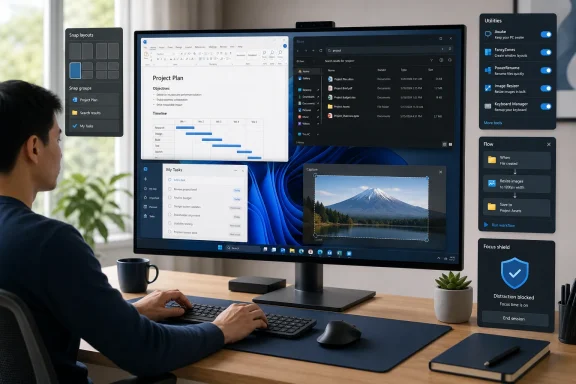
Windows 11 already includes several features that are easy to overlook: Snap layouts, Snap Assist, clipboard history, virtual desktops, Focus sessions, Do Not Disturb, and the Snipping Tool. Snap layouts alone can organize open windows into predefined arrangements, while Snap Assist helps fill the remaining positions with other active apps. Microsoft’s Snap documentation shows that these layouts can be activated with the maximize-button flyout or the Windows + Z shortcut.
That built-in foundation should shape every app decision. If Windows clipboard history, opened with Windows + V, already handles ordinary copying and pasting, a third-party clipboard manager may be unnecessary. If Snap layouts are enough for two apps side by side, a dedicated window manager can wait.
The central question is simple: what repeatedly interrupts the work?
- Losing files in deeply nested folders
- Forgetting small commitments
- Reopening the same work applications every morning
- Repeating identical clicks or keystrokes
- Capturing screenshots for documentation
- Switching among too many windows
- Falling into websites or apps that consume attention
- Misjudging where the workday actually goes
Each problem has a different solution. A task manager cannot repair slow file retrieval, and a note-taking tool cannot make a distracting app less distracting.
1. Microsoft PowerToys: The Best Overall Windows Productivity Toolkit
Microsoft PowerToys is the strongest overall recommendation because it improves Windows itself rather than trying to replace the user’s existing workflow. Microsoft describes PowerToys as a free, open-source collection of utilities for customizing and streamlining Windows, and the current suite covers a remarkably broad set of small but useful system-level improvements. The official PowerToys documentation lists tools including FancyZones, Peek, PowerRename, Text Extractor, Always On Top, Keyboard Manager, Image Resizer, Command Palette, Color Picker, and Workspaces.
The appeal is not that every user needs every module. Most do not. The appeal is that PowerToys lets users solve several small frustrations without signing up for another cloud-based productivity platform.
Where PowerToys saves time
- FancyZones creates advanced custom window layouts beyond the defaults in Snap.
- PowerRename handles bulk file renaming with search, replace, regular expressions, and undo.
- Peek previews supported file contents without fully opening the associated application.
- Text Extractor uses OCR to copy text visible anywhere on screen.
- Always On Top pins a window over others with a keyboard shortcut.
- Workspaces can reopen and position a saved group of applications for a specific activity or project.
Workspaces is especially useful for recurring projects. Microsoft says the feature can launch applications into custom positions and configurations with a single click, making it practical for a repeatable “research,” “editing,” or “support” desktop state. Microsoft’s Workspaces guide also notes an important limitation: apps launch first and are then moved into place, so repositioning may be visibly noticeable.
The risk is overconfiguration. Enabling every module, memorizing every shortcut, and treating the settings page as a hobby can undermine the tool’s purpose. Start with one module tied to one repeated problem. FancyZones for chaotic layouts, PowerRename for file cleanup, or Text Extractor for copying inaccessible text is enough to establish whether PowerToys belongs in the workflow.
2. Microsoft To Do: Best Free Task Manager for Microsoft Users
Microsoft To Do is the sensible default for Windows users who want a straightforward, low-friction task list. It is particularly appropriate for people already using a Microsoft account, Outlook, or Microsoft 365 services.
Its core approach is refreshingly narrow: create tasks, add dates and reminders where needed, break larger work into steps, and identify today’s priorities in My Day. That simplicity is a strength because personal task management often fails when the organizing system requires more work than the tasks themselves.
Microsoft To Do is best for:
- Students tracking assignments and deadlines
- Office workers managing follow-ups
- Personal errands and household lists
- Users who want Outlook-related task integration
- People who do not need elaborate project dependency views
It is less suitable for complicated shared projects, sophisticated custom filters, or teams that need an integrated project-management workspace. In those cases, Todoist or Notion may be a better fit. But for many Windows users, a task list that gets used every day beats a feature-rich platform that becomes another neglected dashboard.
3. Todoist: Best Cross-Platform Task Manager
Todoist is a stronger choice when tasks need more structure than Microsoft To Do offers, without becoming a full business workspace. It supports due dates, recurring tasks, calendar planning, filters, projects, and shared task spaces. Todoist’s official overview highlights its support for scheduling, recurring tasks, calendar views, and shared team task organization.
Its major advantage is reach. Todoist is designed for users who capture tasks from different devices and operating systems, making it practical for people who move between a Windows desktop, mobile device, web browser, and other computers during the day.
Todoist is especially effective when tasks are the center of the productivity system:
- Recurring administrative work
- Client follow-ups
- Personal and professional task capture
- Shared household or small-team responsibilities
- Deadline-driven project lists
The potential downside is that added flexibility can invite overengineering. Complex labels, priorities, filters, and projects are useful only if they help decisions happen faster. A clean project list and a realistic daily view are usually more valuable than a dozen finely tuned filters.
4. TickTick: Best All-in-One Personal Productivity App
TickTick is for users who genuinely prefer a more integrated personal planning environment. The app combines task management with calendars, focus timers, habit tracking, Kanban-style views, timeline planning, countdowns, and prioritization tools. The supplied reporting on TickTick’s Windows features identifies this breadth as its defining advantage.
That combination can eliminate app switching. A student can place assignments, exam dates, habits, and Pomodoro-style focus sessions in one account. A freelancer can combine client tasks, recurring routines, calendar planning, and short focus blocks without maintaining separate systems.
However, the same breadth can become a weakness. TickTick is not automatically better simply because it contains more modules. If habits, timers, calendar views, and matrix planning are never used, they become visual clutter.
Do not install TickTick alongside Microsoft To Do and Todoist. Choose one task platform, move the active commitments there, and commit to reviewing it consistently.
5. OneNote: Best Freeform Notebook for Windows
OneNote remains one of the most practical note-taking apps for Windows because it handles messy, mixed-format information well. Meeting notes, screenshots, handwritten sketches, lecture material, pasted research, tables, and loose planning often fit more naturally on a flexible page than in a rigid document.
There is one version issue Windows users should understand. OneNote for Windows 10 reached end of support on October 14, 2025, and it is now read-only; users can still view existing notes, but they cannot create, edit, or sync through that legacy app. Microsoft’s migration guidance directs users to the current OneNote on Windows app, which is free and available through Microsoft 365 or the Microsoft Store.
OneNote is the best fit for:
- Meeting notebooks
- Research and visual clipping
- Handwritten annotations and stylus input
- Class notes
- Project material containing text, images, and diagrams
- Users deeply invested in Microsoft services
Its weakness is information sprawl. Because it is so easy to capture material, users can accumulate hundreds of poorly titled pages. The fix is not necessarily another app; it is a basic convention for notebook names, section names, and periodic review.
6. Obsidian: Best Local-First Knowledge Management App
Obsidian is the leading option here for users who want ownership and portability of their notes. It stores notes as Markdown-formatted plain-text files in a local folder called a vault, meaning the underlying material can be accessed and edited with other file managers and text editors. Obsidian’s data-storage documentation confirms that a vault is simply a local folder and that its notes remain ordinary plain-text Markdown files.
That local-first model has important implications. Notes are not locked into a proprietary database format, and users can synchronize a vault through services such as OneDrive, Dropbox, Git, or Obsidian Sync.
Obsidian is a strong match for:
- Writers and researchers
- Developers
- Students building long-term reference collections
- Users who value offline access
- People who want linked notes and Markdown files
- Anyone concerned about portable, human-readable data
The warning is clear: Obsidian can become a customization project. Community plugins, visual themes, graph views, templates, metadata systems, and complex folder structures can consume more time than the knowledge work itself.
A productive Obsidian vault starts simply:
- Create a few sensible folders only if needed.
- Use clear titles.
- Add links when they add context.
- Install plugins only after identifying a repeated problem.
- Keep the notes more important than the setup.
7. Notion: Best Customizable Workspace for Projects and Collaboration
Notion is most useful when documents, databases, projects, and shared knowledge need to live in a connected workspace. It can combine team documents, task boards, project records, databases, templates, and collaborative pages in ways that standalone note apps cannot.
It is a good fit for teams that currently scatter knowledge across Word files, spreadsheets, chat messages, and disconnected folders. In that setting, Notion can create a central operating space rather than merely another note repository.
But Notion’s flexibility is also its largest productivity risk. Blank pages encourage elaborate dashboards, duplicated templates, and endless database tuning. A workspace can look impressive while doing very little to make actual work easier.
Use Notion when it replaces fragmentation. Avoid it when the real need is simply private notes, a quick task list, or local Markdown files. For private local knowledge, Obsidian is generally more direct. For flexible meeting notes and handwriting, OneNote is often easier.
8. Flow Launcher: Best Keyboard Launcher for Power Users
Flow Launcher turns a keyboard shortcut into a fast command center. It can search and open applications, find files, run web searches, locate browser bookmarks, open Windows settings, execute shell commands, calculate results, and extend its capabilities with plugins. Flow Launcher’s official site also confirms its support for using either Windows Search or Everything for file discovery.
The benefit is cumulative. Launching an app through a search bar may save only a few seconds compared with navigating Start menus and folders, but that savings matters when repeated dozens of times per day.
Flow Launcher is most useful for people who prefer keyboard-driven work and frequently need to:
- Open apps quickly
- Find folders or files
- Run simple calculations
- Search bookmarks
- Access Windows settings
- Execute shell or system commands
There is substantial overlap with PowerToys Command Palette and PowerToys Run. Most users should pick one launcher. Flow Launcher is the better choice for people who want plugin depth and a more dedicated launcher experience; PowerToys is the cleaner choice for users who already depend on its wider utility suite.
9. Everything: Best Instant File Search Utility
Everything solves a narrow but serious Windows productivity problem: finding files and folders by name quickly. The utility indexes filenames and folders, then updates its results in real time as the file system changes. Voidtools explains that Everything is designed to locate files and folders by filename instantly and keep search results current through file-system monitoring.
For users with large drives, unorganized Downloads folders, archives, media libraries, development projects, or years of documents, this can be transformative. Instead of browsing folder trees and guessing whether a file was named “invoice-final,” “final-invoice,” or “invoice-new,” users can type part of the name and filter the result list.
Everything is particularly valuable for:
- Large local storage collections
- Inconsistent file naming
- Rapid access to project folders
- Finding recently modified content
- Locating file types or extensions
- Power users who want a lightweight search layer
Its limitation matters. Everything is primarily optimized around filenames and paths. It should not be confused with a knowledge-management app or a full semantic document search engine. It can search file contents in certain cases, but Voidtools notes that content searching is not indexed and is slower. The Everything FAQ makes that distinction explicit.
10. ShareX: Best Screenshot and Capture Workflow App
ShareX becomes valuable when screenshots are not occasional accidents but part of the job. Documentation writers, editors, software testers, support staff, developers, and researchers often need more than a quick screen grab. They need annotation, consistent naming, OCR, image processing, upload options, and repeatable after-capture actions.
A standout feature is scrolling capture. ShareX can capture a web page or document extending beyond the visible screen, automatically combining multiple screenshots into a single image. ShareX’s scrolling-capture guide explains that it scrolls through the selected content and stitches the captured sections together.
ShareX is ideal for workflows such as:
- Capture a selected region
- Add arrows, blur sensitive material, or annotate
- Save in a chosen format and folder
- Copy the result to the clipboard
- Upload or attach it to a ticket
The downside is complexity. ShareX has accumulated a large number of settings and workflows over time. For occasional captures, Windows Snipping Tool is simpler. ShareX becomes worth installing when screenshots and screen recordings are recurring work outputs rather than one-off actions.
11. Ditto: Best Advanced Clipboard Manager
Windows clipboard history is the right place to start. Press Windows + V, enable the feature if necessary, and see whether its history and pinning options cover the need.
Ditto is for users who regularly copy multiple items in sequence and need more history, search, or control than the built-in tool provides. It can retain copied text, images, HTML, and other clipboard formats for later retrieval. The supplied reporting notes that Ditto is designed around local storage and does not require a cloud account.
It is useful for:
- Customer-support responses
- Coding snippets
- Repeated form entries
- Research excerpts
- Spreadsheet values
- File paths
- Product specifications
The privacy trade-off deserves attention. Clipboard content can include passwords, access tokens, private messages, customer data, and other sensitive information. A long-lived clipboard history should be treated as sensitive data, with exclusions and retention settings considered carefully.
12. AutoHotkey: Best Custom Windows Automation Tool
AutoHotkey is one of the most powerful Windows productivity tools because it lets users define their own behavior for keys, shortcuts, text expansion, window management, and repetitive actions. It is best understood as a scripting environment for personal desktop automation, not merely a shortcut utility.
A small script can expand an abbreviation into a standard email response, remap an inconvenient key, open an application set, move windows, or automate a predictable sequence of inputs. The payoff is precision: the desktop begins adapting to recurring user behavior.
The risk is equally real. AutoHotkey scripts can interact with applications, files, keyboard input, and the operating system. Never run a script copied from an untrusted source simply because it promises a productivity shortcut. Read it, understand it, and test it with low-risk tasks first.
The recommended entry point is modest:
- Create a text-expansion shortcut.
- Add a simple custom hotkey.
- Remap one unused or inconvenient key.
- Build from there only when a manual process repeats often enough.
AutoHotkey is best for users willing to learn basic scripting logic. Users who prefer visual, drag-and-drop automation should look to Power Automate for Desktop instead.
13. Power Automate for Desktop: Best Visual Windows Automation
Power Automate for Desktop brings robotic process automation to routine Windows work without requiring users to start with traditional scripting. Microsoft says desktop flows can automate repetitive desktop processes through prebuilt drag-and-drop actions or recorded interactions. Microsoft’s desktop-flow introduction also says the tool can interact with email, Excel, files, folders, modern web apps, and legacy applications.
This makes it useful for stable, rule-based workflows:
- Sorting and moving downloaded files
- Extracting structured web data into Excel
- Renaming or processing documents
- Transferring information between applications
- Backing up folders
- Repetitive form entry
- Older business software with predictable interfaces
Microsoft’s documentation notes that desktop automation can target UI elements, images, or screen coordinates. Its guidance on desktop flows also points to the limitation: an automation that depends on a precise interface state can fail when an app changes, a login prompt appears, or a window is moved.
The best practice is to automate an already stable manual process. Do not automate a broken or poorly understood process and expect the software to make it reliable.
14. Cold Turkey Blocker: Best Strict Distraction Blocker
Cold Turkey Blocker is aimed at users who have learned that gentle reminders and browser extensions are easy to bypass. It can block websites, URLs, searches, apps, folders, Microsoft Store apps, and—in some configurations—even broader internet access. The supplied report identifies its strict blocking and schedule options as the core appeal.
This matters because distraction is not confined to websites. Games, launchers, media apps, messaging tools, and social platforms can fracture concentration just as effectively as an open browser tab.
Cold Turkey is most appropriate for:
- Writing sessions
- Exam preparation
- Deep coding work
- Time-sensitive project blocks
- Users who need a deliberate barrier to habitual distractions
Strict blocking needs careful planning. Blocking a necessary research site, communication app, or password manager can make the work session harder, not easier. Define the permitted resources first, then restrict the known distractions.
15. RescueTime: Best Automatic Time Tracking and Focus Analysis
RescueTime is most useful before a major productivity overhaul because it helps diagnose where time is actually going. The software tracks activity across applications and websites, then turns those records into productivity reports, goals, alerts, focus sessions, and blocking options. The supplied report notes that RescueTime sends activity data to its servers for reporting but says it does not collect keystrokes, screenshots, form input, or webpage content.
The real value is not another dashboard. It is evidence. A user may assume email is consuming the day and discover that unstructured browser research is the larger drain. Another may find that their most focused work happens early in the morning and is repeatedly interrupted by meetings.
The privacy trade-off must be accepted consciously. Any tool that records app and website activity has access to meaningful behavioral information, even when it does not record typed content. RescueTime is worthwhile only when its findings lead to action: protected focus time, fewer meetings, blocked sites, better project estimates, or a changed daily schedule.
Build a Smaller, More Effective Windows Productivity Stack
The best productivity apps for Windows are not the most ambitious applications or the ones with the longest feature lists. They are the tools that remove enough repeated friction to justify their presence on the machine.
A sensible lightweight setup might look like this:
- PowerToys for system-level Windows improvements
- One task manager: Microsoft To Do, Todoist, or TickTick
- One note system: OneNote, Obsidian, or Notion
- Everything for fast file retrieval
- ShareX only if screenshots are regular work
- AutoHotkey or Power Automate for Desktop when repetition is genuinely costly
- Cold Turkey or RescueTime when attention or time visibility is the real problem
The discipline is not in finding fifteen apps. It is in refusing the fourteen that do not solve a problem you actually have. A Windows desktop becomes more productive when tasks are easier to complete, information is easier to find, and distractions are harder to indulge—not when every empty corner is filled with another dashboard.
